1. Product Overview
The Wantek 682NUSB/3.5mm Headset is designed for clear communication and comfortable use across various devices. It features a noise-cancelling microphone and multiple connectivity options for versatility.
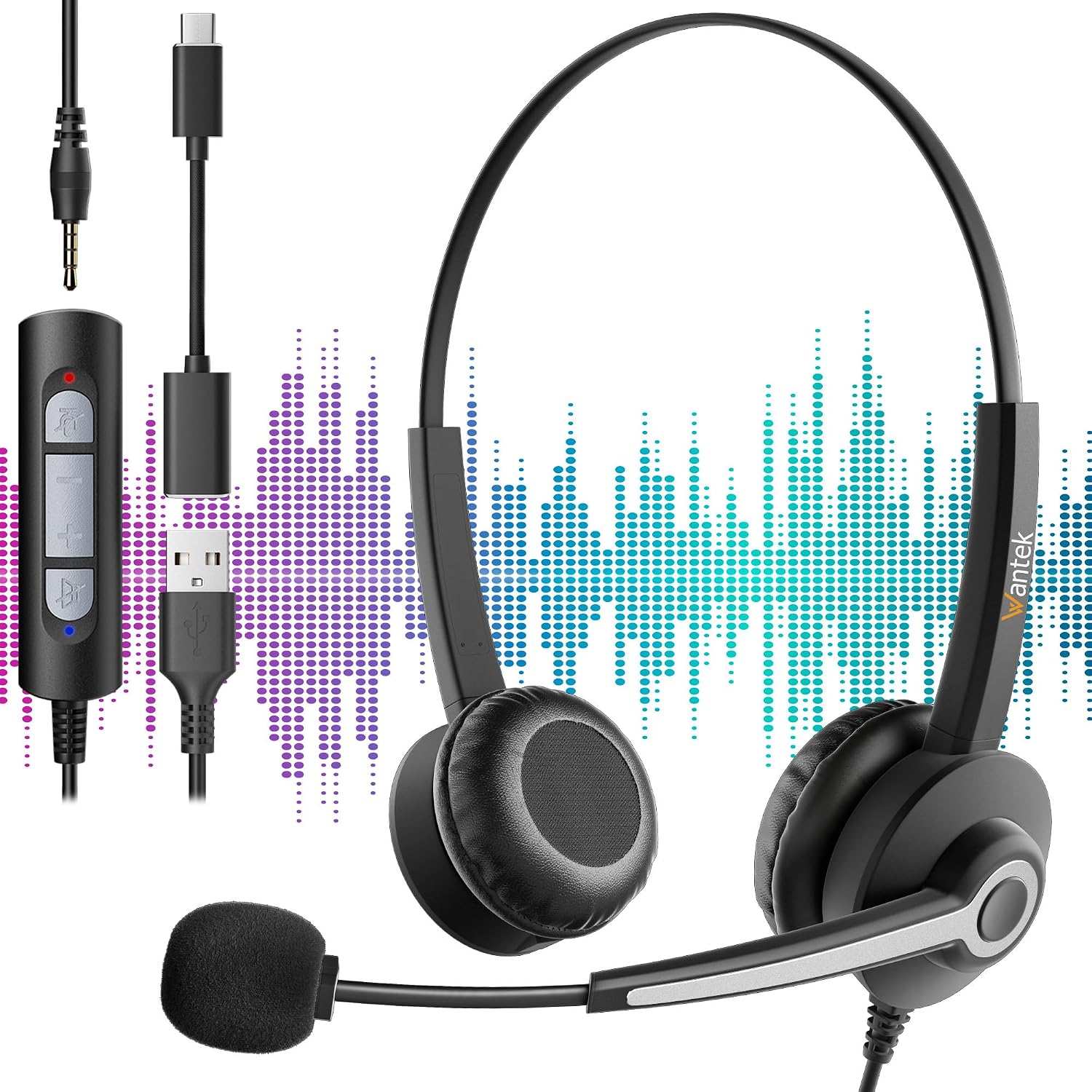
Figure 1: Wantek 682NUSB/3.5mm Headset with its 3.5mm, USB-A, and USB-C connectors, illustrating its multi-device compatibility.
2. Setup and Connection
The headset offers flexible connectivity options to suit different devices.
2.1 Connecting via 3.5mm Jack
- Locate the 3.5mm audio jack on your device (e.g., smartphone, tablet, laptop).
- Insert the 3.5mm connector of the headset into the device's audio jack.
- Ensure the connection is secure. Your device should automatically detect the headset.
2.2 Connecting via USB-A or USB-C
- The headset includes adapters for USB-A and USB-C connectivity.
- Connect the 3.5mm jack of the headset to the appropriate USB adapter (USB-A or USB-C).
- Insert the USB-A or USB-C adapter into a compatible port on your computer or laptop.
- The device should recognize the headset as an audio input/output device. You may need to select it as the default communication device in your operating system's sound settings.
3. Operating Instructions
3.1 Wearing the Headset
- Adjust the headband to fit comfortably over your head. The headband is adjustable to accommodate various head sizes.
- Position the ear cushions over your ears. The cushions are made from soft, breathable synthetic leather for extended comfort.

Figure 2: Key features of the headset, including the adjustable headband, soft ear cushions, flexible microphone boom, and 270-degree microphone rotation.
3.2 Microphone Adjustment
- The microphone boom is flexible. Position it approximately 1-2 inches from your mouth for optimal voice pickup.
- The microphone arm can rotate 270 degrees, allowing you to position it on either your left or right side, or rotate it upwards and out of the way when not in use.
- The integrated noise-cancelling chip helps to reduce background noise, ensuring clear voice transmission.

Figure 3: Visual representation of the noise-cancelling technology, showing how it filters out background noise for clearer communication.
3.3 In-line Controls
The headset features an in-line control unit for easy management of calls and audio.
- Volume Up/Down: Use the '+' and '-' buttons to adjust the listening volume.
- Answer/End Call: Press the call button to answer an incoming call or end an active call.
- Microphone Mute: Press the microphone button to mute or unmute the microphone.
A small clip is attached to the cable to secure the control unit to your clothing, preventing it from dangling.
4. Maintenance and Care
- Cleaning: Use a soft, dry cloth to wipe the headset. For ear cushions, a slightly damp cloth can be used, but ensure they are completely dry before use. Avoid harsh chemicals or abrasive cleaners.
- Storage: Store the headset in a clean, dry place away from extreme temperatures and direct sunlight.
- Cable Care: Avoid sharp bends or excessive pulling on the cables to prevent damage.
- Microphone: Handle the microphone boom gently when adjusting its position.
5. Troubleshooting
5.1 No Sound from Headset
- Check Connections: Ensure the 3.5mm jack or USB adapter is fully inserted into the device.
- Volume Levels: Verify that the volume on the in-line control and on your device is not muted or set too low.
- Device Settings: For USB connections, check your computer's sound settings to ensure the headset is selected as the default playback device.
- Test on Another Device: Try connecting the headset to a different device to determine if the issue is with the headset or the original device.
5.2 Microphone Not Working
- Check Mute Button: Ensure the microphone mute button on the in-line control is not activated.
- Microphone Position: Verify the microphone boom is positioned correctly and not rotated out of the way.
- Device Settings: For USB connections, check your computer's sound settings to ensure the headset microphone is selected as the default recording device and that its input volume is adequate.
- Application Settings: Some communication applications (e.g., Zoom, Skype) have their own microphone settings. Check these settings within the application.
6. Specifications
| Feature | Description |
|---|---|
| Model Number | 682NUSB/3.5mm |
| Brand | Wantek |
| Connectivity Technology | Wired |
| Connectivity Options | 3.5mm, USB-A (via adapter), USB-C (via adapter) |
| Compatible Devices | Gaming Console, Laptop, Tablet, Phone, Music Production Equipment |
| Microphone | Noise-cancelling, 270-degree rotation, Flexible boom |
| Ear Placement | Supra-aural (On-Ear) |
| Impedance | 1 ohms |
| Sound Isolation | Passive Noise Reduction |
| Materials | Aluminum, Metal, Plastic, Polycarbonate (PC), Synthetic Leather |
| Included Components | Headset, USB-A Adapter, USB-C Adapter, User Manual |
| Recommended Uses | Professional use, Video Gaming, Call Center, Online Chat |
7. Warranty and Support
Wantek products are designed for reliability and performance. For warranty information, please refer to the documentation included with your purchase or visit the official Wantek website.
If you encounter any issues or require technical assistance, please contact Wantek customer support through their official channels. Have your product model number (682NUSB/3.5mm) and purchase details ready when contacting support.


