
1. Introduction
The Sycelu RF Remote Control Page Turner is designed to provide a hands-free and comfortable reading experience for various touchscreen e-readers and tablets. This manual provides essential information for setting up, operating, and maintaining your device.
2. Package Contents
- 1 x RF Remote Control
- 1 x Screen Sensor Clip
- 2 x USB-C Charging Cables
3. Product Overview
The Sycelu Page Turner consists of two main components: a remote control and a screen sensor clip. The remote allows you to wirelessly turn pages, while the clip attaches to your e-reader's screen to simulate a touch.

Figure 1: Overview of the Sycelu RF Remote Control Page Turner components.
4. Setup
4.1 Charging the Devices
Both the remote control and the screen sensor clip are rechargeable via USB-C. Use the provided cables to charge them fully before first use. A full charge can last for several weeks with typical usage.

Figure 2: USB-C charging ports on the remote and clip.
4.2 Pairing the Remote Control and Clip
- Step 1: Activate the screen sensor clip. Click the button on the screen sensor clip. The indicator light will show blue, indicating it is powered on.
- Step 2: Pair with the remote control. Click the button on the RF remote control. The screen sensor clip indicator light will flash blue three times, confirming a successful connection.
- Step 3: Attach the screen sensor clip to your e-reader. Clip the screen sensor on your Kindle or other compatible device in a suitable position. Ensure the silicone pad touches the screen where you would normally tap to turn a page.

Figure 3: Visual guide for initial setup and pairing.
5. Operating Instructions
5.1 Attaching the Screen Sensor Clip
Position the screen sensor clip on your e-reader so that its silicone pad makes contact with the screen. This simulates a finger tap. Adjust your e-reader's margin settings if necessary to prevent the clip from covering text.

Figure 4: Correct placement of the screen sensor clip.
Important Tip: The total thickness of your device, including any case, should not exceed 0.45 inches (1.14 cm) for proper functionality of the page turner.

Figure 5: Device thickness compatibility.
5.2 Turning Pages
Once the clip is attached and paired, simply press the button on the remote control to turn the page forward. For devices that support it, you can also clip the sensor on the left side to turn pages backward.

Figure 6: Page turning functionality with clip placement.
5.3 Mute Button Design
The remote control features a mute button, allowing for quiet page turns. This is particularly useful for reading in quiet environments or at night, minimizing disturbance.

Figure 7: Mute button for silent operation.
5.4 Other Functions
Beyond e-reading, the remote control can also be used for hands-free camera and video recording on compatible smartphones and tablets.
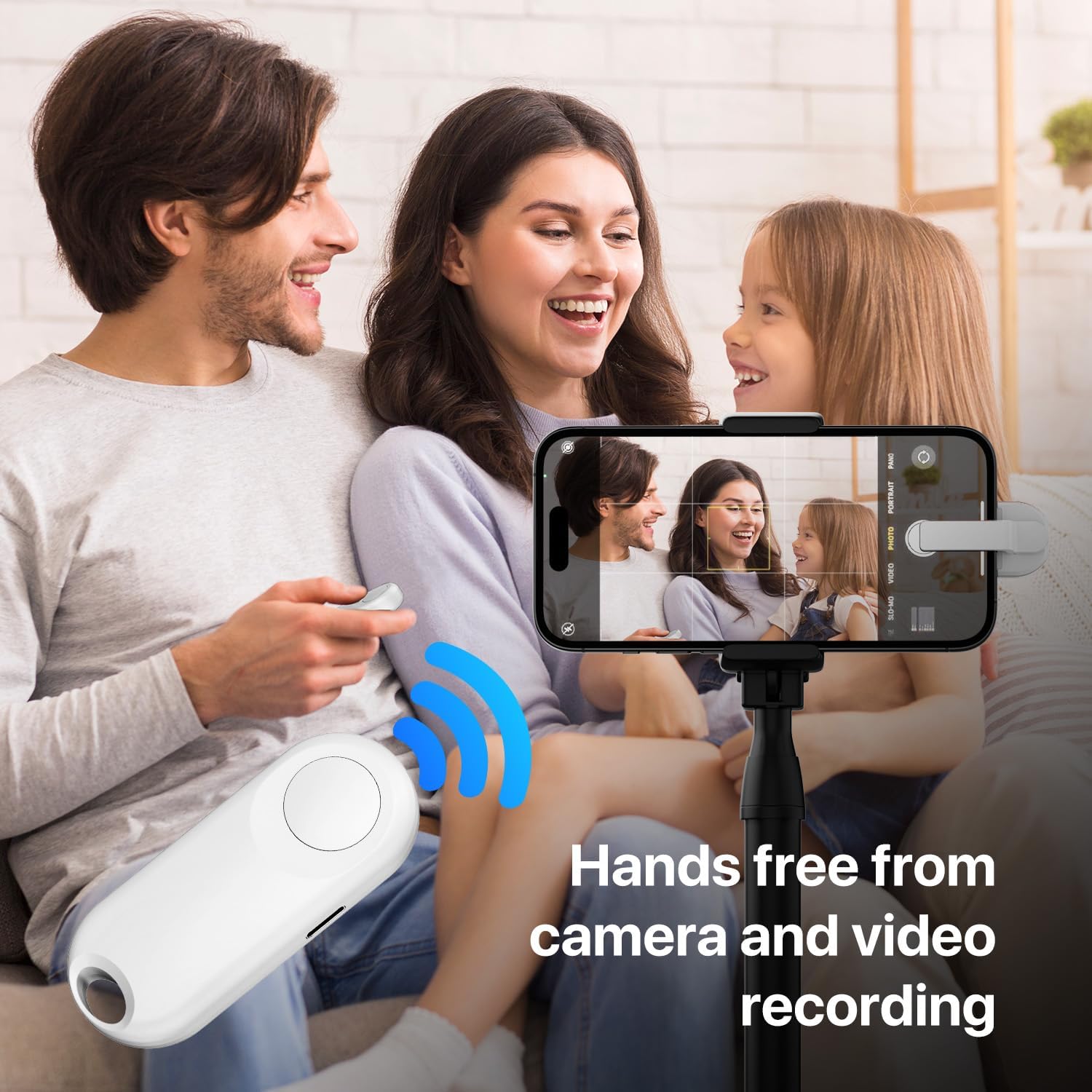
Figure 8: Remote control for hands-free camera and video recording.
6. Compatibility
The Sycelu RF Remote Control Page Turner is widely compatible with various touchscreen e-readers and tablets. Compatible devices include:
- Kindle (excluding Kindle 8th Generation)
- Kindle Paperwhite
- Kindle Oasis
- Kindle Kids Edition
- Kindle Voyage
- iPad
- iPhone
- Android Tablets
- Surface
- Kobo
Incompatible Devices: Please note that the Amazon Fire HD 10 (10th/11th generation) and Kindle 8th Generation are not compatible with this device.
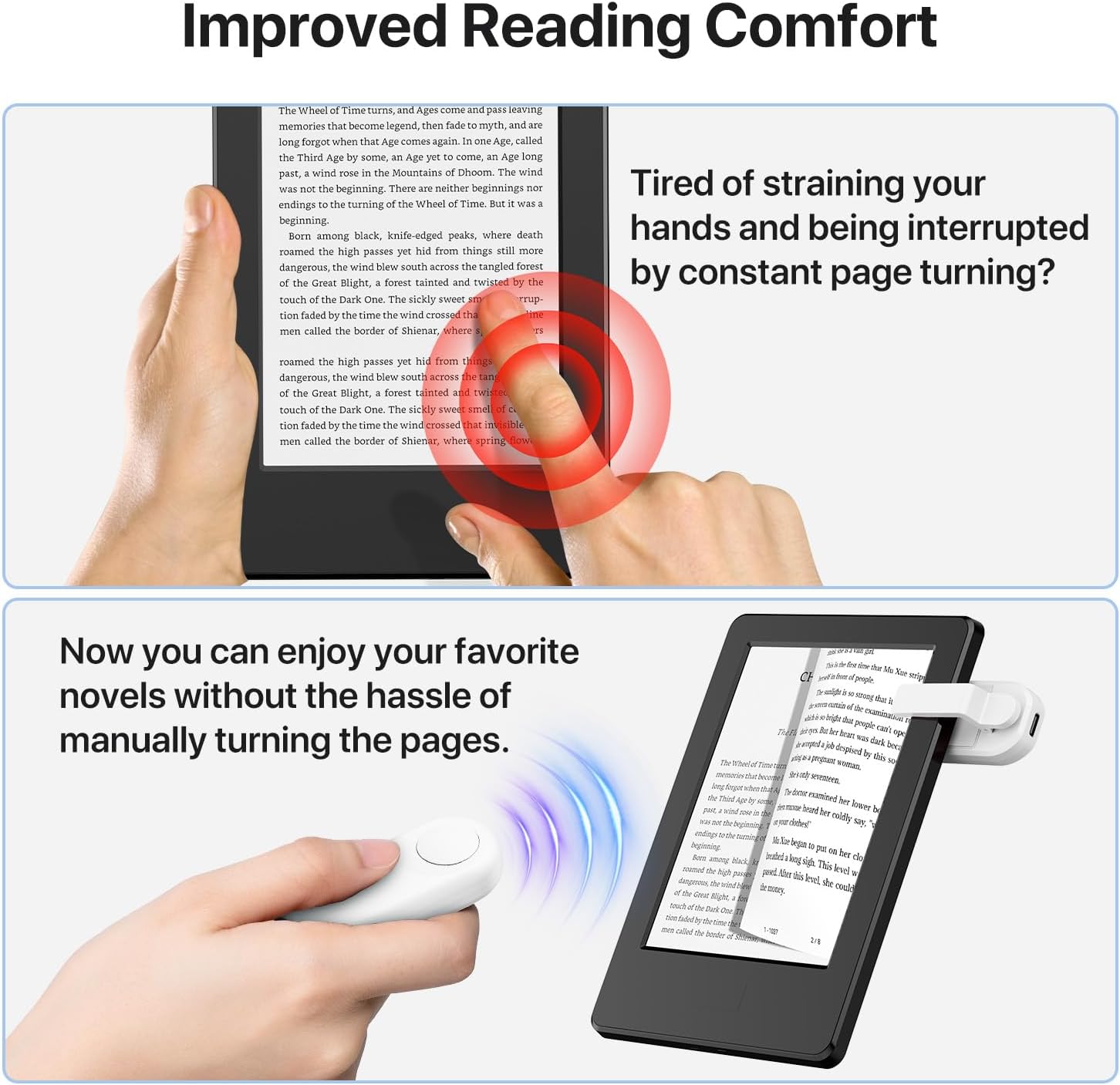
Figure 9: Device compatibility overview.
7. Maintenance
- Keep the device clean by wiping with a soft, dry cloth.
- Avoid exposing the device to extreme temperatures, moisture, or direct sunlight.
- Store the remote and clip together to prevent misplacement, especially given their magnetic design.
8. Troubleshooting
- Device not turning on: Ensure both the remote and clip are fully charged.
- Not pairing: Make sure both devices are powered on and within close proximity. Repeat the pairing steps (Section 4.2).
- Page turning not working:
- Verify the screen sensor clip's silicone pad is making proper contact with the e-reader screen.
- Check if your device's total thickness (with case) exceeds 0.45 inches, which can prevent proper contact.
- Ensure the clip is not covering any essential parts of the screen or interfering with the e-reader's interface.
- Incorrect page turning (e.g., backward instead of forward): Adjust the clip's position on the screen. For most e-readers, placing the clip on the right side of the screen will turn pages forward.
9. Specifications
| Feature | Detail |
|---|---|
| Product Dimensions | 5.5 x 3.9 x 1.26 inches (14 x 9.9 x 3.2 cm) |
| Item Weight | 4.8 ounces (136 grams) |
| Item Model Number | FYQ-K1 |
| Batteries | 2 Lithium Polymer batteries (included) |
| Special Feature | Rechargeable |
| Color | White |
| Max Supported Devices | 1 |
| Compatible Devices | Kindle (except 8th Gen), E-reader, Kobo, Tablet, Surface |
10. Warranty and Support
For warranty information and customer support, please refer to the product packaging or contact Sycelu customer service directly. Keep your purchase receipt for any warranty claims.