
Vonztek BT881-CD-NEW
Vonztek Bluetooth Headset User Manual
Model: BT881-CD-NEW
1. Introduction
Thank you for choosing the Vonztek Bluetooth Headset. This wireless headset is designed to provide crystal-clear communication and superior comfort for various professional and personal uses, including work, office, PC, meetings, Zoom, Skype, and MS Teams. Featuring advanced noise-canceling technology, a convenient mute button, and dual connectivity options, it ensures a seamless audio experience. This manual provides detailed instructions for setup, operation, and maintenance to help you get the most out of your new headset.
2. What's in the Box
- Wireless Headset
- Charging Station
- USB Audio Dongle
- USB-C Charging Cable
- User Manual

Image: The Vonztek Bluetooth Headset, its charging dock, and the included USB dongle, showcasing all main components.
3. Product Overview
Familiarize yourself with the key features and controls of your Vonztek headset.

Image: Close-up of the headset ear cup, highlighting multi-angle rotation, breathable material, and memory foam cushions for comfort.
Comfort and Design: The headset features soft memory foam ear pads with a leatherette cover for maximum comfort during extended use. The ear cups offer multi-angle rotation, and the headband is adjustable for a personalized fit.
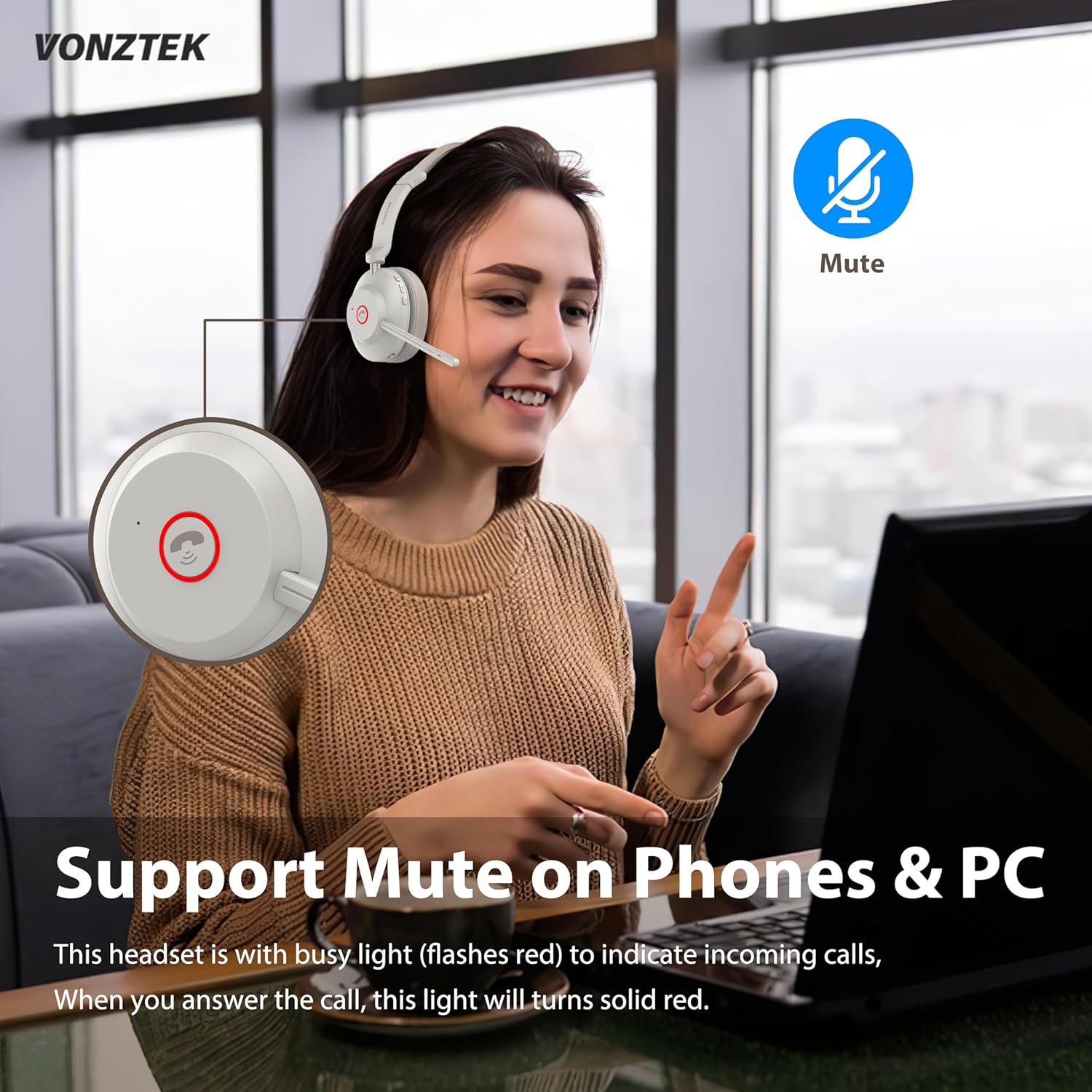
Image: Diagram showing the headset's mute button and its function for phone and PC calls.
Mute Function: A dedicated mute button is integrated for easy control during calls. The headset also features a busy light that flashes red for incoming calls and turns solid red when a call is answered.

Image: A woman using the headset in an office setting, with a graphic illustrating 99.6% noise cancellation by the advanced AI Environmental Noise Cancellation Technology.
Noise-Canceling Microphone: Equipped with a cutting-edge noise-canceling microphone, the headset effectively eliminates background noise, ensuring clear voice transmission for superior call quality.

Image: An exploded view of the headset's internal components, highlighting the Bluetooth 5.3 chip for stable and fast connections.
Bluetooth 5.3 & USB Dongle: The latest Bluetooth 5.3 chip provides seamless and stable connectivity. An included USB dongle offers an alternative connection method for devices without built-in Bluetooth, extending connectivity range up to 33ft/10m.
4. Setup
4.1 Charging the Headset
The Vonztek headset is equipped with a 500mAh battery, offering up to 45 hours of talk time. It can be charged via the charging dock or directly via the USB-C port.
- Using the Charging Dock: Connect the USB-C charging cable to the charging dock and then to a power source (e.g., computer USB port, wall adapter). Place the headset onto the charging dock. The indicator light on the headset will flash red while charging and turn off when fully charged.
- Direct Charging: Connect the USB-C charging cable directly to the USB-C port on the headset and then to a power source.

Image: Illustration showing two charging methods: direct USB-C cable connection to the headset and charging via the included dock.
4.2 Connecting the Headset
The headset supports dual connection methods: Bluetooth 5.3 and a USB dongle.
- Bluetooth Connection:
- Turn on the headset by sliding the power switch to the "ON" position.
- To enter pairing mode, slide and hold the power switch in the "ON" position until the indicator light starts flashing blue and red.
- On your device (smartphone, tablet, laptop), enable Bluetooth and search for "Vonztek BT881".
- Select the headset from the list of available devices to pair. Once connected, the indicator light will turn solid blue.
- USB Dongle Connection:
- Plug the USB Audio Dongle into an available USB port on your PC or laptop.
- Turn on the headset. It will automatically connect to the USB dongle. The indicator light on the dongle will turn solid blue once connected.
- This method provides a stable connection without requiring Bluetooth on your computer.
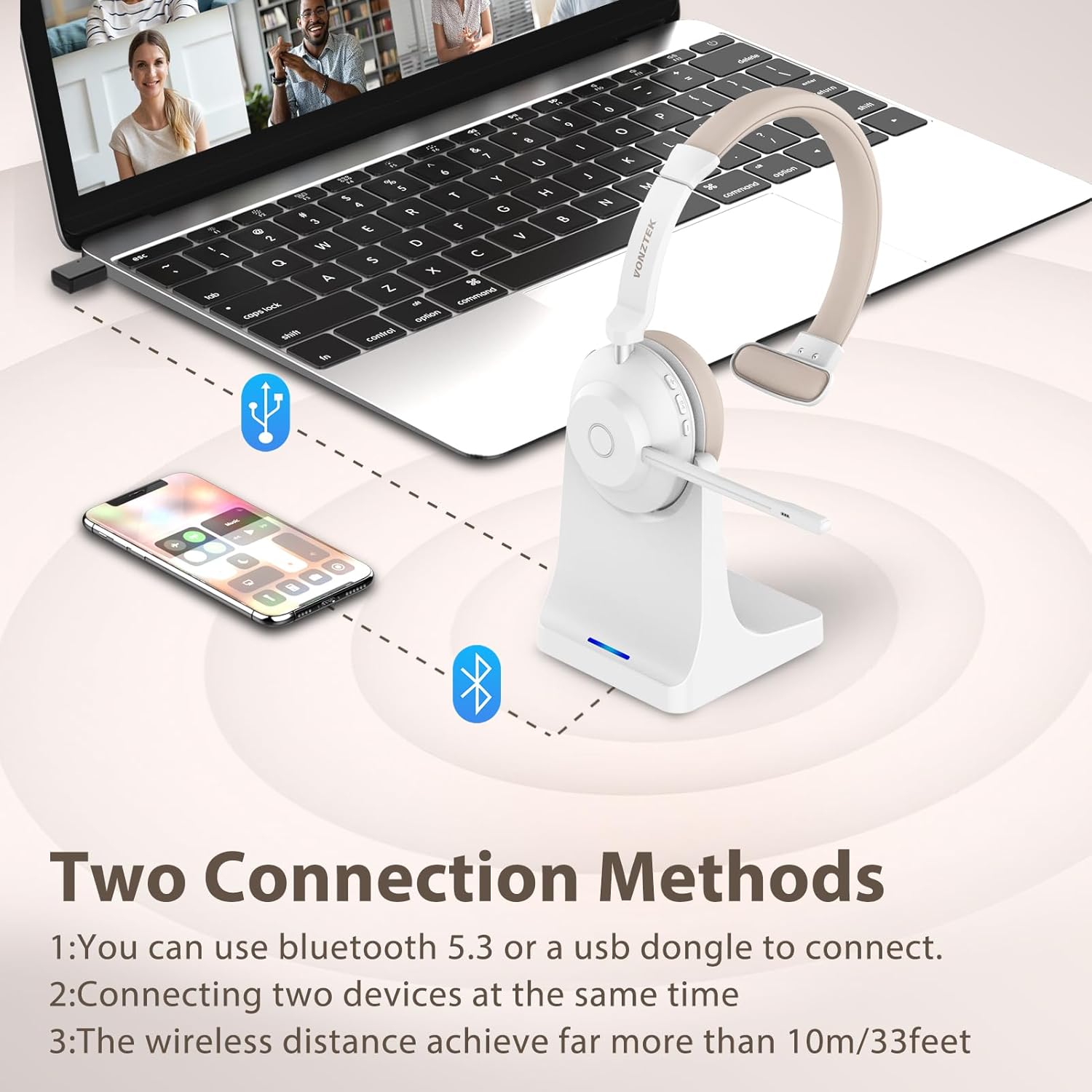
Image: Visual representation of connecting the headset to a laptop via USB dongle and to a smartphone via Bluetooth, illustrating dual connection capability.
5. Operating the Headset
5.1 Basic Controls
- Power On/Off: Slide the power switch to "ON" or "OFF".
- Volume Up/Down: Use the dedicated volume buttons on the ear cup.
- Play/Pause: Press the multi-function button (often the main button on the ear cup).
- Answer/End Call: Press the multi-function button.
- Reject Call: Press and hold the multi-function button.
- Mute/Unmute Microphone: Press the mute button located on the microphone arm or ear cup. An audible prompt will confirm "Mute On" or "Mute Off".
Video: A detailed demonstration of the Vonztek Bluetooth Headset, including unboxing, physical features, controls, and an audio test of the microphone's clarity and mute function. This video highlights the ease of use and sound quality for PC communication.
Video: A concise overview of the Vonztek Bluetooth Headset's features, including its noise-canceling microphone, long battery life, dual connectivity, and comfortable design. This video provides a quick visual summary of the product's main benefits.
5.2 Compatibility
This wireless headset is universally compatible with most communication platforms and devices, including:
- PCs and Laptops
- Smartphones and Tablets
- Communication Platforms: Skype, Zoom, MS Teams, Google Meet, GoToMeeting, Cisco Webex, 3CX, FaceTime, WhatsApp, Slack.

Image: A man using the headset with a computer, surrounded by logos of various compatible communication platforms like Zoom, MS Teams, Skype, and Google Meet.
6. Maintenance
- Cleaning: Use a soft, dry cloth to clean the headset and charging dock. Avoid using abrasive cleaners or solvents.
- Storage: Store the headset in a cool, dry place away from direct sunlight and extreme temperatures. When not in use, place it on the charging dock to keep it organized and charged.
- Battery Care: To prolong battery life, avoid fully discharging the headset frequently. Charge it regularly, even if not in constant use.
7. Troubleshooting
| Problem | Possible Solution |
|---|---|
| Headset does not power on. | Ensure the headset is charged. Connect it to the charging dock or directly via USB-C cable. |
| Cannot pair via Bluetooth. | Ensure the headset is in pairing mode (flashing blue/red light). Check if Bluetooth is enabled on your device. Move the headset closer to the device. Forget previous pairings on your device and try again. |
| No sound or poor sound quality. | Check the volume levels on both the headset and your connected device. Ensure the headset is selected as the audio output device in your system settings. Recharge the headset if the battery is low. |
| Microphone not working. | Ensure the microphone is not muted. Check the microphone input settings on your computer/device. Ensure the microphone arm is properly positioned. |
| USB dongle not connecting. | Ensure the dongle is fully inserted into the USB port. Try a different USB port. Restart your computer. |
8. Specifications
| Feature | Detail |
|---|---|
| Model Name | BT881-CD-NEW |
| Brand | Vonztek |
| Connectivity Technology | Wireless (Bluetooth 5.3) |
| Wireless Communication Technology | Bluetooth |
| Bluetooth Version | 5.3 |
| Bluetooth Range | 15 Meters (approx. 49 feet) |
| Noise Control | Passive Noise Cancellation |
| Frequency Response | 20 Hz - 20,000 Hz |
| Sensitivity | 112 dB |
| Impedance | 32 Ohm |
| Audio Driver Type | Dynamic Driver |
| Audio Driver Size | 40 Millimeters |
| Battery Life | 45 Hours (Talk Time) |
| Charging Time | 3 Hours |
| Material | Leather |
| Style | Single Ear |
| Control Method | Touch, Button |
| Item Weight | 1.17 pounds |
| Package Dimensions | 8.23 x 7.48 x 3.78 inches |
9. Warranty & Support
Vonztek provides a 12-month warranty for this product. For any problems or inquiries, please feel free to contact Vonztek customer support. They offer 24-hour support to assist you with any issues or questions you may have regarding your headset.
For support, please refer to the contact information provided in the original product packaging or visit the official Vonztek website.
Related documentsBT881-CD-NEW


Ask a question about this manual
Ask about setup, troubleshooting, compatibility, parts, safety, or missing instructions. Manuals+ will review the question and use this page’s manual context to help answer it.