
VGN N75ORANGE
VGN N75 Dynamic Silver Jelly Orange Gaming Keyboard User Manual
Model: N75ORANGE | Brand: VGN
Product Overview
The VGN N75 is a compact US82 key numeric keyless keyboard featuring a 75% layout. Its internal construction incorporates multiple buffer layers and specially tuned stabilizers, designed to provide a smooth typing experience with minimal noise. The N75 is equipped with a "Dynamic Silver" switch, an original VGN mechanical switch that offers RGB illumination and a linear key feel, ideal for gaming and general use.

Figure 1: Top-down view of the VGN N75 keyboard, showcasing its compact layout and vibrant RGB backlighting.
Setup Guide
- Unboxing: Carefully remove the VGN N75 keyboard and all accessories from the packaging. Ensure all components are present: keyboard, USB-C cable, and any included documentation.
- Connectivity: The VGN N75 connects via USB-C. Locate the USB-C port on the keyboard, typically on the top edge.
- Connecting to Your Device:
- Insert one end of the provided USB-C cable into the keyboard's USB-C port.
- Insert the other end of the USB-C cable into an available USB port on your computer (e.g., desktop PC, laptop, or compatible notebook PC).
- Initial Recognition: Your operating system should automatically detect and install the necessary drivers for the keyboard. This is typically a plug-and-play process. Allow a few moments for the system to complete this.
- Testing: Open a text editor or any application where you can type to confirm that all keys are functioning correctly.
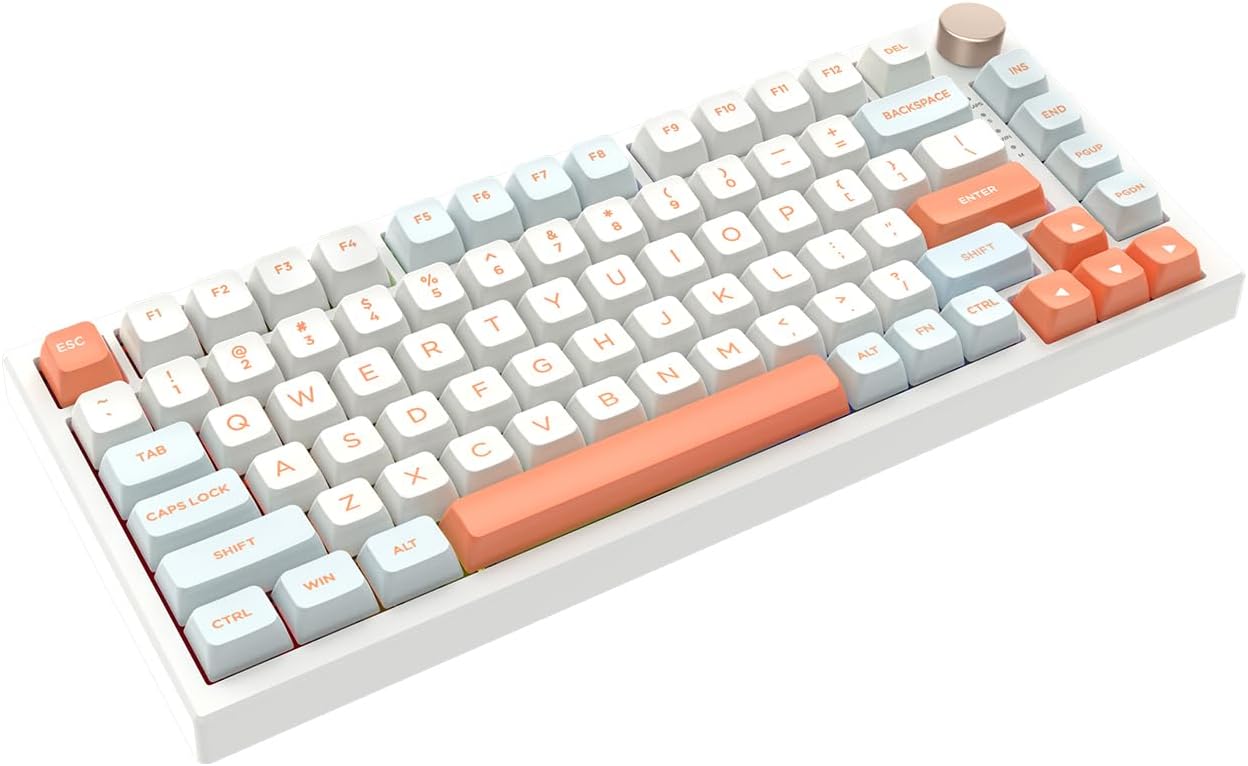
Figure 2: Angled view of the VGN N75 keyboard, highlighting its ergonomic design and keycap profile.
Operating Instructions
Keyboard Layout and Features
The VGN N75 features a 75% layout, which is a compact design that omits the numeric keypad while retaining most function keys and arrow keys. This design saves desk space and allows for more comfortable mouse movement.

Figure 3: Illustration demonstrating the compact 75% layout of the VGN N75 keyboard compared to a full-size keyboard, emphasizing space-saving benefits.
Rotary Knob Functionality
The VGN N75 is equipped with a metal rotary knob located on the top right corner of the keyboard. This knob primarily functions as a volume control:
- Rotate Clockwise: Increases system volume.
- Rotate Counter-clockwise: Decreases system volume.
- Press Down: Mutes or unmutes the audio.

Figure 4: Close-up view of the metal rotary knob on the VGN N75, illustrating its intuitive design for volume control.
Dynamic Silver Switches and Typing Experience
The keyboard features VGN's original "Dynamic Silver" mechanical switches. These linear switches are designed for a smooth and consistent keystroke, making them suitable for both rapid gaming inputs and comfortable typing. The internal construction includes multiple buffer layers and specially tuned stabilizers to minimize noise and enhance the overall typing feel.

Figure 5: Detailed view of the VGN N75 keyboard's "Dynamic Silver" mechanical switches, highlighting their design and placement.

Figure 6: Exploded diagram illustrating the multiple internal buffer layers and components of the VGN N75 keyboard, contributing to its quiet and smooth typing experience.
RGB Illumination
The VGN N75 keyboard features customizable RGB illumination. Specific key combinations or software (if available, check manufacturer's website) can be used to cycle through lighting modes, adjust brightness, and change colors. Refer to the manufacturer's official software or documentation for advanced customization options.
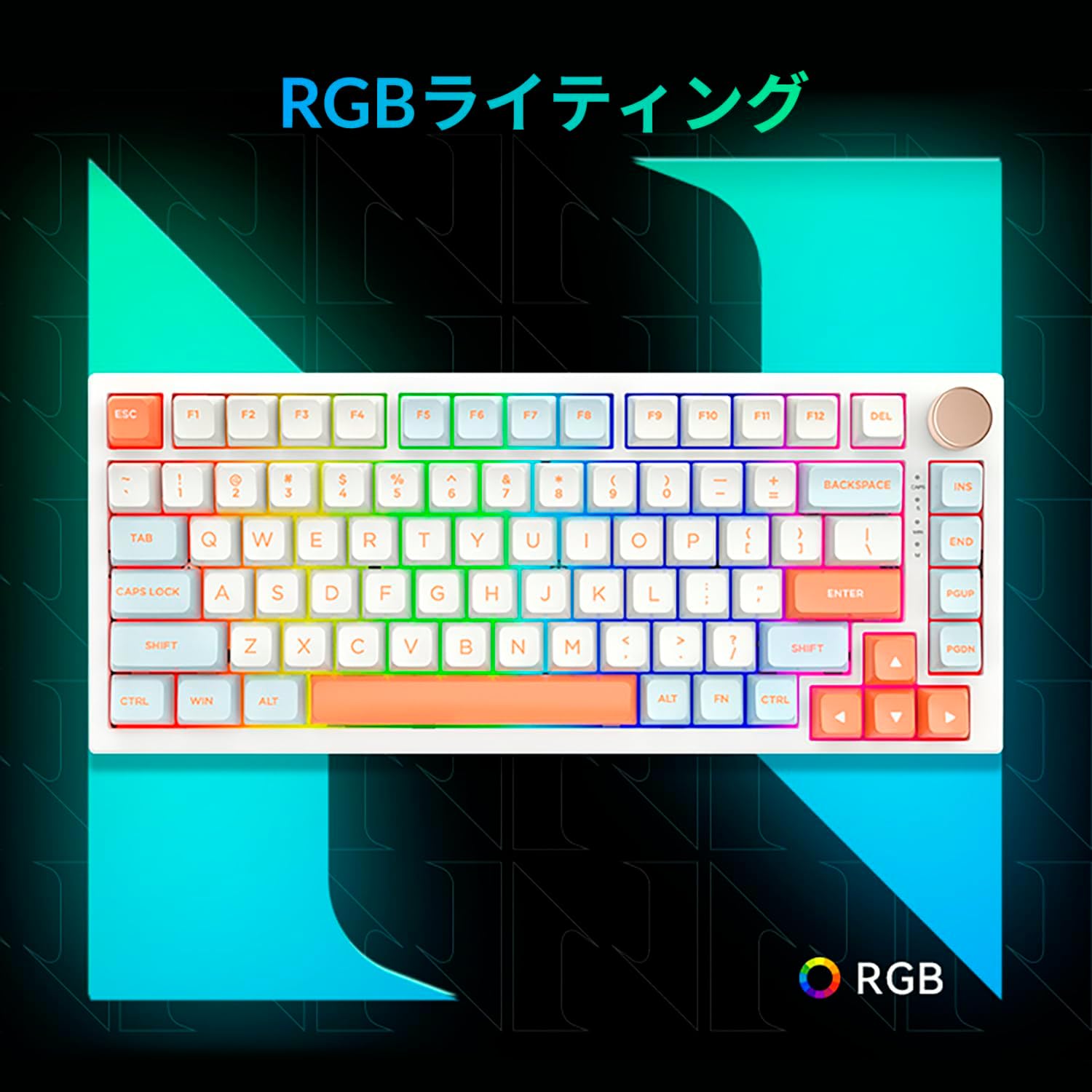
Figure 7: Visual representation of the VGN N75 keyboard's vibrant RGB lighting effects, enhancing the aesthetic appeal.
Maintenance
Proper maintenance ensures the longevity and optimal performance of your VGN N75 keyboard.
- Regular Cleaning: Use a can of compressed air to remove dust and debris from between the keycaps. For surface cleaning, gently wipe the keycaps and chassis with a soft, lint-free cloth slightly dampened with water or a mild, non-abrasive cleaning solution. Avoid excessive moisture.
- Keycap Removal (Optional): If deeper cleaning is required, keycaps can be carefully removed using a keycap puller (if provided) or by gently prying them off. Be cautious not to damage the switches. Clean the keycaps separately with mild soap and water, then ensure they are completely dry before reattaching.
- Avoid Spills: Keep liquids away from the keyboard to prevent damage to internal components. In case of a spill, immediately unplug the keyboard, turn it upside down to drain liquid, and allow it to dry completely before reconnecting.
- Storage: When not in use for extended periods, store the keyboard in a clean, dry environment away from direct sunlight and extreme temperatures.
Troubleshooting
If you encounter issues with your VGN N75 keyboard, try the following troubleshooting steps:
| Problem | Possible Cause | Solution |
|---|---|---|
| Keyboard not responding | Loose USB-C connection; Driver issue; Faulty USB port. | Ensure USB-C cable is securely connected to both keyboard and computer. Try a different USB port on your computer. Restart your computer. Check Device Manager for driver issues. |
| Keys not registering or double-typing | Debris under keycap; Switch malfunction. | Use compressed air to clear debris. If problem persists, contact support. |
| RGB lighting not working | Lighting mode off; Software issue. | Check keyboard's lighting controls (Fn key combinations). Ensure any associated software is running and updated. |
| Rotary knob not functioning | Software conflict; Physical obstruction. | Ensure no software is overriding volume controls. Check for any physical obstruction around the knob. Restart computer. |
Specifications
| Feature | Detail |
|---|---|
| Brand | VGN |
| Series | N75 |
| Model Number | N75ORANGE |
| Keyboard Layout | 75% (Numeric Keyless, US82 key) |
| Switch Type | VGN Original "Dynamic Silver" Mechanical (Linear) |
| Connectivity | USB-C |
| Illumination | RGB |
| Special Features | Rotary Knob (Volume Control), Multiple Buffer Layers, Tuned Stabilizers |
| Compatible Devices | Notebook PC |
| Recommended Use | Gaming |
| Colour | Orange |
| Item Weight | 1.1 kg |
| Package Dimensions | 42.1 x 18.7 x 6.6 cm |
Warranty and Support
For detailed warranty information, please refer to the documentation included with your purchase or visit the official VGN website. Warranty terms and conditions may vary by region and retailer.
If you require technical assistance or have questions not covered in this manual, please contact VGN customer support through their official channels. Provide your product model number (N75ORANGE) and a detailed description of the issue for efficient support.
For the latest drivers, firmware updates, and additional product information, please visit the official VGN support page.
Ask a question about this manual
Ask about setup, troubleshooting, compatibility, parts, safety, or missing instructions. Manuals+ will review the question and use this page’s manual context to help answer it.