
1. Setup
1.1 Unpacking and Initial Power On
Carefully remove the laptop and all accessories from the packaging. Connect the AC adapter to the laptop's power port and then to a power outlet. Press the power button to turn on the laptop.
1.2 First-Time Setup
Upon first power-on, the Windows 11 Pro operating system will guide you through the initial setup process. This includes selecting your region, language, connecting to a Wi-Fi network, and setting up your user account.
1.3 Connecting Peripherals
The HP 15.6-inch Laptop provides various ports for connecting external devices:
- SuperSpeed USB Type-C (5Gbps signaling rate): For connecting modern USB-C devices.
- SuperSpeed USB Type-A (5Gbps signaling rate): For connecting standard USB devices.
- HDMI 1.4b: For connecting to external displays or projectors.
- Headphone / Mic Combo Jack: For connecting headphones or an external microphone.
- Multi-format SD media card reader: For reading SD memory cards.

Figure 1.1: Laptop Ports. This image illustrates the location of the headphone/microphone combo jack, media card reader, SuperSpeed USB Type-C port, HDMI 1.4b port, and SuperSpeed USB Type-A ports on the sides of the laptop.
2. Operating Instructions
2.1 Power On/Off and Sleep Mode
- Power On: Press the power button located on the keyboard deck.
- Shut Down: Click the Start button, then Power, and select 'Shut down'.
- Sleep Mode: Close the laptop lid or click the Start button, then Power, and select 'Sleep'.
2.2 Using the Keyboard and Touchpad
The laptop features a full-size keyboard with an integrated numeric keypad for efficient data entry. The precision touchpad supports multi-touch gestures for navigation.

Figure 2.1: Keyboard and Speakers. This image highlights the full-size keyboard with its numeric pad and the location of the tuned stereo speakers.
2.3 Wireless Connectivity
- Wi-Fi: The laptop supports Realtek RTL8822CE 802.11a/b/g/n/ac (2x2) Wi-Fi. To connect, click the Wi-Fi icon in the taskbar, select your network, and enter the password.
- Bluetooth: Bluetooth 5 is integrated for connecting wireless peripherals such as mice, keyboards, and headphones. Enable Bluetooth from Windows Settings to pair devices.
2.4 Using the Webcam and Microphone
The HP True Vision 720p HD camera with integrated dual array digital microphones is suitable for video calls and online meetings.

Figure 2.2: Webcam and HD Display. This image shows the laptop in use for a video conference, demonstrating the HP True Vision Camera and the edge-to-edge HD display.
3. Maintenance
3.1 Battery Care
The laptop is equipped with a 3-cell, 41 Wh Li-ion battery, providing up to 10 hours of usage. To maximize battery lifespan:
- Avoid extreme temperatures.
- Do not fully discharge the battery frequently.
- Store the laptop with a partial charge if not used for extended periods.
The laptop supports HP Fast Charge, allowing the battery to charge up to 50% in approximately 45 minutes when the system is off.
3.2 Cleaning the Laptop
- Use a soft, lint-free cloth slightly dampened with water or a screen cleaner for the display.
- For the keyboard and chassis, use a soft cloth. Avoid harsh chemicals.
- Ensure the laptop is powered off and unplugged before cleaning.
3.3 Software Updates
Regularly update Windows 11 Pro and device drivers to ensure optimal performance and security. Updates can be managed through Windows Settings.
4. Troubleshooting
4.1 Common Issues and Solutions
- Laptop does not power on: Ensure the AC adapter is securely connected to both the laptop and a working power outlet. Check if the power outlet is functional.
- No display: Connect an external monitor to verify if the issue is with the laptop's internal display. Restart the laptop.
- Wi-Fi connectivity issues: Check if Wi-Fi is enabled in Windows Settings. Restart your router and the laptop. Ensure drivers are up to date.
- Bluetooth device not connecting: Ensure Bluetooth is enabled on both the laptop and the device. Try re-pairing the device.
- Audio not working: Check volume levels and ensure headphones are not plugged in if you expect sound from speakers. Verify audio drivers are installed and updated.
- Webcam not functioning: Check privacy settings in Windows to ensure applications have permission to access the camera. Ensure camera drivers are updated.
4.2 System Restore and Recovery
Windows 11 Pro includes options for system restore points and recovery. These tools can help resolve software issues by reverting your system to a previous state or reinstalling the operating system.
5. Specifications
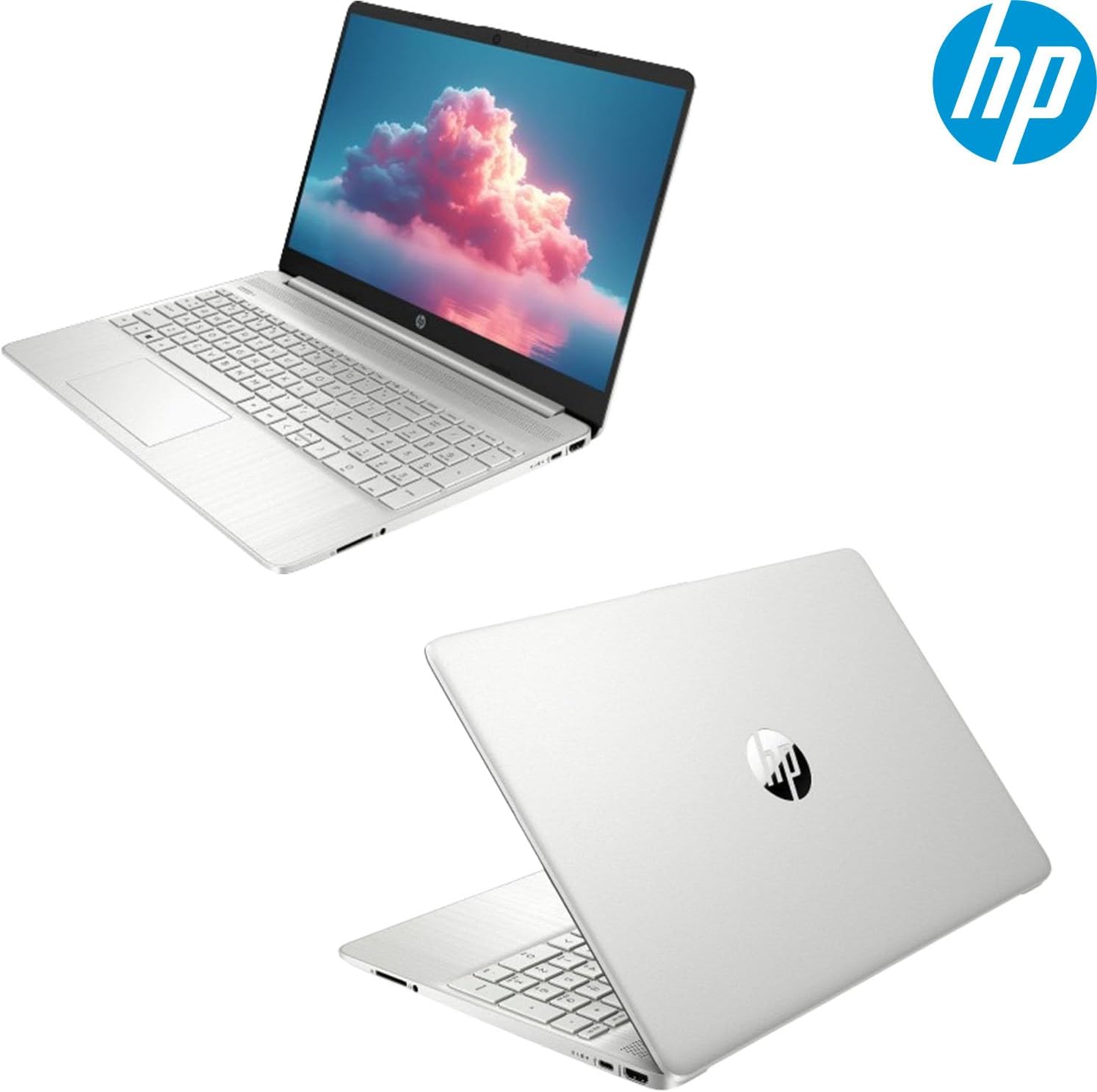
Figure 5.1: Laptop Overview. This image provides a general view of the HP 15.6-inch laptop from multiple angles.
| Feature | Detail |
|---|---|
| Processor | AMD Ryzen 3 5300U (up to 3.8 GHz max boost clock, 4 MB L3 cache, 4 cores, 8 threads) |
| Graphics | AMD Radeon Graphics (Integrated) |
| Operating System | Windows 11 Pro |
| Memory | 32 GB DDR4 RAM |
| Storage | 1 TB PCIe NVMe M.2 SSD |
| Display | 15.6" diagonal, HD (1366 x 768), micro-edge, anti-glare, 250 nits, 45% NTSC |
| Connectivity | Realtek RTL8822CE 802.11a/b/g/n/ac (2x2) Wi-Fi and Bluetooth 5 |
| Audio | Dual Speakers |
| Webcam | HP True Vision 720p HD camera with integrated dual array digital microphones |
| Ports | 1x SuperSpeed USB Type-C, 2x SuperSpeed USB Type-A, 1x AC smart pin, 1x HDMI 1.4b, 1x Headphone / Mic Combo Jack, Multi-format SD media card reader |
| Battery | 3-cell, 41 Wh Li-ion (Up to 10 Hours) |
| Dimensions (L x W x H) | 14.11 x 9.53 x 0.7 inches |
| Weight | 3.75 lbs |
6. Warranty Information
This HP 15.6-inch Laptop Essential Series comes with a 1 Year Limited Warranty. Please refer to the warranty documentation included with your product for full terms and conditions. Keep your proof of purchase for warranty claims.
7. Support
For further assistance, technical support, or service inquiries, please visit the official HP support website or contact HP customer service. Ensure you have your product model number (Essential) and serial number ready when seeking support.


