
Introduction
The SZPOWER Floodlight Camera Outdoor is a comprehensive security solution designed to provide advanced surveillance and lighting for your outdoor spaces. Featuring 2K QHD resolution, 55W super bright floodlights, and a 340° pan & 120° tilt camera, it offers extensive coverage and clear visuals day and night. Key functionalities include motion detection with auto-tracking, two-way audio communication, color night vision, and flexible storage options. This manual provides detailed instructions for setup, operation, and maintenance to ensure optimal performance of your device.
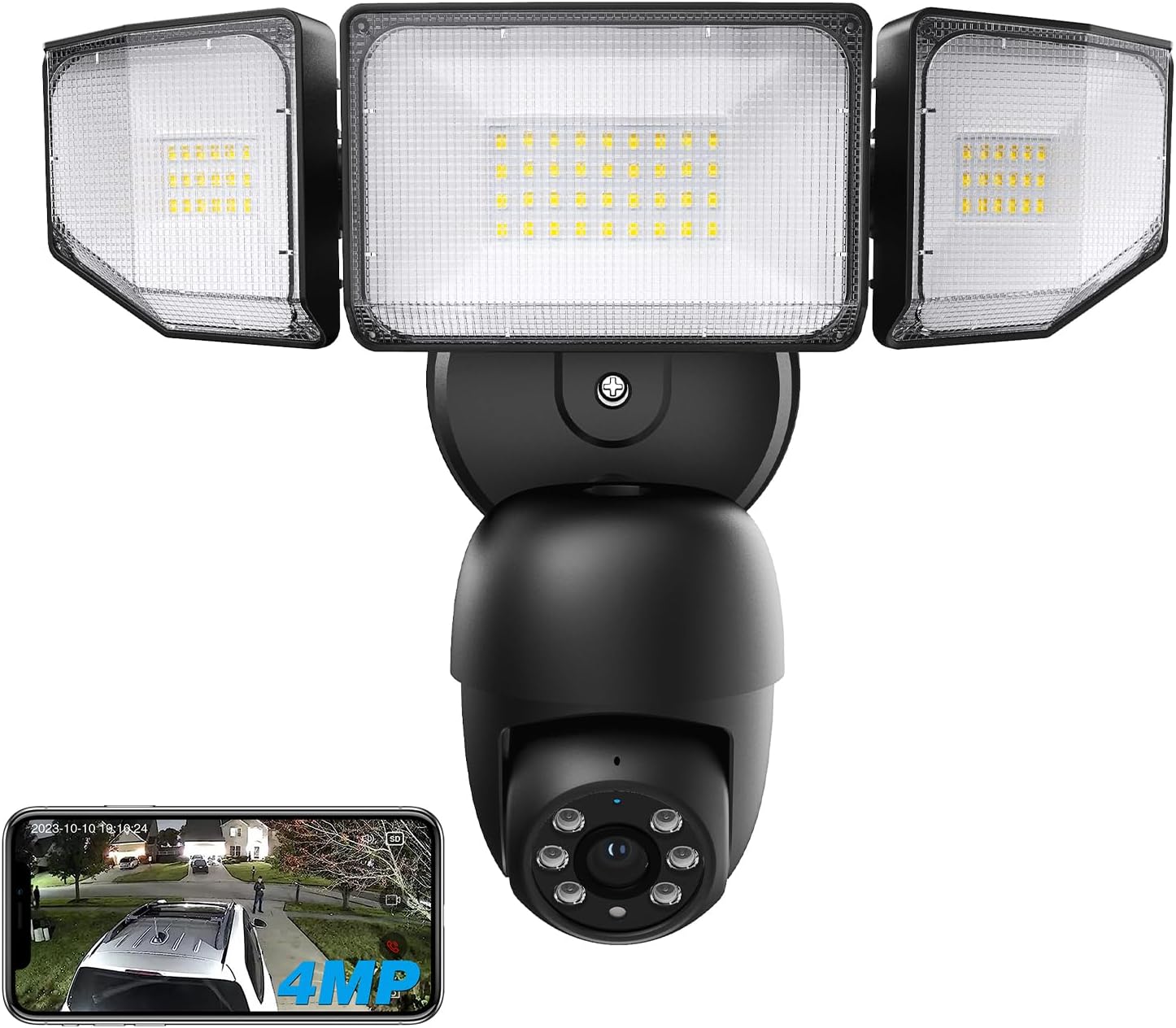
Figure 1: SZPOWER Floodlight Camera Outdoor with its three adjustable light heads and spherical camera unit.
Setup and Installation
Proper installation and initial setup are crucial for the optimal performance of your floodlight camera. Follow these steps carefully.
1. Physical Installation
The floodlight camera is designed for outdoor use and should be mounted securely to a wall or eave. Ensure the installation height is between 8.2ft and 16.4ft for optimal motion detection and light coverage.

Figure 2: Ideal installation height and detector distance for the floodlight camera.
The camera features three adjustable light heads and a spherical camera unit. The detector has a sensing angle of 120° and a detecting distance of up to 16.4ft.
2. Powering On and Initial Camera Status
- First, ensure the power switch for the floodlight camera is turned on.
- Wait for 20 to 60 seconds. The camera will prompt "Camera Starts" indicating it is powering up and ready.
- If you do not hear the "Camera Starts" prompt after a long time, you may need to restart the camera by cycling its power.
- After the "Camera Starts" prompt, wait for another 10-15 seconds. The camera will perform a self-test, rotating left, right, up, and down.
- Continue waiting for another 10-15 seconds. The camera will then prompt "Please Configure Network," and the blue indicator light will quickly flash, signaling it is ready for app connection.
3. App Download and Connection
To control your floodlight camera, download the "Smart Life" app from your mobile device's app store. Ensure your phone's Wi-Fi and Bluetooth are enabled.
Video 1: Detailed guide on how to connect your SZPOWER Floodlight Camera to the Smart Life app, including initial power-on sequence and two connection methods.
Refer to Video 1 for a step-by-step guide on connecting your camera to the app. The video demonstrates two methods for connection: automatic device discovery and manual addition via QR code scanning. Both methods require your phone and the camera to be on the same Wi-Fi network (supports 2.4GHz & 5GHz WIFI).
Operating the Camera
1. Pan & Tilt Control
Utilize the Smart Life app to remotely control the camera's pan (340°) and tilt (120°) movements, allowing for a comprehensive panoramic view of your monitored area.
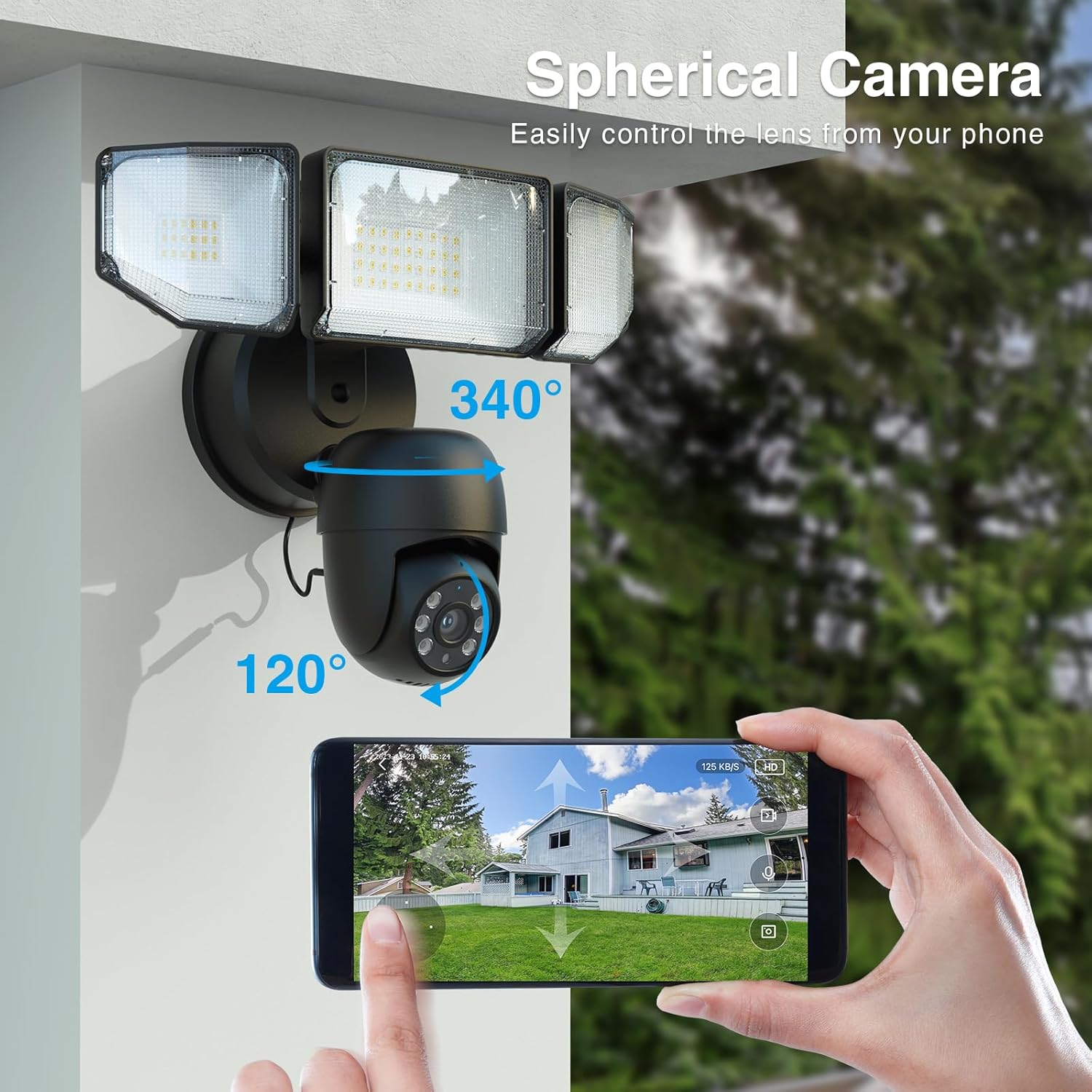
Figure 3: The spherical camera unit offers 340° horizontal pan and 120° vertical tilt for wide area coverage.
2. Motion Detection & Auto Tracking
The camera is equipped with advanced motion detection capabilities. When motion is detected, the floodlights can automatically turn on, and the camera can auto-track the moving object (people, pets, cars) within its field of view. Real-time notifications are sent to your phone.

Figure 4: The camera's ability to detect and automatically track moving objects.
You can adjust the motion detection sensitivity (Low, Medium, High) and enable/disable human body filtering and motion tracking within the app's settings (refer to Video 1, section on "Motion detection Sensitivity adjustment").
3. Two-Way Audio
The integrated microphone and speaker allow for two-way communication. You can speak to visitors or deter intruders directly through the app, even when you are away from home.

Figure 5: Illustrates the two-way talk functionality, allowing communication with individuals near the camera.
4. Night Vision and Lighting
The camera provides 2K QHD (2560*1440P) video resolution. It supports both full-color night vision and infrared night vision. The 55W floodlights produce up to 5500lm brightness, which can be adjusted via the app.

Figure 6: Demonstrates the camera's 2K QHD video quality and infrared night vision capabilities.

Figure 7: Adjusting the floodlight brightness directly through the mobile application.
5. Storage Options
The floodlight camera supports both cloud storage and local storage via a Micro SD card (up to 128GB, not included). Past surveillance records can be viewed at any time.

Figure 8: Illustrates the available cloud and Micro SD card storage options for video recording.
For video playback, it is recommended to use an SD card to avoid potential monthly subscription fees associated with cloud storage (refer to Video 1, section on "Video Playback").
6. Smart Assistant Integration
The camera is compatible with Amazon Alexa and Google Assistant, allowing for voice control and integration into your smart home ecosystem.

Figure 9: The floodlight camera can be controlled using voice commands via Amazon Alexa or Google Assistant.
Maintenance
1. Weather Resistance
The SZPOWER Floodlight Camera is designed with IP65 waterproof rating, ensuring reliable operation in various weather conditions, including rain.

Figure 10: The camera's IP65 waterproof design ensures durability against outdoor elements.
2. Resetting the Device
You may need to reset the camera if you change your home Wi-Fi network or if you experience persistent connection issues after multiple attempts. The reset button is located at the bottom of the camera. You can perform the operation with or without removing the cover.

Figure 11: Location of the reset button and Micro SD card slot on the camera.
To reset, long press the reset button. When you hear a beep, you can release your hand. The camera will then indicate "Reset successful" and continue waiting for reconnection (refer to Video 1, section on "How To Reset The Light").
Troubleshooting
- Camera Not Starting/Connecting: Ensure the power switch is on and wait for the "Camera Starts" and "Please Configure Network" prompts. If not heard, cycle power or perform a reset. Verify your Wi-Fi network is 2.4GHz or 5GHz and that your phone is connected to the same network during setup.
- Frequent Disconnections: Check Wi-Fi signal strength at the camera's location. Consider using a Wi-Fi extender if the signal is weak. Ensure no physical obstructions are blocking the signal.
- False Motion Alerts: Adjust the motion detection sensitivity in the app settings (e.g., set to 'Low'). Enable 'Human Body Filtering' to reduce alerts from non-human movements like animals or swaying branches.
- No Video Playback from SD Card: Ensure a Micro SD card (up to 128GB) is properly inserted and formatted. Verify that the local recording function is enabled in the app's recording settings.
- Two-Way Audio Issues: Check microphone and speaker settings in the app. Ensure your phone's volume is up and there's no interference.
Specifications
| Feature | Detail |
|---|---|
| Product Dimensions | 12.12 x 9.76 x 6.1 inches |
| Item Weight | 2.66 pounds |
| Model Number | SZN553-SC |
| Brand | SZPOWER |
| Connectivity Technology | Wired |
| Hardware Interface | USB |
| Water Resistance Level | Waterproof (IP65) |
| Video Resolution | 2K QHD (4MP, 2560*1440P) |
| Floodlight Brightness | 55W, up to 5500lm |
| Pan & Tilt | 340° Pan, 120° Tilt |
| Night Vision | Full Color Night Vision, Infrared Night Vision |
| Storage | Cloud Storage, Micro SD card (up to 128GB, not included) |
| Smart Home Compatibility | Alexa, Google Assistant |
| Wi-Fi Support | 2.4GHz & 5GHz WIFI |
Warranty and Support
For detailed warranty information and technical support, please refer to the official SZPOWER website or contact their customer service directly. A comprehensive Instructions for Use (IFU) document is also available for download:
Download Official User Guide (PDF)
Note: For security reasons, one camera can only be connected to one phone directly. If other phones need to view this camera, it needs to be done through sharing features within the Smart Life app.
