
Introduction
This manual provides comprehensive instructions for the PRITOM M10 Android Tablet. Please read this guide thoroughly before using your device to ensure proper operation and to maximize its features. Keep this manual for future reference.
1. Setup
1.1 Package Contents
Verify that all items are present in the package:
- PRITOM M10 Android Tablet
- Keyboard
- Wireless Mouse
- Flat Protective Cover
- Power Adapter
- Data Cable (USB-C)
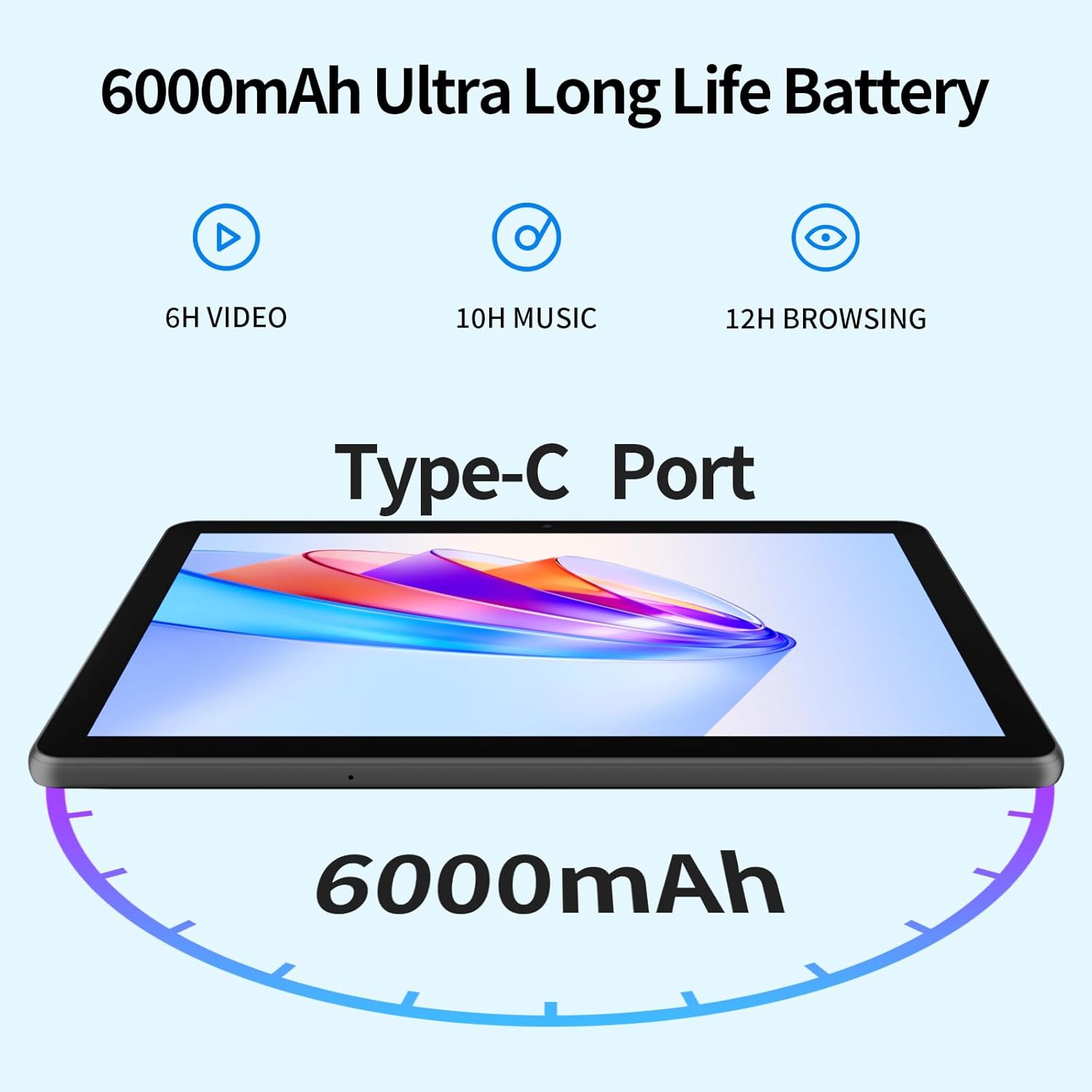
Image 1.1: Included accessories with the PRITOM M10 Tablet.
1.2 Initial Charging
Before first use, fully charge the tablet. Connect the provided USB-C data cable to the tablet's Type-C port and the power adapter. Plug the adapter into a wall outlet. The charging indicator will illuminate.
1.3 Power On/Off
- To Power On: Press and hold the Power Button located on the side of the tablet until the screen lights up.
- To Power Off: Press and hold the Power Button, then select 'Power Off' from the options displayed on the screen.
- To Restart: Press and hold the Power Button, then select 'Restart' from the options.

Image 1.2: Hardware overview of the PRITOM M10 Tablet, indicating button and port locations.
1.4 Network Connection (Wi-Fi)
- Go to 'Settings' > 'Network & internet' > 'Wi-Fi'.
- Toggle Wi-Fi 'On'.
- Select your desired Wi-Fi network from the list.
- Enter the password if prompted, then tap 'Connect'.
2. Operating Instructions
2.1 User Interface and Navigation
The PRITOM M10 Tablet runs on Android 13, providing an intuitive user experience. Navigate by tapping, swiping, and pinching on the 10-inch HD IPS display.

Image 2.1: The PRITOM M10 Tablet's 1280x800 HD IPS display in use.
2.2 Camera Usage
The tablet is equipped with a 2.0 MP front camera and an 8.0 MP rear camera.
- Open the 'Camera' application.
- Tap the camera icon to switch between front and rear cameras.
- Tap the shutter button to take photos or start/stop video recording.
2.3 Audio Features
The PRITOM M10 features dual speakers for enhanced audio output. A 3.5mm headphone jack is also available for private listening.
2.4 Storage Management
The tablet comes with 64GB of internal storage and supports Micro SD card expansion up to 1TB. To insert a Micro SD card, locate the dual card slot as shown in Image 1.2.

Image 2.2: Storage and RAM specifications of the PRITOM M10 Tablet.
2.5 Versatile Use Cases
The PRITOM M10 tablet is designed for various activities, including learning, reading, watching videos, listening to music, making video calls, and productivity tasks.

Image 2.3: Examples of how the PRITOM M10 Tablet can be utilized.
3. Maintenance
3.1 Battery Care
The tablet is equipped with a 6000mAh lithium battery. To prolong battery life:
- Avoid extreme temperatures.
- Do not let the battery fully discharge frequently.
- Use the original charger and cable.

Image 3.1: PRITOM M10 Tablet 6000mAh battery performance estimates.
3.2 Cleaning
Use a soft, lint-free cloth to clean the screen and body of the tablet. Avoid using harsh chemicals or abrasive materials.
3.3 Software Updates
Regularly check for and install software updates to ensure optimal performance and security. Go to 'Settings' > 'System' > 'System update'.
4. Troubleshooting
4.1 Common Issues
- Tablet not turning on: Ensure the battery is charged. Connect to the charger for at least 30 minutes before attempting to power on.
- Screen unresponsive: Try restarting the tablet. If unresponsive, press and hold the power button for 10-15 seconds to force a shutdown, then power on again.
- Wi-Fi connection issues: Check if Wi-Fi is enabled. Restart your router and the tablet. Ensure you are entering the correct password.
- Slow performance: Close unused applications. Clear cache regularly. Consider uninstalling unnecessary apps.
4.2 Factory Reset
A factory reset will erase all data from your tablet and restore it to its original factory settings. Back up important data before proceeding.
- Go to 'Settings' > 'System' > 'Reset options'.
- Select 'Erase all data (factory reset)'.
- Confirm your choice and follow the on-screen prompts.
5. Specifications
| Feature | Specification |
|---|---|
| Brand | PRITOM |
| Model Name | M10 |
| Operating System | Android 13 |
| Screen Size | 10 Inches |
| Display Resolution | 1280 x 800 pixels (HD IPS) |
| Processor | Octa-Core (Qualcomm) |
| RAM | 8 GB (4GB + 4GB Expansion) |
| Internal Storage | 64 GB |
| Expandable Storage | Up to 1 TB (Micro SD, not included) |
| Rear Camera | 8.0 MP |
| Front Camera | 2.0 MP |
| Battery Capacity | 6000 mAh |
| Connectivity | Wi-Fi (802.11n) |
| Ports | Type-C, 3.5mm Headphone Jack, Dual Card Slot |
| Color | Black |
6. Warranty and Support
Your PRITOM M10 Tablet is covered by a standard manufacturer's warranty. Please refer to the warranty card included in your package for specific terms and conditions. For technical support or warranty claims, please contact PRITOM customer service through their official website or the retailer where the product was purchased.


