
1. Introduction
Thank you for choosing the FIDECO M.2 NVMe SSD Enclosure. This device provides a high-speed, portable solution for your M.2 NVMe SSDs, offering tool-free installation and broad compatibility. Please read this manual carefully before installation and use to ensure proper operation and longevity of your product.

The FIDECO M.2 NVMe SSD Enclosure, shown with its versatile USB-C to USB-A/C cable.
2. Package Contents
Please verify that all items listed below are included in your package:
- 1x FIDECO M.2 NVMe SSD Enclosure
- 1x USB C to C (with attached A adapter) Cable
- 1x Thermal Pad
- 1x Rubber Fastener (for shorter SSDs)
- 1x User Manual

Front view of the product packaging.
3. Specifications
| Feature | Description |
|---|---|
| Model | M210 |
| Material | Aluminum |
| Compatible SSD Types | M.2 NVMe SSD (M Key & M+B Key) |
| Supported SSD Sizes | 2230, 2242, 2260, 2280 |
| Interface | USB 3.2 Gen 2 Type-C |
| Data Transfer Rate | Up to 10Gbps (Theoretical) |
| Supported Protocols | UASP, Trim |
| Compatible Systems | Windows, Mac OS, Linux |
| Dimensions | 4.53 x 1.38 x 0.47 inches |
| Weight | 3.2 ounces |

The enclosure supports various M.2 NVMe SSD sizes and key types.
4. Setup and Installation
4.1. SSD Installation (Tool-Free Design)
The FIDECO M.2 NVMe SSD Enclosure features a convenient sandwich-style, tool-free design for easy SSD installation.
- Open the Lid: Gently open the enclosure lid upwards.
- Insert SSD: Align your M.2 NVMe SSD with the M-Key or M+B Key slot inside the enclosure and insert it firmly. For 2280 SSDs, use the buckle at the end to secure it. For shorter SSDs (2230/2242/2260), use the provided rubber plug to fix the SSD in place.
- Apply Thermal Pad: Peel off the protective film from both sides of the thermal pad and place it directly onto the SSD chip. This ensures optimal heat dissipation by making contact with the aluminum lid.
- Close the Lid: Carefully close the lid until it clicks securely into place.

Visual guide for the tool-free installation process.
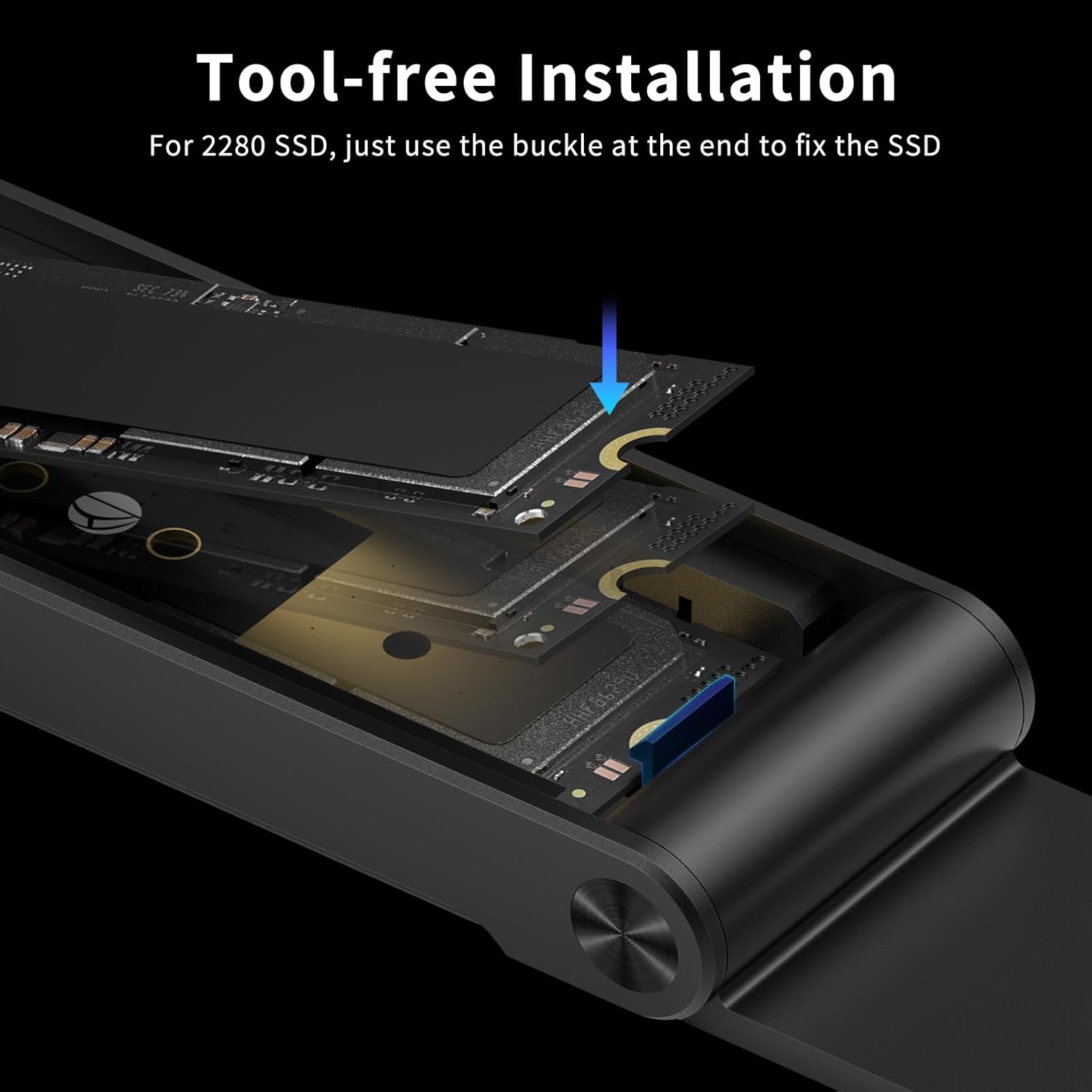
The buckle mechanism secures 2280 SSDs without tools.
4.2. Initial Setup for New SSDs
For a brand new SSD, it needs to be initialized and formatted before it can be recognized and used by your computer. This process is typically done through Disk Management on Windows or Disk Utility on Mac OS. We recommend formatting the SSD to exFAT for maximum compatibility across Windows, Mac OS, and Linux systems. NTFS is only compatible with Windows.
5. Operating Instructions
5.1. Connecting to Devices
Connect the FIDECO NVMe SSD Enclosure to your computer or compatible device using the provided USB C to C (A) cable. The enclosure supports USB 3.2 Gen 2, offering theoretical transfer speeds of up to 10Gbps. The included cable features a USB-A adapter for broader compatibility with various USB ports.
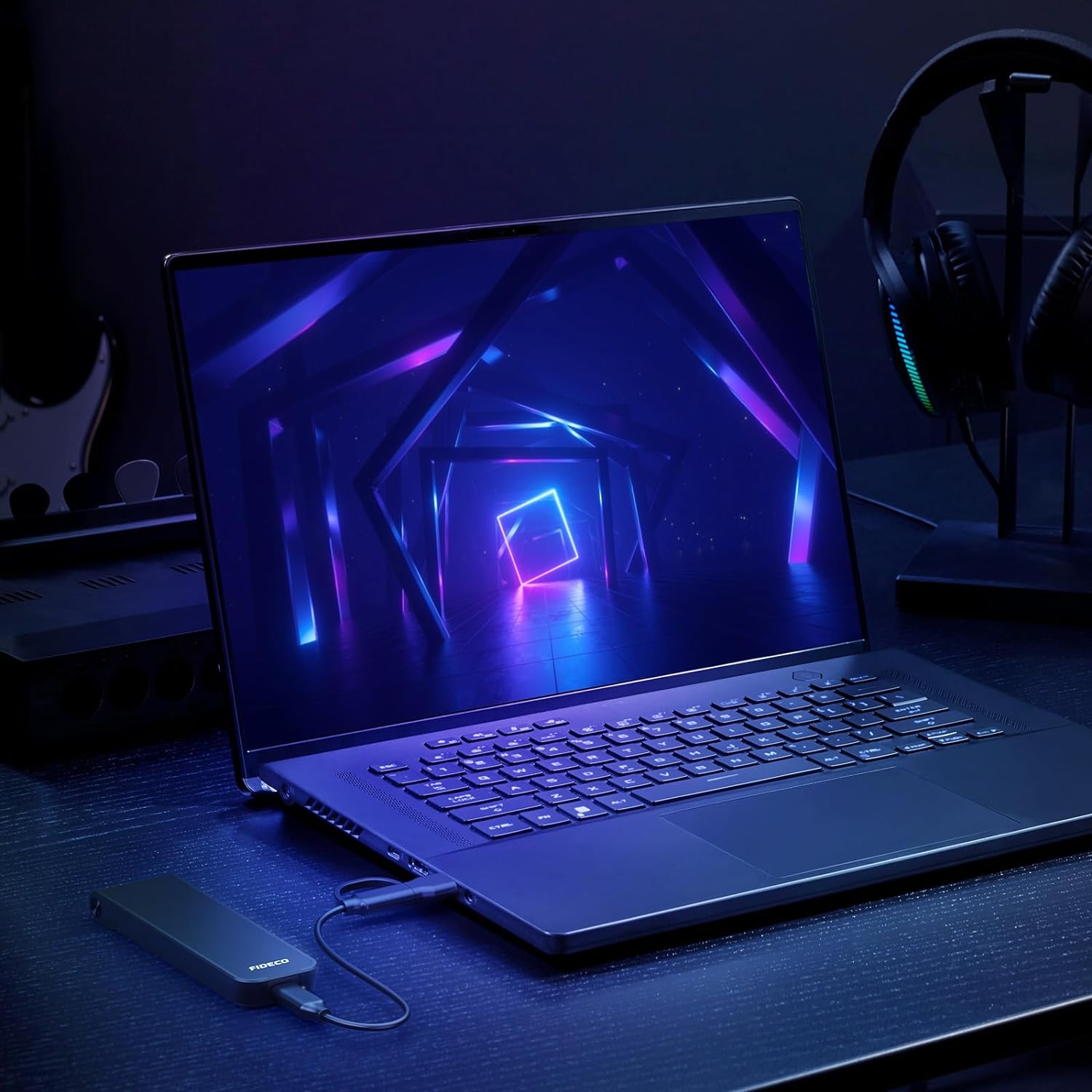
The enclosure seamlessly connects to laptops for high-speed data access.
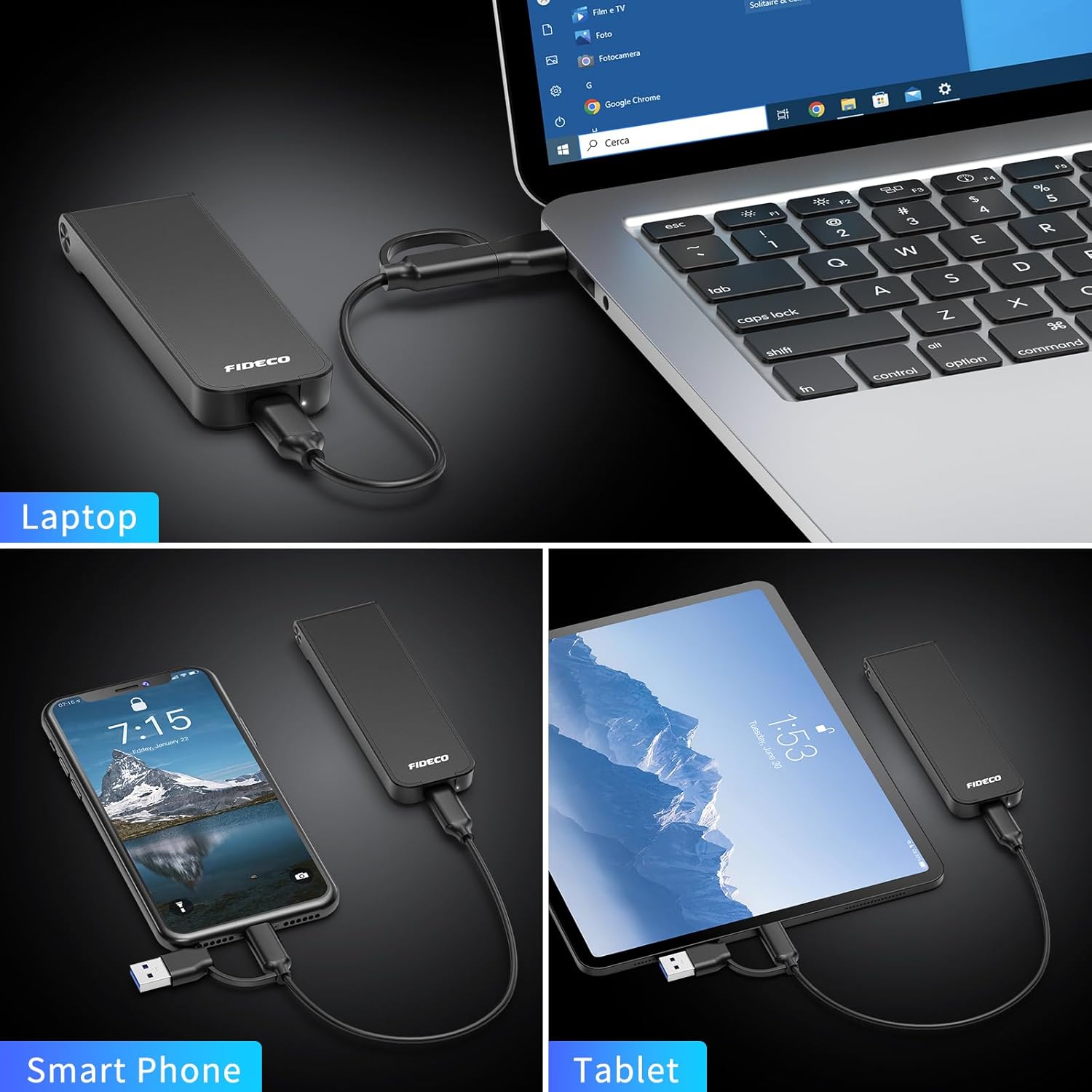
The versatile cable allows connection to various devices, including laptops, smartphones, and tablets.
5.2. Data Transfer
Once connected and recognized by your system, the SSD will appear as an external drive. You can now drag and drop files, copy, paste, or use backup software to transfer data to and from the enclosure. The USB 3.2 Gen 2 interface, combined with UASP support, ensures efficient and fast data transfers.

Experience high transfer speeds up to 10Gbps for efficient data management.
6. Maintenance
To ensure the longevity and optimal performance of your FIDECO M.2 NVMe SSD Enclosure, follow these maintenance guidelines:
- Cleaning: Use a soft, dry cloth to clean the exterior of the enclosure. Avoid using liquid cleaners or solvents.
- Storage: Store the enclosure in a cool, dry place away from direct sunlight and extreme temperatures.
- Thermal Pad: Ensure the thermal pad is properly placed on the SSD to facilitate heat dissipation. The sandwich design of the enclosure is optimized for this.
- Handling: Handle the enclosure with care to prevent drops or impacts that could damage the internal components.

The sandwich design and thermal pad ensure effective heat dissipation for your SSD.
7. Troubleshooting
If you encounter any issues with your FIDECO M.2 NVMe SSD Enclosure, please refer to the following common problems and solutions:
- SSD Not Recognized:
- Ensure the SSD is properly seated in the enclosure and the lid is securely closed.
- For new SSDs, ensure they have been initialized and formatted (refer to Section 4.2).
- Try connecting the enclosure to a different USB port on your computer.
- Test with a different USB cable if available.
- Verify that your computer's operating system is up to date.
- Slow Transfer Speeds:
- Ensure you are connected to a USB 3.0 (or higher) port on your computer. USB 2.0 ports will limit speeds.
- Verify that your SSD itself is capable of high speeds.
- Close other applications that might be using significant system resources.
- For SSDs with capacity 2TB or larger, it is recommended to plug the USB cable to the back USB port of your computer case for stable power delivery.
- Enclosure Disconnects Randomly:
- Ensure the USB cable is securely connected at both ends.
- Try a different USB port or a direct connection to the computer (avoiding USB hubs if possible).
- Check for updated USB drivers on your computer.
8. Warranty and Support
FIDECO products come with a standard warranty. For specific warranty terms and conditions, please refer to the warranty card included in your package or visit the official FIDECO website. If you require technical support, firmware updates, or have any other questions, please do not hesitate to contact our customer service team:
Email: support@fideco.cn
Our support team is dedicated to assisting you with any product-related inquiries.


