
1. Introduction
The ATOMSTACK Swift 7W Laser Engraver is a high-precision machine designed for engraving and cutting various materials. This manual provides essential information for safe and effective operation, assembly, and maintenance of your device. Please read this manual thoroughly before using the product.
2. Safety Guidelines
Operating a laser engraver requires adherence to strict safety protocols to prevent injury. Always prioritize your safety and the safety of others.
- Eye Protection: Always wear the provided safety glasses during operation to protect your eyes from laser radiation. Direct exposure to the laser beam can cause severe eye damage.
- Laser Protective Cover: Ensure the removable magnetic laser protective cover is securely in place during operation. This cover helps contain the laser and protect against accidental exposure.
- Supervision: Do not leave the machine running unattended. Constant supervision is necessary to monitor the engraving/cutting process and respond to any unexpected issues.
- Ventilation: Operate the machine in a well-ventilated area to dissipate fumes and smoke produced during engraving and cutting. Some materials may produce harmful vapors.
- Flammable Materials: Keep all flammable materials, liquids, and gases away from the working area. The laser can ignite combustible substances.
- Emergency Stop: Familiarize yourself with the location and operation of the emergency stop function. In case of an emergency, immediately cut power to the machine.
- Material Compatibility: Only engrave or cut materials known to be safe for laser processing. Avoid materials that produce toxic fumes or are highly reflective.
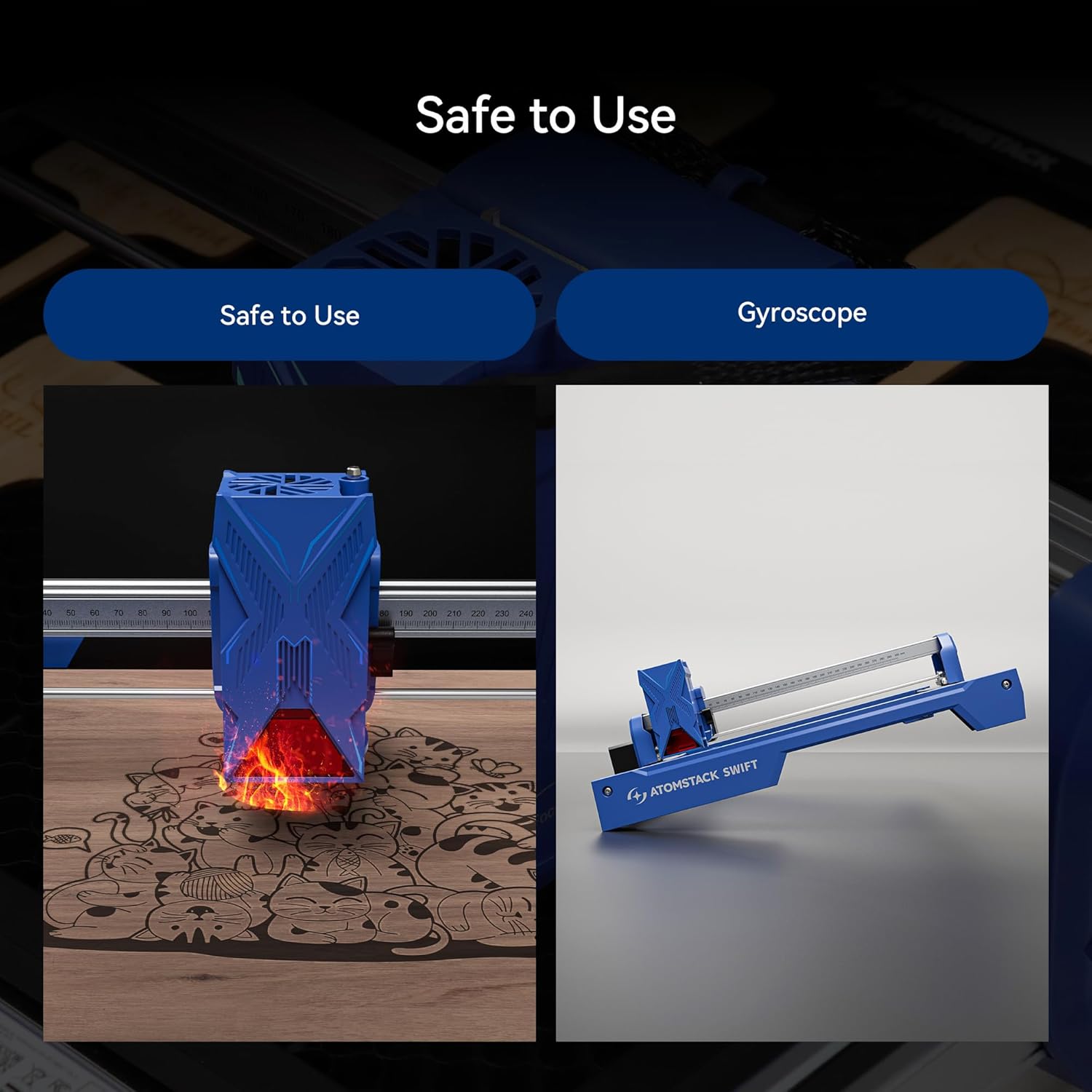
Figure 1: Safety features of the ATOMSTACK Swift 7W Laser Engraver, showing the laser module and a visual representation of the gyroscope function.
3. Package Contents
The ATOMSTACK Swift 7W package typically includes the following components. Please verify all items are present upon unboxing.
- Front X-axis assembly (with cable)
- Rear X-axis assembly
- X-axis assembly
- Left Y-axis assembly (with motor)
- Right Y-axis assembly
- Optical Shaft
- Laser module
- Power adapter
- Product Manual
- Timing Belt
- H2/H2.5/H3 L-shaped Allen wrench
- Wrench
- M5x8 Screws (x6)
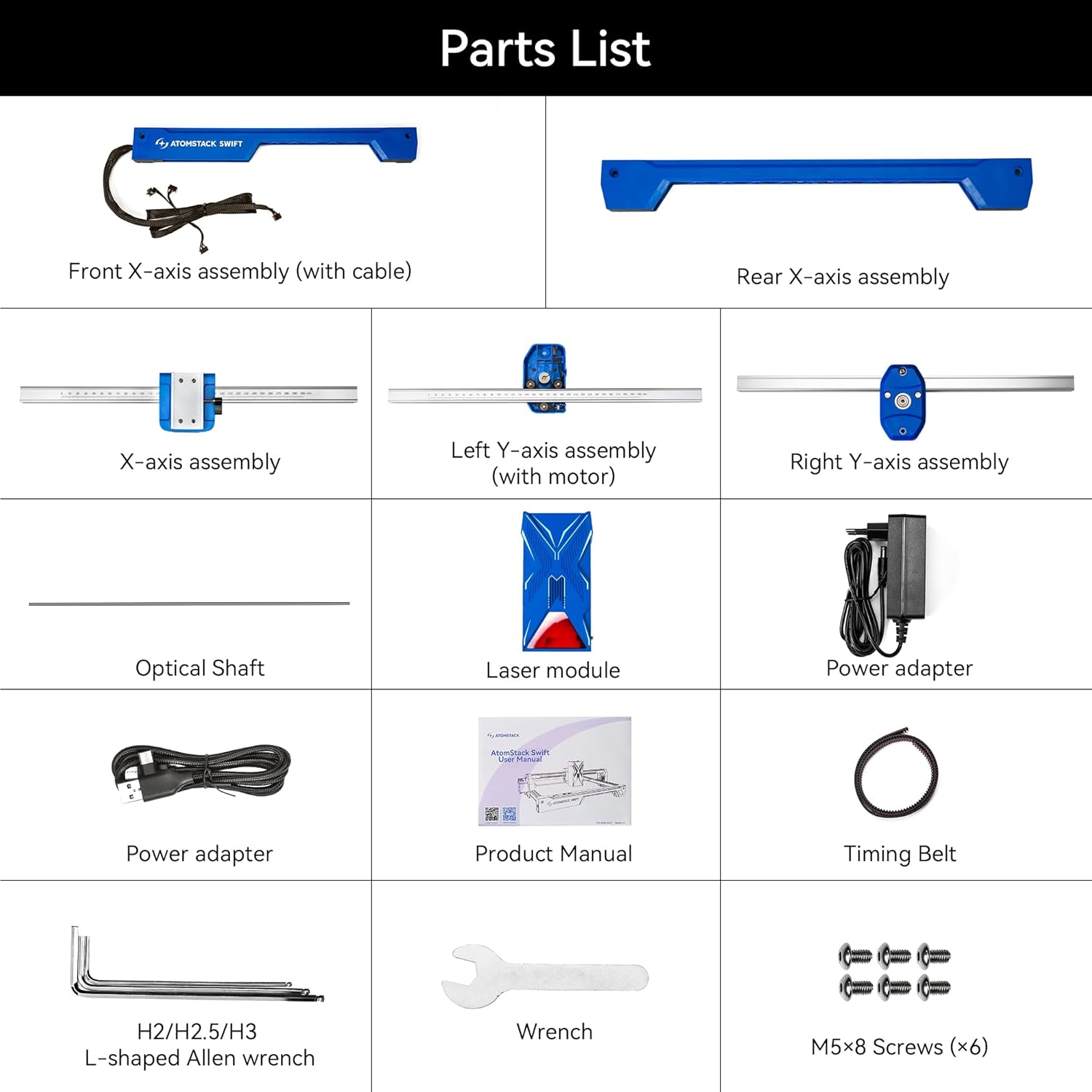
Figure 2: Detailed parts list for the ATOMSTACK Swift 7W Laser Engraver.
4. Setup and Assembly
Follow these step-by-step instructions to assemble your ATOMSTACK Swift 7W Laser Engraver.
4.1. Assemble the Frame
Place the five main assemblies as shown in the diagram. Ensure the X-axis assembly has the belt facing downward and the Y-axis assembly with the motor is on the left side. Align and connect the five assemblies, then secure them with six M5x8 screws.

Figure 3: Modular components of the ATOMSTACK Swift 7W for easy assembly.
4.2. Install Optical Shaft
Install the optical shaft onto the X-axis assembly. Push the X-axis toward the front X-axis assembly, ensuring it is fully inserted and aligned parallel. Then, tighten the coupling and the timing pulley.
4.3. Install Laser Module
Install the laser module onto the X-axis assembly and tighten the thumb screw to secure it in place.
4.4. Connect Cables
Connect the motor cable, limit switch cables, and the laser module cable to their respective ports on the machine.
4.5. Adjust X-axis Movement
Use an open-end wrench to adjust the eccentric nut until the X-axis can slide down smoothly when the machine is tilted at 45 degrees. This ensures proper movement and prevents binding.
4.6. Assembly Video Guide
Video 1: A detailed visual guide demonstrating the unboxing and installation process for the AtomStack Swift laser engraver.
5. Operating Instructions
This section covers the basic steps for operating your ATOMSTACK Swift 7W Laser Engraver.
5.1. Focusing Method
To achieve optimal engraving and cutting results, proper focusing of the laser is crucial. Place the workpiece on the engraving area. Adjust the focus by turning the side knob on the laser module until the laser spot is at its smallest and most intense point on the material surface.

Figure 4: The ATOMSTACK Swift 7W laser module performing precise engraving and cutting.
5.2. Software Compatibility
The ATOMSTACK Swift 7W is compatible with a range of software for design and control, offering flexibility for your projects:
- LightBurn
- LaserGRBL
- ATOMSTACK PC software (AtomStack Studio)
- ATOMSTACK Mobile App (Android, iOS)
You can connect the engraver to your computer via Type-C and USB cable, or wirelessly via WiFi/Hotspot for convenient operation.

Figure 5: ATOMSTACK Studio software interface demonstrating multi-platform support and AI text-to-image features.
5.3. Engraving and Cutting Process
1. Prepare Design: Create or import your design using your preferred compatible software.
2. Connect Device: Connect the engraver to your computer via Type-C or USB cable, or wirelessly via WiFi/Hotspot.
3. Place Material: Position your material securely on the working area of the engraver.
4. Adjust Focus: Perform the focusing procedure as described in Section 5.1.
5. Start Operation: Initiate the engraving or cutting process from the software interface.
5.4. Material Compatibility
The ATOMSTACK Swift 7W can engrave and cut a wide range of common materials:
- Wood (plywood, basswood, bamboo)
- Leather
- Paper
- Cardboard
- Cork
- Slate
- Felt
- MDF
- Coated metal
- Dark acrylic
- Glass
- Stone
- Rubber
- Food
- Ceramic tile
- Stainless steel

Figure 6: Examples of materials compatible with the ATOMSTACK Swift 7W Laser Engraver.
5.5. Advanced Features
5.5.1. Resume Engraving
The ATOMSTACK Swift 7W supports resuming engraving after unexpected power outages. This feature helps minimize material waste by allowing the machine to continue from where it left off.

Figure 7: Resume engraving functionality in action.
5.5.2. Batch Engraving
For efficient production, the machine supports batch engraving. With the aid of an optional camera accessory, you can precisely position and engrave multiple items simultaneously, streamlining your workflow.

Figure 8: Batch engraving multiple items using the ATOMSTACK Swift 7W.
5.5.3. Precise Cross Cursor Alignment
The ATOMSTACK Swift 7W features precise cross cursor alignment, which helps achieve perfect positioning for your projects. This eliminates the need for secondary processing and ensures accurate results.

Figure 9: Precise cross cursor alignment for accurate project setup.
5.6. Official Product Overview
Video 2: This video provides an overview of the ATOMSTACK Swift laser engraver and cutter, showcasing its features and various applications.
6. Maintenance
Regular maintenance ensures the longevity and optimal performance of your ATOMSTACK Swift 7W Laser Engraver.
- Cleaning the Lens: Regularly clean the laser lens with a soft, lint-free cloth and isopropyl alcohol. A clean lens is essential for consistent laser power and precise results.
- Cleaning the Rails: Keep the guide rails clean and free of dust and debris. Use a soft cloth to wipe down the rails to ensure smooth movement of the laser module.
- Belt Tension: Periodically check the tension of the timing belts. Belts that are too loose can cause skipping or inaccurate movements, while overly tight belts can lead to premature wear on motors and bearings. Adjust as needed.
- General Cleaning: Keep the entire machine clean from dust and material residue. Accumulated debris can interfere with moving parts and electronics.
7. Troubleshooting Common Issues
If you encounter any issues with your ATOMSTACK Swift 7W, refer to the following troubleshooting tips:
- Laser Not Firing:
- Check all power connections to ensure they are secure.
- Verify the laser module cable is properly connected.
- Ensure the software settings for laser power and speed are correctly configured and not set to zero.
- Poor Engraving/Cutting Quality:
- Re-check the laser focus. An improperly focused laser is a common cause of poor quality.
- Adjust material settings (laser power and speed) in the software. Different materials require different settings.
- Clean the laser lens as described in the Maintenance section.
- Machine Not Connecting:
- Verify the USB/Type-C cable connection to both the machine and your computer.
- If using wireless connection, check WiFi/Hotspot settings.
- Ensure the necessary drivers for the engraver are installed on your computer.
- Try restarting the software and the laser engraver.
- Skipping or Misalignment:
- Check the tension of the timing belts. Adjust if they are too loose.
- Ensure all screws, especially those securing the frame and moving parts, are tightened.
- Verify that the optical shaft is properly installed and not binding.
- Overheating:
- Ensure adequate ventilation around the laser module and control board.
- If an optional air assist system is used, ensure it is functioning correctly to help dissipate heat and clear debris.
8. Product Specifications
Below are the technical specifications for the ATOMSTACK Swift 7W Laser Engraver:
| Feature | Detail |
|---|---|
| Manufacturer | Atomstack |
| Part Number | Swift |
| Item Weight | 6.14 pounds |
| Product Dimensions | 9.65 x 4.72 x 19.49 inches |
| Item Model Number | Swift |
| Laser Power | 7W (Optical Output) |
| Engraving Accuracy | 0.06 x 0.08 mm |
| Engraving Speed | Up to 400 mm/s (10000 mm/min) |
| Working Area | 300 x 300 mm |
| Connectivity | Type-C, USB, WiFi, Hotspot |
| Supported Software | LightBurn, LaserGRBL, ATOMSTACK PC Software, ATOMSTACK App |
| Supported OS | Android, iOS, Windows, macOS |
| Warranty Description | 1 year |
| ASIN | B0CYLCL424 |
| Date First Available | July 27, 2025 |
Note: The product title and feature bullets indicate 7W laser power, while specifications list 5000 Milliwatts (5W) for wattage. The 7W refers to the optical output power of the laser module.

Figure 10: Dimensions of the ATOMSTACK Swift 7W working area.
9. Warranty and Customer Support
ATOMSTACK is committed to providing reliable service and support for its products.
- Warranty: ATOMSTACK offers a 365-day warranty from the date of product receipt.
- Customer Support: 24/7 customer service is available. If you encounter any problems or require technical assistance, please contact ATOMSTACK directly via the Amazon platform. Their technical team aims to provide a solution within 24 hours.
For further information and resources, please visit the official ATOMSTACK Store: ATOMSTACK Official Store.


