
1. Introduction
This manual provides essential information for setting up, operating, maintaining, and troubleshooting your KAMRUI Thin Client Mini PC. Please read these instructions carefully before using the device to ensure optimal performance and longevity.
2. Product Overview
2.1. Features
- Processor: AMD Ryzen 7 5800U (8 Cores, 16 Threads, up to 4.4 GHz)
- Graphics: Integrated AMD Radeon Graphics
- Memory: 32GB DDR4 3200MHz RAM
- Storage: 1TB M.2 NVMe Solid State Drive
- Connectivity: WiFi 6 (2x2), Bluetooth 5.2, Gigabit Ethernet
- Operating System: Windows 10 Professional
- Special Features: Three adjustable performance modes (Silent, Auto, Performance), RGB lighting control, Magnetic design for easy upgrades, Fingerprint unlock technology.
2.2. Ports and Connectors
The KAMRUI Mini PC offers a comprehensive set of ports for various peripherals and displays.

Image: Front and rear view of the KAMRUI Mini PC highlighting its various ports including USB 3.0, Type-C, Audio in/out, Display Port, HDMI 2.0, Gigabit Ethernet, and DC Power input.
- Front Ports:
- 2 x USB 3.2 Gen 1 Type-A
- 1 x USB 3.2 Gen 1 Type-C (with Power Delivery and Display Port functionality)
- 1 x Audio 3.5mm jack
- Rear Ports:
- 2 x USB 3.2 Gen 1 Type-A
- 1 x HDMI 2.0
- 1 x Display Port
- 1 x RJ45 Gigabit Ethernet
- DC Power Input
3. Setup
3.1. Connecting Peripherals
- Connect Display: Connect your monitor(s) to the Mini PC using either the HDMI or Display Port. The USB-C port also supports Display Port output.
- Connect Keyboard and Mouse: Plug your USB keyboard and mouse into any available USB Type-A ports.
- Connect Network (Optional): For a wired internet connection, connect an Ethernet cable from your router to the RJ45 port on the Mini PC. For wireless, ensure your WiFi network is available.
- Connect Power: Plug the power adapter into the DC Power input on the Mini PC, then connect the adapter to a power outlet.
3.2. Initial Boot
After connecting all necessary peripherals and power, press the power button located on the front of the Mini PC. The system will boot into Windows 10 Professional. Follow the on-screen instructions for initial Windows setup if prompted.
4. Operating Instructions
4.1. Power On/Off
- Power On: Press the power button once.
- Power Off: From Windows, go to Start > Power > Shut down. Alternatively, press and hold the power button for 5 seconds to force a shutdown (use only if the system is unresponsive).
4.2. Performance Modes Adjustment
The Mini PC features three adjustable performance modes to optimize power consumption and fan speed based on your usage. These modes can be selected via the control knob on the front of the device.

Image: Diagram illustrating the three performance modes: Silent ECO Mode (blue light), Auto Mode (green light), and Performance Mode (red light), with descriptions of their intended use.
- Silent ECO Mode (Blue Light): Suitable for light office work or home theater use, prioritizing quiet operation and energy efficiency.
- Auto Mode (Green Light): Ideal for medium office tasks and multi-tasking, balancing performance and noise.
- Performance Mode (Red Light): Boosts CPU and graphics card performance for demanding applications, gaming, or intensive office work.
4.3. RGB Lighting Control
The Mini PC includes customizable RGB lighting effects to enhance your setup's aesthetics. You can choose from different lighting modes.

Image: Illustration of the KAMRUI Mini PC showcasing its RGB lighting effects, with options for 'Breathe', 'Cycle', and 'Rainbow' modes.
To manage RGB lighting, download the control software from the official KAMRUI website or scan the QR code provided in the product packaging. The software allows you to select your preferred lighting effect.
5. Maintenance
5.1. Cleaning
Regular cleaning helps maintain optimal performance and extends the life of your Mini PC.
- Use a soft, dry cloth to wipe the exterior of the device.
- For dust accumulation in vents, use compressed air. Ensure the device is powered off and unplugged before cleaning.
- Avoid using liquid cleaners directly on the device.
5.2. Upgrading RAM and SSD
The Mini PC features a magnetic design for easy access to internal components, simplifying RAM and SSD upgrades.
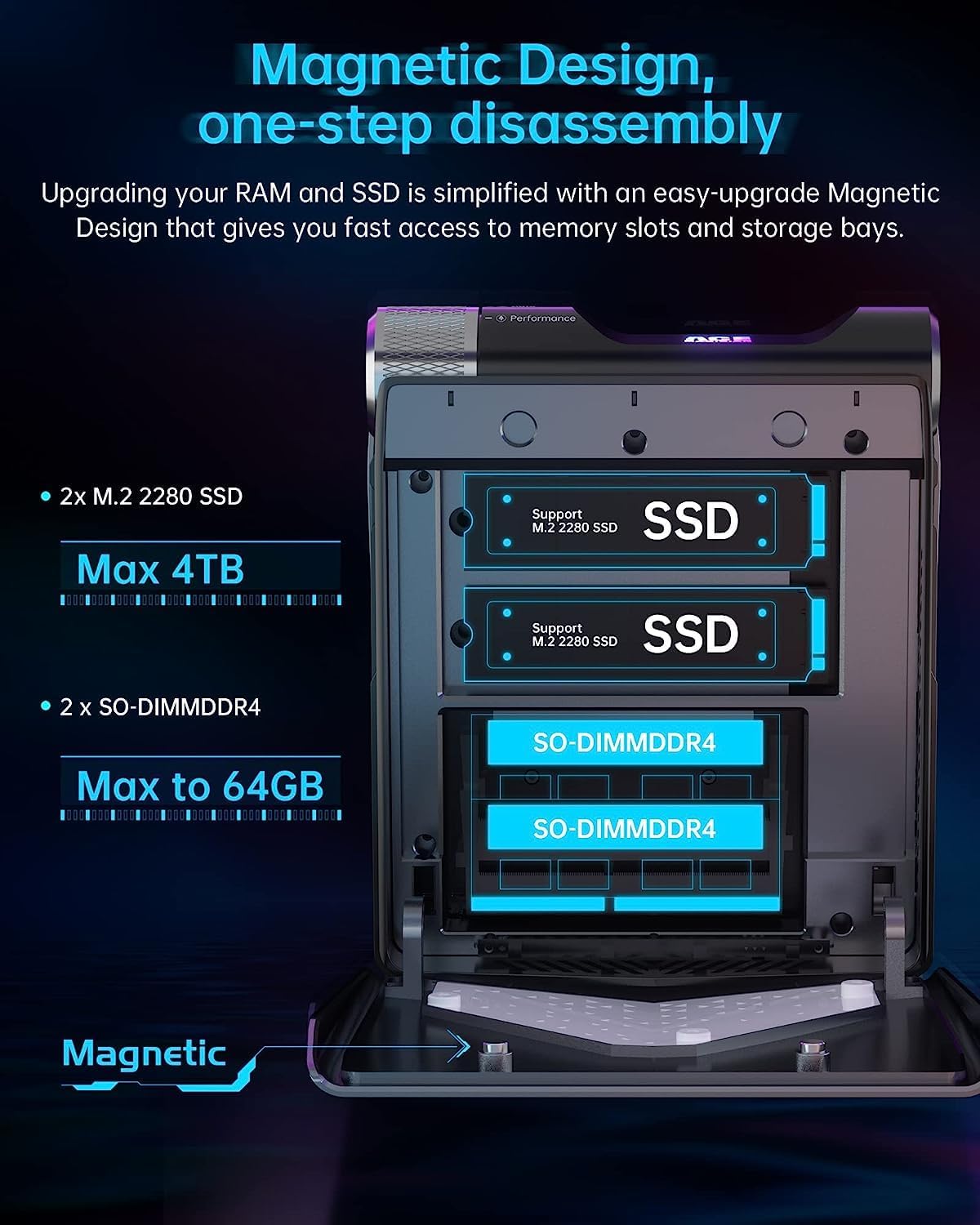
Image: Exploded view of the KAMRUI Mini PC demonstrating its magnetic design for one-step disassembly, revealing slots for 2x M.2 2280 SSDs (up to 4TB) and 2x SO-DIMM DDR4 RAM (up to 64GB).
- Power Off: Ensure the Mini PC is completely powered off and unplugged from the power source.
- Open Casing: Gently detach the side panel, which is held by magnets, to expose the internal components.
- Install/Replace Components: Locate the SO-DIMM DDR4 slots for RAM or the M.2 2280 slots for SSDs. Carefully insert or replace the components according to their respective installation guides.
- Close Casing: Reattach the side panel, ensuring it snaps securely into place.
The device supports up to 64GB of SO-DIMM DDR4 RAM and up to 4TB of M.2 2280 SSD storage.
6. Troubleshooting
6.1. No Power
- Ensure the power adapter is securely connected to both the Mini PC and a working power outlet.
- Verify the power outlet is functional by plugging in another device.
- Check the power adapter for any visible damage.
6.2. No Display Output
- Confirm that the monitor is powered on and the correct input source is selected.
- Check the HDMI or Display Port cable connections at both the Mini PC and the monitor. Try a different cable if available.
- Test with a different monitor or display port if possible.
6.3. Slow Performance
- Ensure the Mini PC is set to 'Auto Mode' or 'Performance Mode' if demanding tasks are being performed.
- Close unnecessary applications running in the background.
- Check for sufficient free storage space on the SSD.
- Run a system scan for malware or viruses.
- Ensure Windows and drivers are up to date.
7. Specifications
| Category | Specification |
|---|---|
| Brand | KAMRUI |
| Model Name | AMR5 |
| Operating System | Windows 10 Pro |
| CPU Model | AMD Ryzen 7 5800U |
| CPU Speed | 2.3 GHz (Base), up to 4.4 GHz (Boost) |
| Graphics Coprocessor | AMD Radeon Graphics |
| RAM Memory Installed Size | 32 GB DDR4 |
| RAM Memory Maximum Size | 64 GB |
| Memory Speed | 3200 MHz |
| Hard Disk Description | 1TB NVMe SSD |
| Wireless Network Technology | Wi-Fi 6 (802.11ax) |
| Bluetooth | Bluetooth 5.2 |
| Item Dimensions (L x W x H) | 6.15 x 5.22 x 2.83 inches (156.1 x 132.6 x 71.8 mm) |
| Weight | 3.0 lb |
| UPC | 758419261160 |
8. Warranty and Support
For warranty information and technical support, please refer to the documentation included with your purchase or visit the official KAMRUI website. You may also contact KAMRUI customer service directly for assistance with product issues or inquiries.
Manufacturer: KAMRUI
ASIN: B0CYC3Q917
