
1. Introduction
Thank you for choosing the YuYue Electronic 4K Dash Cam. This device is designed to provide high-quality video recording for your vehicle, enhancing driving safety and providing evidence in case of incidents. This manual provides detailed instructions for installation, operation, and maintenance of your dash cam.
This dash cam is specifically designed for a seamless, OEM-style integration with the following vehicles:
- Toyota Corolla 2023 LE, SE, XLE, XSE, Hybrid, Hatchback
- Toyota Corolla 2024 LE, SE, XLE, XSE, Hybrid, Hatchback
Note: This product is not compatible with 2019-2022 Toyota Corolla models.
2. Package Contents
Please verify that all items are present in the package:
- YuYue Electronic 4K Dash Cam (Model: DVR-CLA-2324)
- 64GB MicroSD Card
- Installation Manual
- Wiring Harness (for power connection)
3. Product Overview
Familiarize yourself with the components and controls of your dash cam.
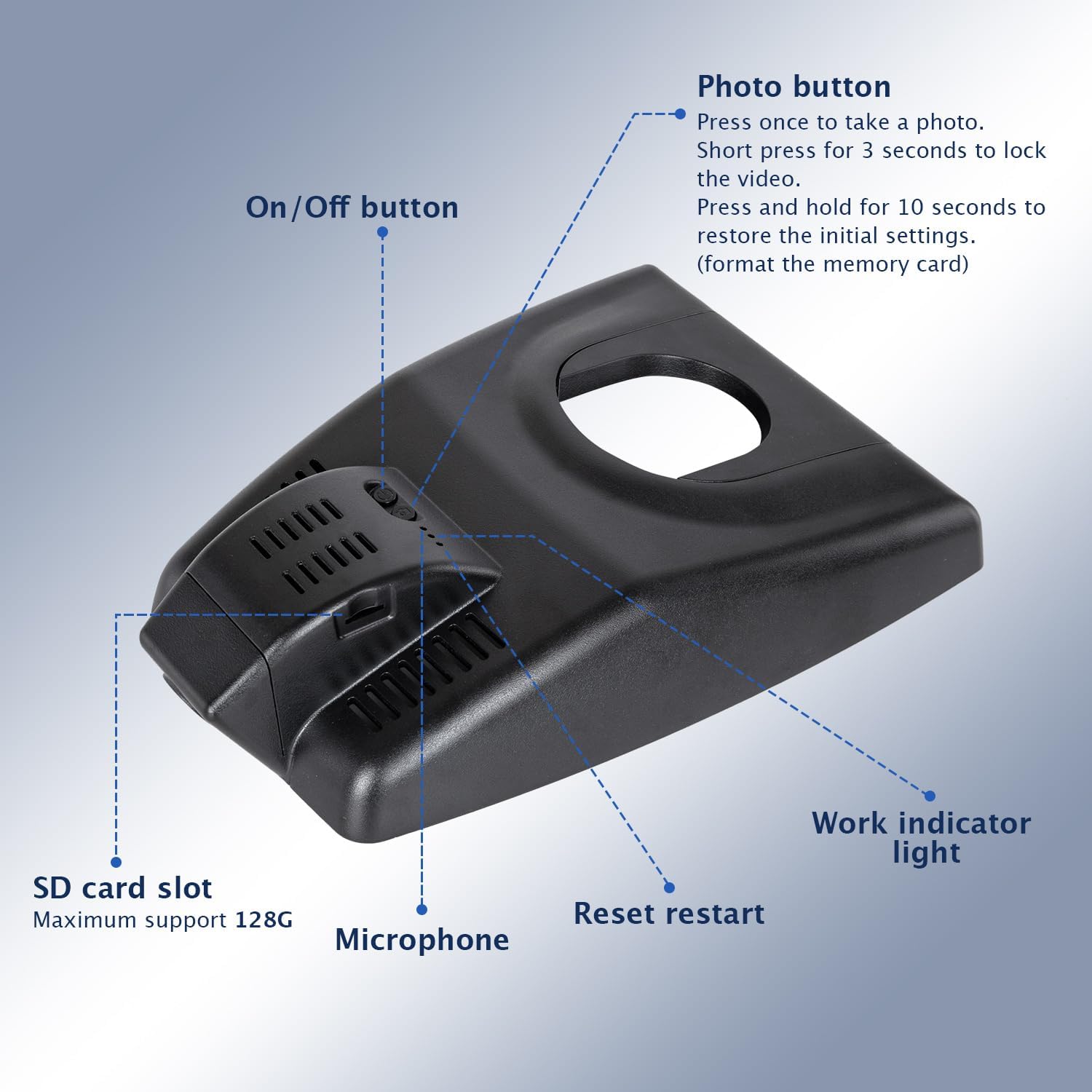
Figure 3.1: Dash Cam Components Diagram
Key Components:
- On/Off Button: Powers the device on or off.
- Photo Button:
- Press once to take a photo.
- Press and hold for 3 seconds to lock the current video file, preventing it from being overwritten.
- Press and hold for 10 seconds to restore initial settings (this will format the memory card).
- SD Card Slot: Insert the MicroSD card here. Supports up to 128GB.
- Microphone: Records audio inside the vehicle.
- Reset Restart: Small button for force restarting the device if it becomes unresponsive.
- Work Indicator Light: Indicates the operational status of the dash cam.
4. Setup and Installation
The YuYue Electronic 4K Dash Cam is designed for an OEM-style fit, integrating seamlessly into your vehicle's existing structure without external wiring or windshield obstruction. A detailed installation manual is included in the package.
4.1 Pre-Installation Check
- Ensure your vehicle is turned off.
- Locate the original vehicle sensing outer box and rain sensor plug near your rearview mirror.
- Insert the provided 64GB MicroSD card into the dash cam's SD card slot.
4.2 Installation Steps
Follow these steps for a proper installation:
- Remove Original Housing: Carefully remove the original vehicle sensing outer box located near the rearview mirror.

Image 4.1: Removing the original vehicle sensing outer box.
- Disconnect Rain Sensor Plug: Pull out the original car rain sensor plug.

Image 4.2: Disconnecting the original car rain sensor plug.
- Connect Power: Plug the provided wiring-free power connector into the vehicle's power source. This dedicated plug ensures power intake does not affect original vehicle functions.

Image 4.3: Connecting the wiring-free power plug.
- Install Dash Cam and Replace Casing: Secure the dash cam in place and replace the original casing, ensuring a neat and integrated appearance.

Image 4.4: Before and after installation, demonstrating the OEM fit.
4.3 App Download and Connection
To manage and view recordings, download the dedicated app:
- Search for the "YuYue Electronic Dash Cam" app on the Apple App Store or Google Play Store.
- Install the app on your smartphone.
- Once installed, connect to the dash cam's built-in Wi-Fi network (SSID and password typically found on the device or in the included manual).
- Use the app to view live video, download important clips, and adjust settings.

Image 4.5: Dash Cam App Interface on a Smartphone.
5. Operating Instructions
5.1 Power On/Off
- The dash cam typically powers on automatically when the vehicle's ignition is turned on.
- To manually power on/off, press and hold the On/Off button.
5.2 Video Recording
- Automatic Recording: The dash cam begins recording automatically when powered on.
- 4K UHD 2160P Video: Records in Ultra HD 2160P resolution at 30 frames per second, capturing clear and detailed footage. The f/1.6 large aperture lens and CMOS sensor, combined with WDR technology, ensure optimal image quality even in low-light conditions.

Image 5.1: Example of 4K UHD 2160P video quality.
5.3 Loop Recording
The dash cam features seamless loop recording. When the MicroSD card is full, the system automatically overwrites the oldest unlocked video files to make space for new recordings. This ensures continuous recording without manual intervention.
- Supports MicroSD cards up to 128GB. A 64GB card is included.
5.4 G-Sensor (Emergency Recording)
The built-in G-Sensor detects sudden impacts or collisions. When triggered, the dash cam automatically records and locks the current video segment, protecting it from being overwritten by loop recording. These emergency files are stored in a separate, protected folder on the MicroSD card.

Image 5.2: G-Sensor and Loop Recording features.
5.5 Wi-Fi and App Usage
The integrated Wi-Fi allows you to connect your smartphone to the dash cam via the dedicated app. This enables:
- Live viewing of the camera feed.
- Playback of recorded videos.
- Downloading important video clips directly to your phone.
- Adjusting dash cam settings.
- Easy sharing of videos to other devices or platforms.

Image 5.3: App download options.
6. Maintenance
6.1 Cleaning the Lens
To ensure clear video quality, regularly clean the dash cam lens. Use a soft, lint-free cloth specifically designed for optical lenses. Avoid abrasive materials or harsh chemicals that could scratch the lens.
6.2 MicroSD Card Management
- Formatting: It is recommended to format the MicroSD card periodically (e.g., once a month) to maintain optimal performance and prevent data corruption. This can usually be done through the dash cam's settings via the app, or by pressing and holding the Photo button for 10 seconds. Note: Formatting will erase all data on the card. Back up important files before formatting.
- Card Lifespan: MicroSD cards have a limited number of write cycles. If you experience frequent recording errors or corrupted files, consider replacing the MicroSD card.
7. Troubleshooting
If you encounter issues with your dash cam, refer to the following common problems and solutions:
| Problem | Possible Cause | Solution |
|---|---|---|
| Dash cam does not power on. | No power supply; loose connection. | Check power connection to the vehicle. Ensure the vehicle's ignition is on. |
| Recording stops or freezes. | Faulty MicroSD card; card full (no loop overwrite); firmware issue. | Format the MicroSD card. Try a new, high-quality MicroSD card. Perform a reset. |
| Poor video quality. | Dirty lens; protective film still on lens; low light conditions. | Clean the lens. Remove any protective film. Ensure WDR is enabled in settings. |
| Cannot connect to Wi-Fi/App. | Incorrect Wi-Fi password; app not updated; phone Wi-Fi issues. | Verify Wi-Fi password. Restart phone and dash cam. Update the app. |
| G-Sensor is too sensitive/not sensitive enough. | G-Sensor sensitivity setting. | Adjust G-Sensor sensitivity via the app settings. |
If the problem persists, please contact customer support.
8. Specifications
| Feature | Detail |
|---|---|
| Brand | YuYue Electronic |
| Model Name | YuYue Electronic 4K Dash Cam |
| Model Number | DVR-CLA-2324 |
| Video Capture Resolution | 4K (2160P) |
| Frame Rate | 30 fps |
| Field of View | 140 Degrees |
| Maximum Aperture | f/1.6 |
| Optical Sensor Technology | CMOS |
| Special Features | Loop Recording, G-Sensor, Wi-Fi, App Connectivity, WDR Technology |
| Connectivity Technology | Application (Wi-Fi) |
| Flash Memory Type | MicroSD (Supports up to 128GB) |
| Included Components | Dash Cam, 64GB MicroSD Card |
| Mounting Type | Adhesive Mount (OEM Style) |
| Compatible Devices | Toyota Corolla 2023, Toyota Corolla 2024 LE SE XLE XSE Hybrid Hatchback |
| Item Dimensions (D x W x H) | 8"D x 7"W x 2"H |
9. Warranty and Support
Warranty: YuYue Electronic offers a one-year warranty for this product from the date of purchase. This warranty covers manufacturing defects and malfunctions under normal use. It does not cover damage caused by misuse, accidents, unauthorized modifications, or improper installation.
Customer Support: For any questions, technical assistance, or warranty claims, please contact YuYue Electronic customer service. You can typically find contact information on the product packaging or through the retailer where the product was purchased.
Please have your model number (DVR-CLA-2324) and purchase details ready when contacting support.