
1. Introduction
This manual provides instructions for the ORICO 7 Port USB 3.2 Gen 2 Hub, designed to expand your device's connectivity with high-speed data transfer and power delivery capabilities. Please read this manual thoroughly before use to ensure proper operation and to maximize the product's lifespan.
2. Package Contents
- ORICO 7-PORT USB 3.2 10G USB Hub x 1
- 1.64ft USB C to C cable x 1
- USB-A adapter x 1
- 24V 3A DC Power Adapter x 1
- User Manual (this document)
3. Product Features
- 7 Ports: Includes 4 USB-A 3.2 Gen 2 ports, 2 USB-C 3.2 Gen 2 ports, and 1 PD 60W charging port.
- High-Speed Data Transfer: Supports USB 3.2 Gen 2 with speeds up to 10Gbps.
- Power Delivery: Dedicated PD 60W port for charging compatible devices.
- Ergonomic Design: 34° ergonomic tilt for convenient access.
- Durable Construction: Aluminum alloy casing for heat dissipation and durability.
- Wide Compatibility: Compatible with various operating systems including Windows, macOS, Linux, and iPadOS.
4. Product Overview
Familiarize yourself with the components of your ORICO USB Hub.
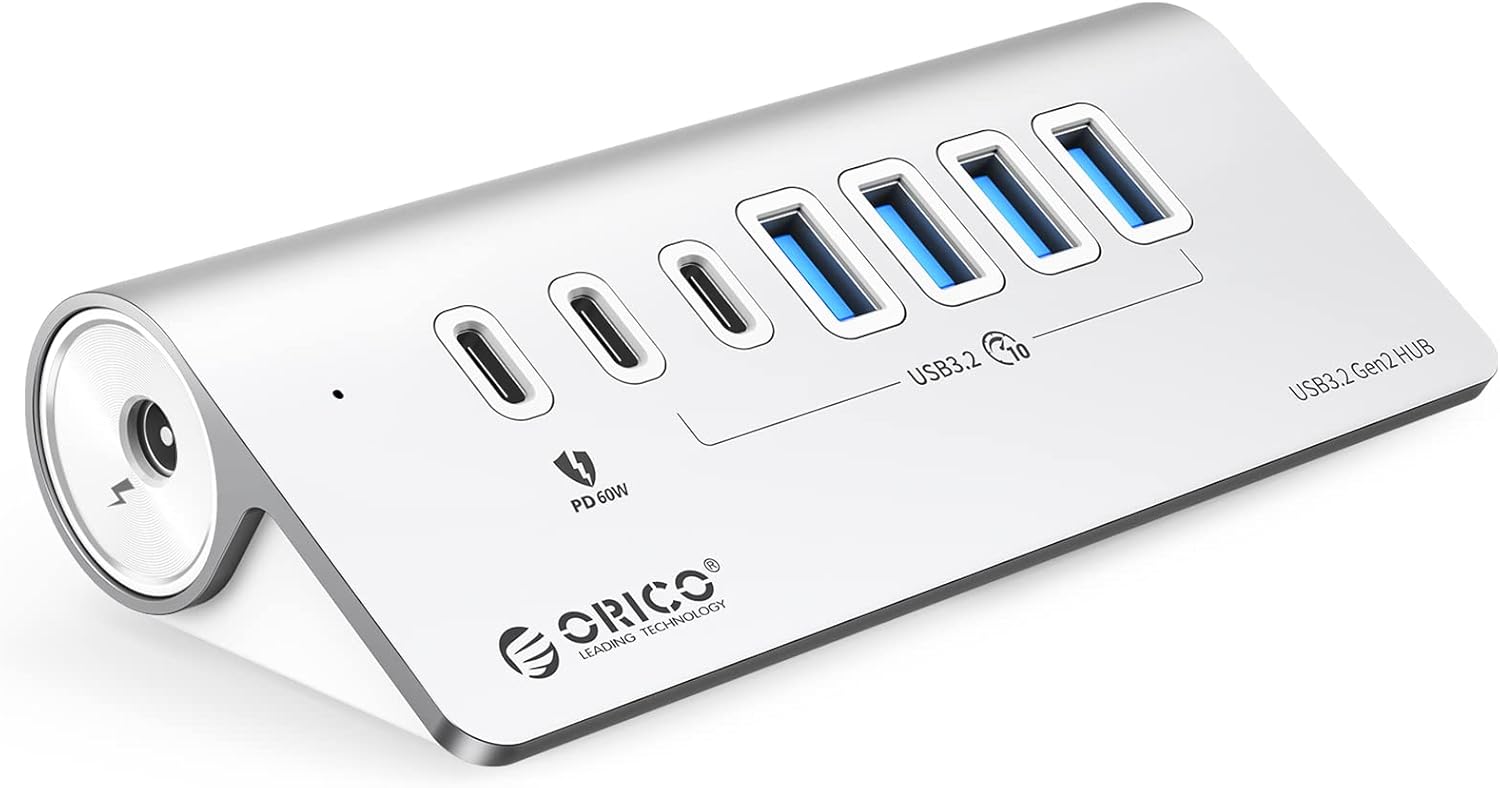
Figure 1: Front view of the ORICO 7 Port USB 3.2 Gen 2 Hub, showing 4 USB-A ports, 2 USB-C data ports, and a PD 60W port.

Figure 2: Diagram illustrating the port layout: 1 PD 60W port, 2 USB-C 3.2 ports, and 4 USB-A 3.2 ports. The smart charging port does not support data transfer.
5. Setup Instructions
- Connect Power Adapter: Insert the 24V 3A DC power adapter into the dedicated power input port on the hub. Connect the power adapter to a wall outlet. This ensures stable power for all connected devices.

Image showing the ORICO USB Hub connected to a power outlet and a laptop, demonstrating the strong power supply feature.
- Connect to Host Device: Use the provided 1.64ft USB-C to USB-C cable to connect the hub to your laptop or computer's USB-C port. If your host device only has USB-A ports, use the included USB-A adapter with the USB-C cable.

Image illustrating connection options: a 0.5M USB-C to USB-C cable for laptops with USB-C, and a 1M USB-A cable for devices with USB-A ports (note: the 1M cable can only connect USB-A devices).
- Plug and Play: The hub is plug-and-play, requiring no additional drivers for most operating systems. Your computer should automatically recognize the hub.
6. Operating Instructions
6.1 Data Transfer
- Connect your USB devices (e.g., external hard drives, USB flash drives, keyboards, mice) to the available USB-A or USB-C data ports on the hub.
- The hub supports USB 3.2 Gen 2 speeds up to 10Gbps for fast data transfer. Ensure your connected devices and cables also support these speeds for optimal performance.

Image demonstrating 10Gbps high-speed data transmission with the ORICO USB Hub, showing a file transfer in progress on a laptop.
6.2 Power Delivery (PD 60W Port)
- The dedicated PD 60W port is for charging compatible devices such as smartphones, tablets, and other USB-C powered accessories.
- Connect your device's USB-C charging cable to the PD 60W port on the hub.
- Note: The PD 60W port is for charging only and does not support data transfer. The other USB 3.2 data ports do not support charging.
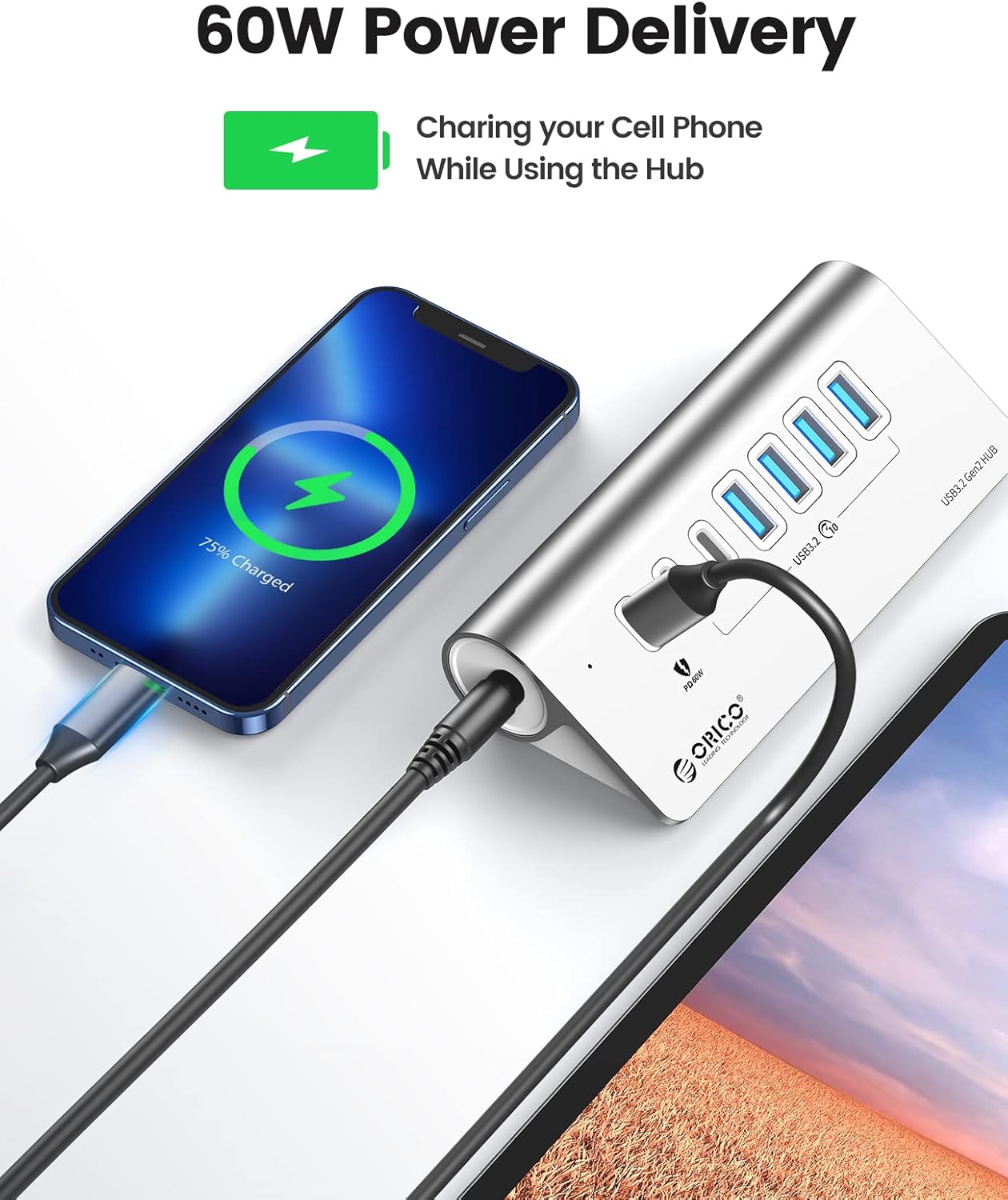
Image showing a smartphone charging via the 60W Power Delivery port on the ORICO USB Hub while the hub is in use.
7. Compatibility
The ORICO USB Hub is designed for broad compatibility with various devices and operating systems.
- Host Devices: Compatible with USB-A/USB-C laptops, desktops, and other devices such as M1 Mac mini, MacBook Air/Pro, iMac, XPS, Surface Pro.
- Operating Systems: Supports Windows XP/2000/7/8/10/11, Linux, Mac OS 10.3 and above, iPadOS.

Image displaying the wide compatibility of the ORICO USB Hub with various devices (PC, Notebook, Tablet, Cellphone, Camera, Webcam, Keyboard, USB Disk, HD, Printer) and operating systems (Windows, Mac OS, iPad OS, Chrome OS).
8. Maintenance and Care
- Keep the hub away from water, fire, and corrosive materials.
- Avoid dropping or subjecting the hub to strong impacts.
- Clean the hub with a soft, dry cloth. Do not use liquid cleaners.
- Ensure proper ventilation to aid in heat dissipation. The aluminum casing is designed to help with this.

Image illustrating the heat dissipation capabilities of the ORICO USB Hub, with snowflake icons indicating cooling.
9. Troubleshooting
- Device Not Recognized:
- Ensure the hub is properly connected to both power and your host device.
- Try connecting the device directly to your computer to verify its functionality.
- Restart your computer and reconnect the hub.
- Ensure the cable connecting the hub to your computer is fully inserted and undamaged.
- Slow Data Transfer Speed:
- Verify that both your host device's port and the connected peripheral support USB 3.2 Gen 2 (10Gbps).
- Ensure you are using a high-quality USB 3.2 Gen 2 compatible cable.
- Avoid using excessively long extension cables, as they can introduce signal degradation.
- Charging Not Working (PD Port):
- Confirm your device supports USB Power Delivery (PD) and is connected to the dedicated PD 60W port.
- Ensure the hub's external power adapter is connected and functioning.
10. Specifications
| Feature | Detail |
|---|---|
| Model | B0CYBN7D5Z |
| Brand | ORICO |
| Ports | 4 x USB-A 3.2 Gen 2, 2 x USB-C 3.2 Gen 2, 1 x PD 60W |
| Data Transfer Speed | Up to 10Gbps (USB 3.2 Gen 2) |
| Power Input | 24V 3A DC Power Adapter |
| Material | Aluminum Alloy |
| Dimensions | 132 x 59 x 31.5 mm (5.2 x 2.3 x 1.2 inches) |
| Item Weight | 1.15 pounds |
| Special Feature | Plug and Play, 34° Ergonomic Design, Heat Dissipation |
| Compatible OS | Windows XP/2000/7/8/10/11, Linux, Mac OS 10.3+, iPadOS |
11. Product Video
Watch the official product video for a visual guide on the ORICO 7 Port USB 3.2 Gen 2 Hub.
Official video showcasing the ORICO 10Gbps USB Hub for MacBook/Laptops, highlighting its design, features, and connectivity options.
12. Warranty and Support
ORICO products come with a standard manufacturer's warranty. For detailed warranty information, technical support, or customer service, please refer to the official ORICO website or contact your retailer.
You can visit the ORICO store for more information: ORICO Official Store


