
1. Introduction
This manual provides instructions for the setup, operation, and maintenance of your ONN Fhd Streaming Stick 36233631. This device allows you to stream digital content in Full HD resolution, access various streaming platforms, and utilize integrated features like Chromecast and Google Assistant voice control.
2. What's in the Box
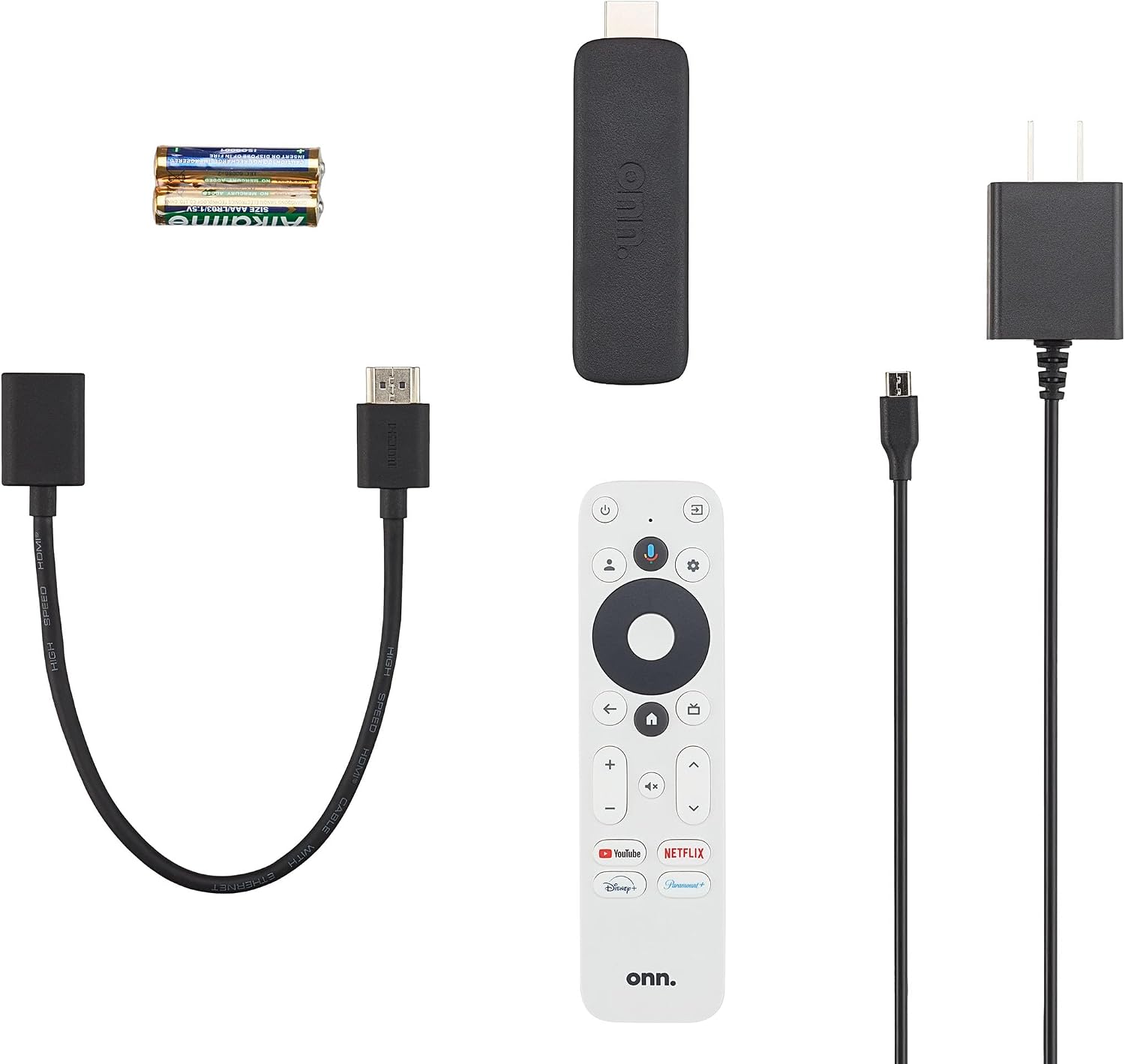
Image 2.1: Components included with the ONN Fhd Streaming Stick 36233631. This image displays the streaming stick, a white remote control, a power adapter, a USB power cable, an HDMI extender cable, and two AAA batteries.
Verify that all the following items are included in your package:
- ONN Fhd Streaming Stick (Model 36233631)
- Remote Control
- Power Adapter
- USB Power Cable
- HDMI Extender Cable
- AAA Batteries (2)
3. Setup
- Connect the Streaming Stick: Plug the ONN Fhd Streaming Stick directly into an available HDMI port on your television. If space is limited, use the provided HDMI extender cable.
- Power the Device: Connect the USB power cable to the streaming stick and then to the power adapter. Plug the power adapter into a wall outlet.
- Insert Batteries into Remote: Open the battery compartment on the back of the remote control and insert the two AAA batteries, ensuring correct polarity.
- Select HDMI Input: Turn on your television and use its remote control to select the HDMI input corresponding to where the streaming stick is connected.
- Follow On-Screen Instructions: The streaming stick will guide you through the initial setup process, including connecting to your Wi-Fi network, logging into your Google account, and installing desired streaming applications.

Image 3.1: The ONN Fhd Streaming Stick 36233631 in its packaging. The packaging highlights key features such as Google TV and compatibility with various streaming services like Netflix, YouTube, Disney+, and Hulu.
4. Operating Instructions
4.1. Remote Control Functions

Image 4.1: A detailed view of the ONN Fhd Streaming Stick remote control. Key buttons visible include power, Google Assistant microphone, directional pad, select button, back, home, volume up/down, mute, and dedicated buttons for YouTube, Netflix, Disney+, and Paramount+.
- Power Button: Turns the streaming stick and connected TV on/off.
- Google Assistant Button: Press and hold to activate voice commands.
- Directional Pad (D-Pad): Navigate menus and select items.
- Select Button: Confirms selections.
- Back Button: Returns to the previous screen.
- Home Button: Returns to the Google TV home screen.
- Volume Buttons: Adjust TV volume.
- Mute Button: Mutes TV audio.
- App Shortcut Buttons: Direct access to popular streaming services (e.g., YouTube, Netflix, Disney+, Paramount+).
4.2. Google TV Interface
The ONN Fhd Streaming Stick uses the Google TV interface, which organizes movies, shows, and live TV from all your apps into one central location. You can browse personalized recommendations, create watchlists, and discover new content.

Image 4.2: A television screen displaying the Google TV interface. The screen shows a selection of installed applications such as YouTube Kids, PBS Kids, Noggin, and Cartoon Network, along with content recommendations, indicating a family-friendly profile.
4.3. Chromecast Built-in
With Chromecast built-in, you can cast photos, videos, and music from your compatible mobile device or computer directly to your TV. Ensure your device is connected to the same Wi-Fi network as your streaming stick.
4.4. Voice Control with Google Assistant
Press and hold the Google Assistant button on your remote to use voice commands. You can ask Google to find movies, launch apps, control smart home devices, and more.
5. Maintenance
- Cleaning: Use a soft, dry cloth to clean the streaming stick and remote control. Avoid liquid cleaners or abrasive materials.
- Software Updates: The device will automatically check for and install software updates. Ensure the device is connected to the internet for these updates.
- Storage: Store the device in a cool, dry place when not in use for extended periods.
6. Troubleshooting
- No Power/No Display:
- Ensure the power adapter is securely plugged into both the streaming stick and a working wall outlet. Verify the TV is set to the correct HDMI input.
- Remote Control Not Responding:
- Check if the batteries are correctly inserted and not depleted. Try re-pairing the remote if necessary (refer to on-screen instructions during initial setup or device settings).
- Buffering/Poor Streaming Quality:
- Check your Wi-Fi connection strength. Move the streaming stick closer to your Wi-Fi router or consider using the HDMI extender to improve signal reception. Restart your router and the streaming stick.
- App Not Working/Crashing:
- Try restarting the app. If the issue persists, clear the app's cache or reinstall the app from the Google Play Store.
- Region Compatibility Issues:
- Some users have reported issues with region compatibility. Ensure your Google account and device settings are configured for your current geographical location. If problems persist, contact ONN customer support.
7. Specifications
| Feature | Detail |
|---|---|
| Model Number | 36233631 |
| Resolution | Full HD (1080p) |
| RAM | 1.5 GB |
| Internal Storage | 8 GB |
| Operating System | Google TV |
| Connectivity | HDMI, Wi-Fi, Micro USB (for power) |
| Special Features | Chromecast Built-in, Google Assistant Voice Control |
| Dimensions | 13.97 x 9.98 x 17.02 cm |
| Weight | 280 g |
8. Warranty and Support
For warranty information and technical support, please refer to the documentation included with your product or visit the official ONN support website. Keep your proof of purchase for warranty claims.
Note: Product specifications and features are subject to change without notice. For the most up-to-date information, please consult the manufacturer's official resources.


