
Introduction
This manual provides comprehensive instructions for the KZZI Z98 Creamy Keyboard. Please read this manual thoroughly before using the product to ensure proper operation and to maximize your user experience.

Image: The KZZI Z98 Creamy Keyboard in a light blue color, featuring a 94-key layout and a smart display in the upper right corner showing date, time, and battery level.
What's in the Box
- 1 * Keycap & Switch Combo Puller
- 1 * USB-C Cable
- 1 * Dustproof Case
- 1 * User Manual (this document)
- 4 * Switch Replacement
Product Overview
The KZZI Z98 is a 94-key wireless mechanical keyboard featuring a smart display, multi-mode connectivity, and hot-swappable switches. It is designed for both typing and gaming with a focus on user customization and comfort.
Key Components
- 94-Key Layout: Compact design retaining essential keys.
- Smart Display & Knob: For system information, settings, and custom GIFs.
- Hot-Swappable Switches: Allows for easy switch replacement without soldering.
- Multi-Layer Structure: Includes sound-absorbing silicone and cotton for reduced noise.
- Double-Shot PBT Keycaps: Durable and resistant to wear.
- Tri-Mode Connection: Bluetooth 5.0, 2.4GHz wireless, and USB-C wired.
- 3750mAh Battery: Extended battery life for wireless use.
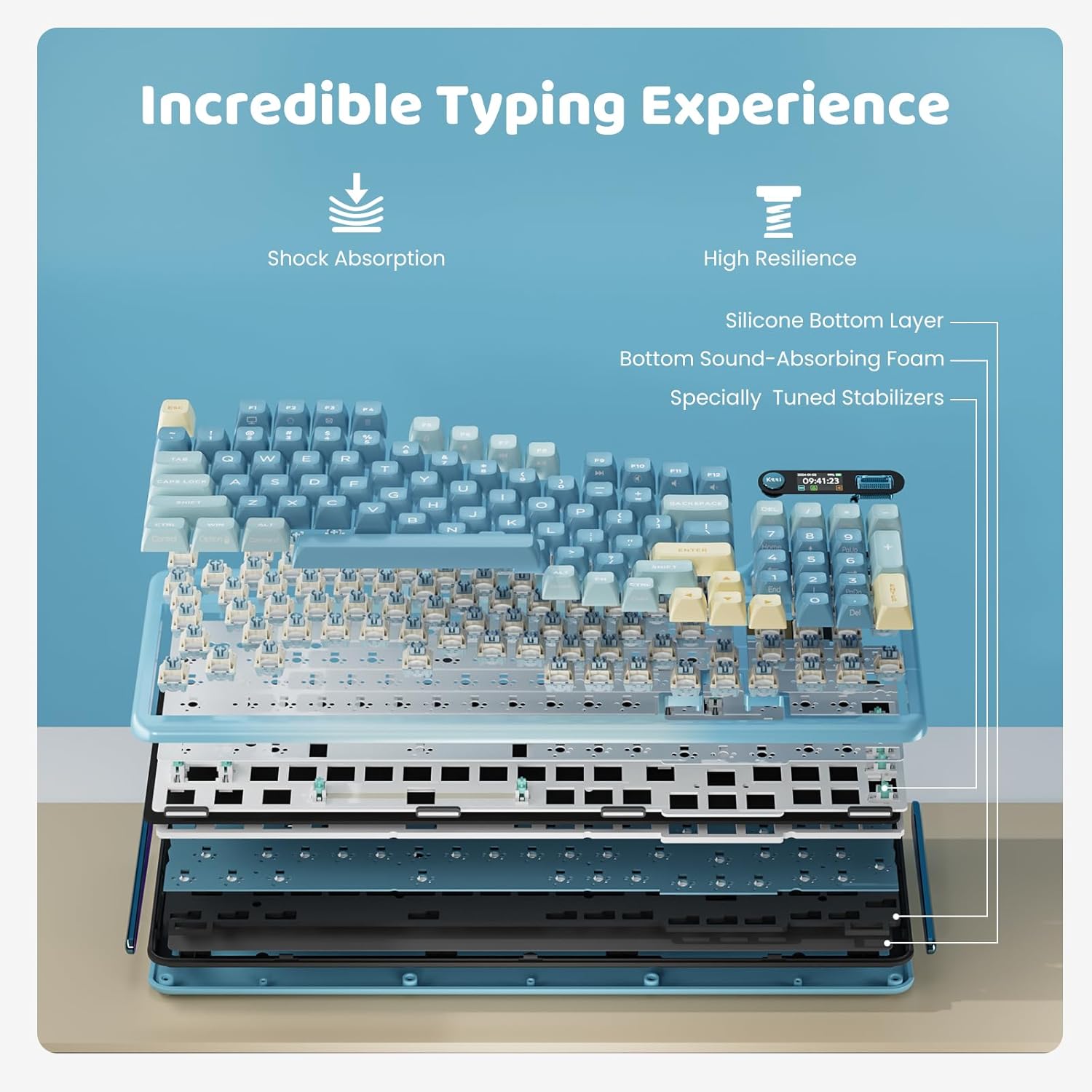
Image: An exploded view diagram of the KZZI Z98 keyboard's internal components, highlighting the shock absorption, high resilience, silicone bottom layer, bottom sound-absorbing foam, and specially tuned stabilizers, contributing to an enhanced typing experience.
Setup
Charging the Keyboard
Connect the keyboard to a USB power source using the provided USB-C cable. The smart display will indicate charging status. A full charge provides up to 20 days of non-RGB use or 5 days with RGB lighting (based on 6 hours of daily use).
Connectivity Modes
The KZZI Z98 keyboard supports three connection modes: Bluetooth 5.0, 2.4GHz wireless, and USB-C wired. You can connect up to five devices simultaneously.

Image: The KZZI Z98 keyboard positioned on a desk, connected to a desktop computer, a tablet, and a smartphone, illustrating its tri-mode connectivity (2.4Ghz, Bluetooth, USB-C) and compatibility with various devices.
USB-C Wired Connection
Connect the keyboard directly to your computer using the supplied USB-C cable. The keyboard will automatically switch to wired mode.
2.4GHz Wireless Connection
- Locate the 2.4GHz USB receiver. It is typically stored within the keyboard chassis.
- Insert the 2.4GHz receiver into an available USB port on your device.
- On the keyboard's smart display, use the toggle switch to select the 2.4G icon.
- Press the push button on the knob to confirm. The display will show "2.4G linking" and then "2.4G success" once connected.
Note: The 2.4G receiver is pre-paired at the factory. If re-pairing is needed, use the toggle switch to select the 2.4G icon, press and hold the push button until the display shows "2.4G pairing", then insert the receiver.
Bluetooth 5.0 Connection
- On the keyboard's smart display, use the toggle switch to select one of the Bluetooth channels (BT1, BT2, or BT3).
- Press and hold the push button on the knob for 3 seconds until the display shows "BT1 is pairing" (or BT2/BT3).
- On your device (PC, laptop, tablet, etc.), enable Bluetooth and search for "Kzzi Z98".
- Select "Kzzi Z98" to pair. Once connected, the display will show "BT success" and return to the home screen.
- Repeat these steps to store up to 3 different Bluetooth devices.
Operating Instructions
Smart Display and Knob Functions
The integrated smart display and three-way knob provide quick access to various keyboard settings and information.

Image: Close-up of the KZZI Z98 keyboard's smart display and knob, detailing their functions. The push button controls power (long press for 3s), switches between volume/menu settings, and confirms selections. The toggle switch adjusts volume (up/down) and navigates menu sections.
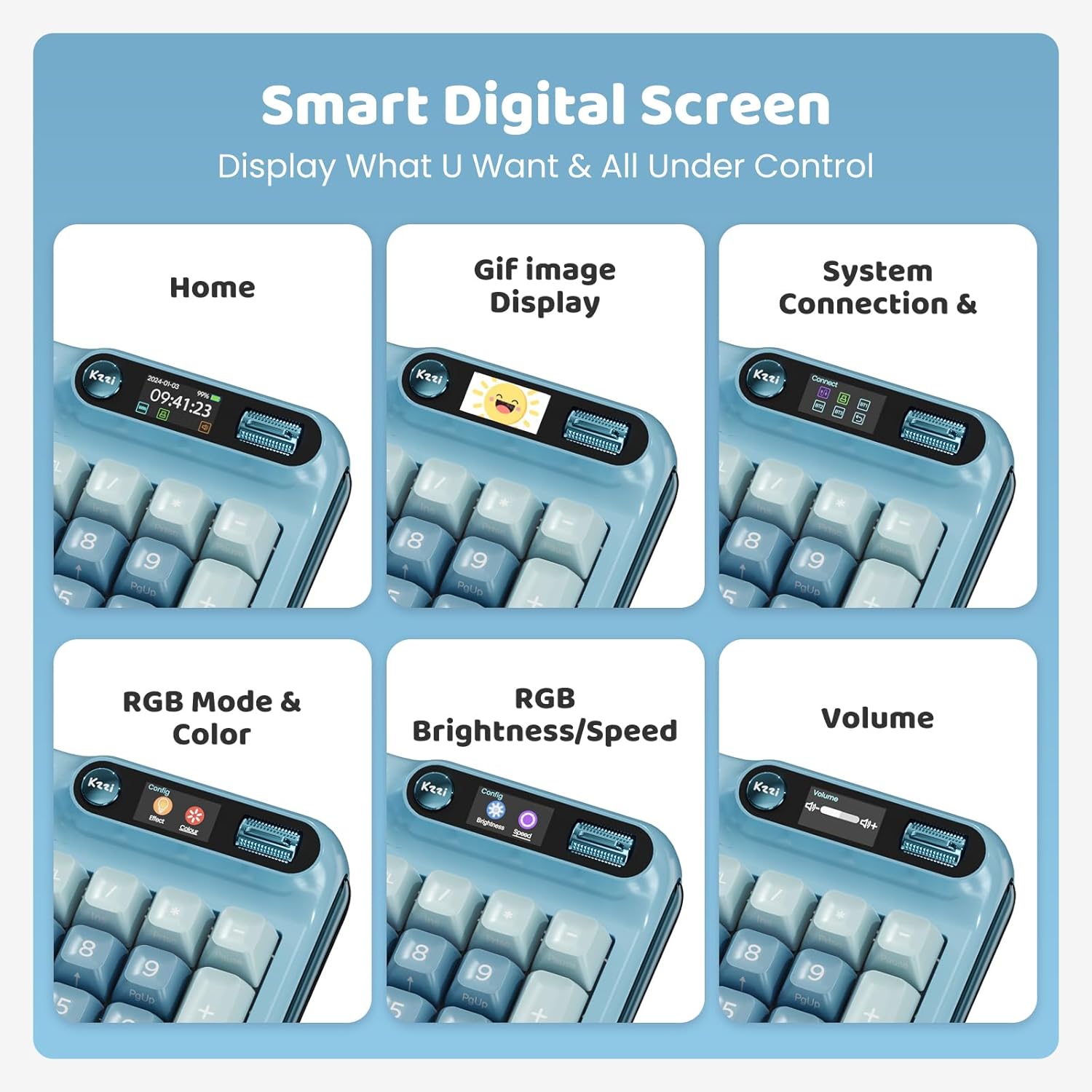
Image: Six examples of the smart digital screen's display capabilities: Home screen (date, time, battery, connection status), GIF image display, System Connection status, RGB Mode & Color selection, RGB Brightness/Speed adjustment, and Volume control.
Knob Functions:
- Push Button:
- Long press for 3 seconds to power ON/OFF.
- Press to switch between Volume and Menu settings on the main interface.
- Press to confirm selections within menus.
- Toggle Switch:
- Toggle up/down to adjust volume.
- Toggle up/down to navigate between connection modes or menu sections.
- Toggle up/down to enter the menu, select sections, and adjust RGB brightness/speed.
Customizing the Smart Display
The smart display can show custom GIFs, system information, and keyboard settings. Use the accompanying software to upload and manage custom GIFs.
Keycap and Switch Replacement (Hot-Swappable)
The KZZI Z98 features a hot-swappable PCB, allowing you to easily change 3-pin or 5-pin mechanical switches without soldering.

Image: A close-up view of the KZZI Z98 keyboard's PCB with several keycaps and switches removed, demonstrating its hot-swappable capability. A keycap and switch puller tool is also visible.
- Use the provided keycap puller to gently remove the desired keycap.
- Use the switch puller to carefully grip and pull out the switch.
- Align the pins of the new switch with the holes on the PCB and gently push it into place until it clicks. Ensure the pins are not bent.
- Place the keycap back onto the new switch.
Software Customization
The KZZI Z98 keyboard supports advanced software for customization. This software allows you to:
- Customize GIFs for the smart display.
- Program complex keyboard macros.
- Fine-tune RGB lighting effects, including 'Music Syncing' mode.
Please visit the official KZZI website to download the latest software for your keyboard model.
Maintenance
Cleaning
- Keycaps: Use a soft, damp cloth to wipe keycaps. For deeper cleaning, remove keycaps using the provided puller and wash them with mild soap and water. Ensure they are completely dry before reattaching.
- Keyboard Body: Wipe the keyboard body with a soft, dry cloth. Avoid using harsh chemicals or abrasive materials.
- Between Keys: Use compressed air to remove dust and debris from between the keys.
Storage
When not in use, store the keyboard in a cool, dry place. Use the provided dustproof case to protect it from dust and spills.
Troubleshooting
- Keyboard not responding:
- Ensure the keyboard is charged. Check the connection mode (wired, 2.4GHz, or Bluetooth) and ensure it is correctly selected and paired with your device. Try restarting the keyboard by long-pressing the knob button.
- Smart display not working or stuck:
- Try restarting the keyboard. If the issue persists, ensure the keyboard firmware is up to date via the official software. If the display is stuck on a specific mode (e.g., Bluetooth switching), a factory reset might be necessary (refer to software instructions or contact support).
- RGB lighting not activating:
- Ensure the keyboard is in wired mode first to activate RGB if it's not showing. Check RGB settings via the smart display or the customization software. Ensure the battery has sufficient charge if using wireless mode.
- Connectivity issues (2.4GHz/Bluetooth):
- Ensure the keyboard is within range of your device. For 2.4GHz, try re-pairing the receiver. For Bluetooth, remove the keyboard from your device's Bluetooth list and re-pair it. Avoid interference from other wireless devices.
- Keys not registering or double-typing:
- This could indicate a faulty switch. Use the provided switch puller to replace the problematic switch with one of the spare switches included in the box.
Specifications
| Feature | Detail |
|---|---|
| Brand | KZZI |
| Model Number | Z98 |
| Layout | 94 Keys (90% Layout) |
| Connectivity Technology | 2.4GHz Wireless, Bluetooth 5.0, USB-C Wired |
| Compatible Devices | PC, Laptop, Gaming Console, Projector, Tablet |
| Switches | Hot-Swappable Linear Switches (supports 3-pin/5-pin) |
| Keycaps | Double-Shot PBT, DSA-height |
| Backlighting | RGB (Customizable, Music Syncing) |
| Battery Capacity | 3750mAh Lithium Ion |
| Battery Life | Up to 20 days (non-RGB), 5 days (with RGB) - based on 6 hours/day |
| Item Weight | 3 pounds (approx. 1.36 kg) |
| Package Dimensions | 15.75 x 7.87 x 1.18 inches |
| Special Features | Smart Display, Multi-function Knob, Ergonomic Design, Two-Stage Foot Pad |
Warranty and Support
For warranty information, technical support, or further assistance, please refer to the warranty card included with your product or visit the official KZZI website. Contact details for customer service are typically available on the manufacturer's website.
Manufacturer: KZZI
Date First Available: March 15, 2024


