
Introduction
Welcome to the user manual for your new ATOMSTACK A6 Pro Laser Engraver with B3 Protective Box. This powerful and precise laser engraving machine is designed for a wide range of materials, including plywood, acrylic, paper, and leather. With its 6W optical power and advanced features, the A6 Pro offers exceptional performance for both engraving and cutting tasks. This manual provides essential information for safe operation, setup, maintenance, and troubleshooting to ensure you get the most out of your device.

Image: The ATOMSTACK A6 Pro Laser Engraver with its B3 Protective Box, showcasing its compact and enclosed design.
Safety Information
Operating a laser engraver requires strict adherence to safety guidelines to prevent injury and damage. Please read and understand all safety warnings before operating the ATOMSTACK A6 Pro.
- Eye Protection: Always wear appropriate laser safety goggles when the laser is active, even with the protective enclosure. The B3 Protective Box offers significant protection, but direct exposure to the laser beam can cause severe eye damage.
- Ventilation: Ensure adequate ventilation in your workspace. Laser engraving and cutting can produce fumes and particles that may be harmful if inhaled. The B3 Protective Box includes an efficient exhaust system.
- Fire Hazard: Laser engraving involves high temperatures and can ignite flammable materials. Never leave the machine unattended during operation. Keep a fire extinguisher nearby.
- Material Compatibility: Only engrave or cut materials specified as safe for laser processing. Avoid materials that produce toxic fumes or can easily catch fire, such as PVC.
- Emergency Stop: Familiarize yourself with the emergency stop button. The B3 Protective Box features interlocks that automatically shut off the laser if the cover is opened during operation.
- Children and Pets: Keep children and pets away from the laser engraver at all times.

Image: Visual representation of the ATOMSTACK A6 Pro's safety features, including position movement protection, double-layer eye protection, enclosure interlocks for auto shut-off, and limit switches with safety lock.

Image: A comparison showing the difference in smoke containment when using the protective box (After Use) versus operating without it (Before), highlighting the importance of the enclosure for safety and air quality.
Product Overview
The ATOMSTACK A6 Pro is a high-performance laser engraver designed for precision and efficiency. Key components include:
- Laser Module: Features a 6W optical power laser with an ultra-fine 0.05x0.05mm compressed spot for high precision engraving and cutting. It includes a tool-free focusing module and an air assist system.
- B3 Protective Box: An integrated enclosure with LED lighting, a built-in camera for precise positioning, and a transparent dust cover for visibility. It provides protection from intense light exposure and helps contain fumes.
- Frame Structure: The A6 Pro's frame base is integrally formed, and the metal X-axis uses a centered dual-axis guide structure, ensuring stability and minimal vibration even at high speeds.
- Control Panel: Intuitive controls for power, emergency stop, and connectivity.

Image: A detailed diagram illustrating the 6W optical power and the extremely compressed light spot (0.05x0.05mm) of the A6 Pro laser module, compared to a larger spot size from other models.

Image: Features of the B3 Protective Cover, including noise reduction, fire-proof design, efficient ventilation (7500RPM fan), and eye protection.
Setup
Follow these steps to set up your ATOMSTACK A6 Pro Laser Engraver:
- Unpacking: Carefully remove all components from the packaging. Verify that all parts listed in the packing list are present and undamaged.
- Assembly (if required): The A6 Pro features an integrated frame. If any minor assembly is needed for the laser module or protective box, follow the quick start guide provided in the box. Ensure all screws are tightened securely.
- Placement: Place the engraver on a stable, level, and non-flammable surface in a well-ventilated area. Ensure there is sufficient space around the machine for operation and maintenance.
- Power Connection: Connect the power adapter to the engraver and then to a suitable power outlet. Do not power on the machine yet.
- Software Installation: Install the compatible software (e.g., LaserGrbl, LightBurn) on your computer. Refer to the "Software Compatibility" section for details.
- Connectivity: Connect the engraver to your computer via USB cable, Wi-Fi, or TF card as per your preference and software requirements.
- Initial Focus Adjustment: The new A6 laser features a tool-free focusing module. Follow the instructions in the software or quick start guide for initial focus adjustment to ensure optimal engraving/cutting results.

Image: An illustration demonstrating the ATOMSTACK A6 Pro's support for multiple systems (App, USB-cable, Wi-Fi, TF-card) and compatibility with Windows, Mac OS, iOS, and Android devices.
Operating Instructions
Once the engraver is set up and software is installed, you can begin your engraving or cutting projects.
- Prepare Material: Place the material you wish to engrave or cut onto the working surface inside the protective box. Ensure it is flat and securely positioned.
- Design in Software: Open your chosen design software (e.g., LightBurn, LaserGrbl). Import or create your design.
- Adjust Settings: Configure the laser parameters (power, speed, passes) according to the material type and desired effect. Refer to material settings guides for recommendations.
- Positioning: Use the software's preview function and the integrated camera in the B3 Protective Box to precisely position your design on the material.
- Start Engraving/Cutting: Close the protective box cover. Ensure all safety precautions are met. Initiate the engraving/cutting process from the software.
- Monitoring: Monitor the process closely. The transparent cover allows visibility. If any issues arise, use the emergency stop button.
- Completion: Once the process is complete, wait for the laser to cool down and any fumes to dissipate before opening the protective box and removing the material.

Image: An illustration showcasing the versatility of the ATOMSTACK A6 Pro, demonstrating its ability to engrave and cut various materials such as Basswood, Acrylic, Pine wood, Paulownia, Bamboo, and Leather.

Image: A visual comparison highlighting the stable structure and high speed of the A6 Pro (600mm/s) versus traditional frame machines (100mm/s), demonstrating significantly enhanced work efficiency and faster completion times.
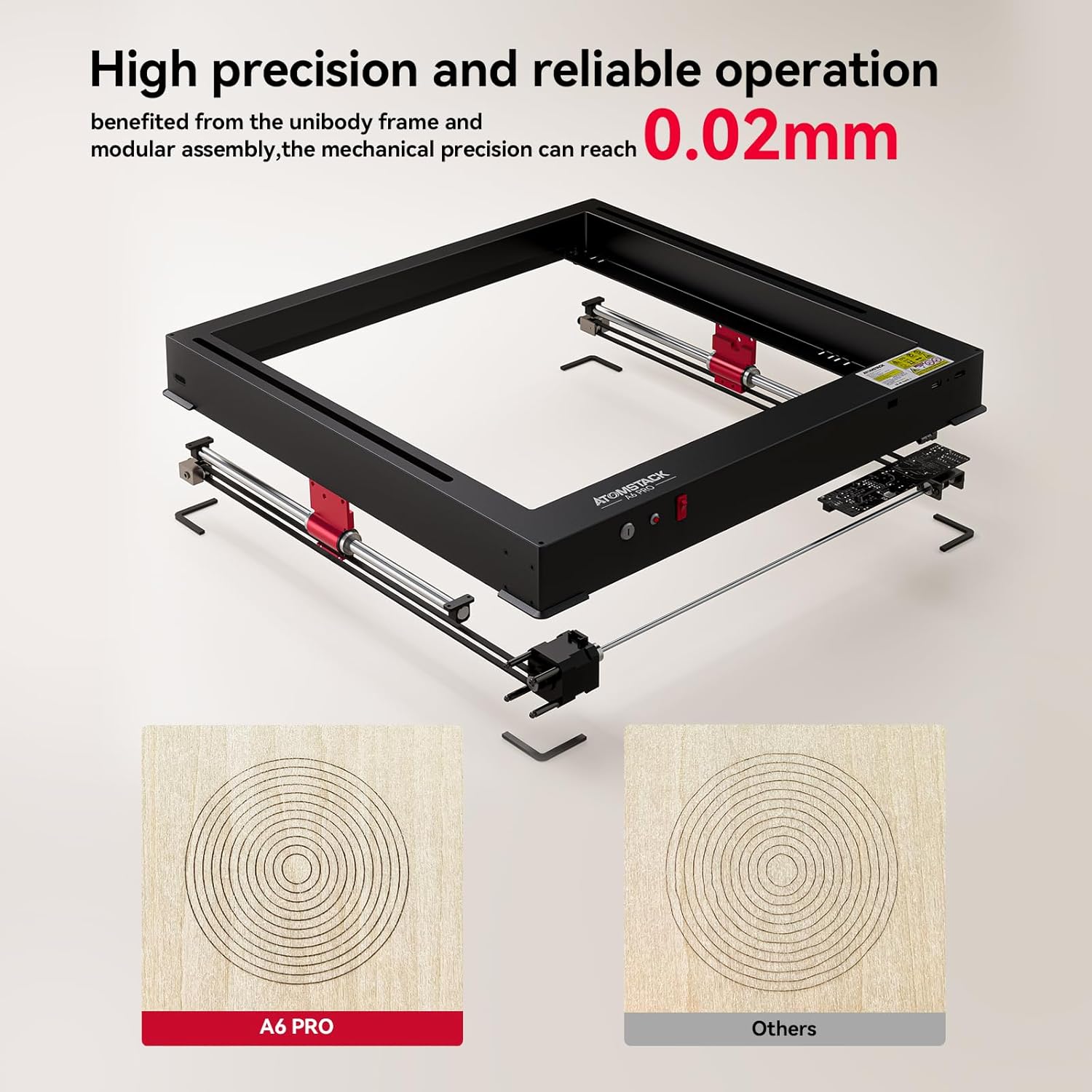
Image: An illustration demonstrating the high precision and reliable operation of the A6 Pro, benefiting from its unibody frame and modular assembly, achieving a mechanical precision of 0.02mm.
Software Compatibility
The ATOMSTACK A6 Pro is compatible with popular laser engraving software, offering flexibility for your projects.
- LaserGrbl: Compatible with Windows XP, Win 7, Win 8, Win 10, Win 11.
- LightBurn: Compatible with Mac OS, Linux, Windows XP, Win 7, Win 8, Win 10, Win 11.
- ATOMSTACK Self-Developed PC Software: Offers more features and a user-friendly human-computer interaction for creative and sharing experts.
- Mobile App: Control via a dedicated mobile application (available on App Store and Google Play).
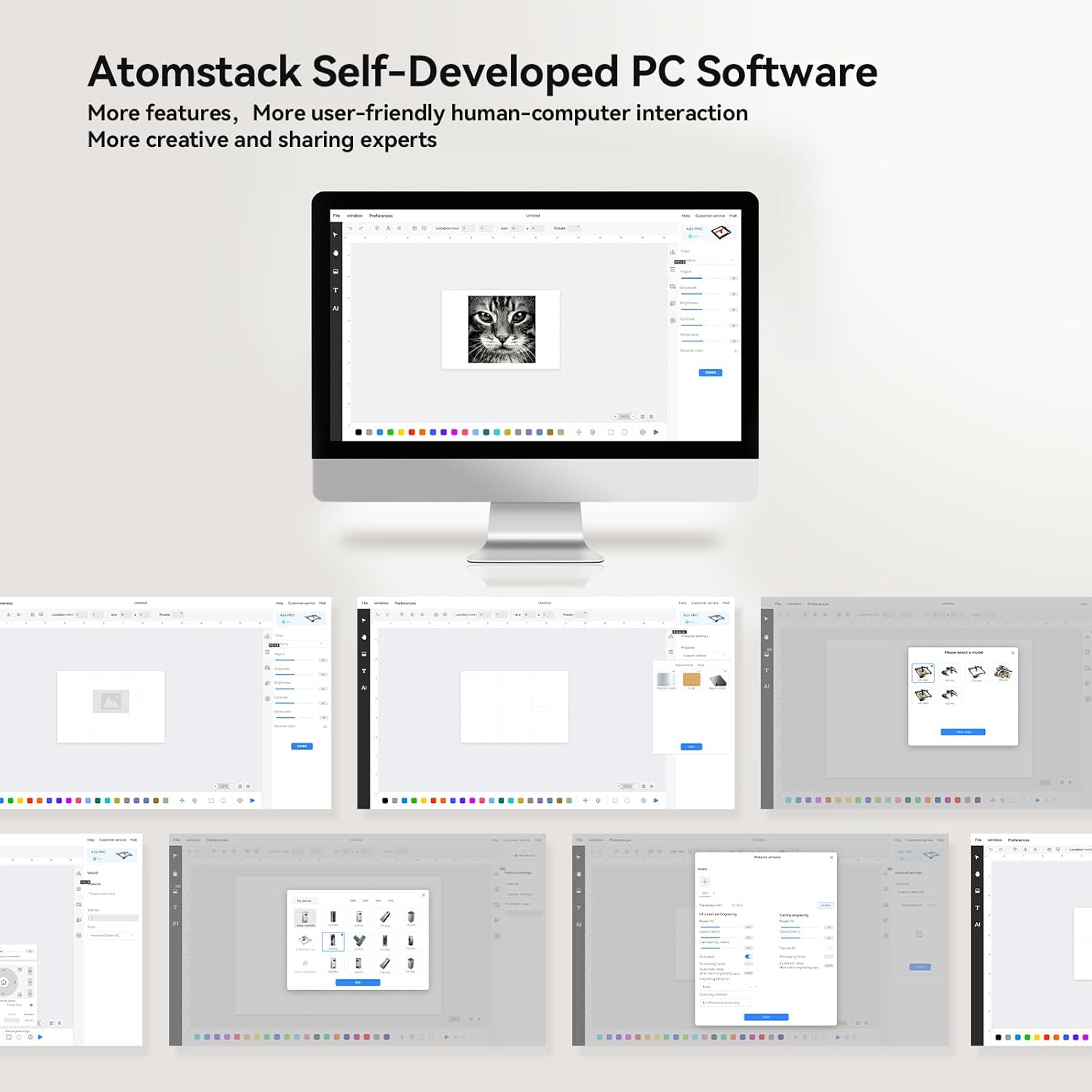
Image: A screenshot displaying the user interface of the Atomstack Self-Developed PC Software, highlighting its features for design and control.
Maintenance
Regular maintenance ensures the longevity and optimal performance of your ATOMSTACK A6 Pro.
- Lens Cleaning: Periodically clean the laser lens using a soft, lint-free cloth and lens cleaning solution. The A6's patented dual wind cap design helps prevent contamination, but regular checks are still recommended.
- Rail and Belt Cleaning: Keep the guide rails and belts free from dust and debris. Use a soft brush or compressed air. Lubricate moving parts as recommended by the manufacturer (refer to the detailed manual if provided).
- Fan Cleaning: The B3 Protective Box has a 7500RPM fan. Ensure the fan and ventilation ports are clear of obstructions to maintain efficient airflow and prevent overheating.
- General Cleaning: Wipe down the exterior of the machine and protective box with a damp cloth. Avoid using harsh chemicals.
- Firmware Updates: Check the ATOMSTACK MAKER website for any available firmware updates for your device to ensure you have the latest features and bug fixes.
Troubleshooting
If you encounter issues with your ATOMSTACK A6 Pro, refer to the following common problems and solutions:
| Problem | Possible Cause | Solution |
|---|---|---|
| Laser not firing or weak output. | Incorrect focus, dirty lens, low power setting, loose cable. | Adjust focus, clean laser lens, increase power setting in software, check all cable connections. |
| Engraving/cutting results are inconsistent or blurry. | Material not flat, machine vibration, incorrect speed/power, loose belts. | Ensure material is flat and secured, check machine stability, adjust speed/power settings, inspect and tighten belts. |
| Machine not connecting to computer. | Incorrect USB port, driver issue, software settings, Wi-Fi connectivity problem. | Try a different USB port, reinstall drivers, verify software communication settings, check Wi-Fi connection. |
| Protective box interlock prevents operation. | Cover not fully closed, safety switch engaged. | Ensure the B3 Protective Box cover is fully closed and latched. Check for any obstructions preventing closure. |
| Excessive smoke or odor. | Improper ventilation, wrong material, settings too high. | Ensure proper room ventilation, verify material is safe for laser, reduce laser power/speed, clean exhaust fan. |
If the problem persists after trying these solutions, please contact ATOMSTACK MAKER customer support for further assistance.
Specifications
| Feature | Detail |
|---|---|
| Model Number | G39 |
| Optical Laser Power | 6W |
| Laser Spot Size | 0.05 x 0.05mm (compressed) |
| Engraving Speed (Max) | Up to 600mm/s (mechanical movement) |
| Mechanical Precision | 0.02mm |
| Cutting Capacity (Single Pass) | 3mm Tung Plywood, 3mm Black Acrylic, 3mm Basswood Plywood |
| Supported Materials | Wood, Acrylic, Paper, Leather, Mirror Stainless Steel, Ceramics, Glass, etc. |
| Protective Box Features | LED lighting, Integrated Camera, Transparent Dust Cover, Interlocks, 7500RPM Fan |
| Connectivity | USB, Wi-Fi, TF Card |
| Software Compatibility | LaserGrbl, LightBurn, ATOMSTACK PC Software, Mobile App |
| Operating System Support | Windows (XP/7/8/10/11), Mac OS, Linux, iOS, Android |
| Package Dimensions | 60.2 x 59.4 x 37.6 cm |
| Item Weight | 16.8 Kilograms |
Warranty and Support
For warranty information and technical support, please refer to the official ATOMSTACK MAKER website or contact their customer service directly.
- Manufacturer: ATOMSTACK MAKER
- Customer Support: Please visit the ATOMSTACK MAKER Store on Amazon or their official website for contact details and support resources.
- Return Policy: As per Amazon's policy, the buybox winner indicates a 14-day return policy for refund/replacement. Please check the latest policy on the product page.


