
1. Introduction
This manual provides detailed instructions for the installation, operation, maintenance, and troubleshooting of your Binardat 6-Port 10 Gigabit L3 Managed Switch. This device is designed to provide high-speed network connectivity with advanced management features for various applications.
2. Product Overview
2.1 Key Features
- High-Speed Connectivity: Features 4 x 10Gbps RJ45 Ethernet ports (auto-adaptive 10G/5G/2.5G/1G/100M) and 2 x 10G SFP+ slots (supports standard SFP modules 10G/2.5G/1G adaptive).
- Advanced Management: Supports L3 Management, IPv4/IPv6, Static Route, OSPF, RIP, BGP4, DHCP Server, QoS, ACL, SNMP, STP/RSTP/MSTP (ERPS), Bandwidth Control, Flow Control, Spanning Tree, Link Aggregation (LACP), and Loop Detection.
- VLAN Support: Includes VLAN configuration and IP-MAC-VLAN Port Binding.
- High Bandwidth: Offers a switching capacity of 120Gbps, enabling non-blocking 10G line speed forwarding across all ports.
- Network Protocols: Complies with IEEE802.3ae (10G Ethernet), IEEE802.3bz (2.5G/5G Ethernet), IEEE802.3ab (Gigabit Ethernet), IEEE802.3x (Flow control), and IEEE802.3az (Energy-efficient Ethernet).
- Durable Design: Features a metal case and built-in fan for heat dissipation.
- Flexible Installation: Supports desktop placement and wall mounting.
2.2 Front Panel Layout

Image: Front and rear view of the Binardat 6-Port 10 Gigabit L3 Managed Switch.
- PWR (Power) LED:
- Light On: Power is supplied.
- SYS (System) LED:
- Blinking: Normal operation.
- RJ45 Ports (1-4): 4 x 10Gbps Ethernet ports.
- Orange LED: 100M/1000M/2.5G/5G connection.
- Green LED: 10G connection.
- SFP+ Ports (5-6): 2 x 10G SFP+ slots.
- Orange LED: 1G/2.5G connection.
- Green LED: 10G connection.
- Reset Button:
- Short press: Restarts the device.
- Press for 5 seconds: Restores factory settings.
3. Package Contents
Verify the following items are included in your package:
- Binardat 6-Port 10 Gigabit L3 Managed Switch
- Power Adapter (12V/2A)
- User Manual (this document)

Image: Product packaging.
4. Setup
4.1 Physical Installation
The switch can be placed on a desktop or mounted on a wall. Ensure adequate ventilation around the device to prevent overheating, especially given its built-in fan.

Image: Example of wall-mounted installation.
4.2 Power Connection
Connect the provided 12V/2A power adapter to the DC input port on the rear panel of the switch and then to a power outlet. The PWR LED on the front panel will illuminate.
4.3 Network Connection
Connect your network devices (e.g., computers, NAS, servers, WiFi APs) to the RJ45 or SFP+ ports using appropriate cables.
- For 1000Base-TX (Gigabit Ethernet): Use Cat5e or above UTP cables (up to 100m).
- For 2.5G/5G BASE-TX: Use Cat6 or above UTP cables (up to 100m).
- For 10GBASE-TX: Use Cat6A or above UTP cables (up to 100m).
- For SFP+ ports: Use compatible SFP+ modules (e.g., SR/LR/LRM/ER/ZR) and fiber optic cables, or DAC cables.
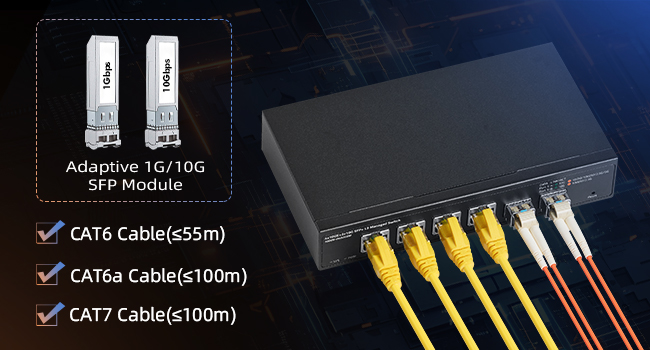
Image: Connecting network cables and SFP modules to the switch.
4.4 Initial Access to Management Interface
The switch supports Web, CLI, TELNET, SSH, and SNMP management. For initial setup, the Web UI is recommended.
- Ensure your computer is connected to one of the switch's RJ45 ports.
- Configure your computer's IP address to be in the same subnet as the switch's default IP (e.g., 192.168.2.x, with subnet mask 255.255.255.0).
- Open a web browser and navigate to the default IP address: 192.168.2.1.
- Enter the default credentials:
- User Name: admin
- Password: admin
- Upon successful login, you will access the Web Management Interface. It is highly recommended to change the default password immediately for security.

Image: Web Management Interface showing default IP and login credentials.
5. Operation
5.1 Web Management Interface Navigation
The Web UI provides a graphical interface for configuring and monitoring the switch. Key sections typically include:
- System Config: General device settings, hostname, contact info.
- IP Config: Network settings for the switch itself.
- Web Config: Web interface settings (e.g., HTTP/HTTPS).
- User Management: Add/remove users, change passwords.
- Firmware Upgrade: Update the switch's firmware.
- Management Config: SNMP, NTP, Device Management.
- Monitor Management: View device/port status.
- Switch Config: Port settings, VLAN, QoS, Spanning Tree, Link Aggregation, etc.
It is recommended to switch from HTTP to HTTPS for secure management access as soon as possible.
5.2 Key Configuration Examples
The Binardat switch offers a range of Layer 2 and Layer 3 features. Below are common configurations:
5.2.1 VLAN Configuration
Virtual Local Area Networks (VLANs) segment your network into logical groups, improving security and performance. Access VLAN settings under "Switch Config" in the Web UI. You can configure port-based VLANs or IP-MAC-VLAN bindings.
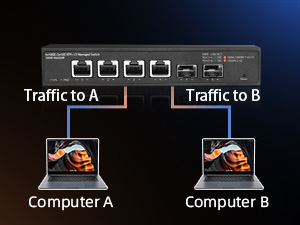
Image: VLAN segmentation example.
5.2.2 Link Aggregation (LACP)
Link Aggregation Control Protocol (LACP) bundles multiple physical links into a single logical link, increasing bandwidth and providing redundancy. Configure LACP under "Switch Config" in the Web UI.
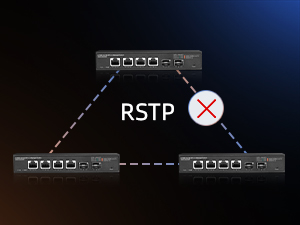
Image: Link Aggregation setup with a NAS.
5.2.3 Quality of Service (QoS)
QoS prioritizes network traffic to ensure critical applications (e.g., video streaming, VoIP) receive sufficient bandwidth. Configure QoS policies under "Switch Config" in the Web UI.
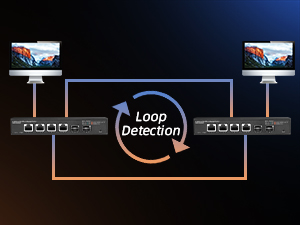
Image: QoS prioritization of network traffic.
5.2.4 Static Routing
As an L3 managed switch, it supports static routing to direct traffic between different IP subnets. Configure static routes under "Management Config" or "IP Config" in the Web UI.
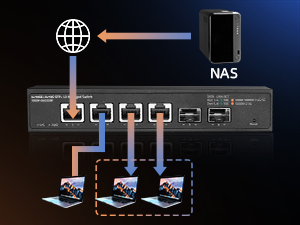
Image: Static routing between two switches.
5.2.5 SFP+ Module and DAC Cable Configuration
If using DAC cables or certain optical modules, you may need to enable DAC support or specify the media type. Navigate to Switch_Config -> Port_Config -> Port_10G_Mode in the Web UI to enable DAC support. For CLI configurations, especially for SFP+ ports, the command media-type fiber-10g might be necessary for proper link configuration.
It is recommended to use well-known brand 10G optical modules for optimal compatibility. Some modules might not be fully recognized or report diagnostic data correctly if not on a vendor's whitelist.
6. Maintenance
6.1 Heat Dissipation
The switch includes a built-in fan for active cooling. While effective, the fan can generate approximately 40 decibels of sound. Consider installing the switch in a server room or network closet to minimize noise in quiet environments. Ensure the ventilation openings are not obstructed.
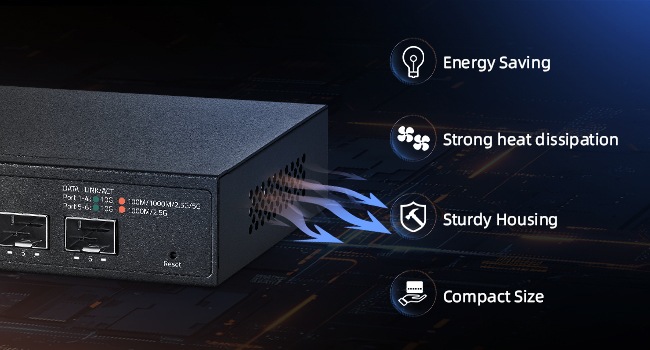
Image: Heat dissipation design.
6.2 Firmware Updates
Periodically check the Binardat website for firmware updates. Updating firmware can improve performance, add new features, and address security vulnerabilities. Follow the instructions provided with the firmware update package carefully.
6.3 Cleaning
To maintain optimal performance, regularly clean the exterior of the switch with a soft, dry cloth. Do not use liquid or aerosol cleaners. Ensure the ventilation ports are free of dust and debris.
7. Troubleshooting
This section addresses common issues you might encounter with your Binardat switch.
7.1 Power and System Indicators
- No Power (PWR LED off):
- Check if the power adapter is securely connected to the switch and a working power outlet.
- Verify the power outlet is functional.
- SYS LED not blinking or device not booting:
- The switch may take up to 28 seconds for the SYS LED to start blinking, indicating the start of the boot process.
- If the SYS LED remains off or solid after an extended period, try restarting the device by unplugging and re-plugging the power, or by a short press of the reset button.
7.2 Network Connectivity Issues
- No link on a port (DATA/LINK/ACT LED off):
- Ensure the Ethernet cable or SFP+ module is correctly inserted and securely connected at both ends.
- Verify the cable type and length meet the specifications for the desired speed (e.g., Cat6A for 10GBASE-TX).
- Test with a different cable or SFP+ module.
- Check the connected device's status.
- SFP+ module or DAC cable not recognized:
- Ensure you are using a 10G rate optical module from a well-known brand.
- For DAC cables, access the Web UI (Switch_Config -> Port_Config -> Port_10G_Mode) and ensure DAC support is enabled.
- For CLI, ensure the media-type fiber-10g command is applied to the SFP+ interface if using fiber transceivers.
- Cannot access Web Management Interface:
- Verify your computer's IP address is in the same subnet as the switch (default 192.168.2.x).
- Confirm the switch's IP address has not been changed from the default 192.168.2.1.
- Try pinging the switch's IP address from your computer.
- Clear your browser's cache or try a different browser.
- If you suspect configuration issues, consider performing a factory reset (press reset button for 5 seconds).
7.3 Performance and Noise
- Excessive fan noise:
- The switch has an active cooling fan which can be audible. This is normal operation.
- Consider relocating the switch to a less sensitive area if noise is a concern.
- Slow port recognition:
- SFP ports may take up to 52 seconds to be recognized after boot-up. This is within normal operating parameters for some configurations.
8. Specifications
| Feature | Description |
|---|---|
| Brand | Binardat |
| Model Number | 6x10G Managed |
| Number of Ports | 6 (4x 10G RJ45, 2x 10G SFP+) |
| Data Transfer Rate | 120 Gigabits Per Second (Switching Capacity) |
| Interface Type | RJ45, SFP+ |
| Voltage | 12 Volts (DC) |
| Case Material | Metal |
| Upper Temperature Rating | 55 Degrees Celsius |
| Item Weight | 1.76 pounds |
| Package Dimensions | 7.76 x 6.61 x 2.44 inches |
| Compatible Devices | Desktop, Laptop, NAS, Servers, WiFi APs |
9. Warranty and Support
For warranty information and technical support, please refer to the official Binardat website or contact their customer service directly. Keep your purchase receipt for warranty claims.
For additional resources and troubleshooting tips, you may visit the Binardat Store on Amazon.

