1. Introduction
This manual provides detailed instructions for the installation, operation, and maintenance of your Podofo 9-inch touchscreen autoradio. This unit is specifically designed for Citroën Berlingo models manufactured between 2015 and 2018. It features wireless Carplay and Android Auto, Bluetooth, GPS navigation, WiFi connectivity, FM/RDS radio, steering wheel control support, and includes a rear camera.
2. Package Contents
Carefully unpack the box and ensure all items listed below are present and in good condition. If any items are missing or damaged, please contact your retailer.
- 1 x Autoradio (including frame)
- 1 x Rear Camera
- 1 x Canbus Decoder
- 1 x Power Cable
- 1 x Original USB Cable
- 1 x GPS Antenna
- 1 x Radio Antenna
- 1 x Rear Camera Input Cable
- 1 x External Microphone
- 1 x RCA Cable
- 2 x USB Cables
- 1 x Installation Tools Set
- 1 x User Manual (English version)
3. Setup and Installation
This autoradio is designed for direct fitment in Citroën Berlingo models from 2015 to 2018. Professional installation is recommended. Before beginning, ensure the vehicle's battery is disconnected.
3.1. Compatibility and Dimensions
The unit's dimensions are approximately 232mm (top width) x 222mm (bottom width) x 134mm (height). Please verify these dimensions against your vehicle's central console opening. If you are unsure about compatibility, consult your vehicle's manual or a professional installer.
3.2. Installation Steps (General)
- Remove the original car stereo: Carefully detach the trim panels and unscrew the existing head unit.
- Connect the wiring harness: Use the provided power cable and Canbus decoder to connect the new autoradio to the vehicle's wiring. Ensure all connections are secure.
- Install GPS and Radio Antennas: Connect the GPS antenna and radio antenna to their respective ports on the autoradio. Position the GPS antenna in a location with a clear view of the sky, typically on the dashboard.
- Connect USB Cables: Route the USB cables to a convenient location, such as the glove compartment or center console, for easy access.
- Install Rear Camera (Optional): If installing the rear camera, route the camera cable from the rear of the vehicle to the autoradio. Connect the camera input cable and ensure the power connection is made to the reverse light circuit.
- Mount the Autoradio: Secure the autoradio into the dashboard opening using the provided frame and mounting brackets.
- Reconnect Battery and Test: Reconnect the vehicle's battery and power on the autoradio to test all functions before reassembling the dashboard trim.

4. Operating Instructions
4.1. Wireless Carplay and Android Auto
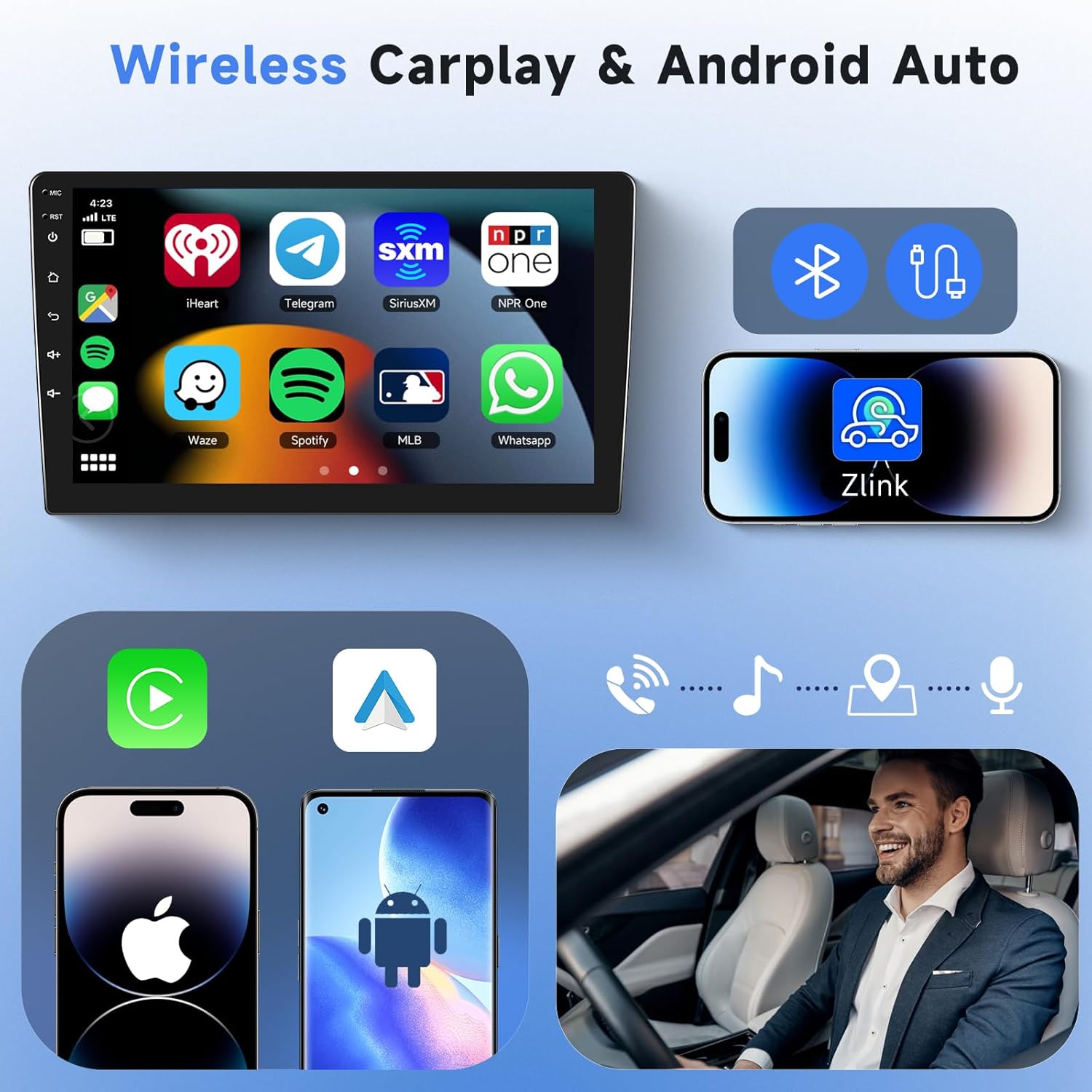
The autoradio supports both wireless Apple Carplay and Android Auto. Connect your smartphone to the autoradio via the pre-installed Zlink application to access phone features, navigation, music, and messaging directly on the touchscreen.
- Ensure Bluetooth and Wi-Fi are enabled on your smartphone.
- Open the 'Zlink' app on the autoradio.
- Follow the on-screen prompts to pair your phone. For Android Auto, you may need to install the Android Auto app on your phone.
4.2. Bluetooth and Wi-Fi Connectivity
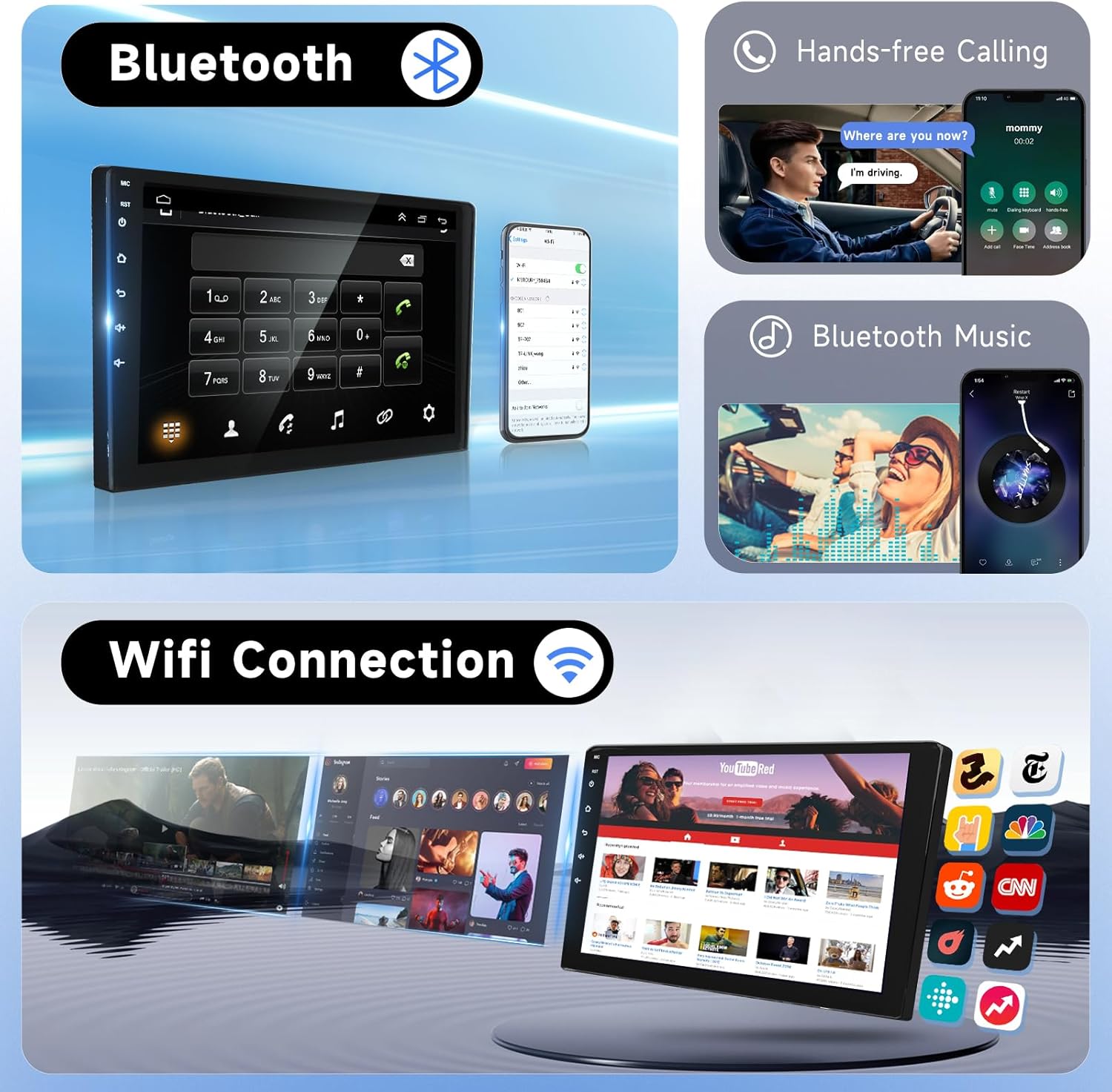
The unit features integrated Bluetooth for hands-free calling and audio streaming, and Wi-Fi for internet access and app downloads.
- Bluetooth: Go to the Bluetooth settings on the autoradio, enable Bluetooth, and search for your phone. Pair the devices to make hands-free calls and stream music.
- Wi-Fi: Access the Wi-Fi settings, enable Wi-Fi, and connect to an available network or a mobile hotspot to browse the internet and download applications from the app store.
4.3. GPS Navigation
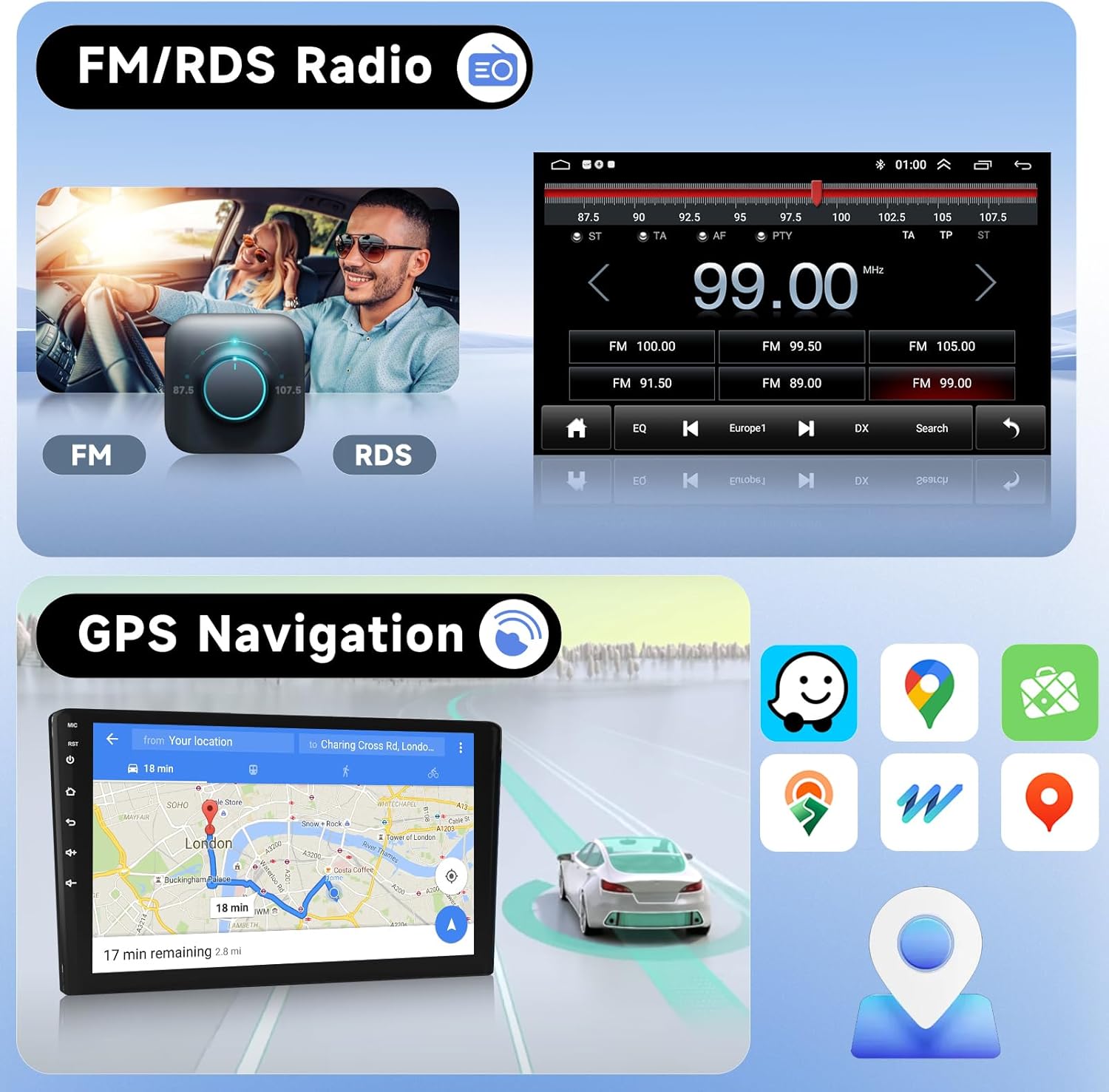
The autoradio includes a GPS module for navigation. It comes with the 'HereWego' application pre-installed, supporting both online and offline maps (offline maps require prior download). You can also install other navigation applications from the app store.
4.4. FM/RDS Radio
Tune into your favorite radio stations with the integrated FM/RDS radio. The unit supports a frequency range of 87.5-107.5 MHz and allows saving up to 6 preset stations.
- Access the 'Radio' application from the main menu.
- Use the scan function to find available stations or manually tune to a specific frequency.
- Press and hold a preset button to save the current station.

4.5. HD Rear Camera and Steering Wheel Control
The package includes an HD rear camera with 1280x720 pixel resolution, IP69 waterproof rating, and night vision capabilities. The autoradio also supports your vehicle's original steering wheel controls.
- Rear Camera: When the vehicle is shifted into reverse gear, the autoradio automatically displays the rear camera feed, assisting with parking and maneuvering.
- Steering Wheel Control (SWC): The unit is compatible with your vehicle's steering wheel controls. After installation, you may need to configure the SWC settings in the autoradio's system menu to map the buttons correctly.

4.6. DAB+/OBD Support
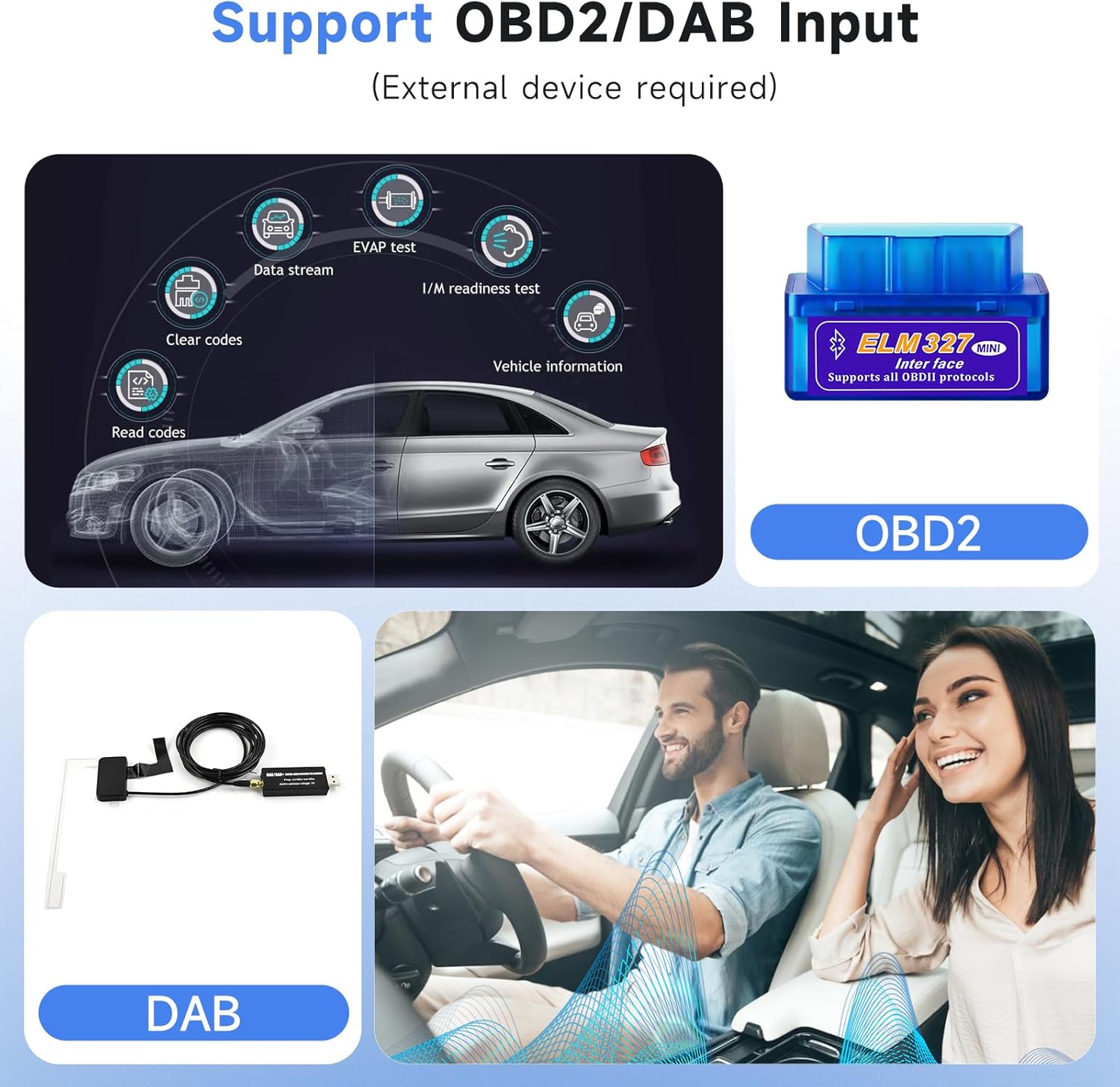
The autoradio supports DAB+ digital radio and OBD2 diagnostics, but these functions require external devices (not included) to be purchased separately and connected to the unit.
5. Maintenance
To ensure the longevity and optimal performance of your Podofo autoradio, follow these maintenance guidelines:
- Cleaning: Use a soft, dry cloth to clean the touchscreen and unit exterior. Avoid abrasive cleaners or solvents that could damage the screen or finish.
- Software Updates: Periodically check for software updates through the system settings or the manufacturer's website to ensure you have the latest features and bug fixes.
- Temperature: Avoid exposing the unit to extreme temperatures, which can affect its performance and lifespan.
6. Troubleshooting
If you encounter issues with your autoradio, refer to the following common troubleshooting steps:
- No Power: Check all power cable connections. Ensure the vehicle's ignition is on. Verify the fuse in the vehicle's fuse box and on the autoradio's wiring harness.
- No Sound: Check speaker connections. Ensure the volume is not muted or set too low. Verify audio settings in the system menu.
- Touchscreen Unresponsive: Try restarting the unit by pressing the reset button (if available) or by turning off the vehicle's ignition and restarting. If the issue persists, contact support.
- Bluetooth/Wi-Fi Connection Issues: Ensure Bluetooth/Wi-Fi is enabled on both the autoradio and your device. Try unpairing and re-pairing devices. Check for interference from other electronic devices.
- GPS Signal Loss: Ensure the GPS antenna is properly connected and has a clear view of the sky. Move the vehicle to an open area if in a covered parking structure.
- Poor FM Radio Reception: Check the radio antenna connection. Ensure the antenna is fully extended (if applicable) and not obstructed.
- Carplay/Android Auto Not Connecting: Ensure the Zlink app is running. Verify your phone's operating system is up to date. Try restarting both the phone and the autoradio.
For persistent issues not resolved by these steps, please contact Podofo customer support.
7. Specifications
| Feature | Specification |
|---|---|
| Brand | Podofo |
| Model Name | Podofo Autoradio Carplay (B0CY44BM4X) |
| Compatible Car Model | Citroën Berlingo 2015-2018 |
| Screen Size | 9 Inches Touchscreen |
| Operating System | Android 13 |
| Memory | 2GB RAM + 64GB ROM |
| Screen Resolution | 1024 x 600 pixels |
| Output Power | 4 x 45W (max.) |
| Radio | FM/RDS (87.5-107.5 MHz) |
| GPS | Online and Offline (HereWego pre-installed) |
| USB Interface | Dual USB |
| Connectivity Technology | Bluetooth, USB, Wi-Fi |
| Special Features | Wireless Carplay, Android Auto, HiFi Audio, Split Screen, Steering Wheel Control, Rear Camera Support, DAB+/OBD Support (external device required) |
| Audio Formats | APE/FLAC/WAV/MP3/WMA, etc. |
| Video Formats | MKV/RMVB/AVI/MP4/MDV, etc. |
| Image Formats | PNG/JPEG/JPG/GIF/WBMP/BNP, etc. |
| Factory Password | 8888 |
| Product Dimensions (L x W x H) | 23.2 x 4.5 x 13.4 cm; 1.55 kg |
8. Warranty and Support
8.1. Manufacturer's Warranty
This Podofo autoradio comes with a 2-year manufacturer's warranty. This warranty covers defects in materials and workmanship under normal use. Please retain your proof of purchase for warranty claims.
8.2. Customer Support
For technical assistance, troubleshooting beyond this manual, or warranty inquiries, please contact Podofo customer support through the retailer where the product was purchased or visit the official Podofo website for contact information.


