
Roku Roku LE
Roku LE HD Streaming Media Player User Manual
Model: Roku LE
1. Introduction
This user manual provides comprehensive instructions for setting up, operating, and maintaining your Roku LE HD Streaming Media Player. The Roku LE is designed to simplify your streaming experience, offering access to a vast array of free, live, and premium channels directly on your TV. Its compact design and user-friendly interface make it ideal for both new users and as an addition to existing home entertainment setups.
The device measures 3 x 1.5 x 0.75 inches and weighs 0.56 lbs, blending powerful performance with compact convenience.
2. What's in the Box
Before you begin, please ensure all components are present in the package:
- Roku LE Streaming Player
- Remote
- Two AA Batteries
- USB Power Cable
- High Speed HDMI Cable

Image: All components included in the Roku LE package.
3. Setup
Setting up your Roku LE is a straightforward process. Follow these steps to get started:
- Connect to TV: Plug the provided High-Speed HDMI Cable into the HDMI port on your Roku LE player and the other end into an available HDMI input on your television.
- Power On: Connect the USB Power Cable to the Roku LE player and then to a power source (either a USB port on your TV or a wall adapter, if provided).
- Insert Batteries: Open the battery compartment on the back of the remote and insert the two AA batteries, ensuring correct polarity.
- Select Input: Turn on your TV and select the corresponding HDMI input where your Roku LE is connected.
- On-Screen Setup: Follow the on-screen instructions to connect your Roku LE to your home Wi-Fi network and activate your device. You will need your Wi-Fi network name and password.
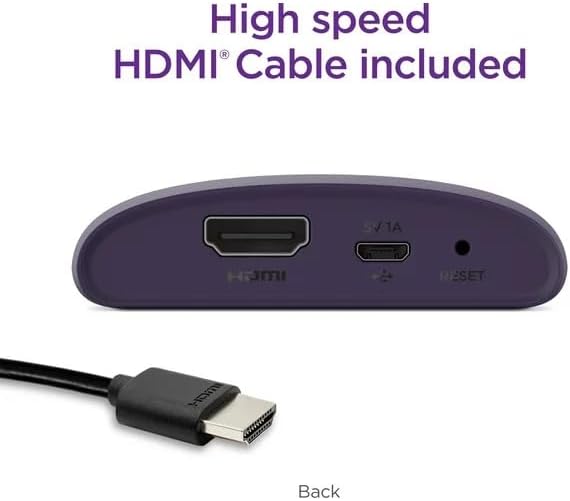
Image: Rear view of the Roku LE device showing connection ports.

Image: Roku LE device and remote, highlighting ease of setup.
4. Operating
Once set up, navigating your Roku LE is intuitive. Use the included remote control to browse channels, search for content, and manage settings.
4.1 Remote Control Functions
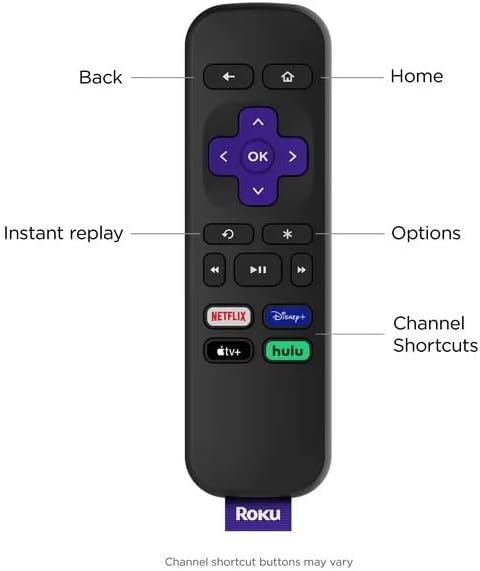
Image: Roku remote control with labeled buttons.
- Back: Returns to the previous screen.
- Home: Returns to the Roku home screen.
- OK: Selects an item or confirms an action.
- Directional Pad: Navigates menus and content.
- Instant Replay: Replays the last few seconds of video.
- Options (*): Accesses additional options for selected content or channels.
- Play/Pause, Fast Forward, Rewind: Media playback controls.
- Channel Shortcuts: Dedicated buttons for popular streaming services (e.g., Netflix, Hulu, Disney+).
4.2 Streaming Content
The Roku LE provides access to a wide range of streaming services. Supported internet services include Netflix, HBO Max, Peacock, Hulu, Paramount+, Disney+, and Apple TV. You can explore and add more channels from the Roku Channel Store.

Image: A selection of streaming services available on Roku.
4.3 Automatic Software Updates
Your Roku LE will automatically receive software updates, ensuring you always have the latest features and channels without any manual effort. This seamless process keeps your streaming experience current and optimized.
4.4 Private Listening
For private listening, download the free Roku mobile app on your smartphone. This app allows you to listen to your shows through headphones connected to your mobile device, without disturbing others in the house.
4.5 Smart Home Integration
The Roku LE is designed to integrate with various smart home ecosystems, including Apple AirPlay, Apple Home, Amazon Alexa, and Google Home. This allows for voice control and seamless content casting from compatible devices.

Image: Roku LE compatibility with various smart home platforms.
5. Maintenance
To ensure the longevity and optimal performance of your Roku LE streaming player, follow these simple maintenance guidelines:
- Cleaning: Use a soft, dry cloth to clean the device and remote. Avoid using liquid cleaners or aerosols, as they may damage the components.
- Placement: Place the device on a flat, stable surface away from direct sunlight, heat sources, and excessive moisture. Ensure adequate ventilation around the device.
- Handling: Handle the device and remote with care. Avoid dropping or subjecting them to strong impacts.
- Power Cycle: If the device becomes unresponsive, disconnect the power cable, wait a few seconds, and then reconnect it to perform a power cycle.
6. Troubleshooting
If you encounter issues with your Roku LE, try the following troubleshooting steps:
- No Power/No Display:
- Ensure the USB power cable is securely connected to both the Roku LE and a working power source.
- Verify that your TV is set to the correct HDMI input.
- Try a different HDMI port on your TV or a different power outlet.
- Remote Not Responding:
- Check if the batteries are inserted correctly and are not depleted. Replace them if necessary.
- Ensure there are no obstructions between the remote and the Roku LE player.
- Note that the Roku LE remote does not have dedicated power or volume buttons for your TV. These functions are typically controlled by your TV's remote or through the Roku mobile app for private listening.
- No Internet Connection:
- Go to Settings > Network on your Roku device to check your Wi-Fi connection status.
- Restart your Wi-Fi router and modem.
- Ensure you have entered the correct Wi-Fi password.
- Poor Picture Quality:
- Check your internet speed. A stable and fast internet connection is crucial for HD streaming.
- Ensure your HDMI cable is securely connected.
- Verify your TV's display settings are optimized for HD content.
7. Specifications
| Feature | Specification |
|---|---|
| Brand | Roku |
| Model Name | Roku LE |
| Product Dimensions | 1.5 x 0.75 x 3 inches |
| Item Weight | 8.5 ounces |
| Color | Purple |
| Resolution | 1080p |
| Connectivity Technology | Wi-Fi |
| Connector Type | HDMI |
| Supported Internet Services | Netflix, HBO Max, Peacock, Hulu, Paramount+, Disney+, Apple TV |
| Special Features | 1080P, Simple Set Up |
8. Warranty and Support
For warranty information and technical support, please refer to the official Roku website or contact Roku customer service. You can also visit the Roku Store on Amazon for additional product details and support resources.
Please retain your proof of purchase for any warranty claims.
Related documentsRoku LE


Ask a question about this manual
Ask about setup, troubleshooting, compatibility, parts, safety, or missing instructions. Manuals+ will review the question and use this page’s manual context to help answer it.