
1. Introduction
This manual provides detailed instructions for the installation, operation, and maintenance of your SIXWIN Android Car Stereo, Model A7218A3018A4MI2. This unit is specifically designed for Hyundai Elantra models from 2011 to 2013. Please read this manual thoroughly before installation and use to ensure proper functionality and safety.
2. Safety Information
- Always ensure the vehicle is parked and the engine is off before performing any installation or maintenance.
- Disconnect the vehicle's battery before starting installation to prevent electrical shorts.
- Consult a professional installer if you are unsure about any steps. Improper installation can damage the unit or your vehicle.
- Do not operate the unit in a way that distracts you from driving. Always prioritize road safety.
- Avoid exposing the unit to extreme temperatures, direct sunlight for prolonged periods, or excessive moisture.
3. Package Contents
Verify that all items listed below are included in your package:
- SIXWIN Android Car Stereo Unit
- Dash Kit (for Hyundai Elantra 2011-2013)
- Power Cord
- GPS Antenna
- Rear Camera Input Cable
- AHD Rear Camera
- Microphone (MIC)
- RCA Cable
- Video Extension Cable
- USB Cables (x2)
- Screws
- Installation Tool
- User Manual (this document)
- Accessories

Image: Overview of included components in the SIXWIN Android Car Stereo package.
4. Installation
The SIXWIN Android Car Stereo is designed for a plug-and-play installation in Hyundai Elantra 2011-2013 models. However, some specific considerations are necessary:
4.1 Pre-Installation Steps
- Panel Removal: Carefully remove the existing car radio and surrounding dash panels. Refer to your vehicle's service manual for specific panel removal instructions.
- Wiring Check: If your car has an amplifier control cable, it must be pulled out separately and connected to the power line ACC of the new unit to ensure sound output.
- OEM CD Radio: If your OEM car radio CD back matches the provided image (see below), you may need to purchase additional wiring harnesses and protocol boxes. Contact customer support for assistance.
- Temperature Display Modification: For proper fitment of the factory temperature display, it may be necessary to trim two plastic tabs (ears) from the factory temperature display unit. This modification does not affect its performance.
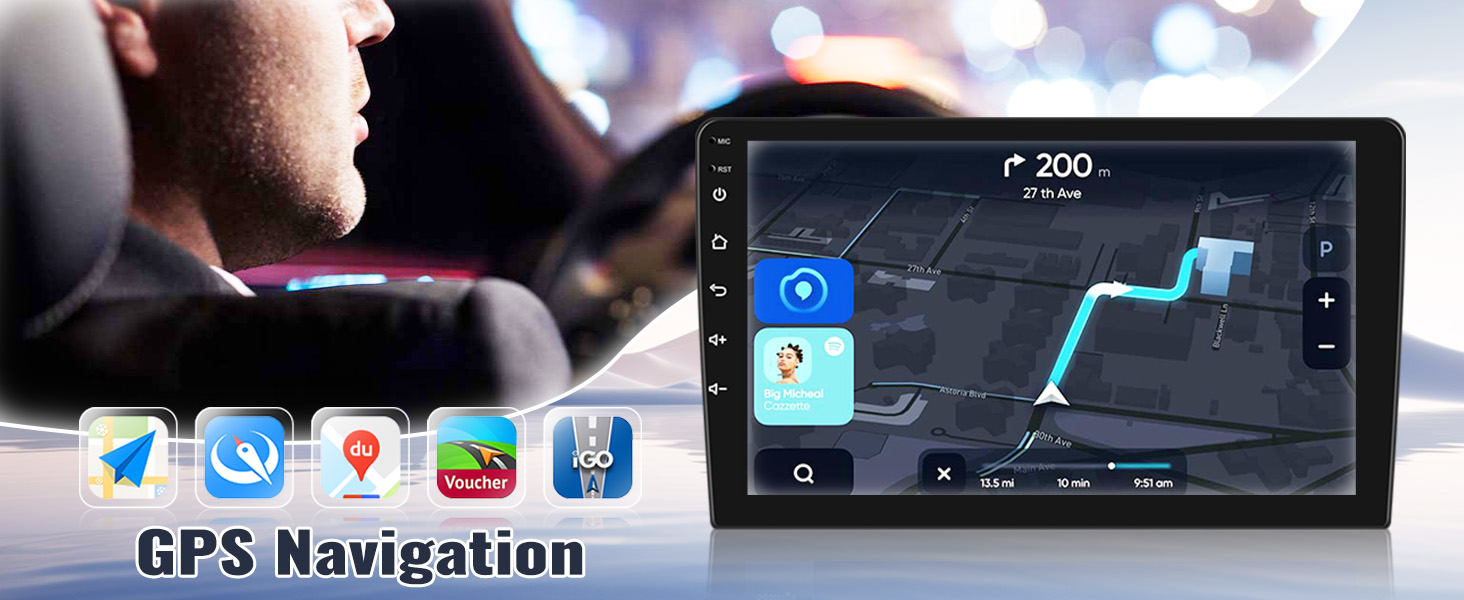
Image: Installation effect of the SIXWIN Android Car Stereo in a Hyundai Elantra dashboard. Note the requirement to check the OEM CD radio back for additional wiring harnesses.
4.2 Connecting the Backup Camera
The unit includes an AHD backup camera. Connect the camera to the designated 'Backup Camera' input on the stereo unit. Ensure proper routing of the cable to avoid interference or damage.
4.3 General Installation Notes
- While designed for ease of installation, some vehicles may require professional installation, especially if your car has an existing amplifier or a non-standard wiring setup.
- The included backup camera is a new unit; it may not connect to existing factory cameras.
5. Setup
5.1 Initial Power On
After installation, turn on your vehicle's ignition. The stereo unit should power on automatically. Follow any on-screen prompts for initial setup.
5.2 Wi-Fi Connection
To access online features and download apps, connect the unit to a Wi-Fi network:
- Go to the 'Settings' menu on the stereo.
- Select 'Network & Internet' or 'Wi-Fi'.
- Turn on Wi-Fi and select your desired network from the list.
- Enter the password if prompted and connect.

Image: Demonstrates the Wi-Fi connectivity feature, allowing access to online content and app downloads.
5.3 Bluetooth Pairing
To pair your phone via Bluetooth for calls and music streaming:
- Enable Bluetooth on your mobile phone.
- On the car stereo, go to the 'Bluetooth' application.
- Search for available devices on your phone and select the stereo's name (e.g., "SIXWIN Car Stereo").
- Confirm the pairing code on both devices if prompted.
Image: Illustrates the Bluetooth interface for hands-free calling and music playback.
6. Operating Instructions
6.1 Wireless Apple CarPlay & Android Auto
The unit supports both wireless and wired Apple CarPlay and Android Auto. This allows you to access phone functions safely while driving.
For Wireless Apple CarPlay:
- Establish a Bluetooth connection between your car stereo and your iPhone.
- Open the "Zlink" application on the car stereo.
- Enjoy wireless Apple CarPlay.
For Wireless Android Auto:
- Download the Android Auto app on your Android phone.
- Establish a Bluetooth connection between your car stereo and your Android phone.
- Open the "Zlink" application on the car stereo.
- Enjoy wireless Android Auto. (Note: Samsung phones are not supported for wireless Android Auto with this unit.)

Image: Displays the user interfaces for Apple CarPlay and Android Auto on the stereo screen.
6.2 GPS Navigation
The unit features built-in GPS navigation, supporting both online and offline maps. It comes pre-installed with the "Here We Go" app.
- Offline Maps: Download the necessary offline maps through the "Here We Go" app when connected to Wi-Fi. This allows navigation without an active internet connection.
- Online Maps: When connected to Wi-Fi or a mobile hotspot, you can use other online navigation apps downloaded from the Play Store.
Image: Shows the GPS navigation interface with a map displaying routes.
6.3 FM/RDS Radio
Access local radio stations with the built-in FM radio tuner.
- The FM radio provides 18 preset stations.
- Frequency range: FM 87.50-108.0 MHz.
- RDS (Radio Data System) functionality displays station information where available.
Image: Depicts the FM radio interface with frequency display and controls.
6.4 HiFi Function (EQ)
Customize your audio experience with the integrated HiFi Equalizer (EQ) function, providing high-fidelity sound and an immersive audio experience.

Image: Shows the HiFi Equalizer interface with various sound customization options.
6.5 Split Screen Function
The split-screen feature allows you to run two applications simultaneously on the 9-inch display, such as navigation and music playback.
Image: Demonstrates the split-screen functionality, showing two apps running concurrently.
6.6 1080P Touchscreen
The 9-inch touchscreen offers a responsive and clear interface for all functions.
Image: Highlights the 1080P Full HD touchscreen with various touch gestures.
6.7 Steering Wheel Control
The unit supports steering wheel controls, allowing you to manage audio and other functions without taking your hands off the wheel.
- To configure steering wheel controls, navigate to the 'Settings' menu on the stereo.
- Look for 'Steering Wheel Control' or 'Steering Learn'.
- Enter the code 8888 if prompted to access the learning interface.
- Follow the on-screen instructions to assign functions to your vehicle's steering wheel buttons.
Image: Illustrates the steering wheel control learning interface, showing various assignable functions.
6.8 Backup Camera
The included AHD backup camera automatically displays a high-definition image on the unit's screen when the vehicle is in reverse, aiding in safer parking and maneuvering.
- Features 170° wide-angle view.
- Equipped with clear night vision capabilities.
- Waterproof design for durability.

Image: Demonstrates the backup camera's features, including parking assistance lines, daytime, and night vision.
7. Maintenance
- Cleaning: Use a soft, dry cloth to clean the screen and unit. Avoid abrasive cleaners or solvents.
- Software Updates: Periodically check for software updates through the unit's settings menu when connected to Wi-Fi to ensure optimal performance and access to new features.
- Environmental Conditions: Protect the unit from extreme heat or cold, which can affect its lifespan and performance.
8. Troubleshooting
- No Sound: Check all wiring connections, especially the amplifier control cable if applicable. Ensure the volume is not muted or set too low.
- Touch Screen Unresponsive: Restart the unit. If the issue persists, verify all connections are secure. If the screen remains unresponsive after installation, it may indicate a defect requiring return or replacement.
- Bluetooth/CarPlay/Android Auto Connection Issues: Ensure Bluetooth is enabled on both devices. For wireless connections, confirm the "Zlink" app is open on the stereo. For Android Auto, remember Samsung phones are not supported for wireless connection. Try restarting both the phone and the stereo.
- GPS Signal Loss: Ensure the GPS antenna is properly installed and has a clear view of the sky. Check if offline maps are downloaded or if Wi-Fi is connected for online navigation.
- Unit Not Powering On: Verify all power connections are secure and the vehicle's battery is properly connected. Check for blown fuses in the vehicle's fuse box or the stereo's wiring harness.
9. Specifications
| Feature | Specification |
|---|---|
| Model Number | A7218A3018A4MI2 |
| Operating System | Android 13 |
| RAM + Storage | 2GB RAM + 64GB Storage |
| Display Size | 9 Inches |
| Resolution | 1024 x 600 |
| Connectivity | Wi-Fi, Bluetooth |
| Special Features | Touchscreen, Wireless Apple CarPlay, Android Auto, GPS Navigation, HiFi, FM/RDS Radio, Split Screen, Backup Camera, Steering Wheel Control |
| Vehicle Service Type | Car (Hyundai Elantra 2011-2013) |
| Item Weight | 3.54 pounds |
| Product Dimensions | 1 x 1 x 1 inches (Unit only, excluding dash kit) |
10. Warranty and Support
10.1 Warranty Information
The SIXWIN Android Car Stereo comes with a 1-year warranty from the date of purchase. This warranty covers manufacturing defects and malfunctions under normal use. Please retain your proof of purchase for warranty claims.
10.2 Customer Support
For online assistance, user manual inquiries, or any technical support, please contact us via email:
Email: sixwin_vip@163.com
Our support team is available to provide guidance and resolve any issues you may encounter.
