
1. Introduction and Overview
The Amazon Fire TV Soundbar Plus is an all-in-one 3.1 channel soundbar designed to enhance your home entertainment audio experience. It features a built-in subwoofer for rich bass, a dedicated center channel for crystal-clear dialogue, and supports advanced audio formats like Dolby Atmos and DTS:X for immersive sound. This manual provides essential information for setting up, operating, and maintaining your soundbar.

Image: Front view of the Amazon Fire TV Soundbar Plus, showcasing its sleek, compact design. The soundbar is black with a fabric grille covering the speakers.
The Fire TV Soundbar Plus integrates seamlessly with Fire TV devices, allowing for simplified control with a single remote and customizable audio settings. It also offers Bluetooth connectivity for streaming audio from your mobile devices.
2. Getting Started: Setup
2.1 What's in the Box
Before you begin, ensure all components are present in the packaging:
- Fire TV Soundbar Plus
- Remote
- HDMI 2.0 Cable
- AC Cord
- 2 AAA Batteries
- Wall mount kit
- Quick Start Guide

Image: A visual representation of the soundbar's dimensions (37.0 in x 2.5 in x 5.2 in) and a list of items included in the box, confirming the presence of the soundbar, remote, cables, batteries, wall mount kit, and quick start guide.
2.2 Connecting Your Soundbar
Follow these steps to connect your Fire TV Soundbar Plus to your television:
- Position the Soundbar: Place the soundbar on a flat, stable surface in front of your TV, or mount it on the wall using the included kit. Ensure there are no obstructions in front of the soundbar.
- Connect HDMI Cable: Connect one end of the included HDMI 2.0 cable to the HDMI eARC/ARC port on your TV. Connect the other end to the HDMI (eARC/ARC) port on the back of your Fire TV Soundbar Plus.
- Connect Power: Plug the AC cord into the power port on the soundbar, then plug the other end into a wall outlet.
- Optional Connections:
- Optical: If your TV does not have an HDMI eARC/ARC port, you can use an optical cable (not included) to connect the soundbar to your TV's optical audio output.
- USB-A: The USB-A port is for service and diagnostics only.
- Power On: The soundbar will power on automatically once connected to power.
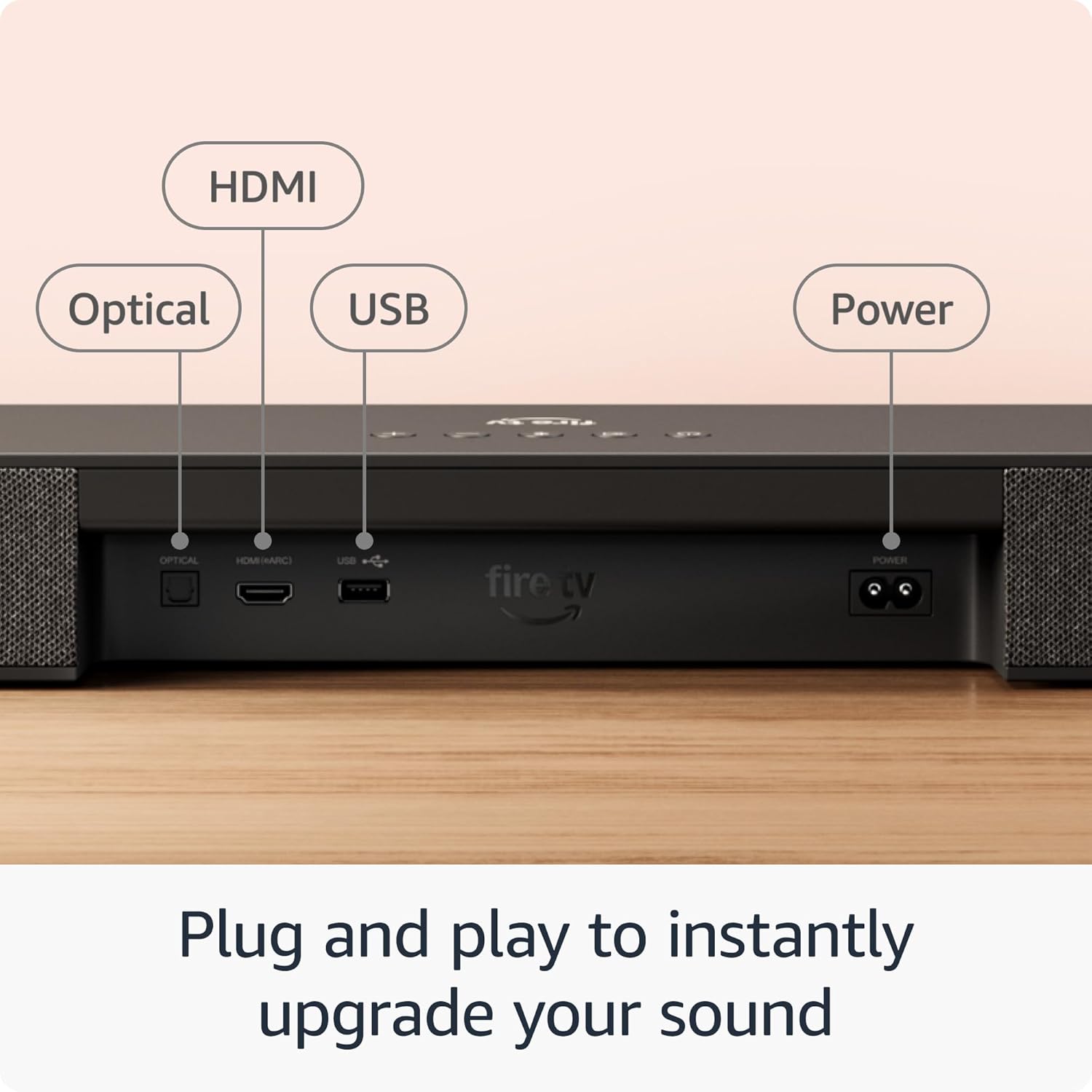
Image: A close-up view of the rear panel of the Fire TV Soundbar Plus, clearly labeling the HDMI (eARC/ARC), Optical, USB, and Power input ports for easy connection identification.
Ensure your TV's audio output settings are configured to output sound through the connected HDMI eARC/ARC or Optical port.
3. Operating Instructions
3.1 Power On/Off
The soundbar typically powers on automatically when connected to a power source. To turn it off or on, use the power button on the included remote control or the power button on the soundbar itself.
3.2 Audio Modes (EQ Modes)
The Fire TV Soundbar Plus offers optimized audio modes to suit different content types. Use the remote to switch between these modes:
- Movie Mode: Enhances cinematic soundscapes, making explosions more impactful and dialogue clearer.
- Music Mode: Optimizes audio for music playback, providing a balanced and rich sound profile.
- Sports Mode: Boosts crowd noise and commentary for an immersive sports viewing experience.
- Night Mode: Reduces dynamic range to prevent sudden loud sounds, ideal for late-night listening without disturbing others.
3.3 Bluetooth Audio Streaming
You can stream audio wirelessly from your smartphone, tablet, or other Bluetooth-enabled devices to the soundbar.
- Enable Bluetooth: On the soundbar remote, press the Bluetooth button to put the soundbar into pairing mode. The indicator light on the soundbar will flash.
- Pair Device: On your mobile device, go to Bluetooth settings and select "Fire TV Soundbar Plus" from the list of available devices.
- Start Streaming: Once paired, you can play audio from your device, and it will output through the soundbar.

Image: The Fire TV Soundbar Plus positioned below a television, with a smartphone displaying a music streaming application in the foreground, illustrating the soundbar's Bluetooth audio streaming capability.
3.4 Fire TV Integration
For select models, the Fire TV Soundbar Plus is designed to work seamlessly with your Fire TV device. This allows you to:
- Control with One Remote: Use your Fire TV remote to control both your TV and the soundbar's volume and power.
- Customize Sound: Adjust sound settings directly within the Fire TV audio settings menu for a personalized listening experience.
4. Advanced Audio Features
The Fire TV Soundbar Plus delivers a premium audio experience through its advanced technologies:
- Dolby Atmos: Experience three-dimensional sound that moves around you, creating an incredibly immersive audio environment. This technology adds height to the soundstage, making you feel like you're inside the action.
- DTS:X: Provides multi-dimensional audio, delivering lifelike sound that adapts to your speaker layout, enhancing realism and immersion.
- Clear Dialogue: A dedicated center dialogue channel ensures that conversations are sharp and distinct, preventing important lines from being lost amidst background effects.

Image: The Fire TV Soundbar Plus integrated into a modern living room setup, with visual representations of sound waves expanding from the soundbar, emphasizing its immersive audio capabilities with Dolby Atmos and DTS:X support.
The soundbar's 3.1 channel configuration, including a built-in subwoofer, provides a balanced audio profile with powerful bass and clear highs, suitable for a wide range of content.

Image: A comparative chart illustrating different Fire TV Soundbar Plus Series configurations, highlighting the 3.1 channel all-in-one audio solution of this model, alongside options for rumbling bass and full home theater setups.
5. Care and Maintenance
To ensure the longevity and optimal performance of your Fire TV Soundbar Plus, follow these simple maintenance guidelines:
- Cleaning: Use a soft, dry, lint-free cloth to clean the exterior of the soundbar. Do not use liquid cleaners, aerosols, or abrasive solvents, as they may damage the finish or internal components.
- Ventilation: Ensure the soundbar's vents are not blocked to prevent overheating. Do not place the soundbar in an enclosed space without adequate airflow.
- Placement: Avoid placing the soundbar in direct sunlight, near heat sources, or in areas with high humidity or extreme temperatures.
- Handling: Handle the soundbar with care. Avoid dropping it or subjecting it to strong impacts.
6. Troubleshooting Guide
If you encounter issues with your Fire TV Soundbar Plus, refer to the following common problems and their solutions:
| Problem | Possible Solution |
|---|---|
| No sound from the soundbar. |
|
| Sound is distorted or unclear. |
|
| Remote control is not working. |
|
| Bluetooth device won't pair. |
|
If the problem persists after trying these solutions, please refer to the Warranty and Support section for further assistance.
7. Technical Specifications
Detailed specifications for the Amazon Fire TV Soundbar Plus:
| Feature | Detail |
|---|---|
| Soundbar Size (LxWxH) | 37” x 5.2” x 2.5” |
| Soundbar Weight | 8.8 lbs |
| Speaker Channels | 3.1 (built-in subwoofer) |
| EQ Modes | Movie, Music, Sports, Night |
| Surround Sound Supported | Dolby Atmos, DTS:X |
| Ports | HDMI (eARC/ARC), Optical, AC, USB-A (for service) |
| Bluetooth Support | Yes |
| Compatibility | Smart TVs and TVs with streaming media players |
Image: A clear depiction of the Fire TV Soundbar Plus with its key dimensions labeled: 37.0 inches in length, 2.5 inches in height, and 5.2 inches in depth.
8. Warranty and Support
8.1 Limited Warranty
The Amazon Fire TV Soundbar Plus comes with a 1-year limited warranty. This warranty covers defects in materials and workmanship under normal use. For full terms and conditions, please refer to the warranty information provided with your product or visit the official Amazon support website.
Optional 1-Year, 2-Year, and 3-Year extended warranties may be available for U.S. customers and are sold separately.
8.2 Customer Support
For further assistance, technical support, or warranty claims, please contact Amazon Customer Service. You can find contact information and additional resources on the official Amazon support website. When contacting support, please have your product model and serial number ready.
For the most up-to-date information and support resources, visit: www.amazon.com/devicesupport


