
TISHLED K161D
TISHLED K161D Wireless Keyboard User Manual
Model: K161D | Brand: TISHLED
Product Overview
The TISHLED K161D is a full-size 106-key wireless keyboard designed for versatile use across multiple operating systems. It features dual-mode connectivity (2.4GHz wireless and Bluetooth 5.0/3.0), low-profile keycaps, and silent linear mechanical-feel switches for a comfortable and quiet typing experience. Its ergonomic design includes adjustable feet for improved comfort during extended use. The keyboard is powered by a single AAA battery, offering long-lasting performance with energy-saving features.

Image: TISHLED K161D Wireless Keyboard in Matcha Green. This image shows the full layout of the keyboard, highlighting its aesthetic design and full 106-key configuration with a numpad.
What's in the Box
- 1 x TISHLED K161D Dual Mode Wireless Keyboard
- 1 x 2.4G Nano USB Receiver
- 1 x AAA Battery
Setup Guide
1. Battery Installation
Locate the battery compartment on the underside of the keyboard. Open the battery cover, remove any battery insulation adhesive, and insert the included AAA battery, ensuring correct polarity (+/-). Close the battery cover securely.
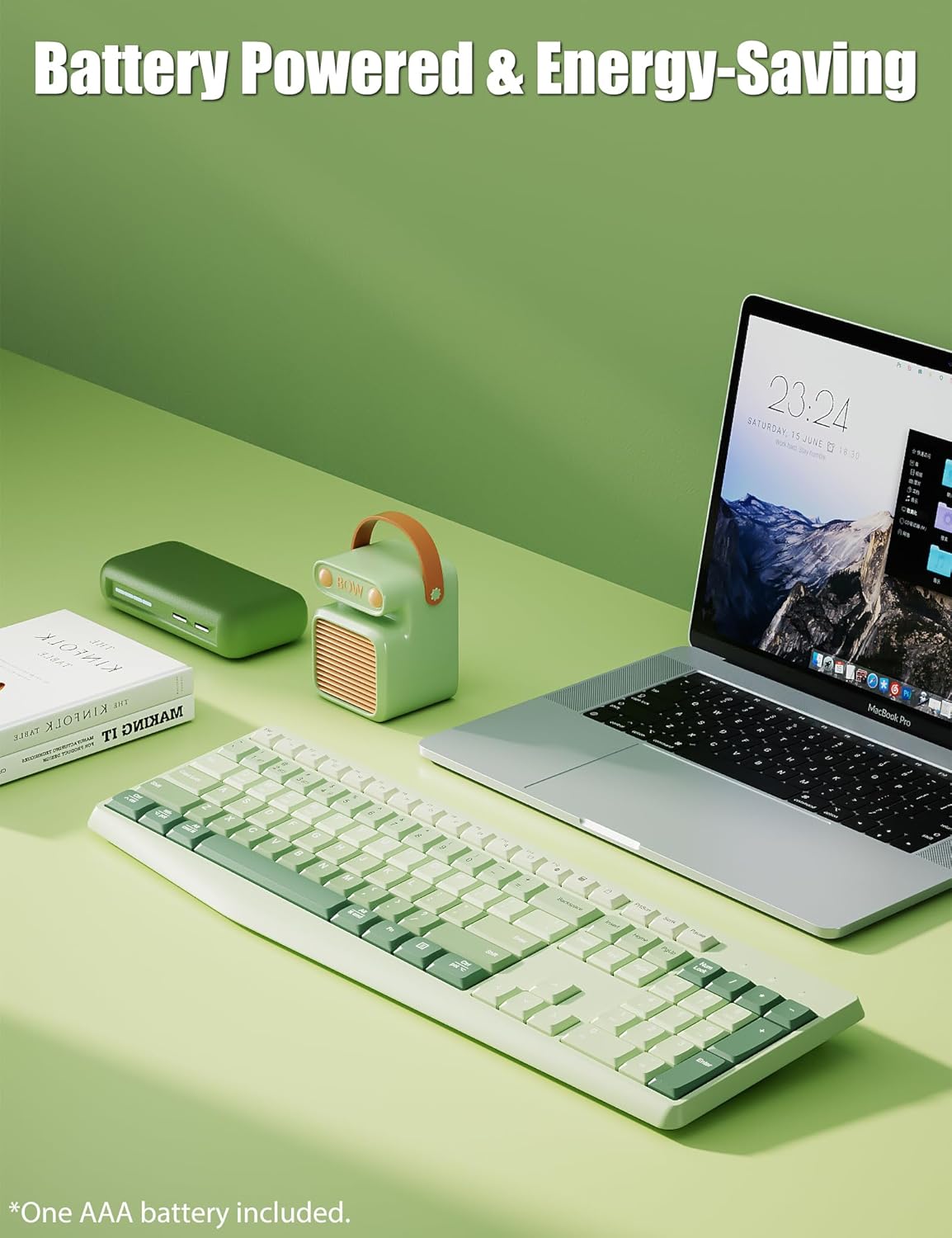
Image: The TISHLED K161D keyboard shown with a single AAA battery, illustrating its power source and energy-saving design.
2. Connecting Your Keyboard
The TISHLED K161D keyboard supports two connection modes: 2.4GHz wireless via USB receiver and Bluetooth 5.0/3.0.
2.1. Bluetooth Pairing
- Ensure the keyboard has a fresh battery installed.
- Press and hold Fn + BT1, BT2, or BT3 keys for 3 seconds to enter Bluetooth pairing mode. The indicator light will flash, signifying it is ready to pair.
- On your device (PC, Mac, smartphone, tablet), open Bluetooth settings and search for "BOWS5.0".
- Select "BOWS5.0" and click "Connect". Once connected, the indicator light on the keyboard will turn off.

Image: Diagram illustrating the Bluetooth pairing process, showing the Fn + BT keys for connection.
2.2. 2.4GHz Wireless Connection
- Ensure the keyboard has a fresh battery installed.
- Locate the 2.4G Nano USB receiver, typically stored in a compartment on the keyboard's underside.
- Insert the USB receiver into an available USB port on your computer.
- The keyboard is factory-paired. If re-pairing is needed, press and hold ESC + = keys simultaneously. The indicator light will flash, then turn off once connected.

Image: Close-up of the keyboard's underside, showing the storage slot for the 2.4G Nano USB receiver.

Image: Visual representation of the keyboard connecting to multiple devices (laptop, tablet, smartphone) via 2.4G wireless and Bluetooth, demonstrating its dual-mode capability.
3. Device Switching
The keyboard can connect to up to four devices simultaneously (one 2.4G wireless and three Bluetooth devices). Switch between connected devices by pressing Fn + 1/2/3/4.
4. System Switching
To optimize keyboard functionality for different operating systems, switch modes using the following key combinations:
- Fn + Q: Switch to MacOS system
- Fn + W: Switch to Windows system
- Fn + E: Switch to iOS system
- Fn + R: Switch to Android system

Image: The keyboard displayed alongside a monitor, laptop, tablet, and smartphone, illustrating its wide compatibility across different device types and operating systems.
Operating Instructions
Keyboard Features
- Full Size 106-Key Layout with Numpad: Designed for productivity and practicality, including a dedicated numeric keypad.
- Low Profile Keycaps: Provides a comfortable typing experience.
- Silent Linear Mechanical-Feel Switches: Offers medium resistance and fast response with quiet operation, suitable for various environments.
- Ergonomic Design: Includes adjustable feet to alleviate wrist pressure and an anti-slip silicone pad on the back for stability.
- Durable ABS Keycaps: Letterings are UV coating printed to prevent scratching.

Image: The TISHLED K161D keyboard showcasing its full 106-key layout, including the integrated numpad, designed for enhanced productivity.
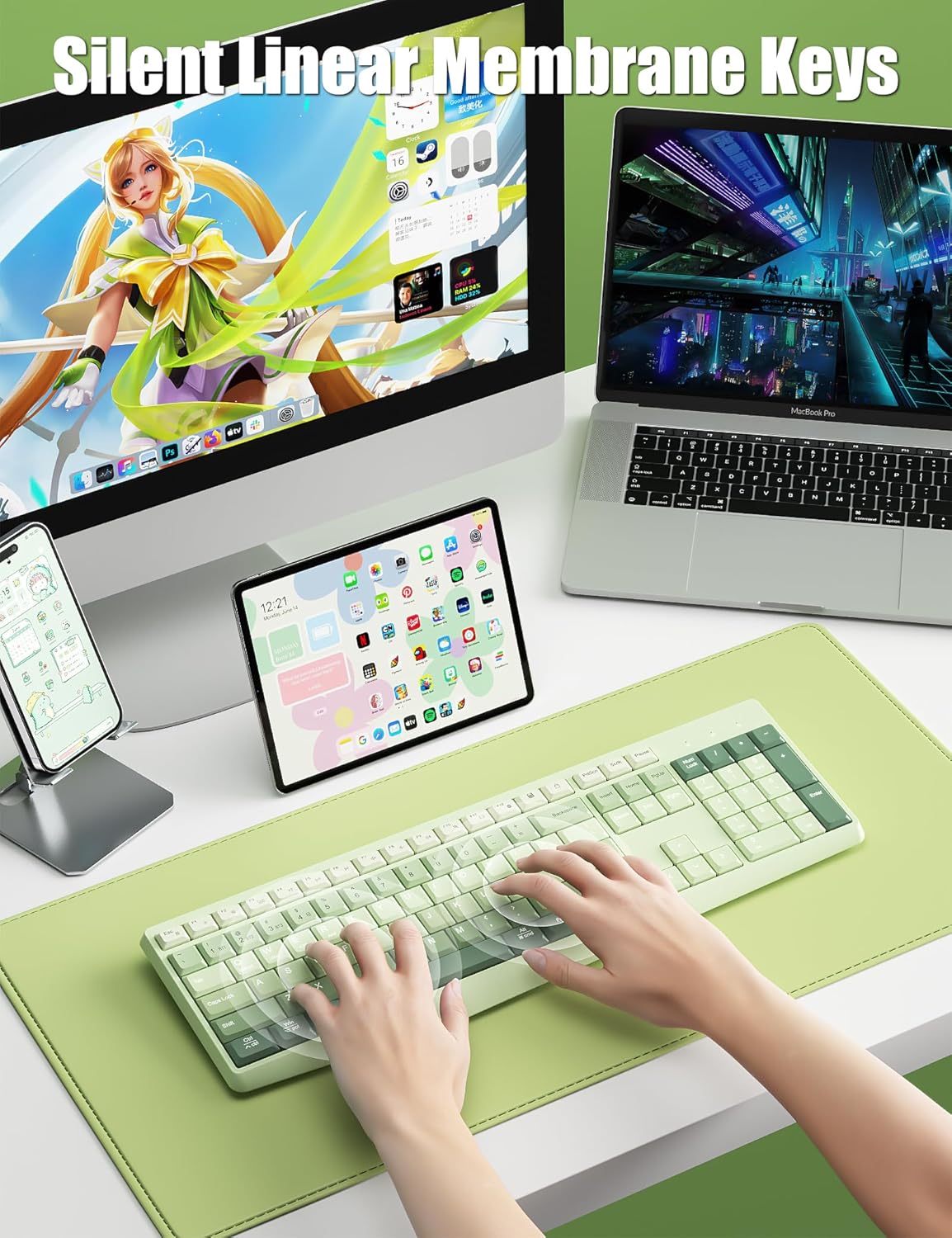
Image: A user's hands typing on the TISHLED K161D keyboard, emphasizing its silent linear mechanical-feel switches and comfortable low-profile keycaps.

Image: Close-up view of the adjustable feet on the underside of the keyboard, demonstrating its ergonomic design for customizable typing angles.
Function Key Combinations (Fn + Key)
The keyboard features various function key combinations to control multimedia, brightness, and other system functions. The specific function may vary slightly depending on the operating system selected (Windows, MacOS, iOS, Android).
| Fn + Key | macOS | Win/And | iOS |
|---|---|---|---|
| Fn + F1 | Brightness- | Brightness- | Brightness- |
| Fn + F2 | Brightness+ | Brightness+ | Brightness+ |
| Fn + F3 | Multi-screen | Multi-screen | Multi-screen |
| Fn + F4 | Previous Song | Previous Song | Previous Song |
| Fn + F5 | Play / Pause | Play / Pause | Play / Pause |
| Fn + F6 | Next Track | Next Track | Next Track |
| Fn + F7 | Mute | Mute | Mute |
| Fn + F8 | Volume- | Volume- | Volume- |
| Fn + F9 | Volume+ | Volume+ | Volume+ |
| Fn + F10 | Search | Search | Search |
| Fn + F11 | Language Switch | Language Switch | Language Switch |
| Fn + F12 | Calculator | Calculator | Calculator |
| Fn + Insert | Sleep/Off Screen | Sleep/Off Screen | Sleep/Off Screen |
Note: Press Fn + Esc to lock FN and switch between multimedia and F keys. Press and hold Fn + Esc for 3 seconds to restore factory settings.

Image: Diagram showing the keyboard layout with highlighted function keys and their corresponding actions across different operating systems.
Energy-Saving Features
The keyboard is designed with a low-power chip and energy-saving technology to maximize battery life (3 to 6 months depending on usage).
- Shallow Sleep Mode: Enters after 5 minutes of inactivity.
- Deep Sleep Mode: Enters after 30 minutes of inactivity.
To wake the keyboard from sleep mode, simply press any key.
Maintenance
Cleaning Your Keyboard
To maintain optimal performance and appearance, regularly clean your keyboard. Use a soft, lint-free cloth slightly dampened with water or a mild cleaning solution. Avoid excessive moisture. For cleaning between keycaps, use compressed air or a small brush.
Battery Replacement
When the keyboard's performance degrades or it stops responding, it may be time to replace the AAA battery. Follow the battery installation steps outlined in the Setup Guide.
Troubleshooting
| Problem | Possible Cause | Solution |
|---|---|---|
| Keyboard not connecting/responding | Low battery, incorrect pairing, receiver not plugged in (2.4G), Bluetooth not enabled on device. |
|
| Keys sticking or typing double characters | Dust/debris under keycaps, software glitch, or minor manufacturing variance. |
|
| Short battery life | Frequent usage, old battery, or environmental factors. |
|
Specifications
| Feature | Detail |
|---|---|
| Model Number | K161D |
| Connectivity Technology | Bluetooth 5.0, Wireless 2.4G |
| Keyboard Description | Membrane (Mechanical-Feel) |
| Number of Keys | 106 |
| Color | Matcha Green |
| Product Dimensions | 17.4 x 5.6 x 1.1 inches (44.2 x 14.2 x 2.8 cm) |
| Item Weight | 1.2 pounds (0.54 kg) |
| Power Source | 1 x AAA Battery (included) |
| Compatible Devices | Laptop, PC, Smart TV, Smartphone, Tablet |
| Special Features | Battery Powered, Dual Mode Connection, Ergonomic, Low-Profile Key, Silent |
Warranty and Support
For warranty information and technical support, please contact TISHLED directly. Refer to the product packaging or the official TISHLED website for the most up-to-date contact details and warranty terms.
Manufacturer: TISHLED
Ask a question about this manual
Ask about setup, troubleshooting, compatibility, parts, safety, or missing instructions. Manuals+ will review the question and use this page’s manual context to help answer it.