
FUDONI P3
FUDONI Projector P3 and WiFi Bluetooth GC666 User Manual
Model: P3 | Brand: FUDONI
1. Introduction
Thank you for purchasing the FUDONI Projector P3 and GC666. This portable projector is designed to provide a high-quality visual experience with native 1080P resolution, 4K support, 5G WiFi, and Bluetooth 5.3 connectivity. It is suitable for various applications, including home theater, outdoor movie nights, and presentations. Please read this manual thoroughly before operation to ensure proper use and maintenance.
2. Safety Information
- Do not look directly into the projector lens when the lamp is on.
- Ensure proper ventilation around the projector to prevent overheating. Do not block ventilation openings.
- Use only the power adapter supplied with the projector.
- Do not expose the projector to rain, moisture, or extreme temperatures.
- Avoid dropping or subjecting the projector to strong impacts.
- Do not attempt to disassemble or repair the projector yourself. Contact qualified service personnel for assistance.
- Keep the projector away from water and other liquids.
3. Package Contents
Please check the package contents upon opening. If any items are missing or damaged, contact FUDONI customer support.
- FUDONI Projector P3/GC666
- Power Adapter
- Remote Control
- HDMI Cable
- AV Cable
- User Manual
- Scratch-resistant case
4. Product Overview
Familiarize yourself with the components of your FUDONI projector.
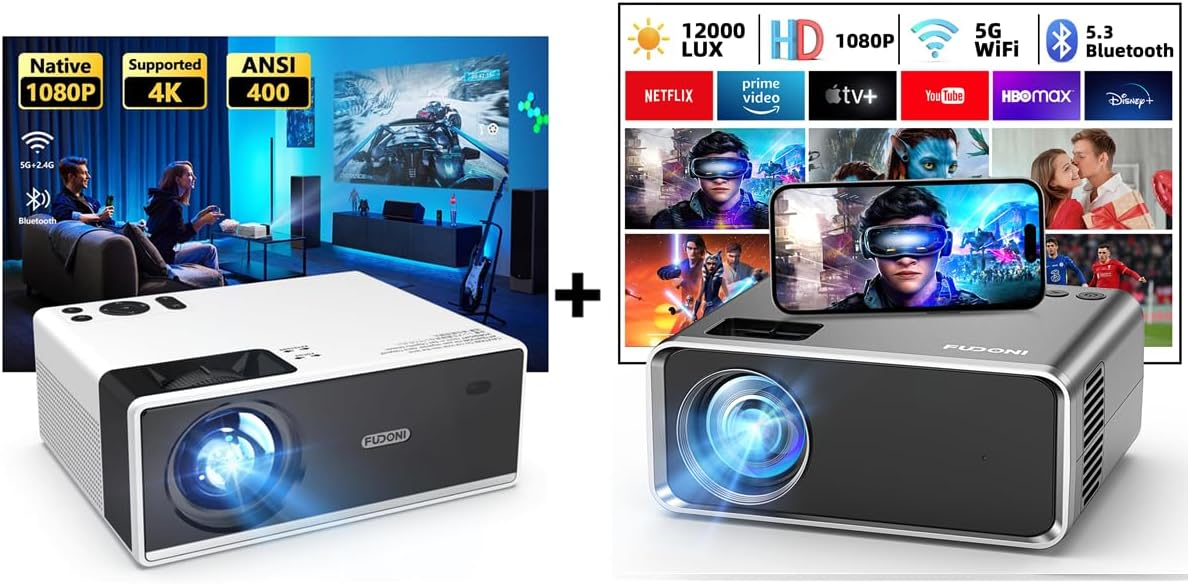
Image: The FUDONI Projector P3/GC666, showcasing its compact design and included accessories like the remote control and cables.
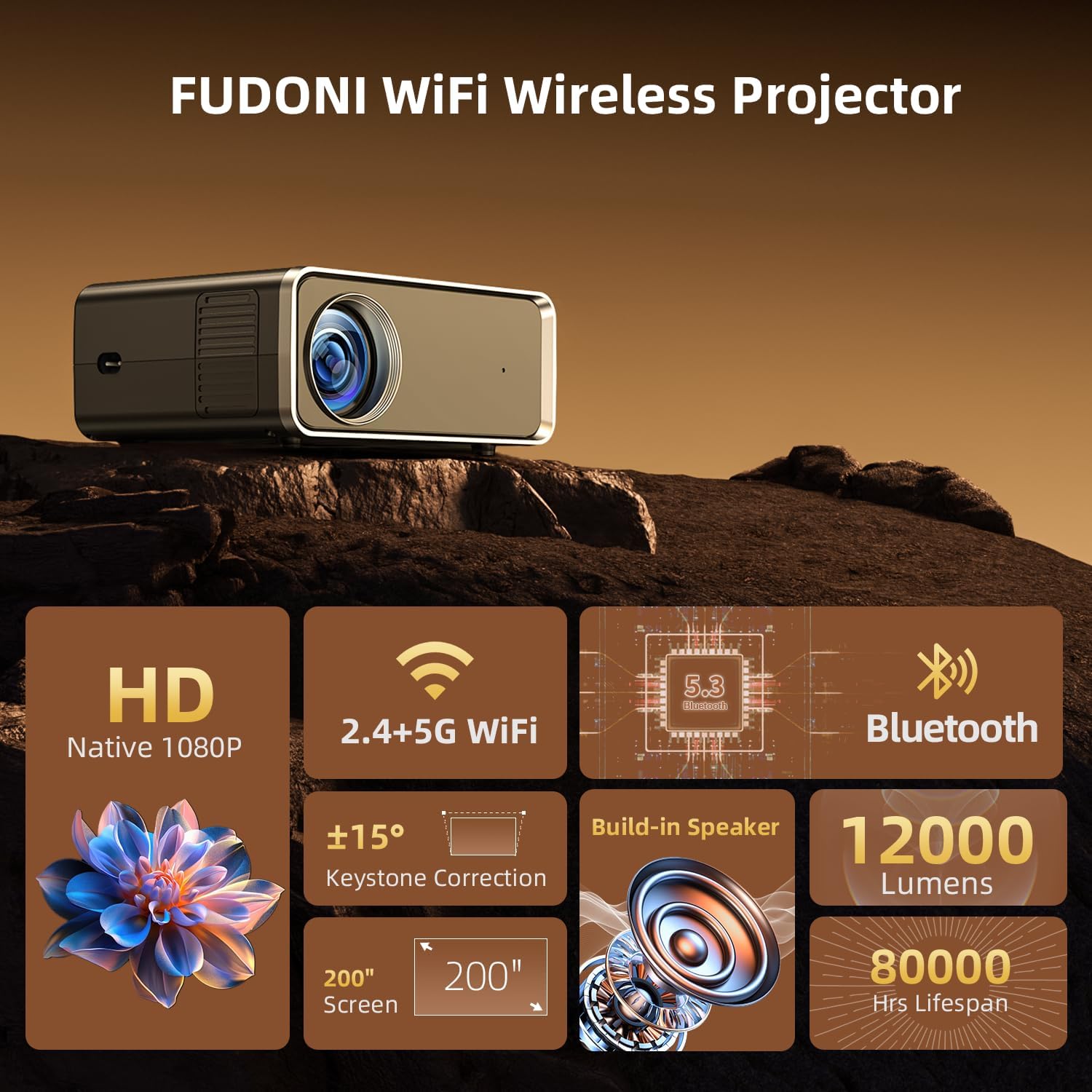
Image: An overview of the FUDONI projector's key features, including Native 1080P resolution, 2.4+5G WiFi, Bluetooth 5.3, ±15° Keystone Correction, Built-in Speaker, 12000 Lumens brightness, and an 80,000-hour lamp lifespan.
4.1 Front Panel
- Projection Lens: Emits the image.
- IR Receiver: For remote control signals.
4.2 Rear Panel / Side Panel

Image: The rear and side panels of the FUDONI projector, showing various input ports including USB, HDMI, and AV, along with integrated speakers.
- HDMI Ports (HDMI 1, HDMI 2): Connect to devices like laptops, TV sticks, gaming consoles.
- USB Ports (USB 1, USB 2): Connect USB drives for media playback.
- AV Port: Connect to older devices using an AV cable.
- Audio Out (3.5mm Jack): Connect external speakers or headphones.
- Power Input: Connect the power adapter.
- Built-in Speakers: Provide audio output.
5. Setup
5.1 Placement and Projection Size
The projector can display a screen size from 35 to 200 inches at a projection distance of 4 to 20 feet. Adjust the distance to achieve your desired screen size.

Image: Illustration of the projector's flexible placement options (table, tripod, ceiling) and the resulting large screen sizes, up to 200 inches, suitable for home theater setups.
- Table Placement: Place the projector on a stable, flat surface.
- Tripod Mount: Use the tripod screw hole on the bottom of the projector to attach it to a tripod.
- Ceiling Mount: The projector supports ceiling mounting. Ensure it is securely fastened.
5.2 Power Connection
- Connect the power adapter to the projector's power input port.
- Plug the power adapter into a wall outlet.
- The power indicator light will illuminate.
5.3 Focus and Keystone Correction
- Focus Adjustment: Rotate the focus ring on the projector lens until the projected image is clear.
- Keystone Correction: Use the keystone correction ring or digital keystone adjustment (if available via menu) to correct trapezoidal distortion, ensuring a rectangular image. The projector supports ±15° keystone correction.
6. Operating Instructions
6.1 Power On/Off
- Power On: Press the power button on the projector or remote control.
- Power Off: Press the power button again. Confirm shutdown if prompted.
6.2 Menu Navigation
Use the navigation buttons on the projector or remote control to navigate the on-screen menu. Press 'OK' or 'Enter' to select, and 'Return' or 'Back' to go back.
6.3 Connectivity
6.3.1 WiFi Wireless Connection (2.4G + 5G)

Image: The FUDONI projector demonstrating its 5G/2.4G WiFi capabilities, allowing fast and stable screen mirroring from various devices including iPhones, Android phones, MacBooks, and Windows laptops.
The projector supports 2.4G and 5G dual-band WiFi for stable and smooth screen mirroring.
- Go to the "WiFi Settings" menu on the projector.
- Select your desired WiFi network from the list.
- Enter the password using the on-screen keyboard and confirm.
- Once connected, you can use the screen mirroring function.
Note: Due to copyright protections, streaming services like Netflix, Amazon Prime Video, and Hulu do not support screen mirroring directly from mobile devices. Please use a TV Stick or other compatible device connected via HDMI for these services.
6.3.2 Bluetooth 5.3 Function

Image: The FUDONI projector demonstrating its Bluetooth connectivity, allowing users to pair with external audio devices such as Bluetooth speakers and headphones for enhanced sound.
Connect external Bluetooth speakers or headphones for an immersive audio experience.
- Ensure your Bluetooth audio device is in pairing mode.
- Go to the "Bluetooth Settings" menu on the projector.
- Select your device from the list of available devices to pair.
6.3.3 Connecting External Devices (HDMI, USB, AV)

Image: A visual representation of the FUDONI projector's broad compatibility with various external devices, including gaming consoles (PS5), streaming devices (TV Stick, Chromecast), laptops, smartphones, DVD players, and audio equipment, connected via HDMI, USB, or AV ports.
- HDMI: Connect your laptop, TV stick, gaming console, or other HDMI-enabled device to an HDMI port. Select the corresponding HDMI input source from the projector's menu.
- USB: Insert a USB flash drive into a USB port to play media files (videos, photos, music). Select "USB" as the input source.
- AV: Use the provided AV cable to connect to devices with AV output. Select "AV" as the input source.
6.4 Zoom Function
The projector features a zoom function that allows you to adjust the image size from 100% to 50% without moving the projector. This is useful for fine-tuning the display size to fit your screen.
- Access the "Zoom" setting in the projector's menu.
- Adjust the percentage to shrink the image as needed.
7. Maintenance
- Lens Cleaning: Use a soft, lint-free cloth specifically designed for optical lenses to gently wipe the projector lens. Do not use abrasive cleaners.
- Dust Removal: Regularly clean the projector's ventilation openings with a soft brush or compressed air to prevent dust buildup, which can affect performance and lifespan.
- Storage: When not in use for extended periods, store the projector in a cool, dry place, preferably in its original packaging or a protective case.
- Power Off Properly: Always power off the projector using the designated power button and allow it to cool down before unplugging or moving.
8. Troubleshooting
| Problem | Possible Cause | Solution |
|---|---|---|
| No image projected | Power cable loose; Incorrect input source; Device not connected properly. | Check power connection; Select correct input source (HDMI, USB, AV); Ensure device is connected and powered on. |
| Image blurry | Focus not adjusted; Projector too close/far from screen. | Adjust the focus ring; Adjust projection distance. |
| Image is trapezoidal | Keystone correction needed. | Adjust keystone correction ring or digital keystone setting. |
| No sound | Volume too low; Muted; External audio device not connected/paired. | Increase volume; Unmute; Check Bluetooth connection or external speaker connection. |
| WiFi connection unstable | Interference; Router too far; Incorrect password. | Move closer to router; Reduce interference; Re-enter WiFi password. |
9. Specifications
| Feature | Detail |
|---|---|
| Model Number | P3 |
| Display Resolution | Native 1920 x 1080P (4K Supported) |
| Brightness | 12000 Lumens |
| Connectivity Technology | Wi-Fi (2.4G & 5G), Bluetooth 5.3, USB, HDMI, AV |
| Projection Size | 35-200 inches |
| Projection Distance | 4-20 feet |
| Keystone Correction | ±15° Manual |
| Color | Black |
| Recommended Use | Home Cinema |
| Special Feature | Portable |
10. Warranty and Customer Support
FUDONI provides a lifetime warranty for this projector. Our team is dedicated to offering professional customer service and technical support.
If you encounter any questions or issues with your projector, please do not hesitate to contact us. We are available online 24/7 to assist you.
Contact Information: Please refer to the contact details provided on the product packaging or FUDONI's official website for the most up-to-date support channels.
Related documentsP3


Ask a question about this manual
Ask about setup, troubleshooting, compatibility, parts, safety, or missing instructions. Manuals+ will review the question and use this page’s manual context to help answer it.