
1. Introduction
This manual provides detailed instructions for the setup, operation, maintenance, and troubleshooting of your Dcorn 4K Digital Microscope. Designed for high-precision observation, this microscope offers 4K video recording, 52-megapixel still image capture, and up to 2000X magnification, making it suitable for various applications including coin collecting, PCB inspection, and general microscopic exploration.
2. What's in the Box
Carefully unpack all components and verify the contents against the list below:
- Digital Microscope (with 8-inch display) x1
- Remote Control x1
- User Manual x1
- 64GB TF Card x1
- HDMI Cable x1
- USB Cable x1
- Type-C Cable x1
- Extension Tube x1
- Light Barrier x1

Figure 2.1: Contents of the Dcorn 4K Digital Microscope package.
3. Setup
3.1 Component Identification
Familiarize yourself with the main parts of the microscope:
- 8-inch IPS Display: For direct viewing of magnified images.
- Microscope Lens: The primary optical component for magnification.
- Metallic Base: Provides stability and a platform for specimens.
- Flexible Side Lights: Adjustable LED lights for optimal illumination.
- Height Adjustment Column: For adjusting the working distance and magnification.
- Remote Control: For convenient operation without touching the unit.
3.2 Assembly
- Attach the microscope unit to the metallic base using the provided screws.
- Insert the flexible side lights into their designated ports on the base. Adjust their position as needed.
- Ensure the 64GB TF card is inserted into the designated slot on the display unit for recording.

Figure 3.1: The stable metallic base for the microscope.
3.3 Powering On
Connect the microscope to a power source using the provided USB or Type-C cable. Press the 'POWER' button located on the display unit to turn on the device. The 8-inch IPS display will illuminate, showing the live view from the microscope lens.

Figure 3.2: The 8-inch UHD IPS monitor provides a clear viewing experience.
4. Operating Instructions
4.1 Basic Operation
- Power On/Off: Press the 'POWER' button on the display.
- Menu Navigation: Use the 'MENU' button to access settings and the 'OK' and arrow buttons to navigate.
4.2 Magnification and Focus
The microscope offers a magnification range up to 2000X. Adjust the height of the microscope unit using the column for coarse focus and zoom. Use the focus ring on the camera unit for fine adjustments. Optimal focus is crucial for clear images.

Figure 4.1: Examples of magnification levels from 10X to 2000X.
4.3 Lighting Adjustment
Utilize the two flexible side lights to illuminate your specimen evenly and reduce shadows. Adjust their angle and intensity for optimal viewing conditions.
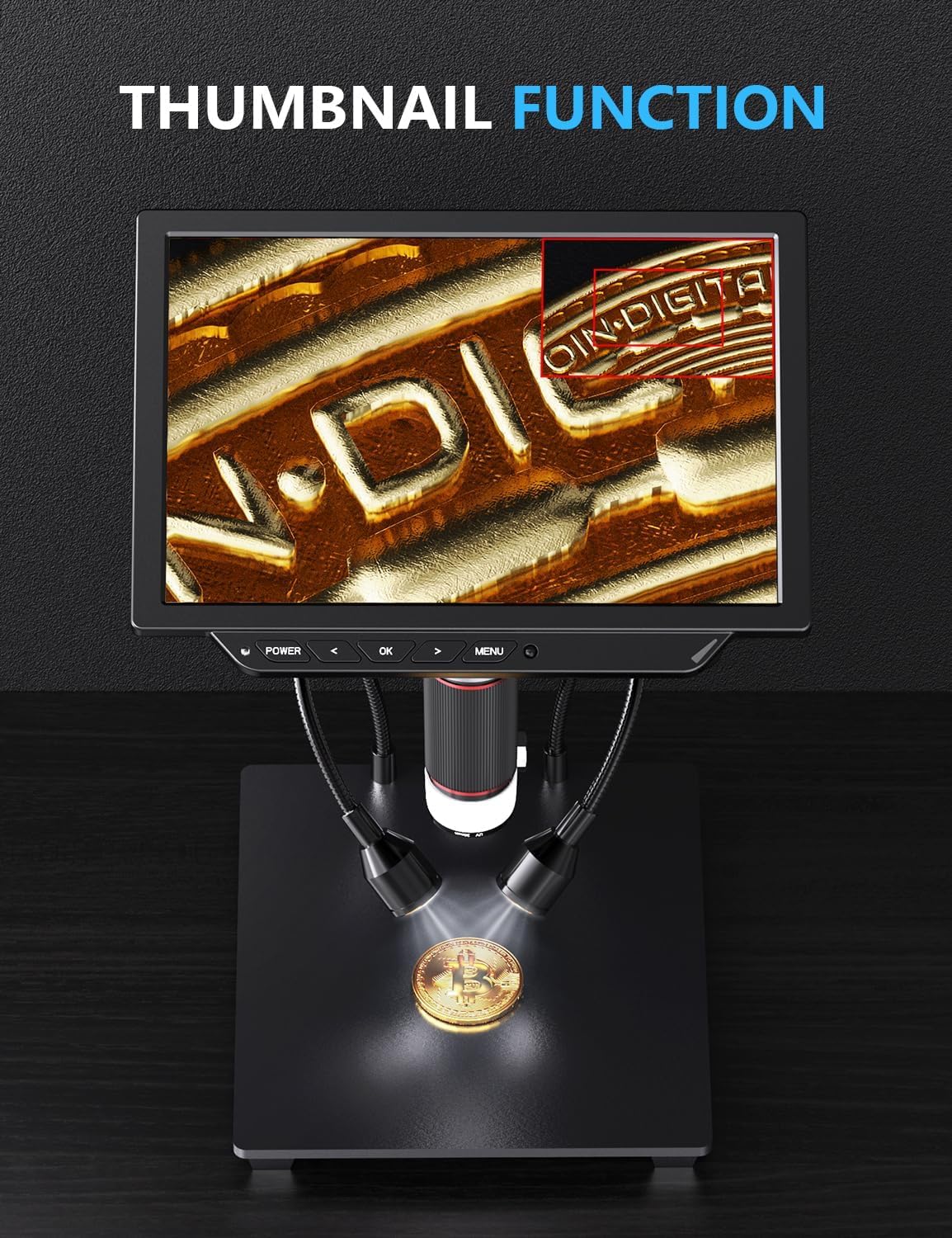
Figure 4.2: The flexible side lights provide adjustable illumination.
4.4 Capturing Images and Videos
The microscope features a 52MP camera sensor for high-resolution still images (9600x5400P) and 4K video recording (3840x2160P at 30fps). Use the dedicated buttons on the display or remote control to capture. All recordings are saved to the inserted 64GB TF card.

Figure 4.3: The 4K display provides clear visuals for capturing details.
Video 4.1: Demonstration of the Dcorn 4K Digital Microscope's capabilities, showing various magnified objects like PCBs, insects, soap bubbles, and watch gears.
4.5 HDMI Output
Connect the microscope to an external monitor or PC via the HDMI output for a larger viewing experience, ideal for collaborative work or presentations.

Figure 4.4: Connecting the microscope to an external display via HDMI.
4.6 Remote Control
The included remote control allows for convenient operation, including zooming in/out, capturing photos/videos, and navigating menu settings, without disturbing the microscope's position.
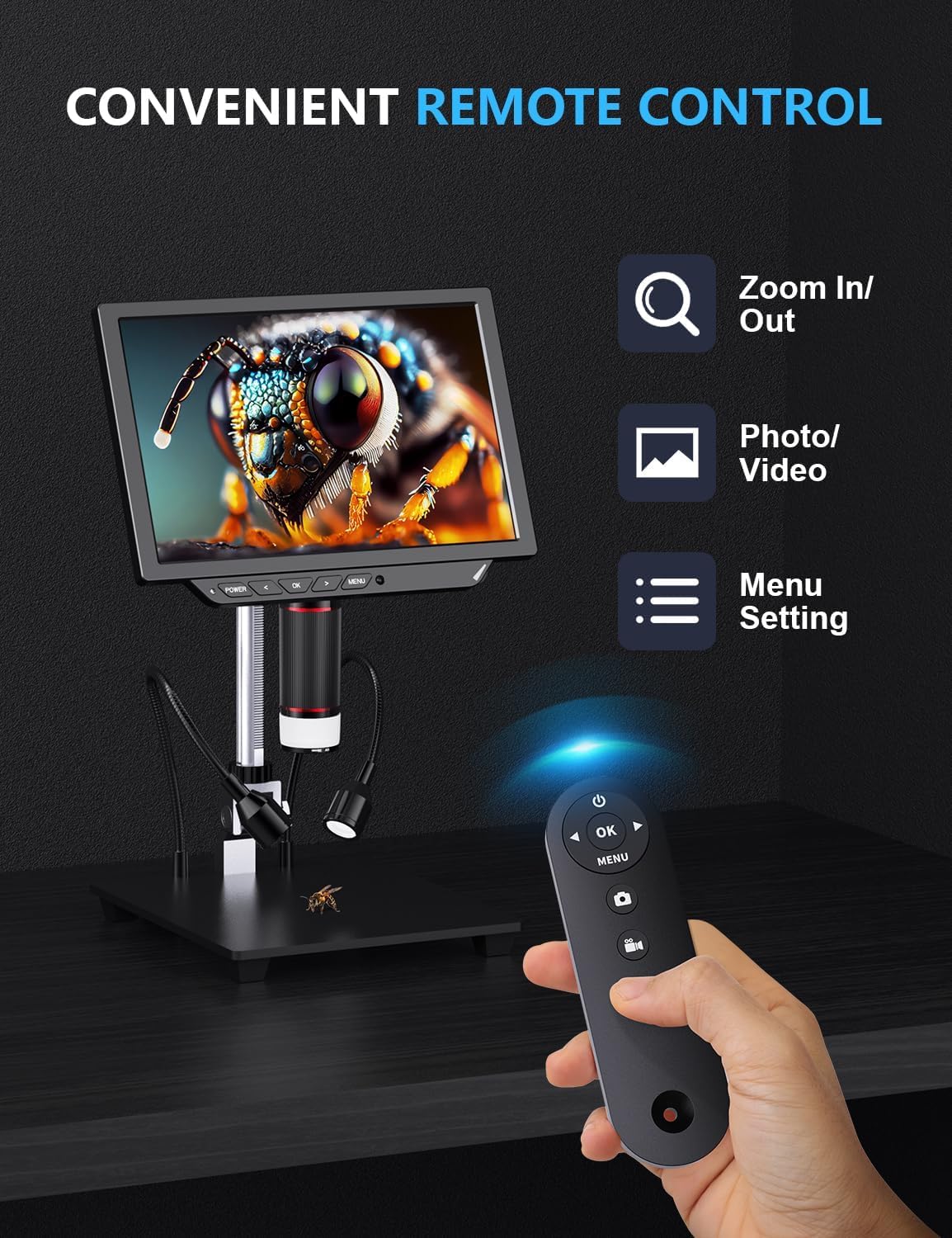
Figure 4.5: Using the remote control for hands-free operation.
4.7 Coin Observation
The microscope is designed to allow full observation of coins, providing a comprehensive view of details for collectors and enthusiasts.

Figure 4.6: The microscope's design facilitates full coin observation.
5. Maintenance
- Cleaning: Use a soft, dry cloth to clean the display and exterior. For the lens, use a specialized lens cleaning cloth and solution. Avoid abrasive materials.
- Storage: Store the microscope in a cool, dry place away from direct sunlight and excessive dust.
- Battery Care: If the unit has an internal battery, ensure it is charged regularly to maintain battery health, even during periods of non-use.
6. Troubleshooting
Refer to the table below for common issues and their solutions:
| Issue | Possible Cause | Solution |
|---|---|---|
| Image is shaky or blurry | Unstable surface; improper focus; high magnification without fine adjustment. | Place the microscope on a stable, flat surface. Adjust both coarse and fine focus carefully. Ensure adequate lighting. |
| Difficulty with fine focus adjustment | Focus ring too sensitive; backlash in mechanism. | Make very small, precise turns on the focus ring. Approach desired focus from one direction to minimize backlash. |
| Menu navigation is cumbersome | Limited navigation buttons. | Familiarize yourself with the menu structure and button functions. Use the remote control for easier access to common functions. |
| Not suitable for soldering applications | Limited working distance for soldering tools. | This microscope is primarily designed for observation. For soldering, consider microscopes with longer working distances or specialized stands. |
7. Specifications
| Feature | Detail |
|---|---|
| Model Name | 4K Digital Microscope |
| Item Model Number | DMR4K-8-BOOK |
| Magnification Maximum | 2000x |
| Camera Sensor | 52MP |
| Video Resolution | 4K (3840x2160P at 30fps) |
| Still Image Resolution | 52MP (9600x5400P) |
| Display Size | 8 inches |
| Storage | 64GB TF Card (included) |
| Output Ports | HDMI, USB, Micro SD |
| Light Source Type | LED (with flexible side lights) |
| Material | ABS, Metal |
| Item Weight | 4.27 pounds (1.94 Kilograms) |
| Power Source | 1 Lithium Polymer battery (included), 220 Volts |
8. Warranty and Support
This product is covered by a standard return policy, typically allowing returns within 30 days of purchase. For specific warranty details, please refer to the documentation included with your purchase or contact the seller directly. For technical support or inquiries, please reach out to DcornDirect, the seller of this product.
Note: Keep your purchase receipt for warranty claims.
