
1. Product Overview
The ROFAVEZCO HDMI 2.1 Splitter is designed to distribute a single HDMI 2.1 input signal to two HDMI 2.1 output displays simultaneously. It supports high resolutions up to 8K@60Hz and 4K@120Hz, including advanced features like VRR, ALLM, HDR10, Dolby Vision, and HDCP2.3. This device also includes EDID management and a downscaler function for flexible display configurations.

Image: The ROFAVEZCO HDMI 2.1 Splitter supports high resolutions up to 8K@60Hz, offering significant improvements over HDMI 2.0.
1.1 Package Contents
- HDMI 2.1 Splitter Unit
- Type-C Power Cable
- User Manual
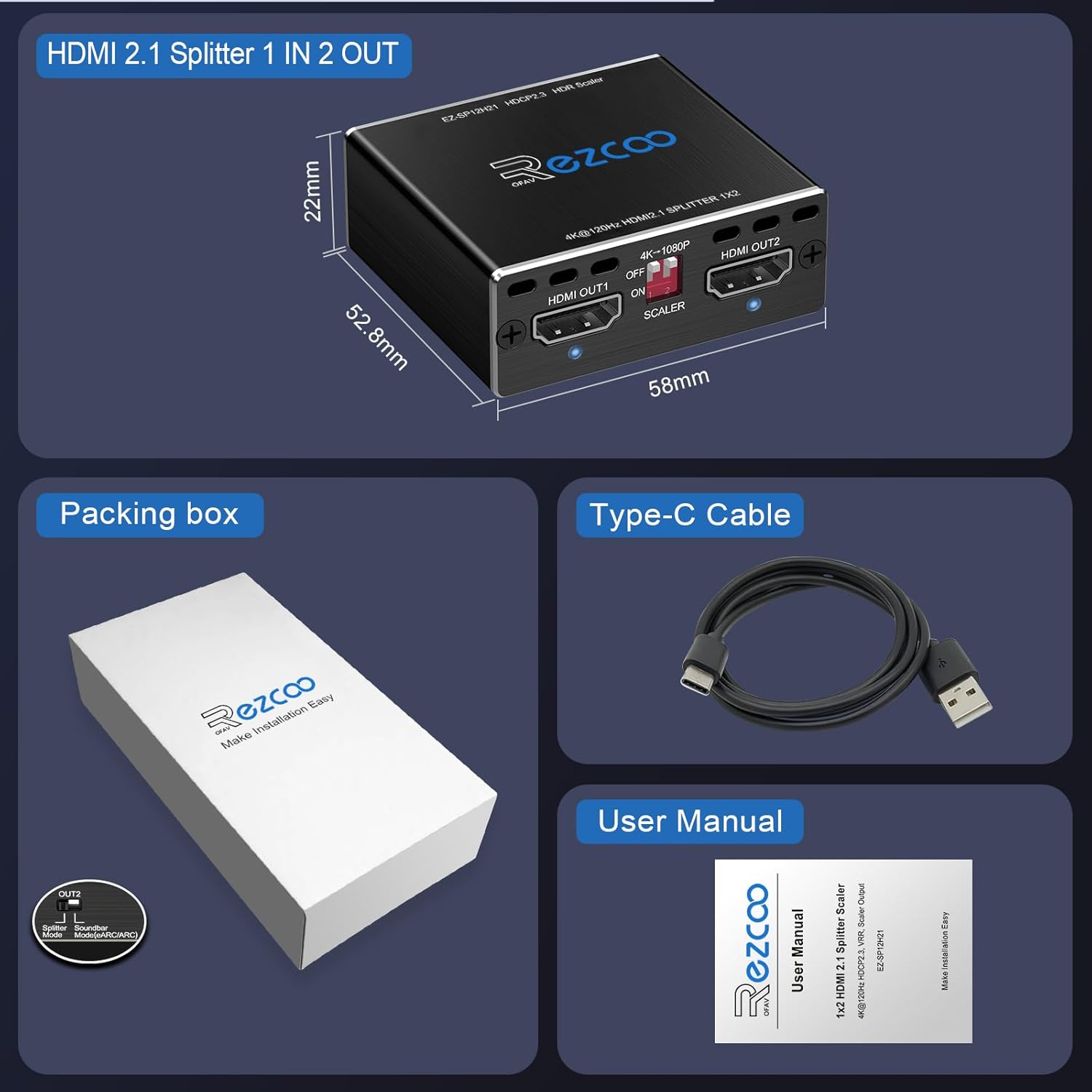
Image: The package includes the HDMI splitter unit, a Type-C power cable, and this user manual.
2. Setup Guide
2.1 Connecting Your Device
Follow these steps to connect your HDMI 2.1 Splitter:
- Ensure all devices (source, splitter, displays) are powered off before making connections.
- Connect your HDMI source device (e.g., PS5, Xbox, PC) to the HDMI IN port on the splitter using a certified HDMI 2.1 cable (recommended length less than 3 meters / 10 feet).
- Connect your primary display (e.g., TV, monitor) to the HDMI OUT1 port on the splitter using a certified HDMI 2.1 cable.
- Connect your secondary display or audio receiver to the HDMI OUT2 port on the splitter using a certified HDMI 2.1 cable.
- Connect the provided Type-C power cable to the POWER/FW port on the splitter and then to a 5V/2A power adapter (not included) or a USB port on your source device.
- Power on your displays, then your HDMI source device, and finally the splitter.

Image: Example connection diagram for the HDMI splitter, connecting a PS5 to a TV and an audio system.
2.2 Important Cable Information
The quality and length of HDMI cables are critical for optimal performance, especially with HDMI 2.1 features. Non-compliant or excessively long cables can lead to signal degradation, blurred pictures, or audio synchronization issues.
- Always use certified HDMI 2.1 cables.
- For 8K@60Hz or 4K@120Hz, HDMI 2.1 cables should be less than 3 meters (10 feet).
- Ensure all connected devices and cables support HDMI 2.1 for full functionality.

Image: Cable length and type recommendations for achieving 8K@60Hz or 4K@120Hz output.
3. Operation
3.1 Basic Operation
Once connected and powered on, the splitter will automatically duplicate the HDMI input signal to both HDMI OUT1 and HDMI OUT2. The device is designed for mirror/duplicate functionality and does not support extended desktop modes.

Image: The splitter duplicates the input signal to two displays. It can also send audio to a soundbar or amplifier via one of the outputs.
3.2 Video Demonstration
For a visual guide on the splitter's functionality, please watch the official product video below.
Video: An official product video demonstrating the features and operation of the HDMI 2.1 Splitter.
4. EDID and Scaler Configuration
The splitter features EDID (Extended Display Identification Data) management and a scaler function to optimize compatibility and display quality across different devices.
4.1 EDID Settings
EDID settings are controlled by a DIP switch labeled "EDID SETTING" on the splitter. This allows you to configure how the splitter communicates with your source device regarding supported resolutions and audio formats. The default setting is usually sufficient, but you may need to adjust it for specific setups.

Image: EDID DIP switch settings table. Refer to this table to configure the desired video and audio output characteristics.
- Default Setting: Typically allows the splitter to negotiate the best common resolution and audio format.
- Copy OUT1 TV EDID: Reads the EDID from the TV connected to OUT1 and applies it to the source.
- Specific Audio/Video Modes: Other settings allow forcing specific resolutions (e.g., 4K@120Hz, 4K@60Hz) and audio channels (e.g., 5.1CH, 7.1CH, Dolby Atmos).
If you encounter display issues, try setting the EDID to COPY OUT1 TV EDID. This ensures the source receives the exact capabilities of your primary display.
4.2 Scaler Function
The splitter includes a scaler function, controlled by a DIP switch labeled "SCALER". This is particularly useful when connecting a high-resolution source to displays with different maximum resolutions.

Image: The EDID and Scaler DIP switches are located on the side of the splitter for easy configuration.

Image: Scaler settings diagram. The scaler can downscale 4K 120Hz to 1080P 120Hz for OUT2.
- 4K-1080P Switch: When set to ON, this function will downscale a 4K@120Hz signal to 1080P@120Hz on OUT2. This allows you to connect a 4K@120Hz display to OUT1 and a 1080P@120Hz display to OUT2 simultaneously.
- Note: The scaler does not downscale refresh rates or Dolby Vision. If playing 4K HDR Dolby Vision content, it is recommended to turn off the scaler function to avoid potential issues.
5. Device Compatibility
The ROFAVEZCO HDMI 2.1 Splitter offers broad compatibility with various HDMI source and display devices.

Image: The splitter is compatible with a wide range of input sources and output displays.
5.1 Compatible Input Devices
- Gaming Consoles: PS5, PS4, PS3, Xbox Series X/S, Xbox One, Xbox360, Nintendo Switch
- Streaming Devices: Amazon Fire Stick, Apple TV, Chromecast, Roku, LE TV, IP TV, STB
- Media Players: Blu-ray Player, VCD/DVD Player, HD Player
- Computers: Laptops, PCs, Macbooks
- Other: Digital cameras, Projectors, SAT Receivers, Huawei Box, Smart Box

Image: The splitter supports various 8K UHD input sources and features including VRR, ALLM, HDR, and Dolby Audio.
5.2 Compatible Output Devices
- Televisions (TVs)
- Monitors
- Projectors
- Soundbars/Amplifiers (for audio extraction via OUT2 with scaler)
6. Technical Specifications
| Feature | Specification |
|---|---|
| HDMI Version | HDMI 2.1 |
| Input Ports | 1 x HDMI In |
| Output Ports | 2 x HDMI Out |
| Max Resolution | 8K@60Hz, 4K@120Hz, 5120x1440@120Hz, 1080P@240Hz |
| Color Format | 4:4:4 8bit |
| HDR Support | HDR10, Dolby Vision |
| HDCP Compliance | HDCP 2.3 |
| Gaming Features | VRR, ALLM, Freesync/Gsync (Support) |
| Audio Formats | Dolby Atmos, DTS X, Dolby True HD, DTS-HD Master Audio, PCM7.1 |
| 3D Support | Yes |
| EDID Management | Yes (DIP switch selectable) |
| Scaler Function | 4K@120Hz to 1080P@120Hz (OUT2 only) |
| Power Supply | Type-C, 5V/2A |
| Material | Aluminum |

Image: The splitter supports advanced gaming features like VRR and ALLM for a smoother experience.
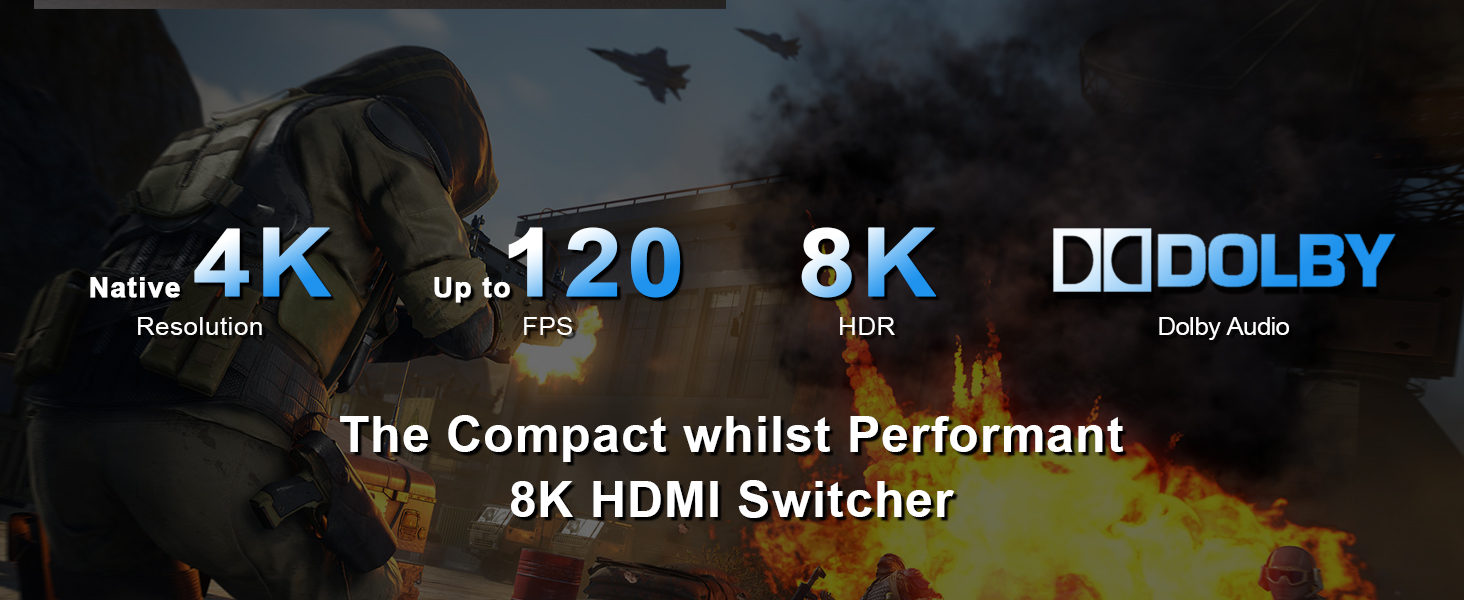
Image: The splitter supports a wide range of high-fidelity audio formats, including Dolby Atmos and DTS X.
7. Troubleshooting Guide
If you encounter issues, please refer to the following troubleshooting steps:
- No Video/Audio Output:
- Ensure all HDMI cables are securely connected and are certified HDMI 2.1.
- Verify the splitter is receiving adequate power via the Type-C cable.
- Try a different HDMI cable, especially if experiencing blurred pictures or out-of-sync sound.
- Adjust the EDID settings on the splitter. Try the "Copy OUT1 TV EDID" setting.
- Bypass the splitter and connect the source directly to the display to confirm the source and display are working correctly.
- Incorrect Resolution/Refresh Rate:
- Check the EDID settings. Ensure they match the capabilities of your displays.
- If using OUT2 with a lower resolution display, ensure the scaler function is correctly configured (ON for 4K to 1080P downscaling).
- Verify that your source device's output settings are configured for the desired resolution and refresh rate.
- Audio Dropouts/No Audio:
- Confirm the EDID setting includes the desired audio format (e.g., 5.1CH, 7.1CH, Dolby Atmos).
- Ensure your audio receiver/soundbar is properly connected and configured to receive audio from the HDMI output.
- Note that the splitter does NOT support Sonos-ARC/e-ARC bi-directional audio.
- HDCP Issues (e.g., blank screen with protected content):
- Ensure all connected devices are HDCP 2.3 compliant.
- The splitter is designed to handle HDCP, but issues can arise from non-compliant devices or cables.

Image: The splitter can assist in HDCP compliance for capture card setups, allowing simultaneous display and capture.
8. Important Considerations
- Cable Quality: Most issues are caused by poor quality or non-compliant HDMI cables. Always use certified HDMI 2.1 cables, especially for high resolutions and refresh rates.
- ARC/e-ARC: This splitter does NOT support Sonos-ARC/e-ARC bi-directional audio.
- HDR Downscaling: The splitter does NOT down-scale HDR Dolby Vision (4K60 4:2:2) and does not convert HDR to SDR.
- Display Mode: This device functions as a duplicate/mirror splitter. It does NOT support extending your screen across multiple displays.
- Refresh Rate Sync: The splitter does not support 60Hz & 120Hz working in sync on both outputs if the source is 4K120Hz and OUT2 is downscaled to 1080P120Hz.
9. Warranty and Customer Support
ROFAVEZCO products are designed for reliability and performance. If you encounter any problems during the use of this product, please contact our customer support team for assistance.
- Contact: Refer to your purchase documentation or the seller's information on the platform where you purchased the product to find contact details for support.
- Troubleshooting: Many common issues can be resolved by following the troubleshooting steps in this manual.
- Returns/Exchanges: If a problem persists, you may be eligible for a return or exchange as per the seller's policy.
