
Introduction
The Formuler Z Mini is a compact and powerful Android 12 streaming media player designed to deliver a high-quality 4K entertainment experience. This manual provides comprehensive instructions for setting up, operating, and maintaining your device to ensure optimal performance.
What's Included
- Formuler Z Mini device
- Power Cable
- Bluetooth Voice Remote Control
- Case Cover for Remote Control
- Extra Air Remote Keyboard Backlit
- Extra Desk Stand Mount

Image: Contents of the Formuler Z Mini package, showing the main unit, remote control, power adapter, and included desk stand.
Setup
Connecting the Device
- Connect the Formuler Z Mini to your television using an HDMI cable.
- Connect the provided power cable to the device and then plug it into a functional power outlet.
- Turn on your television and select the correct HDMI input source that corresponds to the connected device.
- The device will power on automatically upon receiving power.
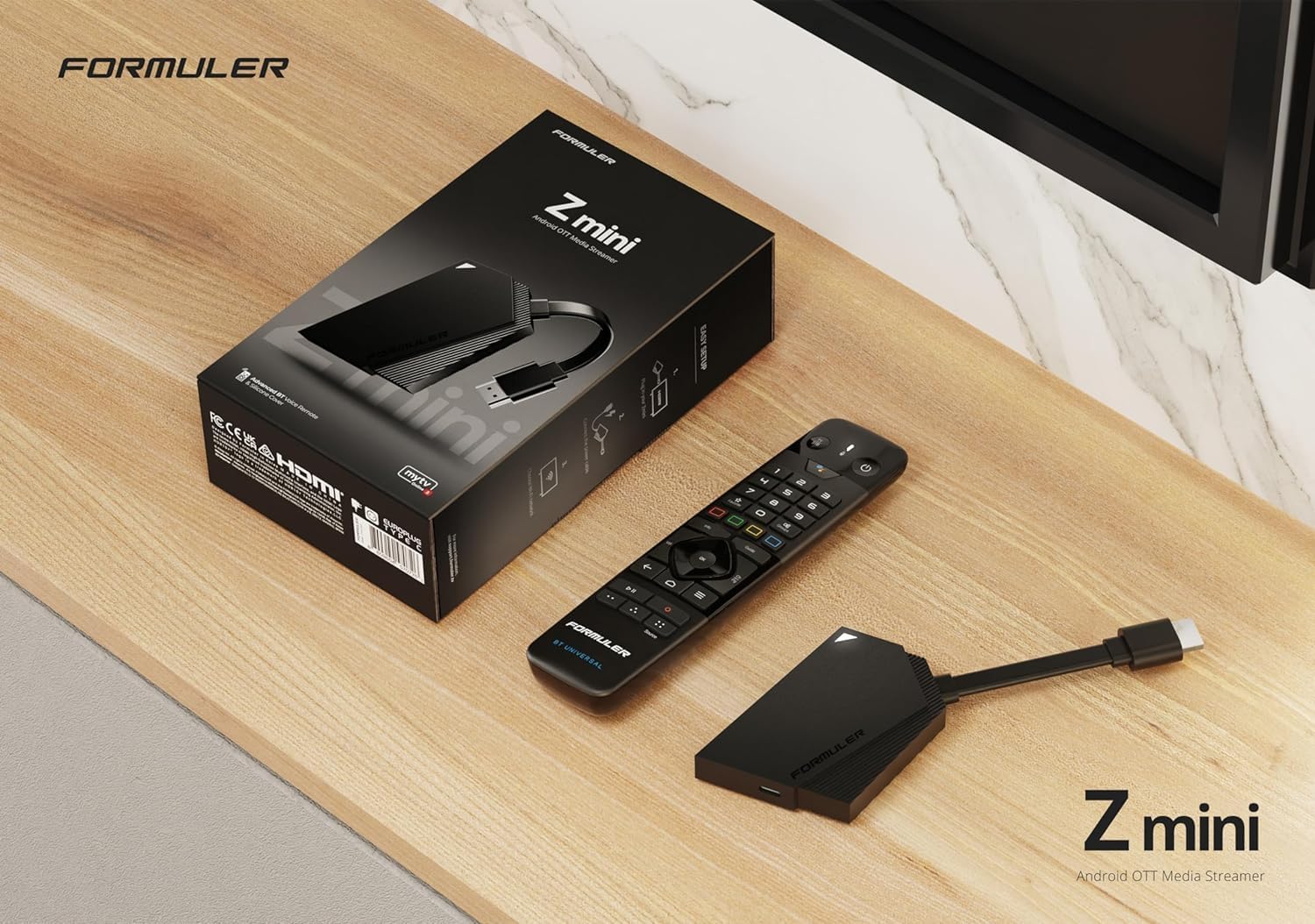
Image: The Formuler Z Mini device connected to a television, illustrating a typical setup.
Initial Configuration
Upon first power-on, follow the on-screen prompts to complete the initial setup process. This typically includes:
- Language selection
- Network connection (Wi-Fi or Ethernet via adapter)
- Google account sign-in
- System updates
For network connection, the device supports Dual Band 5G 2x2 AC Wi-Fi. An Ethernet connection may require a USB-C hub with an Ethernet adapter, which is not included with the standard package.
Operating Instructions
Using the Remote Control
The Formuler Z Mini is operated using the included Bluetooth Voice Remote Control. Familiarize yourself with its functions:
Image: Detailed view of the Formuler Z Mini remote control, highlighting various buttons and their functions.
- Power Button: Press once to put the device into standby mode. Press and hold to display the Power Menu.
- Google Assistant Button: Activates the Google Assistant for voice commands and search.
- Navigation Pad (OK button): Used to navigate through menus and select items.
- Volume Buttons: Adjusts the audio output volume.
- Back Button: Returns to the previous screen or menu.
- Home Button: Navigates directly to the System Home screen.
- Menu Button: Displays the Main Menu or context-sensitive options.
- Favorite Button: Used to show or set favorite channels.
- Info Button: Press twice to display detailed information about current content.
- Guide Button: Opens the Electronic Program Guide (EPG).
- Playback Controls: Includes buttons for Timeshift/Resume, Pause playback, and Start recording.
- Numeric Keypad: Allows for direct channel number input.
Navigating Android 12
The Formuler Z Mini operates on Android 12, providing access to a wide range of applications available through the Google Play Store.
- Use the remote control's navigation pad to move between apps and settings on the user interface.
- Download and install your preferred streaming applications, games, and utility tools.
- Utilize the voice search feature via the Google Assistant button for quick content discovery and command execution.
4K Streaming
The device supports an output resolution of 4K (3840 x 2160). To experience content in true 4K, ensure that your television and the content you are viewing also support 4K resolution.
Maintenance
Software Updates
Regularly check for and install system updates to ensure your device operates with optimal performance, security, and access to the latest features.
- Navigate to the Settings menu on your device.
- Select About or System.
- Choose System Update or Software Update.
- Follow the on-screen instructions to download and install any available updates.
Cleaning
Use a soft, dry cloth to clean the exterior of the device and the remote control. Avoid using liquid cleaners, solvents, or abrasive materials, as these can damage the surfaces.
Storage
The device is equipped with 8GB of eMMC internal storage. If additional storage capacity is required for applications or media, external USB storage devices can be connected via a compatible USB-C hub (not included).
Troubleshooting
| Problem | Solution |
|---|---|
| No power/Device not turning on | Ensure the power cable is securely connected to both the device and a functional power outlet. Try a different outlet if necessary. |
| No signal on TV | Verify that the HDMI cable is properly connected to both the device and the TV. Confirm your TV is set to the correct HDMI input source. |
| Remote control not responding | Check the batteries in the remote control and replace them if necessary (requires 2 AA batteries). Ensure the remote is properly paired via Bluetooth. |
| Wi-Fi connection issues | Restart your Wi-Fi router. Ensure the device is within range of the Wi-Fi signal. Re-enter the Wi-Fi password if prompted. |
| External USB storage not recognized | Ensure the USB device is properly formatted (e.g., FAT32, exFAT) and connected via a compatible USB-C hub. Try restarting the device after connecting the storage. |
| Device is slow or freezing | Close any unused applications running in the background. Clear the cache for problematic apps. If issues persist, consider performing a factory reset (Note: This will erase all data and settings on the device). |
Specifications
- Output Resolution: 4K (3840 x 2160)
- RAM: 2GB LPDDR4 @2400MHz
- Storage: 8GB eMMC
- Operating System: Android 12
- Networking: Wireless: AC 2x2, Bluetooth: 5.0
- Dimensions (Length x Width x Thickness): 83 mm x 60 mm x 12.5 mm
- Color: Black
- Item Weight: Approximately 1.61 pounds
- Power: Power Cable included
- Remote Batteries: 2 AA batteries (included)
Warranty and Support
For detailed warranty information, terms, and conditions, please refer to the official Formuler website or the documentation provided with your purchase. For technical support and customer service inquiries, please contact Formuler directly through their official channels.
Extended protection plans may be available for your device, such as 2-Year or 3-Year Protection Plans. Please inquire with your retailer for more details on these options.
For additional product information and community support, you may visit the product page on Amazon.


