
NALsa M200S 8core 2+32G
NALsa Android 12 Car Stereo User Manual
For Suzuki Celerio 2014-2018 Models (M200S 8core 2+32G)
1. Introduction
This manual provides comprehensive instructions for the installation, operation, and maintenance of your NALsa Android 12 Car Stereo system. This multimedia player is designed to enhance your driving experience with advanced features such as GPS navigation, smartphone integration (CarPlay/Android Auto), and a high-resolution touch screen display. Please read this manual thoroughly before using the product to ensure proper functionality and safety.
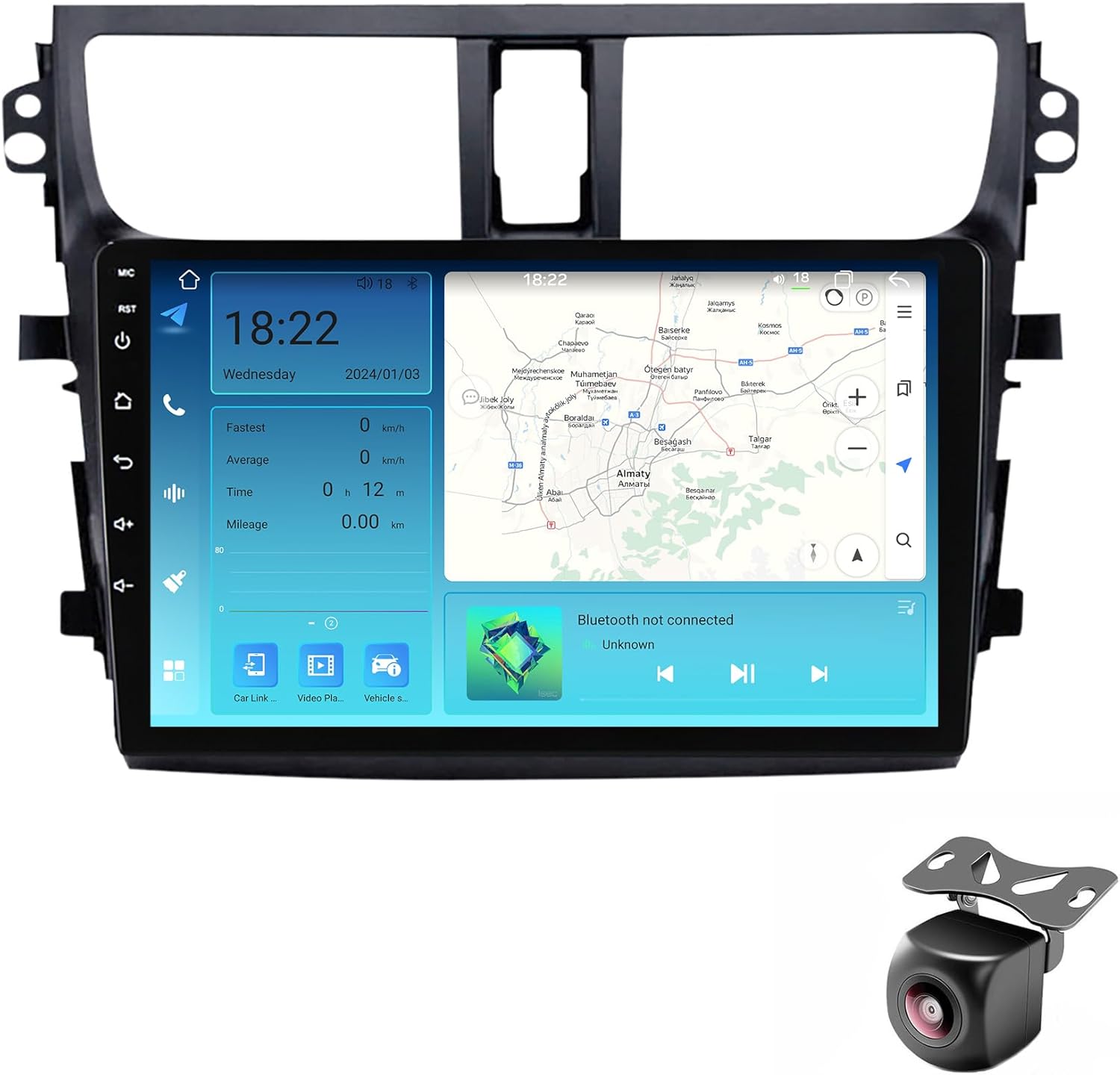
Image 1.1: NALsa Android 12 Car Stereo unit with rearview camera.
The image displays the main car stereo unit, a 2-DIN Android 12 system with a large touch screen, designed for Suzuki Celerio models. A rearview camera is also shown, indicating its inclusion with the product.
2. Compatibility
This car stereo system is specifically designed for the following vehicle models:
- Suzuki Celerio: 2014, 2015, 2016, 2017, 2018
Before installation, it is crucial to confirm the correct shape and style of your vehicle's original center console. If you are uncertain about compatibility, please consult a professional or contact customer support with a picture of your original center console for technical identification.

Image 2.1: NALsa Car Stereo integrated into a Suzuki Celerio dashboard.
This image shows the NALsa car stereo unit seamlessly installed within the dashboard of a Suzuki Celerio, demonstrating its fit and appearance when integrated into the vehicle's interior.
3. Package Contents
Please verify that all items listed below are included in your package:
- Android Host (Screen Unit)
- Power Cable
- RCA Cable
- Reversing Camera (AHD720P, complimentary)
- USB Cables (2 or 3 depending on model)
- MIC (Microphone)
- GPS Antenna
- 4G Antenna (for M200S-800S models)
- Audio Out (for M200S-800S models)

Image 3.1: Visual representation of package contents.
This diagram illustrates the various components included in the product package, such as the main unit, power cable, RCA cables, reversing camera, USB cables, microphone, and antennas, categorized by model series (M100/150CP and M200-800S).
4. Specifications
The following table outlines the key technical specifications of the NALsa Android 12 Car Stereo (M200S model):
| Feature | Specification (M200S) |
|---|---|
| Operating System | Android 12.0 API29 |
| Configuration | 8-core, 2GB RAM, 32GB ROM |
| Resolution | 1280*720 IPS |
| Internet Connection | 4G LTE / 5G WiFi / USB / Hotspot |
| Screen Type | High-resolution capacitive multi-touch, 2.5D IPS |
| Bluetooth | Built-in Bluetooth 5.0 |
| GPS | Built-in GPS module, supports online/offline maps |
| CarPlay / Android Auto | Wired and Wireless support |
| DSP | Built-in, supports surround sound, bass, treble adjustment |
| Amplifier IC | TDA7388 |
| Receiver IC | 7708 |
| Cooling Fan | Powerful cooling fan at the rear |
| Voltage | 12 Volts |
| Item Weight | 5.5 pounds |

Image 4.1: Detailed parameter comparison for various NALsa models.
This image presents a comprehensive table comparing specifications across different NALsa car multimedia player models, including details on Internet connectivity, OS, core type, RAM/ROM, CarPlay/Android Auto support, Bluetooth module, resolution, screen type, cooling fan, AV output, DSP, and RDS.

Image 4.2: Features of Cooling Fan, IPS Screen, and DSP Processor.
This image highlights key technological features: the effectiveness of the cooling fan in maintaining optimal temperature, the superior viewing angles and color reproduction of the 2.5D IPS screen, and the enhanced audio experience provided by the built-in DSP processor.
5. Setup and Installation
Installation of this Android radio system requires specific skills and expertise in car audio systems. It is highly recommended to seek professional installation from a qualified auto repair store to ensure correct wiring, proper functionality, and to avoid any damage to your vehicle or the unit.
5.1 Wiring Diagram
Refer to the wiring diagrams provided below for connection details. These diagrams illustrate the various ports and their functions on the back of the head unit.

Image 5.1: Wiring diagrams for the back of the host device.
This image displays two wiring diagrams for the rear of the car stereo unit: one for M200S-800S models and another for M100CP/M150CP models. These diagrams detail the various input/output ports, including GPS, 5G WiFi, Radio, 4G Antenna, USB, RCA, and specific connections for features like CANbus, cooling fan, and optical/coaxial output.
5.2 Initial Setup
After professional installation, the unit will power on with your vehicle's ignition. Follow the on-screen prompts for initial setup, including language selection, time zone, and network configuration. Connect to a Wi-Fi network or insert a 4G SIM card (for M200S-800S models) to enable online features.
6. Operating Instructions
6.1 Basic Operation
- Power On/Off: The unit powers on and off with the vehicle's ignition.
- Touch Screen: Navigate the interface using the high-resolution capacitive multi-touch screen.
- Volume Control: Adjust volume using the on-screen controls or steering wheel controls (if configured).
6.2 GPS Navigation
The built-in GPS module supports both online and offline navigation maps. Ensure the GPS antenna is properly connected for optimal signal reception.
- Access the navigation application from the main menu.
- Download offline maps for areas with limited network coverage.
- The system supports GPS, BDS, and GLONASS satellite systems for accurate positioning.

Image 6.1: Features including GPS Navigation and Steering Wheel Control.
This image illustrates the GPS navigation interface with real-time traffic display, the functionality of steering wheel controls for safe operation, the support for 5GHz WiFi for stable internet connection, and details regarding the 4G SIM card slot for M200S-800S systems.
6.3 Smartphone Integration (CarPlay & Android Auto)
The M200S model supports both wired and wireless Apple CarPlay and Android Auto, allowing seamless integration of your smartphone for navigation, music, calls, and messages.
- For Wired Connection: Connect your smartphone to the unit via a USB cable.
- For Wireless Connection: Ensure Bluetooth is enabled on your phone and the unit. Follow the on-screen prompts to pair and connect.
- Access CarPlay or Android Auto from the main menu or by connecting your device.
Image 6.2: Built-in CarPlay and Android Auto interfaces.
This image showcases the user interfaces for both Apple CarPlay and Android Auto as displayed on the car stereo screen, demonstrating how smartphone applications are integrated for navigation, communication, and entertainment.
6.4 Bluetooth Connectivity
The unit features built-in Bluetooth 5.0 for hands-free calling and audio streaming.
- Go to the Bluetooth settings on the unit.
- Enable Bluetooth on your mobile device and search for the car stereo.
- Pair the devices. You can now make/receive calls and play music wirelessly.
6.5 Multimedia Playback
The system supports various digital media formats including MP3, MP4, MP5, WMA, and JPEG.
- USB Playback: Connect USB drives to the available USB ports for music and video playback.
- Radio: Tune into FM radio stations. RDS is supported.
- DSP: Utilize the built-in DSP (Digital Sound Processor) to adjust surround sound, bass, and treble for an optimized audio experience.
6.6 Steering Wheel Control (SWC)
The unit supports steering wheel control (SWC), allowing you to manage audio and calls without taking your hands off the wheel. This feature requires proper wiring during installation.
- If your original car does not have steering wheel buttons, external BT steering wheel controls can be purchased.
- Configure SWC settings in the system menu to map functions to your vehicle's buttons.
6.7 Rearview Camera Input
The system automatically displays the rearview camera feed when the vehicle is in reverse gear. The included AHD720P reversing camera provides clear visibility.
6.8 Split Screen Functionality
The picture-in-picture split screen feature allows you to run two applications simultaneously, such as navigation and music playback.
- Long-press the recent apps button or drag an app to one side of the screen to activate split screen mode.
7. Maintenance
- Screen Cleaning: Use a soft, lint-free cloth to clean the touch screen. Do not use abrasive cleaners or solvents.
- Software Updates: Periodically check for system software updates to ensure optimal performance and access to new features. Updates can typically be performed via Wi-Fi.
- Temperature: Avoid exposing the unit to extreme temperatures. The built-in cooling fan helps manage internal temperatures during operation.
- Ventilation: Ensure the cooling fan vents are not obstructed to prevent overheating.
8. Troubleshooting
This section addresses common issues you might encounter. For more complex problems, please contact customer support.
| Problem | Possible Cause / Solution |
|---|---|
| Unit does not power on. | Check power connections and vehicle's fuse box. Ensure proper installation. |
| No sound from speakers. | Verify speaker wiring connections. Check volume levels and mute settings. Ensure correct audio source is selected. |
| GPS signal is weak or inaccurate. | Ensure GPS antenna is properly installed and has a clear view of the sky. Avoid obstructions. |
| Bluetooth connection issues. | Ensure Bluetooth is enabled on both devices. Delete previous pairings and re-pair. Move devices closer. |
| CarPlay/Android Auto not connecting. | For wired connection, try a different USB cable. For wireless, ensure Wi-Fi and Bluetooth are on. Check phone settings for CarPlay/Android Auto permissions. |
| Touch screen unresponsive. | Restart the unit (turn vehicle ignition off and on). If persistent, contact support. |
| Unit overheating. | Ensure cooling fan vents are not blocked. Reduce prolonged high-load usage in extreme heat. |
9. Warranty and Support
NALsa provides professional pre and post-sales service for its products. If you encounter any issues or have questions regarding your Android car stereo, please do not hesitate to contact our customer service team.
- Technical Support: Online technical service and professional installation technical support are available.
- Contact: You can reach us via chat or Amazon mail. When contacting support, please provide your product model, year of manufacture, and a photo of your dashboard center console if the query is about compatibility or installation.
Ask a question about this manual
Ask about setup, troubleshooting, compatibility, parts, safety, or missing instructions. Manuals+ will review the question and use this page’s manual context to help answer it.