
Introduction
Thank you for choosing the MARVO Monka Contra PS4 Wireless Game Controller. This manual provides detailed instructions for setting up, operating, and maintaining your new controller. Please read this manual carefully before use to ensure optimal performance and longevity of your device. Keep this manual for future reference.
Package Contents
- MARVO Monka Contra PS4 Wireless Game Controller
- USB Charging Cable
- User Manual (this document)
Product Overview
The MARVO Monka Contra controller is designed for an immersive gaming experience on your PlayStation 4. It features a wireless connection, ergonomic design for comfortable extended play, and responsive controls for precise input.

Figure 1: Front view of the MARVO Monka Contra PS4 Wireless Game Controller. This image displays the layout of the dual analog sticks, directional pad, action buttons (Triangle, Circle, Cross, Square), Share, Options, Home, and Turbo buttons, as well as the central touch pad and light bar.
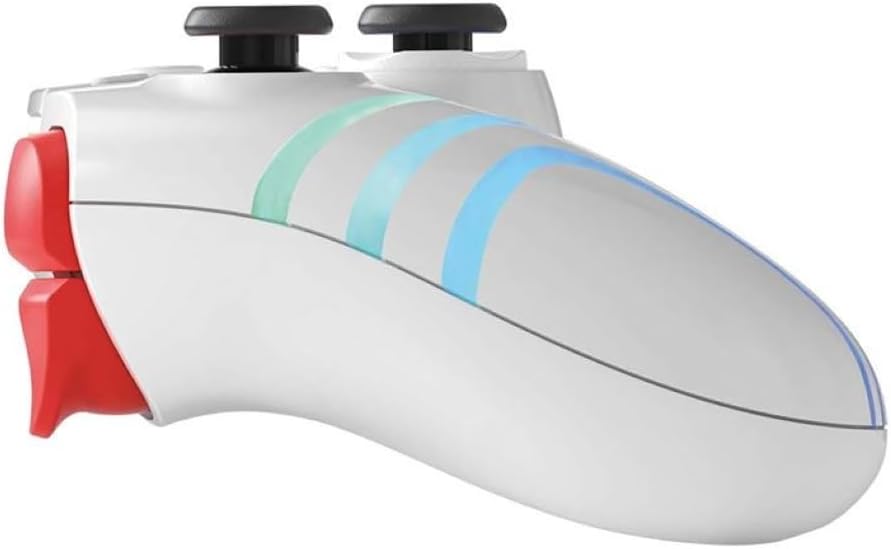
Figure 2: Side view of the MARVO Monka Contra PS4 Wireless Game Controller. This image illustrates the ergonomic curvature of the controller's handles and the placement of the L1, L2, R1, and R2 shoulder/trigger buttons.
Controller Layout:
- Left Analog Stick: Movement and camera control.
- Right Analog Stick: Camera control and aiming.
- Directional Pad (D-Pad): Menu navigation and specific game actions.
- Action Buttons (Triangle, Circle, Cross, Square): In-game actions.
- SHARE Button: Share gameplay moments.
- OPTIONS Button: Access in-game menus or pause.
- PS Button (HOME): Access the PS4 system menu.
- TURBO Button: Activates turbo function for assigned buttons.
- Touch Pad: Interactive input for compatible games.
- L1/R1 Buttons: Shoulder buttons for various actions.
- L2/R2 Triggers: Analog triggers for precise input.
- Speaker: In-game audio output.
- Headset Jack: Connect a compatible headset.
- USB Port: Charging and wired connection.
Setup
Initial Charging:
Before first use, fully charge the controller. Connect the supplied USB charging cable to the controller's USB port and the other end to a powered USB port on your PS4 console or a USB wall adapter (not included). The light bar on the controller will slowly flash orange while charging and turn off when fully charged.
Pairing with PS4:
- Ensure your PS4 console is powered on.
- Connect the controller to the PS4 console using the supplied USB charging cable.
- Press the PS Button (HOME) on the controller. The controller will power on and automatically pair with the console.
- Once paired, you can disconnect the USB cable to use the controller wirelessly. The light bar will glow a solid color (e.g., blue for Player 1) indicating a successful connection.
- To pair additional controllers, repeat steps 2-4 for each controller.
Note: If the controller does not pair, ensure the PS4 system software is up to date.
Operating Instructions
Powering On/Off:
- To Power On: Press the PS Button (HOME).
- To Power Off: Hold the PS Button (HOME) for approximately 10 seconds until the light bar turns off, or select "Power Off Controller" from the PS4 Quick Menu.
Turbo Function:
The Turbo function allows a button to be repeatedly pressed automatically as long as it is held down, which can be useful in certain games.
- Press and hold the TURBO Button.
- While holding TURBO, press the action button (e.g., Cross, Circle, Square, Triangle, L1, R1, L2, R2) you wish to assign the turbo function to.
- Release both buttons. The assigned button will now activate the turbo function when pressed.
- To disable turbo for a specific button, repeat steps 1-2.
- To clear all turbo settings, hold the TURBO Button and press the SHARE Button simultaneously.
Headset Connection:
Connect a compatible 3.5mm headset to the headset jack on the bottom of the controller for in-game audio and voice chat.
Charging
The controller contains a built-in rechargeable battery. When the battery level is low, the light bar may flash or change color to indicate low power.
- Connect the controller to your PS4 console or a USB wall adapter using the provided USB cable.
- The light bar will slowly flash orange during charging.
- The light bar will turn off when the controller is fully charged.
- Charging time may vary depending on the power source and remaining battery level.
Maintenance
- Cleaning: Use a soft, dry cloth to clean the controller. Do not use harsh chemicals or abrasive materials.
- Storage: Store the controller in a cool, dry place away from direct sunlight and extreme temperatures.
- Battery Care: To prolong battery life, avoid fully discharging the controller frequently. Charge it regularly, even if not in use for extended periods.
- Avoid Drops: Protect the controller from drops and impacts, which can damage internal components.
Troubleshooting
| Problem | Solution |
|---|---|
| Controller does not turn on. | Ensure the controller is charged. Connect it to the PS4 with the USB cable and press the PS Button. |
| Controller does not connect to PS4 wirelessly. |
|
| Buttons or analog sticks are unresponsive. |
|
| Controller disconnects frequently. |
|
Specifications
- Model: Monka Contra
- Connectivity: Wireless (Bluetooth), Wired (USB)
- Compatibility: PlayStation 4
- Battery: Built-in Rechargeable Lithium-ion
- Dimensions: Approximately 17.4 x 17.2 x 7.6 cm
- Weight: Approximately 460 g
Warranty and Support
MARVO products are designed for reliability and performance. For warranty information or technical support, please refer to the warranty card included with your product or visit the official MARVO website. Please retain your proof of purchase for warranty claims.
For further assistance, contact MARVO customer support through their official channels.