
1. Introduction and Overview
The Phomemo M832 is a portable thermal printer designed for convenience and efficiency. It utilizes advanced direct thermal technology, eliminating the need for ink, toner, or ribbons. This printer supports various thermal paper sizes, including US Letter (8.5" x 11") and A4, making it suitable for a wide range of printing tasks on the go. Its compact design and wireless connectivity options ensure you can print documents, receipts, and more, wherever you are.

Image 1.1: The Phomemo M832 printer highlighting its versatility and support for multiple thermal paper sizes.
Key Features:
- Inkless Thermal Printing: No need for ink cartridges, toner, or ribbons, reducing operational costs.
- Wireless Bluetooth Connectivity: Connects to iOS and Android phones/tablets via the "Phomemo" app.
- USB Wired Connectivity: Compatible with Windows (7 and later), macOS (10.14 and later), Linux, and Chrome OS via USB cable.
- Wide Paper Compatibility: Supports US Letter (8.5" x 11"), A4, and thermal paper rolls of 10 cm, 8.14 cm, and 5.8 cm widths.
- High Resolution: 300 dpi for clear and crisp prints.
- Portable Design: Lightweight and compact, ideal for travel, home, office, or school use.
- Long-lasting Battery: Built-in 2600 mAh rechargeable battery, capable of printing up to 150 US Letter sheets on a full charge.
2. Package Contents
Please check the box for the following items:
- 1 x Phomemo M832 Portable Thermal Printer (Gray)
- 1 x Phomemo M832 Printer Case
- 1 x USB Data Cable (80 cm)
- 1 x User Manual
- 1 x Thermal Paper Roll (21 x 28 cm, US Letter size)
- Additional thermal paper rolls (10 cm, 8.14 cm, 5 cm widths) may be included depending on the package.
3. Product Diagram

Image 3.1: Phomemo M832 printer with its protective case and a document being printed. The image illustrates the compact size and functionality.
The Phomemo M832 printer features a minimalist design. Key components include the paper input slot, paper output slot, power button, status indicator light, and USB-C port for charging and wired connection.
4. Setup
4.1 Charging the Printer
Before initial use, fully charge the printer. Connect the provided USB-C cable to the printer's USB-C port and the other end to a compatible USB power adapter (not included) or a computer's USB port. The status indicator light will show charging status (e.g., red for charging, green for fully charged). The printer has a 2600 mAh rechargeable battery.
Note: Do not use chargers with an output above 5V. Fast charging is not supported.
4.2 Loading Thermal Paper
- Open the paper cover of the printer.
- Insert the thermal paper roll or stack of thermal sheets into the paper compartment, ensuring the printable side faces the print head.
- Adjust the paper guides to fit the width of the paper snugly.
- Close the paper cover. Ensure the paper is loaded correctly to prevent jams.
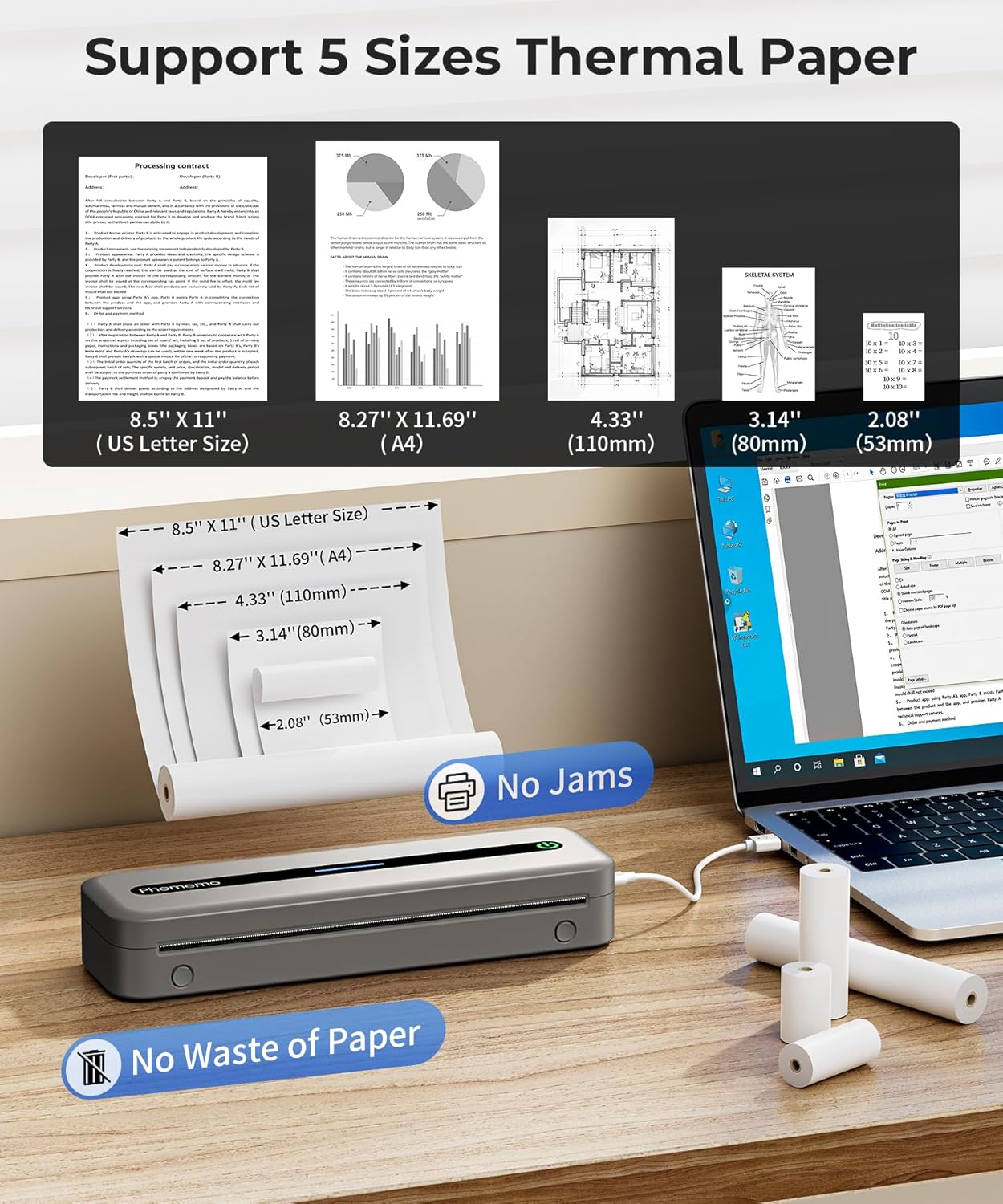
Image 4.1: The Phomemo M832 printer demonstrating its compatibility with five different thermal paper sizes, including US Letter and A4, and highlighting jam-free operation.
5. Operating Instructions
5.1 Powering On/Off
- To Power On: Press and hold the power button until the status indicator light illuminates.
- To Power Off: Press and hold the power button until the status indicator light turns off.
5.2 Connecting via Bluetooth (for Phones/Tablets)
The Phomemo M832 connects to iOS and Android devices exclusively through the "Phomemo" application.
- Download the "Phomemo" app from the App Store (iOS) or Google Play Store (Android).
- Ensure your printer is powered on and Bluetooth is enabled on your phone or tablet.
- Open the Phomemo app and follow the in-app instructions to search for and connect to your M832 printer.
- Once connected, you can select documents or images within the app to print.
Important: Do not attempt to connect the printer directly via your phone's or tablet's Bluetooth settings. Connection must be initiated through the Phomemo app.

Image 5.1: Demonstrates connecting the Phomemo M832 printer to a mobile device using Bluetooth via the dedicated Phomemo application.
5.3 Connecting via USB (for Laptops/PCs)
The Phomemo M832 can be connected to Windows, macOS, Linux, and Chrome OS computers via a USB data cable.
- Ensure your printer is powered on.
- Connect the printer to your computer using the provided USB data cable.
- Your computer may automatically install the necessary drivers. If not, drivers can be downloaded from the official Phomemo website.
- Once drivers are installed, the printer will appear in your computer's list of available printers. You can then print documents as you would with any standard printer.
Important: The Phomemo M832 does not support Bluetooth connection with laptops or PCs; only USB wired connection is available for these devices.

Image 5.2: Illustrates the USB wired connection between the Phomemo M832 printer and a laptop, compatible with various operating systems.
6. Maintenance
6.1 Cleaning the Print Head
To maintain print quality, regularly clean the print head. Use a soft, lint-free cloth lightly dampened with isopropyl alcohol. Gently wipe the print head surface. Ensure the printer is powered off and completely dry before use.
6.2 Battery Care
- Avoid fully discharging the battery frequently.
- If storing the printer for an extended period, charge it to approximately 50% every three months to preserve battery life.
- Do not expose the printer to extreme temperatures.
6.3 Storage
Store the printer in a cool, dry place away from direct sunlight and excessive dust. When not in use, it is recommended to store the printer in its protective case to prevent damage.

Image 6.1: The Phomemo M832 protective case, designed to shield the printer from impacts and organize accessories.
7. Troubleshooting
| Problem | Possible Cause | Solution |
|---|---|---|
| Printer does not power on. | Low battery or power button not pressed correctly. | Charge the printer. Press and hold the power button for a few seconds. |
| Cannot connect via Bluetooth. | Not using the Phomemo app, Bluetooth is off, or printer is out of range. | Ensure you are connecting through the Phomemo app. Turn on Bluetooth on your device. Move the printer closer to your device (within 10 meters). |
| Poor print quality or blank pages. | Incorrect paper loading, low battery, or dirty print head. | Reload paper correctly (printable side facing print head). Charge the printer. Clean the print head as per maintenance instructions. |
| Paper jam. | Improper paper loading or foreign object. | Power off the printer. Carefully open the paper cover and remove any jammed paper. Ensure paper is loaded straight. |
| Printer not recognized by PC via USB. | Missing or outdated drivers. | Download and install the latest drivers from the official Phomemo website. Try a different USB port or cable. |
8. Specifications
| Feature | Detail |
|---|---|
| Model | M832 |
| Printing Technology | Direct Thermal |
| Print Resolution | 300 dpi |
| Connectivity | Bluetooth (for phones/tablets), USB-C (for laptops/PCs) |
| Compatible Devices | iOS (10+), Android (8+), Windows (7+), macOS (10.14+), Linux, Chrome OS |
| Max Media Size | 21 x 28 cm (US Letter / A4) |
| Supported Paper Sizes | 8.5'' x 11'' (US Letter), A4, 4.33'' (110mm), 3.14'' (80mm), 2.08'' (53mm) |
| Max Sheet Input Capacity | 150 sheets |
| Battery | 2600 mAh rechargeable Lithium Polymer |
| Print Speed (Monochrome) | 5 ppm |
| Product Dimensions | 34.8 x 10.6 x 7.9 cm (13.7 x 4.17 x 3.11 inches) |
| Product Weight | 700 g (1.54 lbs) |
| Memory | 64 MB |
9. Warranty and Support
Phomemo products are designed for reliability and performance. For specific warranty details, please refer to the warranty card included with your product or visit the official Phomemo website. If you encounter any issues or have questions regarding your Phomemo M832 printer, please contact Phomemo customer support for assistance.
Customer Support: Please visit the Phomemo official website or refer to the contact information provided in your product packaging for support.


