
Introduction
This manual provides detailed instructions for the ECONTROLLY RMF-TX810U Voice Remote Control. This replacement remote is designed for seamless compatibility with various Sony 4K Ultra HD TV models, offering convenient control and voice command functionality. Please read this manual thoroughly to ensure proper use and to maximize your remote control's features.
Product Overview
Remote Control Layout
The RMF-TX810U remote control features a standard layout with dedicated buttons for power, volume, channel, navigation, and quick access to streaming services. It also includes a voice control button for enhanced interaction with your television.
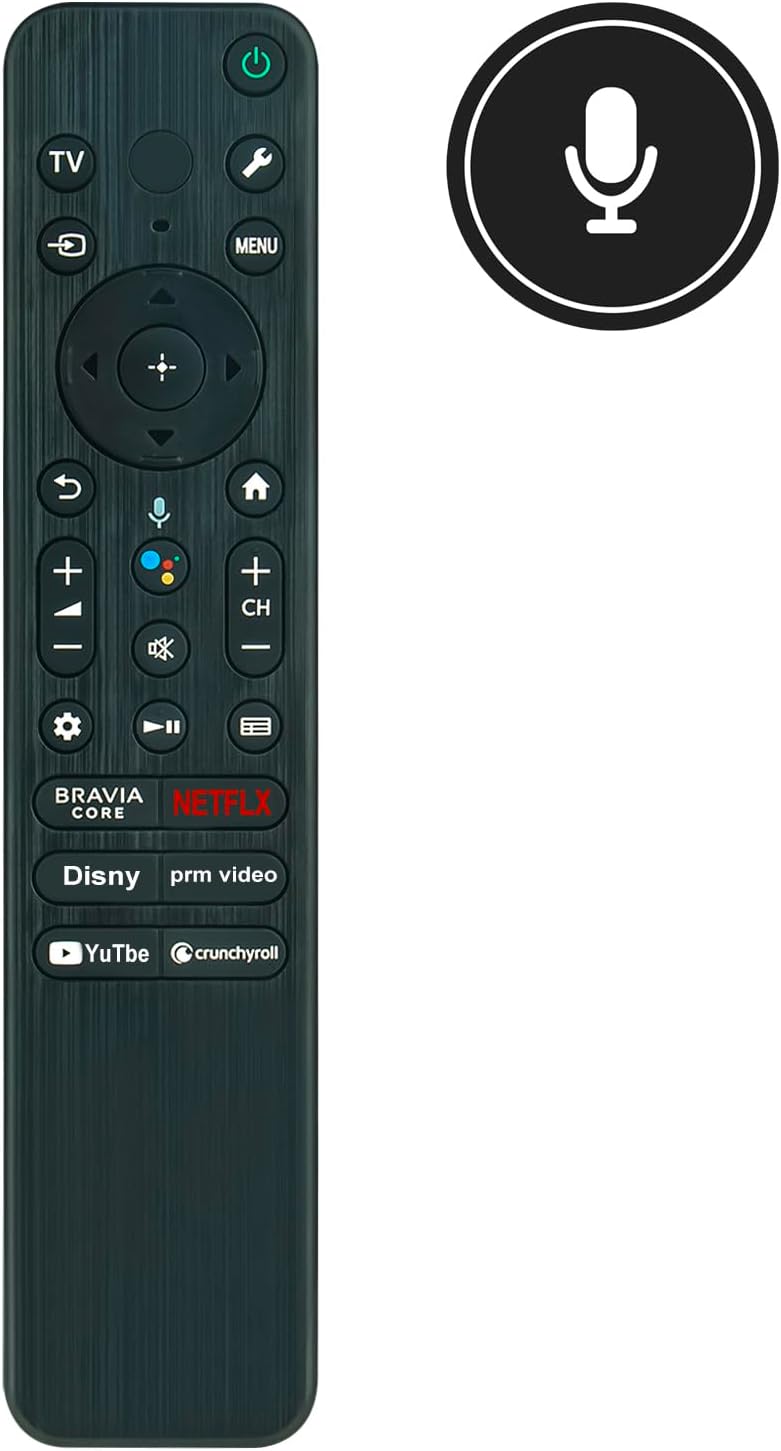
Figure 1: Front view of the RMF-TX810U remote control, highlighting the voice control microphone icon.

Figure 2: Angled view of the remote, illustrating its comfortable grip and button placement.

Figure 3: A different perspective of the remote control's front face.
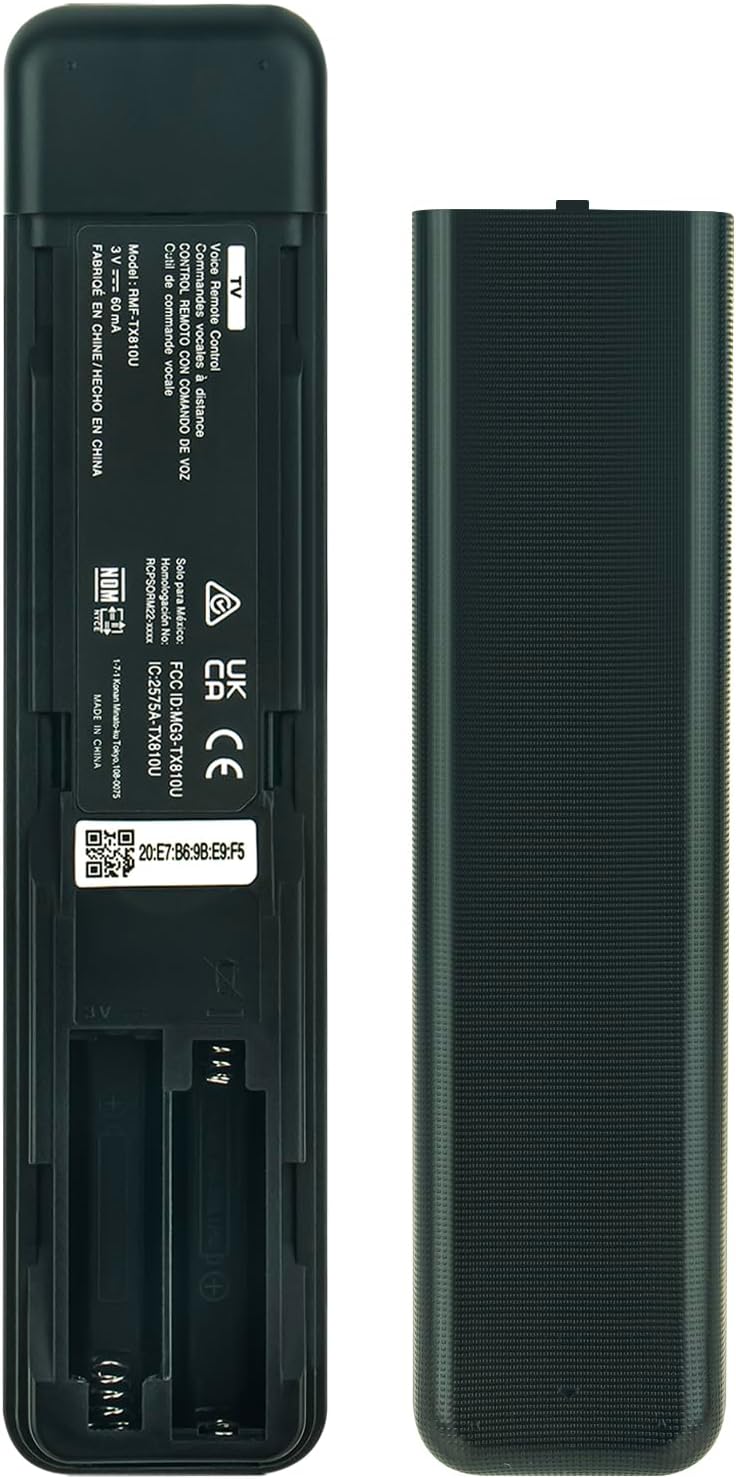
Figure 4: Rear view of the remote, with the battery cover removed to show the battery slots.

Figure 5: Side profile of the remote control, demonstrating its ergonomic contour.
Setup
Inserting Batteries
- Locate the battery compartment on the back of the remote control (refer to Figure 4).
- Slide the battery cover downwards and remove it.
- Insert two AAA alkaline batteries, ensuring the positive (+) and negative (-) terminals align correctly with the markings inside the compartment.
- Replace the battery cover by sliding it back into position until it clicks securely.
Note: This replacement remote control does not require programming or setup. Once batteries are inserted, it is ready for immediate use with compatible Sony 4K Ultra HD TV models.
Operating Instructions
Basic Functions
- Power Button (⏻): Turns the TV on or off.
- TV Button: Switches the input source to TV.
- Settings Button (⚙): Accesses TV settings menu.
- Input Button (↶): Cycles through available input sources (HDMI, AV, etc.).
- Menu Button: Opens the main menu or context-sensitive options.
- Navigation Pad (Up, Down, Left, Right, Enter): Used to navigate menus and select items.
- Back Button (↶): Returns to the previous screen or menu.
- Home Button (⌂): Returns to the TV's home screen.
- Volume Up/Down (+/-): Adjusts the TV's volume level.
- Mute Button (🔇): Mutes or unmutes the TV sound.
- Channel Up/Down (CH +/-): Changes TV channels.
- Playback Controls (Play/Pause, Fast Forward, Rewind): Controls media playback.
- Dedicated App Buttons (BRAVIA CORE, Netflix, Disney, Prime Video, YouTube, Crunchyroll): Provides direct access to these streaming applications.
Voice Control
To use the voice control feature:
- Press and hold the Voice Button (microphone icon) on the remote control.
- Speak clearly into the microphone located on the remote.
- Release the Voice Button when you have finished speaking.
Your TV will process the voice command, allowing you to search for content, control playback, or access functions hands-free.
Maintenance
Cleaning
To clean the remote control, gently wipe it with a soft, dry cloth. Do not use liquid cleaners, sprays, or abrasive materials, as these can damage the remote's surface or internal components.
Battery Replacement
Replace batteries when the remote control's response becomes sluggish or stops working. Always replace both batteries at the same time with new AAA alkaline batteries. Do not mix old and new batteries, or different types of batteries.
Storage
If the remote control will not be used for an extended period, remove the batteries to prevent leakage and potential damage to the device.
Troubleshooting
- Remote Not Responding:
- Check if the batteries are inserted correctly with the correct polarity.
- Replace the batteries with fresh ones.
- Ensure there are no obstructions between the remote control and the TV's infrared receiver.
- Point the remote directly at the TV.
- Voice Control Issues:
- Ensure you are pressing and holding the Voice Button while speaking.
- Speak clearly and at a normal volume.
- Check your TV's settings to ensure voice control is enabled.
- Limited Range:
- The remote has a maximum range of 33 feet (10 meters). Ensure you are within this range.
- Obstacles between the remote and the TV can reduce effective range.
If you continue to experience issues, please refer to the Warranty and Support section for contact information.
Specifications
| Brand | ECONTROLLY |
| Model Number | RMF-TX810U |
| Compatible Devices | Sony 4K Ultra HD TVs (e.g., KD65X77CL, KD43X77L, KD85X77L, KD50X77L, KD75X77L, KD75X77CL, KD55X77L, KD-65X77L, KD-65X77CL, KD-43X77L, KD-85X77L, KD-50X77L, KD-75X77L, KD-75X77CL, KD-55X77L, KD65X77L) |
| Connectivity Technology | Infrared |
| Maximum Range | 33 Feet (10 meters) |
| Battery Type | 2 x AAA Alkaline Batteries (Not Included) |
| Special Feature | Ergonomic, Voice Control |
| Color | Black |
Warranty and Support
For any questions regarding your ECONTROLLY RMF-TX810U remote control, including compatibility concerns or operational issues not covered in this manual, please contact the seller or manufacturer directly. They can provide further assistance and information regarding product warranty and support services.
If you are unsure about your TV model's compatibility, please feel free to contact us for guidance. We are committed to helping you find the correct remote control and resolving any queries you may have after receiving your item.