
1. Introduction and Overview
The HP 22-dg0012 All-in-One Desktop PC is designed to be a central hub for your home computing needs, handling tasks from homework to entertainment. This system features a 21.45-inch Full HD display, an Intel N200 processor, 8 GB of DDR5 RAM, and a 256 GB SSD, running on Windows 11 Home. Its fanless design and DTS Audio-tuned speakers provide a clear audio experience. The device is also EPEAT Gold registered and ENERGY STAR certified, reflecting its energy efficiency.
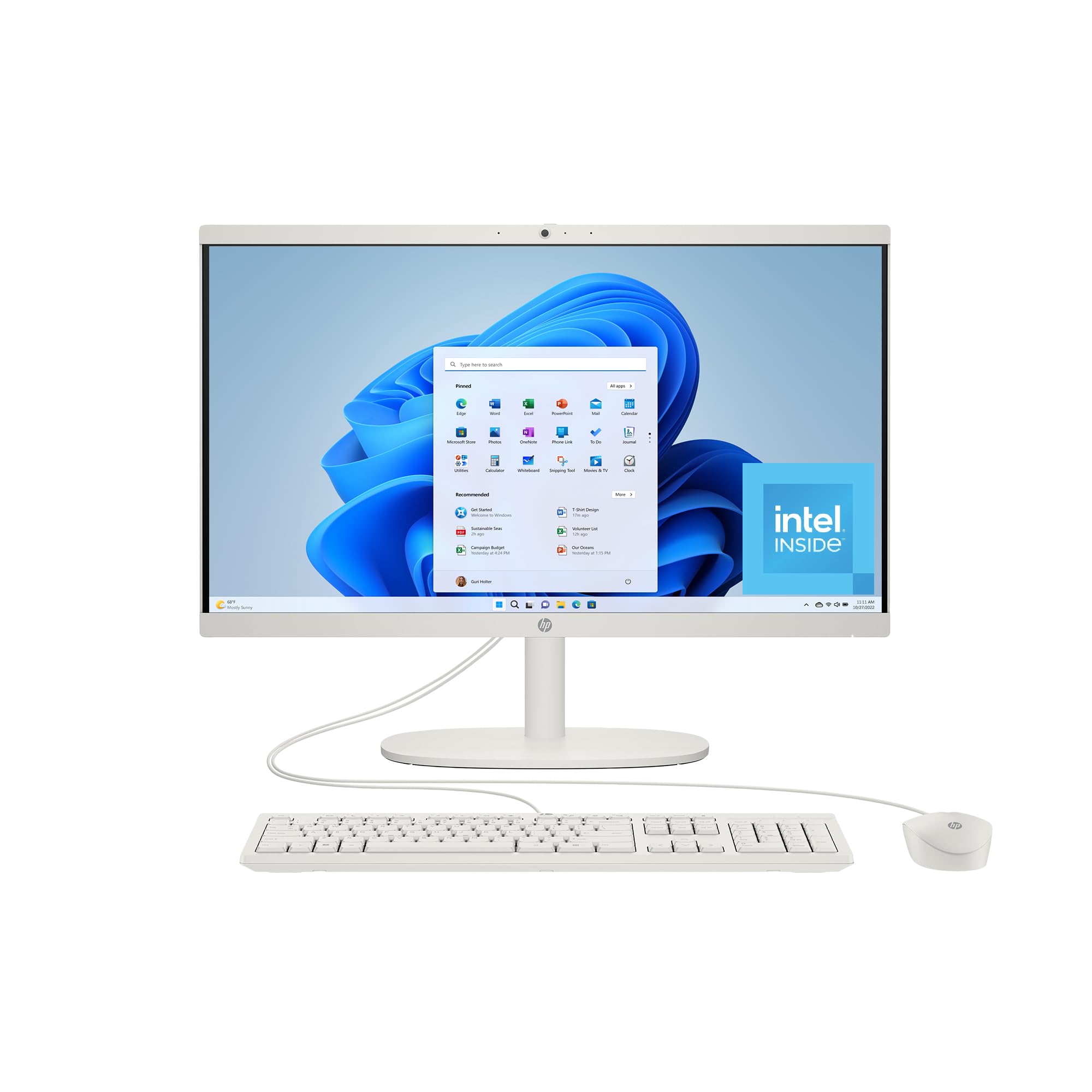
Image 1.1: The HP 22-dg0012 All-in-One Desktop PC, showcasing its sleek design.
2. What's in the Box
Upon unpacking, ensure all the following components are present:
- HP 21.45 inch All-in-One Desktop PC 22-dg0012
- HP USB Cashmere White Wired Keyboard
- HP USB Cashmere White Wired Mouse
- Power Adapter and Cable
- Warranty Documentation

Image 2.1: Illustration of the HP 22-dg0012 All-in-One Desktop PC and its included accessories.
3. Setup Instructions
Follow these steps to set up your HP All-in-One Desktop PC:
- Unpack the PC: Carefully remove the PC and all accessories from the packaging.
- Position the PC: Place the All-in-One PC on a stable, flat surface. Ensure adequate ventilation around the device.
- Connect Keyboard and Mouse: Plug the USB cables from the keyboard and mouse into the available USB ports on the back of the PC.
- Connect Power: Connect the power adapter to the PC's power input port, then plug the power cable into an electrical outlet.
- Power On: Press the power button, usually located on the side or bottom bezel of the display.
- Initial Windows Setup: Follow the on-screen instructions to complete the Windows 11 Home setup, including language, region, network connection, and user account creation.

Image 3.1: Rear view of the HP All-in-One PC, highlighting the various connectivity ports for peripherals and power.
4. Operating Instructions
4.1 Power Management
- Power On: Press the power button.
- Shut Down: Click the Start button in Windows, then select Power > Shut down.
- Restart: Click the Start button in Windows, then select Power > Restart.
- Sleep: Click the Start button in Windows, then select Power > Sleep.
4.2 Display Usage
The 21.45-inch Full HD display provides clear visuals. Adjust the screen's height and tilt for comfortable viewing. The display features DC Dimming technology to reduce flicker for extended use.
4.3 Connecting Peripherals
Utilize the multiple USB ports (USB 2.0 and USB 3.0) for connecting external devices such as printers, external hard drives, or other accessories. The PC also supports Bluetooth for wireless peripheral connections.
4.4 Using the Integrated Camera
The HP True Vision privacy camera is integrated for video calls. For privacy, a manual camera shutter is included. Slide the shutter to cover the camera lens when not in use.
4.5 Audio Features
The built-in speakers are tuned by DTS Audio for enhanced sound quality. AI-noise reduction technology helps to minimize background noise during video calls, ensuring your voice is heard clearly.

Image 4.1: A user engaged in a video call on the HP All-in-One PC, demonstrating its communication capabilities.
5. Key Features
- Modern Family Power: Equipped with multiple USB ports, this PC supports multi-tasking and accommodates various family needs.
- Reliable Performance: An Intel N200 processor delivers the necessary performance and graphics for connectivity, learning, and entertainment.
- Clear Communication: AI-noise reduction ensures your voice is prioritized during calls, while a manual camera shutter provides privacy.
- Windows 11 Home: Experience a refreshed interface with new ways to connect and create.
- Ample Storage: A 256 GB Solid State Drive (SSD) offers fast storage for photos, videos, and documents.
6. Specifications
| Feature | Specification |
|---|---|
| Standing Screen Display Size | 21.4 Inches |
| Screen Resolution | 1920 x 1080 Pixels (Full HD) |
| Processor | Intel N200 (3.7 GHz core_solo) |
| RAM | 8 GB DDR5 (4800 MHz) |
| Hard Drive | 256 GB SSD (eSATA Interface) |
| Graphics Coprocessor | Intel UHD Graphics (Integrated) |
| Operating System | Windows 11 Home |
| Wireless Type | Bluetooth |
| USB 2.0 Ports | 4 |
| USB 3.0 Ports | 1 |
| Item Weight | 15.97 pounds |
| Product Dimensions | 19.43 x 6.69 x 15.07 inches |
| Color | White |

Image 6.1: Diagram illustrating the physical dimensions of the HP 22-dg0012 All-in-One Desktop PC.
7. Maintenance
Regular maintenance helps ensure the longevity and optimal performance of your HP All-in-One PC:
- Cleaning: Use a soft, lint-free cloth to clean the screen and exterior surfaces. For stubborn marks, dampen the cloth slightly with water or a screen cleaner. Avoid harsh chemicals.
- Software Updates: Regularly check for and install Windows updates and HP driver updates to ensure system stability and security.
- Ventilation: Ensure the PC's vents are not obstructed to prevent overheating.
- Data Backup: Periodically back up important files to an external drive or cloud storage to prevent data loss.
8. Troubleshooting
Here are solutions to common issues you might encounter:
| Problem | Solution |
|---|---|
| PC does not power on | Check power cable connections to the PC and the electrical outlet. Ensure the outlet is functional. |
| No display on screen | Ensure the PC is powered on. If connected to an external monitor, check the display cable. For the integrated display, try restarting the PC. |
| Keyboard or mouse not responding | Verify USB connections. Try plugging them into different USB ports. For wireless devices, check batteries and pairing. |
| Slow performance | Close unnecessary applications. Check for background updates. Ensure sufficient free space on the SSD. |
| Internet connectivity issues | Check Wi-Fi connection or Ethernet cable. Restart your router/modem. Update network drivers. |
9. Warranty and Support
This HP computer comes with a 1-year limited hardware warranty and 1-year limited technical support for software and initial setup. Support is available 24 hours a day, 7 days a week via web support when the product is shipped from and sold by Amazon.com.
For detailed warranty information and support resources, please refer to the documentation included with your product or visit the official HP support website.


