
Introduction
The BoxWave ClearTouch Anti-Glare Screen Protector is engineered to provide superior protection and enhanced usability for your Spade DC200 device. This two-pack of screen protectors features an advanced matte finish that significantly reduces glare from bright light sources, minimizes fingerprints and smudges, and offers a unique paper-like tactile experience. This manual will guide you through the installation process, explain key features, and provide maintenance and troubleshooting tips to ensure the longevity and effectiveness of your screen protector.
Package Contents
Each BoxWave ClearTouch Anti-Glare Screen Protector package includes the following items:
- Two (2) ClearTouch Anti-Glare Screen Protectors
- One (1) Applicator Card
- One (1) Microfiber Cleaning Cloth
- One (1) Dust Removing Sticker
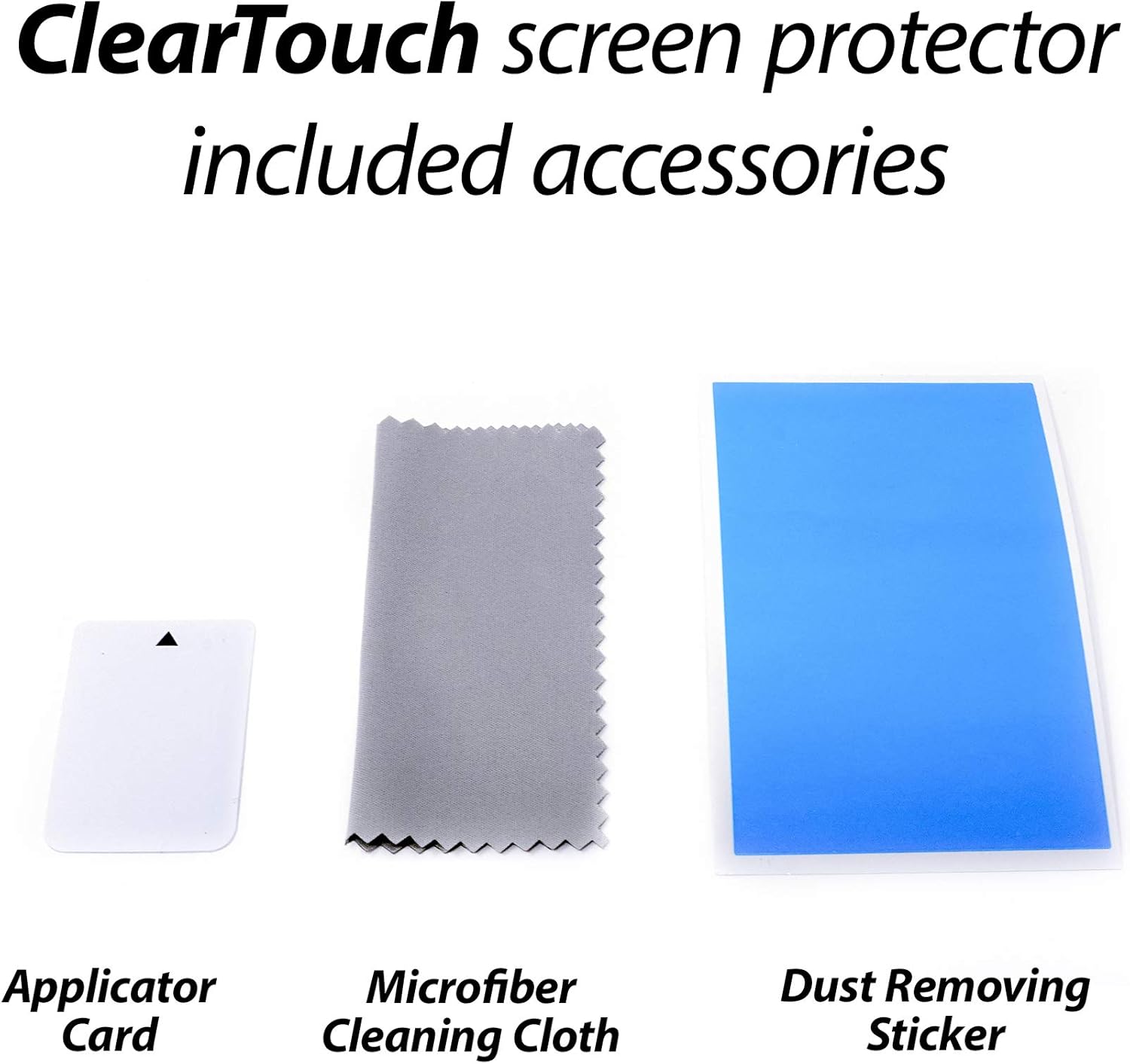
Image: The package contents, including two screen protectors, an applicator card, a microfiber cleaning cloth, and a dust removing sticker.
Setup and Installation
Follow these steps carefully for a bubble-free and precise installation of your ClearTouch Anti-Glare Screen Protector:
- Preparation: Ensure your Spade DC200 device is powered off. Use the included microfiber cleaning cloth to thoroughly clean the device screen, removing all dust, smudges, and fingerprints. For stubborn particles, a small amount of screen cleaner (not included) can be used with the cloth.
- Dust Removal: Use the dust removing sticker to lift any remaining dust particles from the screen. Lightly dab the sticker across the entire screen surface.
- Align the Protector: Carefully peel back a small portion of the protective film labeled '1' from one end of the screen protector. Align the exposed edge of the screen protector with the corresponding edge of your device screen. Ensure precise alignment with cutouts for cameras or sensors.
- Apply and Smooth: Slowly peel back the rest of the protective film '1' while simultaneously using the applicator card to gently press the screen protector onto the device screen. Work from the aligned edge outwards, pushing out any air bubbles as you go.
- Remove Top Film: Once the screen protector is fully adhered to the device screen, carefully peel off the top protective film labeled '2'.
- Final Smoothing: Use the applicator card again to gently push any remaining small bubbles towards the edges of the screen. Minor bubbles typically dissipate within 24-48 hours.

Image: The screen protector and its installation tools, illustrating the components used during setup.
Operating and Features
The ClearTouch Anti-Glare Screen Protector enhances your device experience with several key features:
Anti-Glare Properties
The matte surface of the screen protector is designed to diffuse light, significantly reducing reflections and glare from ambient light sources. This improves screen visibility and reduces eye strain, especially in brightly lit environments or outdoors.

Image: Visual representation demonstrating how the anti-glare surface reduces distracting reflections on a device screen.
Anti-Smudge and Anti-Fingerprint Surface
The oleophobic coating on the screen protector repels oils and smudges, keeping your screen cleaner for longer. This minimizes the appearance of fingerprints and makes the screen easier to wipe clean.

Image: A visual comparison highlighting the effectiveness of the anti-smudge surface in repelling fingerprints compared to a standard screen.
Paper-like Feel
The unique matte texture provides a tactile experience similar to writing or drawing on paper. This can enhance precision and comfort when using a stylus or your finger for tasks like note-taking, sketching, or detailed navigation.

Image: A tablet screen with a stylus, illustrating the smooth, paper-like texture provided by the screen protector for writing and drawing.
Precision Fit
Each ClearTouch screen protector is precision-cut to match the exact dimensions and contours of the Spade DC200 screen, ensuring full accessibility to all functions, cameras, and sensors without obstruction.

Image: A blueprint and caliper symbolizing the precise engineering and custom fit of the screen protector for the device.
Maintenance
To maintain the clarity and effectiveness of your BoxWave ClearTouch Anti-Glare Screen Protector:
- Cleaning: Use the included microfiber cleaning cloth or a similar soft, lint-free cloth to gently wipe the screen protector. For more stubborn smudges, slightly dampen the cloth with water or a mild, electronics-safe screen cleaner. Avoid harsh chemicals or abrasive materials.
- Avoid Sharp Objects: While the protector offers scratch resistance, avoid contact with sharp objects that could damage the film.
- Reinstallation: The glueless adhesive allows for reinstallation if needed. Carefully peel off the protector, clean both the device screen and the protector (if necessary), and reapply following the installation steps.
Troubleshooting
Here are solutions to common issues you might encounter:
| Problem | Possible Cause | Solution |
|---|---|---|
| Bubbles under the protector | Trapped air during installation. | Use the applicator card to gently push bubbles towards the nearest edge. For large or persistent bubbles, carefully lift the nearest edge of the protector and reapply, smoothing as you go. Small bubbles may disappear on their own within 24-48 hours. |
| Dust particles under the protector | Screen not thoroughly cleaned before application. | Carefully lift the nearest edge of the protector. Use the dust removing sticker to dab and lift the dust particle from either the screen or the protector's adhesive side. Reapply the protector. |
| Protector not adhering properly | Oils, dirt, or improper alignment. | Ensure the screen is perfectly clean and dry. Realign the protector carefully, pressing firmly with the applicator card during application. If the issue persists, the protector may be damaged and require replacement. |
Specifications
| Attribute | Detail |
|---|---|
| Product Name | ClearTouch Anti-Glare Screen Protector |
| Brand | BoxWave |
| Compatibility | Spade DC200 |
| Material | Polyethylene Terephthalate (PET) |
| Surface Finish | Matte, Anti-Glare |
| Special Features | Anti-Glare, Anti-Fingerprint, Paper-like Feel, Glueless Adhesive |
| Package Quantity | 2 Screen Protectors |
| Item Weight | 0.7 ounces (approximate, for package) |
| Country of Origin | China |
Warranty and Support
BoxWave products are designed for quality and performance. For any questions, concerns, or support regarding your ClearTouch Anti-Glare Screen Protector, please contact BoxWave Corporation directly. Refer to the product packaging or the official BoxWave website for the most current contact information and warranty details.
For general inquiries or to learn more about BoxWave products, visit their official website or contact their customer service department.