
Introduction
The DEWIN LCD Battery Capacity Monitor is a versatile device designed to accurately measure battery voltage and capacity. It is compatible with DC8-30V (12V, 24V) lead-acid, ternary lithium, and lithium iron phosphate batteries. Key features include a power-off memory function, reverse connection protection, and a low voltage flashing alarm. The clear LCD display with green backlight provides intuitive readings of voltage and battery status. This meter is suitable for various applications, including motorcycles, cars, and boats, and also offers USB Type-C and USB 3.0 output ports for charging.
Product Features
- Applicable Battery Types: Compatible with DC8-30V (12V, 24V) ternary lithium, lead-acid, and lithium iron phosphate batteries.
- Power-Off Memory: Features a power-off memory function, retaining settings even after power loss, eliminating the need for re-configuration.
- Reverse Connection Protection: Includes reverse connection protection to prevent damage from incorrect wiring. The screen flashes as a low voltage reminder when the measured voltage is low.
- Clear LCD Display: Equipped with a clear LCD display and green backlight, providing intuitive and easy-to-read voltage and capacity information.
- Wide Application Scope: Suitable for monitoring battery voltage and current in motorcycles, cars, and boats.
- USB Charging Outputs: Integrated USB Type-C and USB 3.0 output interfaces with a maximum output of 18W for charging external devices.

Figure 1: Overview of DEWIN LCD Battery Capacity Monitor features.
Specifications
| Specification | Value |
|---|---|
| Material | PC |
| Voltage Detection Range | DC8-30V |
| Operating Current | ≤ 15 mA |
| Display Mode | LCD Display |
| Display Color | Green |
| Output Mode | USB-A and Type-C (Max 18W) |
| Product Size | 6.1 x 4 x 2.2 cm |
| Item Weight | 40 Grams |
| Model Number | ICBDEYIED-D109968Z |

Figure 2: Product dimensions and key specifications.
Package Contents
The package includes the following items:
- 1 x DEWIN LCD Voltage and Electricity Meter
- 1 x Connection Cable
Safety Information
- Ensure correct polarity when connecting the device to avoid damage. Although the device features reverse connection protection, proper wiring is always recommended.
- Do not exceed the specified voltage range of DC8-30V.
- Keep the device away from water, moisture, and extreme temperatures.
- Do not attempt to disassemble or modify the device. Unauthorized modifications may void the warranty and pose safety risks.
Setup and Installation
1. Wiring Connection
Connect the provided cable to the back of the monitor. The red wire is for the positive (+) terminal, and the black wire is for the negative (-) terminal of the battery. Ensure a secure connection to prevent intermittent readings.

Figure 3: Wiring connection points on the back of the monitor.
2. Initial Power-On
Once connected, the monitor will power on and display the current battery voltage and capacity.

Figure 4: Monitor display after power-on.
3. Parameter Settings
Before use, configure the monitor for your specific battery type (ternary lithium, lead-acid, or lithium iron phosphate). The device has a power on/off button on the front and a setting button on the back. It is crucial to set parameters first before permanent installation and regular use.
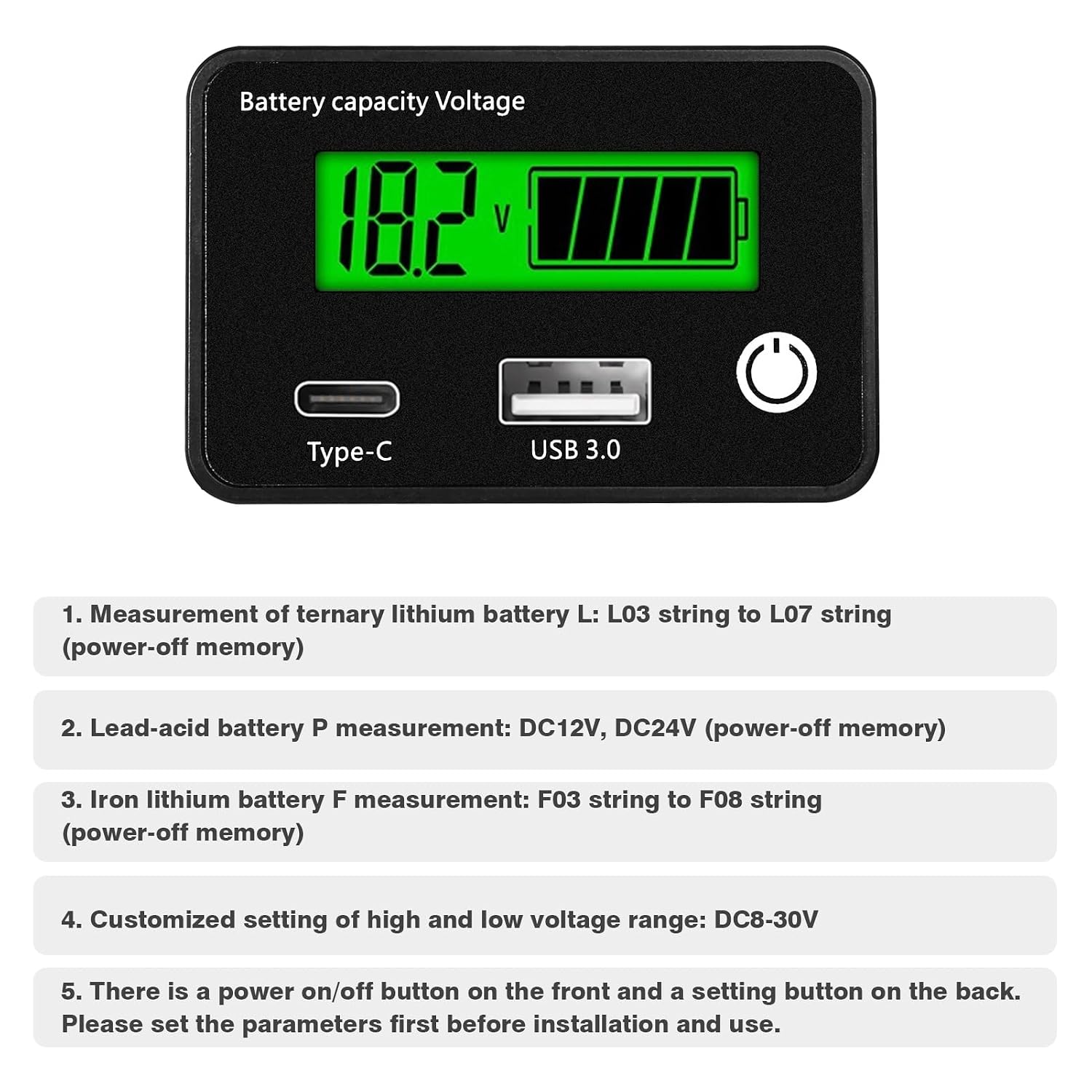
Figure 5: Battery type selection and power-off memory feature.
Operating Instructions
1. Display Modes
The LCD screen displays battery voltage and a graphical representation of battery capacity. The green backlight ensures clear visibility in various lighting conditions.
2. Charging Functionality
The monitor includes USB Type-C and USB 3.0 output interfaces, providing a maximum output of 18W for charging external devices. Connect your device to the appropriate USB port for charging.

Figure 6: USB Type-C and USB 3.0 charging in action.
3. Low Voltage Alarm
If the measured voltage falls below a preset low voltage threshold, the screen will flash to alert the user, indicating that the battery requires attention (recharging or replacement).
4. Setting Battery Parameters (Detailed)
The monitor supports various battery types. Use the setting button on the back to cycle through modes and adjust parameters. All settings are saved automatically due to the power-off memory function.
- Lead-acid Battery (P) Measurement: On the lead-acid battery setting page, the voltage parameter flashes. Short press the power on/off button to select the desired battery voltage (e.g., P12 for 12V, P24 for 24V). After selection, short press the setting button on the back to confirm and save the parameter. Press and hold the setting button for 2 seconds to return to the main page or access other mode settings.
- Ternary Lithium Battery (L) Measurement: On the ternary lithium battery setting page, the number of battery strings flashes. Short press the power on/off button to select the number of battery strings (e.g., L03 to L07). After selection, short press the setting button on the back to confirm and save. Press and hold the setting button for 2 seconds to return to the main page or access other mode settings.
- Lithium Iron Battery (F) Measurement: On the lithium iron battery setting page, the battery string array number flashes. Short press the on/off button to select the number of battery strings (e.g., F03 to F08). After selection, short press the setting button on the back to confirm and save. Press and hold the setting button for 2 seconds to return to the main page or access other mode settings.
- Custom High and Low Voltage Settings: On this page, the left number is the low voltage threshold, and the right number is the high voltage threshold. Use the power on/off button to select the value and the setting button on the back to confirm and save. Press and hold the setting button for 2 seconds to return to the main page or access other mode settings.
- Low Voltage Alarm Setting: On this page, the left number is the alarm threshold. Use the power on/off button to adjust the value. Short press the setting button on the back to confirm and save. Press and hold the setting button for 2 seconds to return to the main page or access other mode settings.
- Voltage Smart Calibration: To calibrate the instrument voltage, disconnect power, then press and hold the setting button while reconnecting power. Release the button after entering the calibration page. Then, press and hold the power button for 2 seconds to calibrate. During calibration, a letter will appear. If calibration fails (e.g., due to insufficient external power supply), replace the external power supply and recalibrate.
- Display Backlight Time Setting: On this page, the battery grid flashes. Short press the on/off button to select the backlight duration (e.g., 5s, 10s, or always on). Short press the setting button on the back to confirm and save the option. Press and hold the setting button for 2 seconds to return to the main page or access other mode settings.

Figure 7: Detailed parameter setting instructions.
5. Application Scenarios
The DEWIN LCD Battery Capacity Monitor is designed for a variety of applications where battery voltage and capacity monitoring are essential. This includes use in:
- Boats
- Cars
- Motorcycles

Figure 8: Examples of product application in vehicles and marine environments.
Maintenance
- Keep the device clean and dry. Use a soft, dry cloth for cleaning. Avoid abrasive cleaners.
- Avoid exposing the device to direct sunlight for prolonged periods or to high humidity environments.
- Regularly check the wiring connections for any signs of wear, corrosion, or looseness to ensure accurate readings and safe operation.
Troubleshooting
- No Display:
- Check if the power cable is securely connected to both the battery and the monitor.
- Ensure the battery voltage is within the DC8-30V operating range.
- Verify correct polarity of the wiring (red to positive, black to negative).
- Inaccurate Readings:
- Ensure the correct battery type and parameters are set in the monitor's settings. Refer to the "Setting Battery Parameters" section.
- Perform a voltage smart calibration if available and necessary.
- Check for loose or corroded connections that might affect readings.
- Screen Flashing (Low Voltage Alarm):
- This indicates the battery voltage has dropped below the set low voltage threshold. Recharge or replace the battery.
- Verify the low voltage alarm setting is appropriate for your battery type and application.
- USB Charging Not Working:
- Ensure the monitor is powered on and receiving sufficient voltage from the main battery.
- Check the charging cable and the device being charged for any faults.
- Verify the battery connected to the monitor has sufficient charge to provide power for USB output.
Warranty and Support
This product comes with a standard manufacturer's warranty. Please refer to your purchase documentation or the retailer's website for specific warranty terms and conditions, including duration and coverage.
For technical support, product inquiries, or assistance with troubleshooting, please contact DEWIN customer service through your retailer or the official DEWIN website. Please have your model number (ICBDEYIED-D109968Z) and purchase details ready when contacting support.