
iDPRT MT890
iDPRT MT890 Portable Wireless Printer User Manual
Your guide to setting up, operating, and maintaining your iDPRT MT890 Portable Wireless Printer.
1. Introduction
The iDPRT MT890 is a portable, inkless thermal printer designed for convenient printing on the go. It utilizes advanced inkless technology, eliminating the need for ink cartridges or toner. This manual provides detailed instructions to help you get started and make the most of your device.
Key features include:
- Advanced Inkless Technology: High-speed thermal printing without ink or toner.
- Innovative Built-in Roll Paper Design: Supports A4, US Letter, and A5 sizes, with a serrated tearing knife for custom lengths.
- Free "HerePrint" App: Offers extensive functions for creative printing experiences on mobile devices.
- Easy Connectivity: Supports Bluetooth for mobile devices (iOS, Android) and USB for laptops (Mac, Windows, Linux, Chrome OS).
- Compact and Portable: Lightweight design (2.77 pounds) for easy transport in briefcases or backpacks.

Figure 1: The iDPRT MT890 Portable Wireless Printer in use, demonstrating its ability to print detailed images.
2. What's in the Box
Upon unboxing your iDPRT MT890 printer, you should find the following items:
- iDPRT MT890 Portable Wireless Printer
- Thermal A4 Paper Roll (pre-installed or included separately)
- USB-C Charging Cable
- User Manual
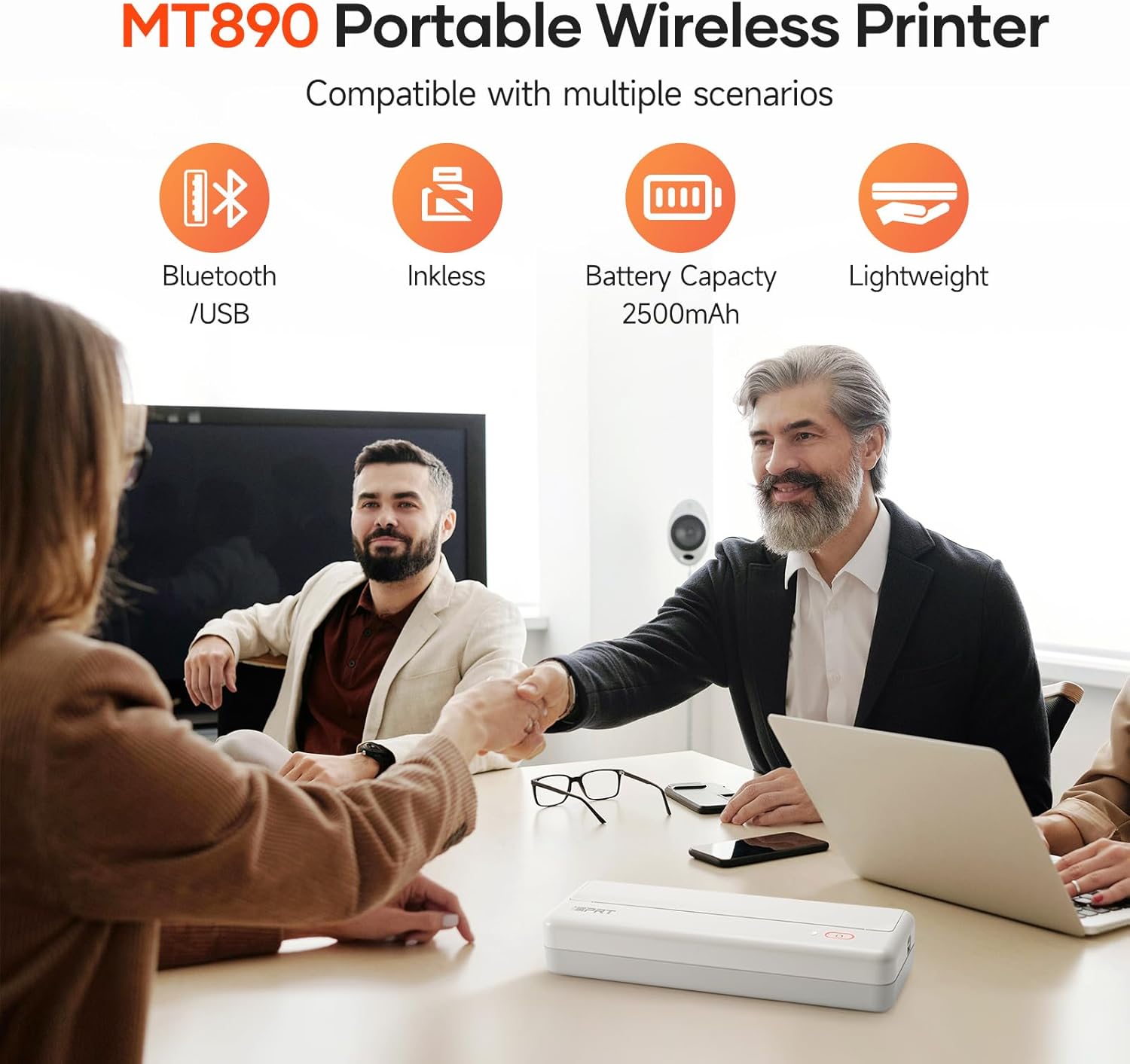
Figure 2: The iDPRT MT890 printer shown with a roll of thermal paper, indicating the paper type used by the device.
3. Product Overview
The iDPRT MT890 printer features a minimalist design with essential controls. It is designed for ease of use and portability.
3.1 Physical Features
- Power Button: Located on the top surface, used for turning the device on/off and initiating certain functions.
- Status Indicator Light: Provides visual feedback on power, battery, and connection status.
- Paper Output Slot: Where printed documents exit the printer.
- USB-C Port: For charging and wired connection to computers.
- Paper Release Latches: Located on the sides, used to open the printer for paper loading.

Figure 3: The compact dimensions of the iDPRT MT890 printer, highlighting its portability.
4. Setup
4.1 Charging the Printer
- Connect the provided USB-C cable to the printer's charging port.
- Plug the other end of the USB-C cable into a compatible USB power adapter or a computer's USB port.
- The status indicator light will show charging status (e.g., red for low battery, green for fully charged).
4.2 Loading Thermal Paper
- Locate the paper release latches on both sides of the printer.
- Press both latches simultaneously to open the printer cover.
- Insert the thermal paper roll into the designated slot, ensuring the printing side faces upwards.
- Pull a small amount of paper out of the roll, extending it past the paper output slot.
- Close the printer cover firmly until it clicks into place.

Figure 4: Illustrates the process of loading thermal paper into the iDPRT MT890 printer.
5. Operating Instructions
5.1 Power On/Off
- To Power On: Long press the power button until the status indicator light illuminates.
- To Power Off: Long press the power button until the status indicator light turns off.
5.2 Mobile Device Connection (Bluetooth)
- Download the "HerePrint" app from your device's app store. Download HerePrint App
- Ensure your iDPRT MT890 printer is powered on.
- Open the "HerePrint" app and follow the on-screen prompts to connect to your printer via Bluetooth. The app will guide you through the pairing process.
- Once connected, the app will display "Printer connected."
Video 1: Demonstrates the steps for connecting the iDPRT MT890 printer to a mobile device via Bluetooth using the HerePrint app.
5.3 Computer Connection (USB)
- Download and install the appropriate MT890 driver from the official iDPRT website. iDPRT Driver Download
- Use the provided USB-C cable to connect the iDPRT MT890 printer to your computer.
- Open your document or file and select "iDPRT MT890" from the printer list to initiate printing.
Figure 5: The iDPRT MT890 printer connected to both a laptop via USB and a smartphone via Bluetooth, illustrating versatile connectivity options.
5.4 Printing Documents
- From the "HerePrint" app or your computer's print dialogue, select the document or image you wish to print.
- Adjust print settings such as density, copies, print size (A4, A5, 4-inch), and margins as needed.
- Confirm your selections and initiate the print job. The printer will quickly produce your document.
Video 2: A demonstration of the iDPRT MT890 Portable Wireless Printer in action, showcasing its printing speed and output quality.

Figure 6: The user interface of the HerePrint app, displaying options for printing pictures, documents, webpages, and accessing print history.
6. Media Handling
The iDPRT MT890 printer uses specialized thermal paper. It supports various sizes and offers flexibility for different printing needs.
- Supported Sizes: US Letter, A4, and A5. The innovative roll design allows for printing on any length as needed.
- Paper Type: Only thermal paper is compatible. Regular A4 paper cannot be used.
- Tearing Knife: The printer includes a serrated tearing knife for easy and clean paper detachment.

Figure 7: The iDPRT MT890 printer demonstrating its compatibility with various thermal paper sizes.

Figure 8: A diagram illustrating the layered structure of high-quality thermal paper, emphasizing its durability and print quality.
7. Maintenance
The iDPRT MT890 printer's inkless thermal technology significantly reduces maintenance requirements.
- No Ink/Toner Replacement: As an inkless printer, there is no need to replace ink cartridges or toner.
- Cleaning: Periodically wipe the exterior of the printer with a soft, dry cloth. Ensure no debris obstructs the paper path.
- Storage: Store the printer in a cool, dry place away from direct sunlight to preserve the thermal paper quality.

Figure 9: The iDPRT MT890 printer emphasizing its inkless operation, eliminating the need for ink or toner.
8. Troubleshooting
If you encounter issues with your iDPRT MT890 printer, consider the following common solutions:
- Printer Not Responding: Ensure the printer is powered on and fully charged. Check the Bluetooth or USB connection.
- Poor Print Quality: Verify that you are using compatible thermal paper. Adjust print density settings in the "HerePrint" app or printer driver.
- Paper Jams: Open the printer cover using the side latches and carefully remove any jammed paper. Ensure the paper roll is correctly installed.
- Connection Issues: For Bluetooth, ensure Bluetooth is enabled on your mobile device and the printer is within range. For USB, confirm the driver is installed correctly and the cable is securely connected.
- App Issues: Ensure the "HerePrint" app is updated to the latest version. Restart the app or your mobile device if necessary.
9. Specifications
| Feature | Specification |
|---|---|
| Brand | iDPRT |
| Model Name | MT890 |
| Printing Technology | Thermal |
| Connectivity Technology | Bluetooth, USB |
| Printer Output | Monochrome |
| Max Printspeed Monochrome | 35 ppm |
| Maximum Black and White Print Resolution | 9701 dpi |
| Supported Media Sizes | Letter (8.5 x 11 inches), A4, A5 |
| Printer Ink Type | Inkless |
| Item Weight | 2.77 pounds |
| Product Dimensions | 12.4 x 4.8 x 2.7 inches (approximate, based on feature bullets) |
| Batteries | 1 A batteries required (included) |
10. Warranty and Support
For warranty information, technical support, or service inquiries, please refer to the documentation included with your product or visit the official iDPRT website. Keep your purchase receipt for warranty claims.
Ask a question about this manual
Ask about setup, troubleshooting, compatibility, parts, safety, or missing instructions. Manuals+ will review the question and use this page’s manual context to help answer it.