
1. Setup
The ATTACK SHARK x ZIYOU LANG M88 keyboard offers versatile connectivity options to suit various devices and preferences. It supports both 2.4Ghz wireless and Bluetooth 5.0 connections.
1.1 Package Contents
- M88 Wireless Mechanical Keyboard
- Dual Receiver (USB-A and Type-C compatible)
- Keycap Puller
- Switch Puller
- Spare Switches (2 pieces)
- User Manual
1.2 Powering the Keyboard
The keyboard is powered by two AAA batteries (not included). Locate the battery slot on the underside of the keyboard, insert the batteries, and ensure the power switch is in the 'ON' position.
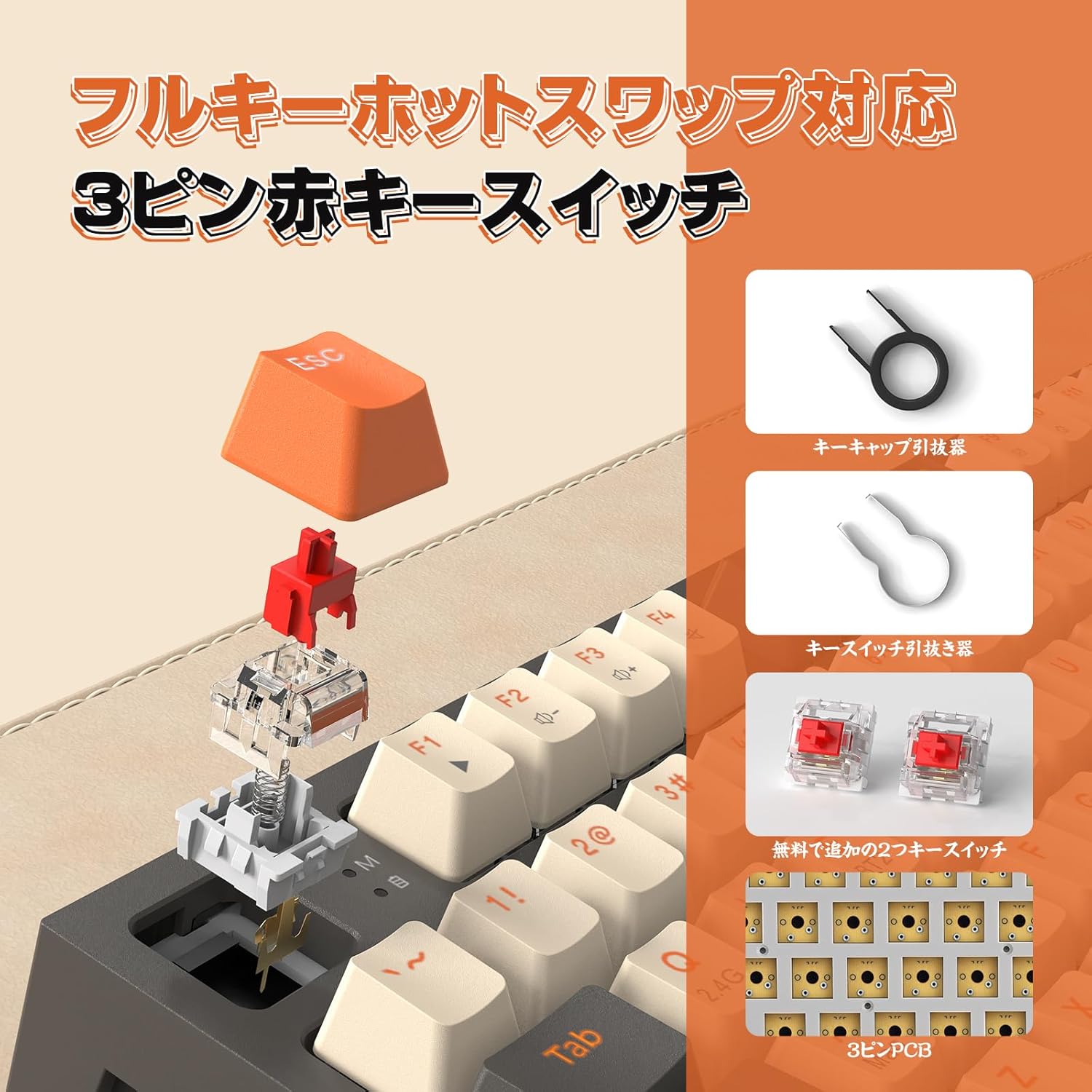
Figure 1.2.1: Underside of the keyboard with battery slot and power switch.
1.3 Connecting via 2.4Ghz Wireless Mode
- Locate the dual receiver, which supports both Type-C and USB-A connections.
- Insert the appropriate end of the receiver into your computer's USB port.
- On the keyboard, press Fn + Q. The indicator light will flash red.
- If the connection is successful, the indicator light will turn off.
- For forced pairing, turn on the power switch, then long-press Fn + Q for 3 seconds. The indicator light will flash red. Insert the USB receiver, and the light will turn off upon successful pairing.

Figure 1.3.1: The dual receiver for flexible connectivity.
1.4 Connecting via Bluetooth 5.0 Mode
The keyboard can store up to two Bluetooth devices.
1.4.1 Bluetooth 1 Connection
- Short-press Fn + W. The indicator light will flash red.
- On your device, select 'M88BT-1' from the Bluetooth device list to connect.
- For pairing, turn on the power switch, then long-press Fn + W for 3 seconds. The indicator light will flash red rapidly, indicating pairing mode. The light will turn off upon successful pairing.
1.4.2 Bluetooth 2 Connection
- Short-press Fn + E. The indicator light will flash red.
- On your device, select 'M88BT-2' from the Bluetooth device list to connect.
- For pairing, turn on the power switch, then long-press Fn + E for 3 seconds. The indicator light will flash red rapidly, indicating pairing mode. The light will turn off upon successful pairing.

Figure 1.4.1: Dual mode wireless connection options (2.4G, BT1, BT2).
2. Operation
2.1 Key Layout and Design
The M88 features an 88-key Tenkeyless (TKL) layout, balancing compactness with functionality. It includes dedicated arrow keys and common control keys. The keycaps are made from PBT material, offering a good tactile feel and enhanced durability against wear.

Figure 2.1.1: Overview of the M88 88-key layout.
2.2 Ergonomic Design
The keyboard is designed with ergonomics in mind to alleviate hand and wrist pressure during prolonged use. It features a two-stage adjustable kickstand for customizable typing angles.

Figure 2.2.1: Ergonomic design features, including the adjustable kickstand.
2.3 Smart Auto-Sleep Function
The keyboard automatically enters sleep mode after 30 minutes of inactivity to conserve battery. Press any key to wake it up.
2.4 Compatibility
The M88 keyboard is compatible with a wide range of operating systems and devices, including Windows XP/7/8/10/11, Mac OS, iPad, iOS, Android, and Surface devices. No drivers are required for plug-and-play functionality.

Figure 2.4.1: The M88 keyboard connected to various devices, demonstrating broad compatibility.
3. Maintenance
3.1 Hot-Swappable Switches
The M88 features a hot-swappable PCB, allowing you to easily replace 3-pin mechanical switches without soldering. This extends the keyboard's lifespan and enables customization of your typing experience. Use the provided switch puller to remove and insert switches.

Figure 3.1.1: Demonstration of hot-swappable switches and tools.
3.2 Durable PBT Keycaps
The PBT keycaps are designed for durability and resistance to wear. Use the provided keycap puller for easy removal and cleaning.

Figure 3.2.1: Mixed color PBT keycaps, highlighting their robust construction.
4. Troubleshooting
4.1 Connection Issues / Unstable Signal
Wireless keyboards can be affected by signal interference from other wireless devices, electromagnetic interference, or physical obstructions. If you experience unstable signal or abnormal input:
- Ensure no other strong wireless signals are nearby.
- Remove any physical obstructions between the keyboard and the receiver/device.
- Try re-connecting the keyboard using the setup instructions for 2.4Ghz or Bluetooth.
- Restart both the keyboard and your connected device (PC, tablet, etc.).
4.2 Slow Recovery from Sleep Mode
The keyboard has an auto-sleep function to save battery. Upon initial input after a period of inactivity, there might be a slight delay as the keyboard wakes up. This is normal behavior and not a malfunction.
4.3 Key Input Discrepancies or Malfunctions
If a specific key feels inconsistent or malfunctions, utilize the hot-swappable feature:
- Use the provided keycap puller to remove the keycap.
- Use the switch puller to carefully remove the problematic switch.
- Replace it with one of the spare switches provided or a new compatible 3-pin switch.
- Re-attach the keycap.
5. Specifications
| Feature | Detail |
|---|---|
| Brand | ATTACK SHARK |
| Model | M88 |
| Connectivity Technology | Bluetooth 5.0, 2.4Ghz Wireless |
| Key Layout | 88-key Tenkeyless (QWERTY) |
| Switch Type | Linear Red Switch (Hot-swappable 3-pin) |
| Keycap Material | PBT |
| Power Source | 2 x AAA Batteries (not included) |
| Compatibility | Windows XP/7/8/10/11, Mac OS, iPad, iOS, Android, Surface |
| Dimensions | 38.1 x 14.6 x 4.7 cm |
| Item Weight | 820 g |
| Special Features | Hot-swappable, Ergonomic Design, Smart Auto-Sleep, Dual Receiver (Type-C/USB-A) |
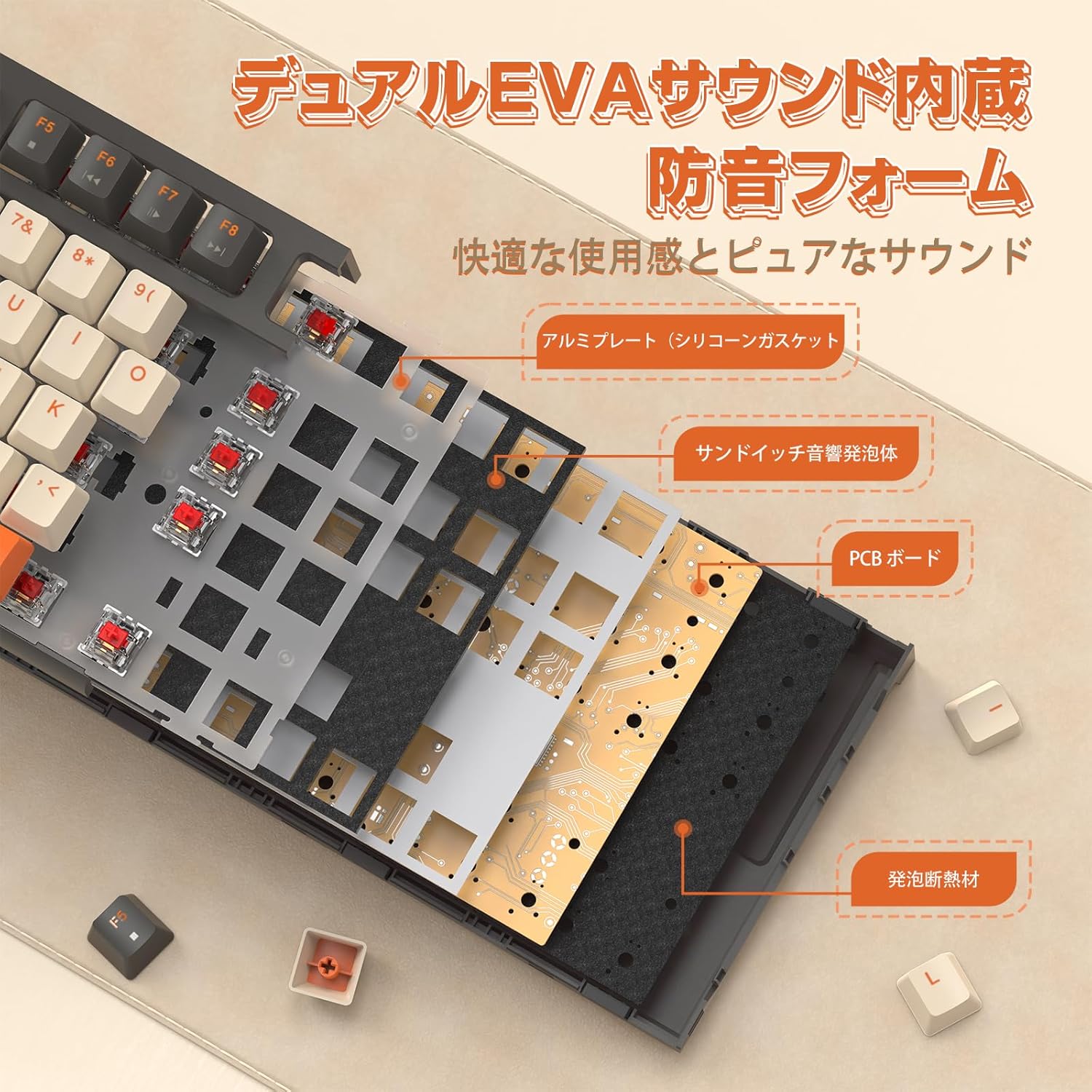
Figure 5.1.1: Detailed product dimensions.
6. Warranty & Support
This product complies with technical standards, holding certificate number 219-249332. Specific warranty details are not explicitly provided in the product information. For further support or inquiries, please refer to the seller's contact information or the platform where the product was purchased.
7. Additional Resources
7.1 Product Overview Video
Video 7.1.1: An overview of the M88 Wireless Mechanical Keyboard, demonstrating its features, unboxing, and dual receiver functionality.


