
Introduction
This manual provides essential instructions for setting up, operating, maintaining, and troubleshooting your Acer Nitro 50 N50-656 desktop computer. Please read this guide thoroughly before using your new system to ensure proper function and longevity.
Safety Information
- Power Supply: Use only the power adapter provided with your computer. Ensure the power outlet is properly grounded.
- Ventilation: Do not block ventilation openings. Ensure adequate airflow around the computer to prevent overheating.
- Liquid Exposure: Keep the computer away from liquids. Do not operate with wet hands.
- Placement: Place the computer on a stable, flat surface. Avoid placing it in direct sunlight or near heat sources.
- Servicing: Do not attempt to service the computer yourself. Refer all servicing to qualified service personnel.
1. Setup Guide
1.1 Unpacking
Carefully remove the computer and all accessories from the packaging. Verify that all components listed in the packing list are present.
1.2 Connecting Peripherals
- Monitor: Connect your monitor to the graphics card's display output (HDMI or DisplayPort) on the rear of the computer.
- Keyboard and Mouse: Connect your keyboard and mouse to the available USB ports.
- Power: Connect the power cable to the power supply unit (PSU) on the rear of the computer, then plug the other end into a grounded electrical outlet.
- Network (Optional): For a wired internet connection, connect an Ethernet cable from your router to the LAN port on the computer.
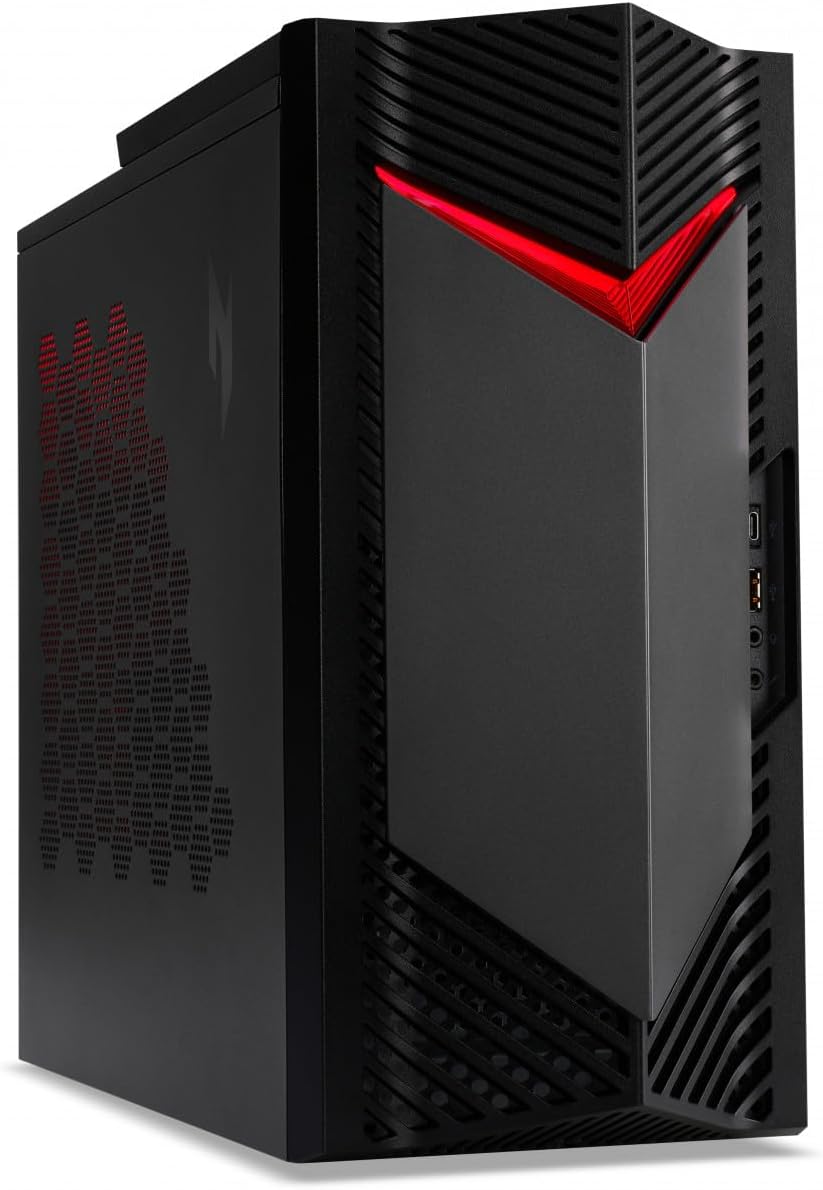
Figure 1: Front view of the Acer Nitro 50 N50-656 desktop PC, showing the power button and front ports.
1.3 Initial Power-On and Windows Setup
- Press the power button located on the front of the computer.
- Follow the on-screen instructions to complete the Windows 11 initial setup, including language, region, network connection, and user account creation.
2. Operating Instructions
2.1 Power On/Off
- To Power On: Press the power button once.
- To Shut Down: Click the Start button in Windows, then select Power > Shut down. Do not force shut down by holding the power button unless necessary to prevent data loss.
- To Restart: Click the Start button in Windows, then select Power > Restart.
2.2 Using Ports and Connectivity
Your Acer Nitro 50 N50-656 is equipped with various ports for connecting external devices. Refer to the image below for common port locations.
Figure 2: Rear view of the Acer Nitro 50 N50-656, illustrating the arrangement of USB ports, audio jacks, HDMI, DisplayPort, and Ethernet port.
- USB Ports: For connecting keyboards, mice, external drives, and other USB devices.
- HDMI/DisplayPort: For connecting monitors. Use the ports on the dedicated graphics card (NVIDIA GeForce RTX 4060) for optimal performance.
- Audio Jacks: For connecting speakers, headphones, or microphones.
- Ethernet Port: For a wired network connection.
- Bluetooth: For wireless connection to compatible devices like headphones or game controllers.
2.3 System Updates
Regularly check for and install Windows updates and driver updates for your graphics card and other components to ensure optimal performance and security. You can find Windows updates in the Settings app under "Windows Update". Graphics card drivers can be updated via the NVIDIA GeForce Experience application or NVIDIA's official website.
3. Maintenance
3.1 Cleaning
- Exterior: Use a soft, damp cloth to clean the exterior surfaces. Avoid harsh chemicals.
- Dust: Periodically clean dust from the ventilation grilles and internal components using compressed air. Ensure the computer is powered off and unplugged before cleaning.

Figure 3: Side view of the Acer Nitro 50 N50-656, showing the side panel and ventilation areas.
3.2 Software Maintenance
- Operating System: Keep Windows 11 updated to the latest version.
- Antivirus: Install and regularly update antivirus software to protect against malware.
- Disk Cleanup: Periodically run disk cleanup tools to remove temporary files and optimize storage.
3.3 Hardware Considerations
- Airflow: Ensure the computer is placed in an area with good airflow to prevent heat buildup, which can affect performance and component lifespan.
- Cable Management: Organize cables to prevent obstruction of vents and to maintain a tidy setup.

Figure 4: Internal view of the Acer Nitro 50 N50-656, showing the main components like the CPU cooler, RAM, and graphics card.
4. Troubleshooting
4.1 Common Issues and Solutions
- No Power:
- Check if the power cable is securely connected to both the computer and the wall outlet.
- Ensure the power switch on the PSU (if present) is in the 'On' position.
- Test the outlet with another device.
- No Display:
- Ensure the monitor is powered on and the video cable is securely connected to the graphics card's output on the PC and the monitor's input.
- Verify the monitor's input source is correctly selected.
- Try a different video cable or monitor if available.
- Slow Performance:
- Close unnecessary applications running in the background.
- Check for and install any pending Windows updates or driver updates.
- Run a disk cleanup and defragmentation (for HDDs, not necessary for SSDs).
- Scan for malware or viruses.
- System Freezes/Crashes:
- Ensure the system has adequate ventilation and is not overheating.
- Update drivers, especially graphics drivers.
- Check for Windows updates.
- If issues persist, consider running system diagnostics or contacting support.
5. Specifications
| Feature | Detail |
|---|---|
| Brand | acer |
| Item Model Number | DG.E3UEG.001 |
| Series | Nitro 50 N50-656 |
| Operating System | Windows 11 |
| Keyboard Description | wired |
| Processor Brand | Intel o AMD |
| Processor Type | Core i5 |
| Processor Speed | 6 |
| Number of Cores | 1 |
| RAM Size | 16 GB |
| Maximum Memory | 16 GB |
| Hard Drive Technology | SSD |
| Hard Drive Interface | Serial ATA |
| Screen Resolution | 1920 x 1080 |
| Resolution | 1920x1080 |
| Graphics Chipset Brand | Intel |
| Graphics Card Description | Dedicated |
| GPU | NVIDIA GeForce RTX 4060 |
| Graphics Card RAM | 8 GB |
| Graphics RAM Type | GDDR6X Memory |
| Processor Socket | LGA 1700 |
| Connectivity Type | Bluetooth |
| Hardware Interface | SSD |
| Number of HDMI Ports | 1 |
| Connector Type | Bluetooth, USB |
| Spare Parts Availability | Information not available on spare parts |
| Software Updates Guaranteed Until | Information not available |
| ASIN | B0CXLZ7LLQ |
| Date First Available | March 8, 2024 |
| CPU Model | Core i5 |
| CPU Speed | 6 |
| Graphics Coprocessor | NVIDIA GeForce RTX 4060 |
| Memory Storage Capacity | 16 GB |
| Specific Uses for Product | business |
| PC Type | Computer Tower |
| Installed RAM Size | 16 GB |
6. Warranty and Support
For warranty information, please refer to the warranty card included with your product or visit the official Acer support website. For technical assistance, driver downloads, or further troubleshooting, please contact Acer customer support or visit their online support portal. Keep your product's serial number (located on a sticker on the chassis) handy when contacting support.
Acer Support Website: www.acer.com/support


