
Introduction
Thank you for purchasing the Freaks and Geeks OLD SCHOOL Wireless Bluetooth Controller. This controller is designed for use with Nintendo Switch and PC, offering a versatile gaming experience with features like RGB LED lighting, motion control, and programmable buttons. Please read this manual carefully to ensure proper use and maintenance of your device.
Product Overview
Familiarize yourself with the components of your controller.
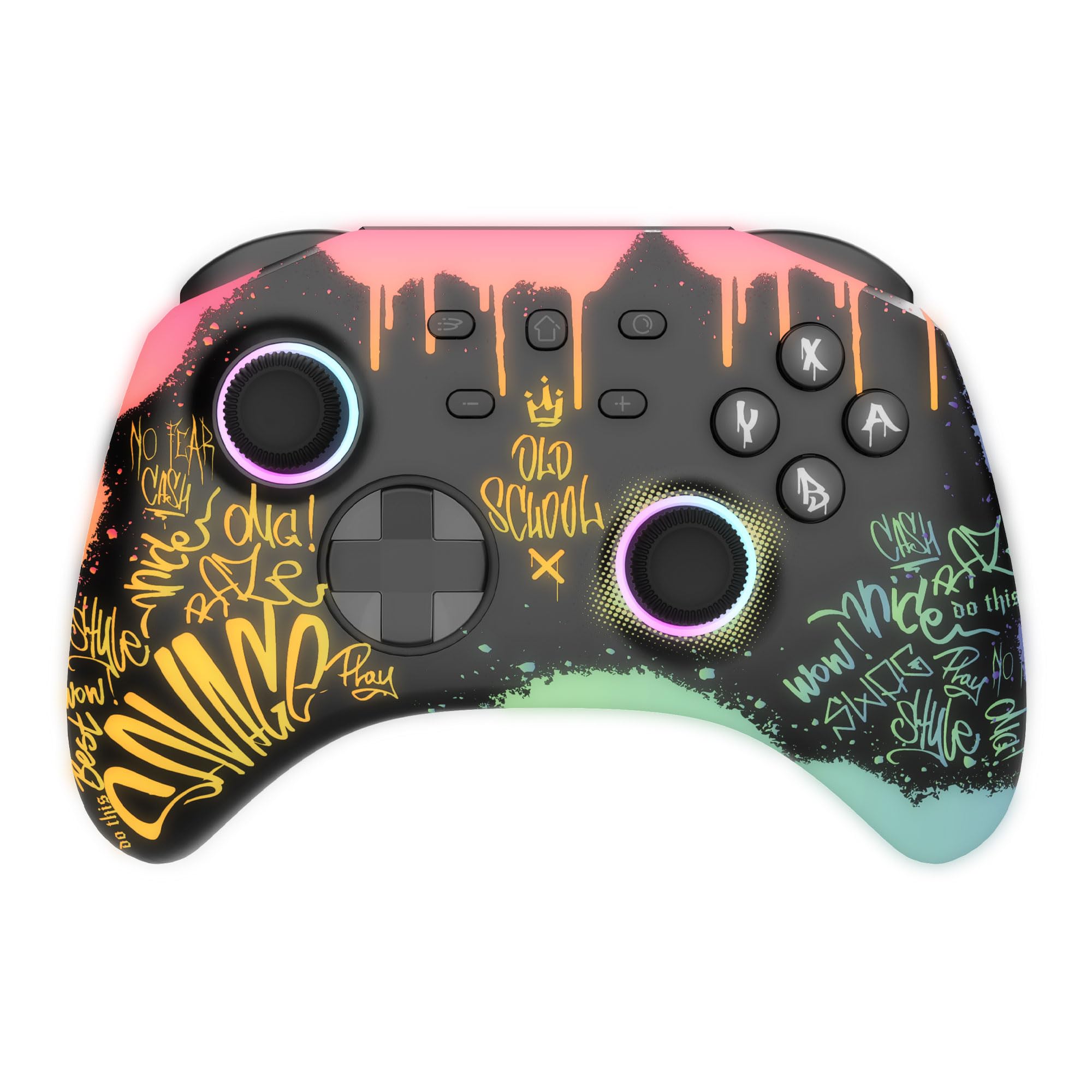
Image: Front view of the controller. Shows the D-pad, left and right analog sticks, A/B/X/Y buttons, Home button, Capture button, Plus and Minus buttons, and two smaller function buttons.
- Left Analog Stick: For movement and camera control.
- D-Pad: Directional input.
- Right Analog Stick: For camera control or specific game functions.
- A/B/X/Y Buttons: Standard action buttons.
- Home Button: Returns to the system home screen.
- Capture Button: Takes screenshots or records video clips.
- Plus (+) / Minus (-) Buttons: Menu navigation or in-game functions.
- L/R Buttons: Shoulder buttons.
- ZL/ZR Buttons: Trigger buttons.
- Programmable Buttons: Two additional buttons on the back for macro functions.
- USB-C Port: For charging and wired connection.
- 3.5mm Audio Jack: For connecting headphones (Switch only).
- RGB LED Strips: Customizable lighting effects.
Setup
Initial Charging
Before first use, fully charge the controller. Connect the included USB-C cable to the controller's USB-C port and the other end to a power source (e.g., Switch dock, PC USB port, or USB wall adapter). The RGB LEDs may indicate charging status.
Connecting to Nintendo Switch (Wireless)
- From the Switch HOME Menu, select "Controllers" > "Change Grip/Order".
- On the controller, press and hold the Home button for 3-5 seconds until the RGB LEDs start flashing rapidly, indicating pairing mode.
- Once paired, the controller will vibrate, and the player indicator LEDs will light up.
- The controller will automatically reconnect to the Switch when powered on if it was previously paired.
Connecting to PC (Wireless Bluetooth)
- Ensure your PC has Bluetooth enabled.
- On the controller, press and hold the Home button for 3-5 seconds until the RGB LEDs start flashing rapidly.
- On your PC, go to "Bluetooth & other devices" settings.
- Select "Add Bluetooth or other device" > "Bluetooth".
- Select "Pro Controller" or similar from the list of available devices.
- Follow any on-screen prompts to complete the pairing.
Connecting to PC (Wired)
Connect the controller to your PC using the included USB-C cable. The PC should automatically detect and install the necessary drivers. The controller will function as a wired gamepad.
Operating Instructions
Basic Controls
The controller functions similarly to standard Switch Pro Controllers or PC gamepads. Refer to your game's control scheme for specific button assignments.
RGB LED Lighting Modes
The controller features 3 RGB lighting modes:
- Multicolor Wave: Colors cycle dynamically.
- Color Breathing: Colors fade in and out.
- Single Color: A static, solid color.
Specific button combinations or a dedicated button (if present) can be used to cycle through these modes. Refer to the quick start guide for exact button presses.

Image: Side view of the controller showing the illuminated RGB light strips along the edges.

Image: Back view of the controller, highlighting the programmable buttons and the active RGB lighting.
Turbo Function
The Turbo function allows a button to be pressed repeatedly as long as it is held down. To activate Turbo for a button, press and hold the Turbo button (if present) and then press the desired action button. Repeat the process to deactivate. Consult the quick start guide for specific Turbo button location and usage.
Programmable Buttons (Macro)
The controller includes two programmable buttons that support macro functions. This allows you to assign a sequence of button presses to a single button. Refer to the quick start guide for detailed instructions on how to program and use these macro buttons.
Motion Control (Gyroscope)
The integrated gyroscope provides motion control capabilities, enhancing gameplay in compatible Switch titles. Ensure motion control is enabled in your game settings if applicable.
Dual Vibration Motor
The controller features dual vibration motors for immersive haptic feedback during gameplay. Vibration intensity may be adjustable through system or game settings.
3.5mm Audio Jack
A 3.5mm audio jack is provided for connecting headphones, primarily for use with the Nintendo Switch system. This feature may not be supported on PC depending on the connection method and drivers.
Charging and Battery
The controller is equipped with a 600 mAh Lithium Polymer battery, providing approximately 6 to 8 hours of gameplay on a full charge. You can continue playing while the controller charges via the USB-C cable.
- Battery Type: 600 mAh Lithium Polymer
- Charging Time: Approximately 2-3 hours (varies by power source)
- Battery Life: 6-8 hours (varies by usage and RGB lighting settings)
- Charging Indicator: Refer to the quick start guide for specific LED indicators during charging.
Maintenance
- Keep the controller dry and away from extreme temperatures.
- Clean the controller with a soft, dry cloth. Do not use harsh chemicals or abrasive materials.
- Avoid dropping the controller or subjecting it to strong impacts.
- Store the controller in a safe place when not in use.
Troubleshooting
Controller Not Connecting
- Ensure the controller is fully charged.
- Verify Bluetooth is enabled on your Switch or PC.
- Try re-pairing the controller by following the "Connecting" instructions.
- If on PC, try connecting via USB-C cable to check for driver issues.
- Restart your Switch or PC.
Buttons Not Responding
- Check if the controller is properly connected.
- Ensure the controller is charged.
- Test buttons in a different game or system menu.
- Perform a factory reset if available (consult quick start guide).
RGB LEDs Not Working
- Ensure the controller is powered on.
- Cycle through RGB modes using the designated button combination.
- If the issue persists, contact customer support.
Specifications
| Feature | Detail |
|---|---|
| Model Number | 299340 |
| Connectivity | Wireless Bluetooth, USB-C Wired |
| Compatibility | Nintendo Switch, PC |
| Battery | 600 mAh Lithium Polymer (Included) |
| Battery Life | 6-8 hours |
| Charging Port | USB-C |
| Audio Jack | 3.5mm (for Switch system) |
| Special Features | RGB LED Lighting (3 modes), Motion Control (Gyroscope), Turbo Function, 2 Programmable Macro Buttons, Dual Vibration Motors |
| Product Dimensions | 15 x 7 x 17 cm |
| Weight | 250 grams |
Warranty and Support
This product comes with a manufacturer's warranty. For warranty claims, technical support, or any questions regarding your Freaks and Geeks OLD SCHOOL Wireless Bluetooth Controller, please contact Freaks And Geeks customer service through their official website or the retailer where the product was purchased. Please retain your proof of purchase.