
1. Introduction
The Darmoshark M3 Pro Wireless Gaming Mouse is a high-performance peripheral designed for PC gamers, offering versatile connectivity and advanced features. It supports three connection modes: 2.4G wireless, Bluetooth, and wired USB-C, providing flexibility for various usage scenarios. Equipped with the PAW3395 optical sensor, it delivers exceptional precision and speed, with up to 26000 DPI resolution and 1000Hz response rate. Its ultralight 55g ergonomic design ensures comfort during extended use, while 8 programmable buttons allow for personalized control. The mouse features a 500mAh battery for long-lasting performance.
2. Package Contents
Upon unboxing your Darmoshark M3 Pro Wireless Gaming Mouse, please verify that all the following items are included:
- Darmoshark M3 Pro Wireless Gaming Mouse
- USB-C to USB-A Charging/Data Cable
- 2.4G Wireless USB Dongle (stored inside the mouse)
- Extra Mouse Skates (padding for the bottom of the mouse)
- Quick Start Guide

Image: Contents of the Darmoshark M3 Pro package, including the mouse, USB-C cable, and wireless dongle.
3. Product Overview
3.1 Key Features
- Tri-Mode Connectivity: Supports 2.4G wireless, Bluetooth 5.0, and wired USB-C connections for maximum versatility.
- PAW3395 Optical Sensor: Delivers up to 26000 DPI resolution, 650 IPS tracking speed, and 50G acceleration for precise and responsive tracking.
- Lightweight Design: Weighs approximately 55g, providing comfortable handling for extended gaming sessions.
- Programmable Buttons: Features 8 customizable buttons for macro settings and personalized functions via software.
- Long Battery Life: Equipped with a 500mAh lithium battery, offering extended usage time.
- TTC60M Dustproof Gold Micromotion Switches: Optimized switches for crisp clicks and quick rebound.
- TTC Golden Wheel Encoder: Ensures smooth and precise scroll wheel operation.

Image: Detailed diagram illustrating the various components and features of the mouse, including the PAW3395 chip, Nordic52840 Master Control, 55g lightweight design, TTC Gold Micromotion, tri-mode connection, 500mAh battery, TTC Golden Wheel Encoder, and Custom Macro Programming.
3.2 Mouse Components
Refer to the diagram below for an identification of the mouse's key components:
| No. | Component | Description |
|---|---|---|
| 1 | Left Button | Primary click function. |
| 2 | Right Click | Secondary click function. |
| 3 | Middle Key (Scroll Wheel) | Scrolls content and acts as a clickable button. |
| 4 | Forward Key | Navigational button, typically for moving forward in browsers. |
| 5 | Backspace Key | Navigational button, typically for moving backward in browsers. |
| 6 | DPI Indicator | Light indicating current DPI setting. |
| 7 | DPI Key | Button to cycle through DPI settings. |
| 8 | Rate of Return Indicator | Light indicating current polling rate. |
| 9 | Return Key | Button to adjust the polling rate. |
| 10 | Three Section Mode Switch | Switch to select Bluetooth, Off, or 2.4G wireless mode. |
| 11 | Built-in NANO Receiver Storage | Compartment for the 2.4G wireless USB dongle. |

Image: Technical diagram of the Darmoshark M3 Pro mouse, detailing its dimensions (Length 129.5mm, Width 68.2mm, Height 39.6mm) and labeling key components such as left click, right click, track roller key, DPI Adjustment Key, Rate of return button, Tri-mode toggle, Adapter Storage Slot, forward button, and backspace.
4. Setup
The Darmoshark M3 Pro offers three convenient connection methods:
4.1 2.4G Wireless Connection
- Locate the 2.4G wireless USB dongle stored in the compartment on the bottom of the mouse.
- Plug the USB dongle into an available USB-A port on your computer.
- Slide the Three Section Mode Switch (10) on the bottom of the mouse to the "G" (2.4G) position.
- The mouse should automatically connect. If not, press the left, middle, and right buttons simultaneously for 3 seconds to enter pairing mode. The green light on the scroll wheel position will flash, indicating pairing. Once connected, the indicator light will turn off.

Image: Visual representation of the tri-mode connection options for the Darmoshark M3 Pro mouse, highlighting 2.4G, Bluetooth, and wired USB-C connections.
4.2 Bluetooth Connection
- Slide the Three Section Mode Switch (10) on the bottom of the mouse to the "B" (Bluetooth) position.
- Press the left, middle, and right buttons simultaneously for 3 seconds to enter Bluetooth pairing mode. The blue light on the scroll wheel position will flash.
- On your computer or device, search for "M3 Mouse" in your Bluetooth settings and select it to pair.
- Once the connection is successful, the indicator light will turn off.
4.3 Wired USB-C Connection
- Connect the USB-C end of the provided cable to the mouse's USB-C port.
- Connect the USB-A end of the cable to an available USB-A port on your computer.
- The mouse will automatically switch to wired mode and begin charging.

Image: The Darmoshark M3 Pro Wireless Gaming Mouse in white, alongside its compact 2.4G wireless USB dongle.
5. Operating Instructions
5.1 DPI Adjustment
Press the DPI Key (7) on the bottom of the mouse to cycle through the preset DPI levels. The DPI Indicator (6) will change color to indicate the current DPI setting:
- 400 DPI (Default)
- 800 DPI (Default)
- 1600 DPI (Default)
- 3200 DPI (Default)
- 4800 DPI (Default)
- Up to 26000 DPI (Adjustable via software)

Image: Illustration highlighting the high-performance optical sensor and its DPI adjustment capabilities, showing various DPI levels and their corresponding colors.
5.2 Polling Rate Adjustment
Press the Return Key (9) on the bottom of the mouse to adjust the polling rate. The polling rate indicates how often the mouse reports its position to the computer.
- Red light: 125Hz
- Blue light: 500Hz
- Green light: 1000Hz
5.3 Sleep and Wake-up
- After 5 seconds of inactivity, the mouse will enter the first level sleep mode.
- After 90 seconds of inactivity, it will enter the secondary sleep mode.
- To wake the mouse from sleep mode, simply click any button or move the mouse.
5.4 Charging and Battery Indication
- When the USB-C cable is connected, the scroll wheel position indicator will be solid red, indicating that the mouse is charging.
- The indicator light will turn off once the mouse is fully charged. Charging time is approximately 3-3.5 hours.
- When the battery is low, the scroll wheel position indicator will flash yellow. This indicates low power, and charging is required to ensure normal use.

Image: Promotional image emphasizing the low power consumption and long battery life of the Darmoshark M3 Pro mouse, stating a 500mAh capacity and approximately 140 hours of continuous use.
5.5 Programmable Buttons and Software
The Darmoshark M3 Pro features 8 programmable buttons. To customize DPI settings, key functions, and create player macro settings, you can download the official software. This software allows for precise adjustment and unlocks more ways to play.

Image: Screenshot of the proprietary driver software interface, demonstrating options for precise DPI adjustment, professional return rate settings, and custom macro functions for enhanced gaming.
6. Maintenance
To ensure the longevity and optimal performance of your Darmoshark M3 Pro Wireless Gaming Mouse, follow these maintenance guidelines:
- Cleaning: Use a soft, dry cloth to wipe down the mouse regularly. For stubborn dirt, a slightly damp cloth can be used, but ensure no moisture enters the internal components. Avoid harsh chemicals or abrasive cleaners.
- Storage: When not in use, store the mouse in a cool, dry place away from direct sunlight and extreme temperatures.
- Mouse Skates: The mouse comes with pre-installed mouse skates (padding) on the bottom. If these wear out over time, you can replace them with the extra set provided in the package. Carefully peel off the old skates and apply the new ones, ensuring they are clean and free of debris for smooth gliding.
- Cable Care: Handle the USB-C cable gently. Avoid sharp bends or excessive pulling, which can damage the cable or connectors.
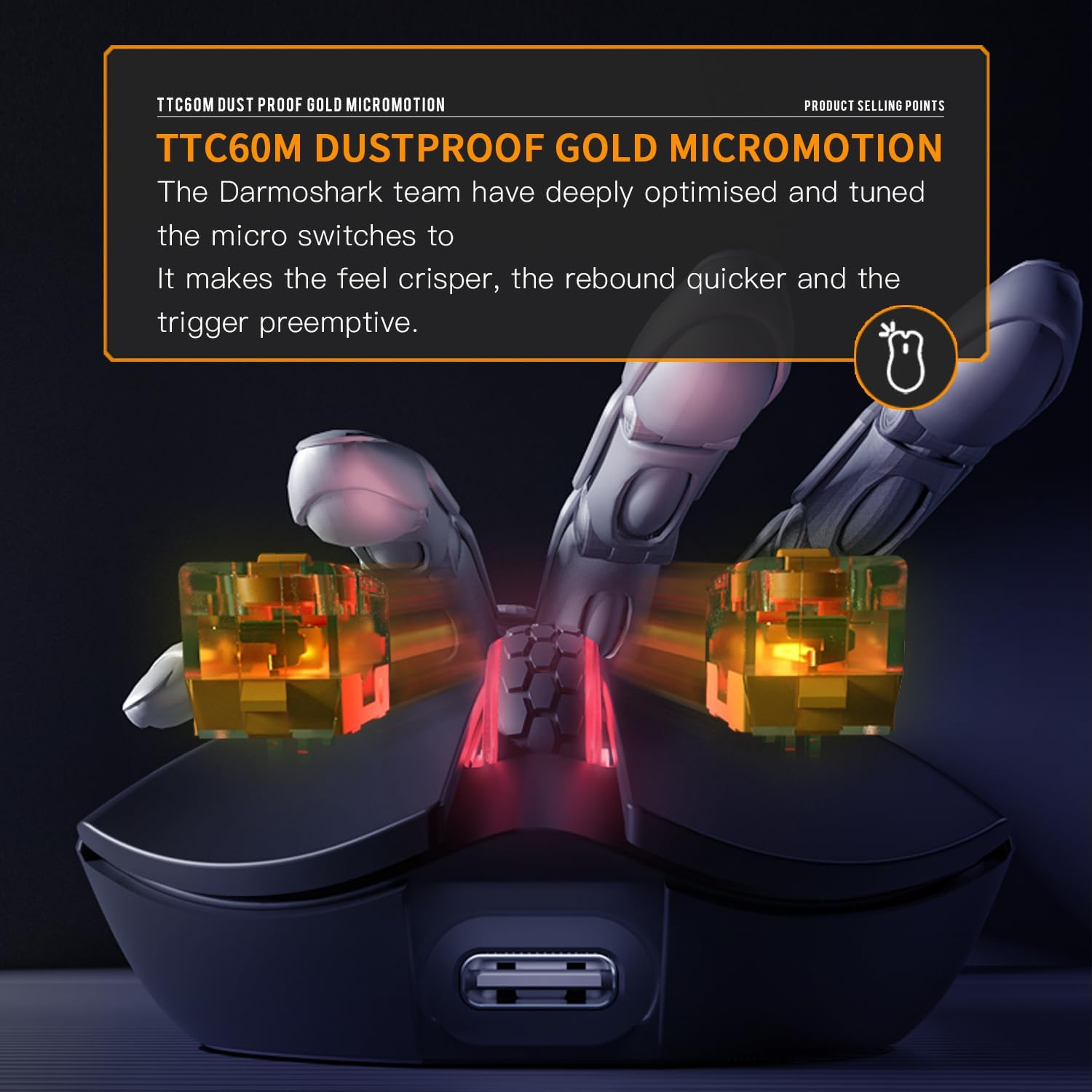
Image: The Darmoshark M3 Pro mouse highlighting its lightweight design, with dimensions of 129.5x66.2x39.6mm and a weight of approximately 55g.
7. Troubleshooting
If you encounter any issues with your Darmoshark M3 Pro Wireless Gaming Mouse, please refer to the following common troubleshooting steps:
- Mouse Not Responding:
- Ensure the mouse is charged. Connect it via USB-C cable to charge.
- Check the Three Section Mode Switch (10) on the bottom of the mouse. Make sure it's set to the correct mode (2.4G, Bluetooth, or wired).
- For 2.4G wireless, ensure the USB dongle is securely plugged into a working USB port. Try a different USB port.
- For Bluetooth, ensure Bluetooth is enabled on your device and the mouse is properly paired. Try re-pairing the mouse.
- If using wired mode, ensure the USB-C cable is securely connected to both the mouse and the computer.
- Lag or Disconnection:
- Ensure the mouse is within range of the 2.4G dongle or Bluetooth device.
- Minimize interference from other wireless devices (e.g., Wi-Fi routers, other wireless peripherals).
- Check battery level; low battery can affect wireless performance.
- Try updating the mouse firmware via the official software (if available).
- DPI/Polling Rate Not Changing:
- Ensure you are pressing the correct buttons (DPI Key (7) for DPI, Return Key (9) for polling rate).
- If using custom settings, ensure the software is running and settings are applied.
- Buttons Not Working:
- Check for any physical obstructions.
- Ensure the mouse is not in a sleep mode.
- Try resetting the mouse (refer to quick start guide for specific reset procedures if available).
If the issue persists after trying these steps, please contact Darmoshark customer support for further assistance.
8. Specifications
| Feature | Specification |
|---|---|
| Model Number | Darmoshark_M3Pro |
| Connectivity Technology | 2.4G Wireless, Bluetooth 5.0, USB-C Wired |
| Movement Detection Technology | Optical (PAW3395 Sensor) |
| DPI Resolution | Up to 26000 DPI |
| Tracking Speed | 650 IPS |
| Acceleration | 50G |
| Polling Rate | 125Hz, 500Hz, 1000Hz (adjustable) |
| Buttons | 8 Programmable Buttons |
| Battery Type | Lithium Ion (500mAh) |
| Item Weight | 1.94 ounces (approx. 55g) |
| Package Dimensions | 6.3 x 4.41 x 3.03 inches |
| Manufacturer | Darmoshark |
| Color | White |
9. Warranty and Support
Darmoshark products are designed for reliability and performance. For any warranty claims or technical support, please contact the seller directly or visit the official Darmoshark website for contact information. Please retain your proof of purchase for warranty validation.
Seller: Darmoshark US


