
MYZONE MZ-20
MYZONE MZ-20 Bluetooth Digital Bathroom Scale User Manual
Model: MZ-20
Introduction
This manual provides essential information for the safe and effective use of your MYZONE MZ-20 Bluetooth Digital Bathroom Scale. Please read these instructions thoroughly before use and retain for future reference.
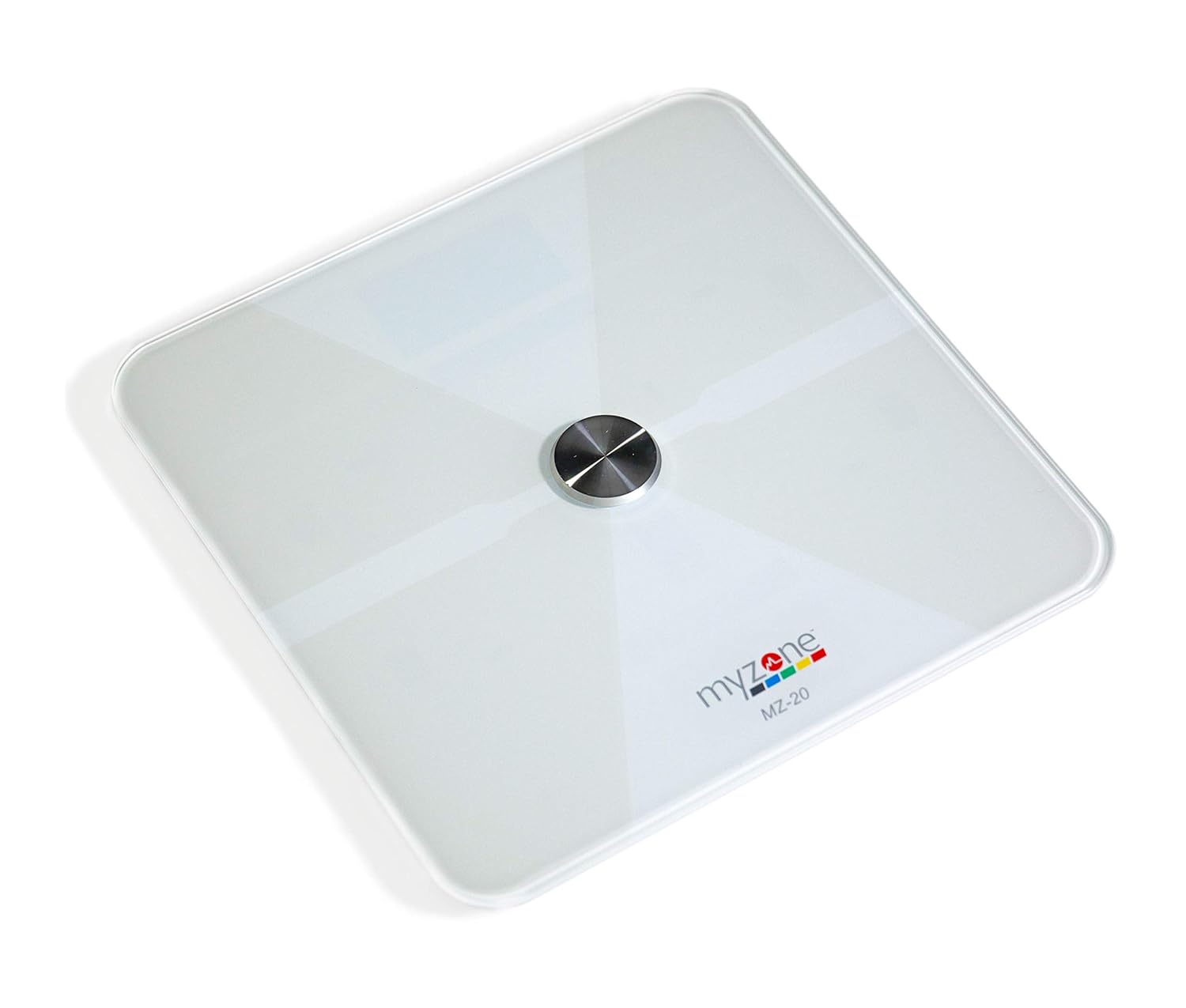
Image: Top-down view of the MYZONE MZ-20 Digital Bathroom Scale, white with a central metallic sensor and MYZONE logo.
Important Safety Information
- Do not use if you have a pacemaker or other internal medical device.
- Do not use if you are pregnant.
- Always place the scale on a hard, flat surface for accurate measurements.
- Keep the scale dry. Do not immerse in water.
- The glass surface can be slippery when wet. Step on and off carefully.
- This device is for home use only and should not be used for medical diagnosis or treatment.
Package Contents
- MYZONE MZ-20 Digital Bathroom Scale
- 4 x AAA Batteries (included)
- User Manual (this document)
Setup
1. Battery Installation
- Open the battery compartment on the underside of the scale.
- Insert the 4 AAA batteries, ensuring correct polarity (+/-).
- Close the battery compartment securely.
2. App Download and Pairing
To utilize the full features of the MZ-20 scale, including body composition analysis and progress tracking, download the MYZONE app on your mobile device.
- Download the "MYZONE" app from your device's app store (iOS or Android).
- Create an account or log in to your existing MYZONE account.
- Enable Bluetooth on your mobile device.
- Open the MYZONE app and navigate to the device pairing section.
- Step onto the scale to activate it. The scale will automatically attempt to pair with the app via Bluetooth Low Energy (BLE).
- Follow the on-screen prompts in the app to complete the pairing process.
3. Initial Calibration
For the most accurate readings, it is recommended to perform an initial calibration. Place the scale on a hard, flat surface. Step on the scale briefly until a reading appears, then step off. The scale will display "0.0" or similar, indicating it is ready for use. Some users may observe slight variations in initial readings which stabilize after a few uses.
Operating Instructions
1. Taking a Measurement
- Place the scale on a hard, flat surface.
- Ensure your feet are clean and dry.
- Step onto the scale barefoot, centering your feet on the metallic pads. Stand still until the display shows your weight.
- If connected to the MYZONE app, open the app before stepping on the scale. Your measurements (weight, body fat, muscle mass, body water, bone mass, Basal Metabolic Rate) will automatically sync to the app.

Image: A person stands barefoot on the MYZONE MZ-20 scale, demonstrating how to take a measurement. An overlay graphic illustrates the various body metrics recorded, including weight, body fat, muscle mass, and visceral fat.
2. Understanding Body Metrics
The MZ-20 scale provides comprehensive tracking of various physical characteristics:
- Weight: Your total body mass.
- Body Fat %: The percentage of your total body weight that is fat.
- Muscle Mass: The total weight of muscle in your body.
- Body Water %: The percentage of your total body weight that is water.
- Bone Mass: The total weight of bone in your body.
- Basal Metabolic Rate (BMR): The number of calories required to keep your body functioning at rest.

Image: An infographic displaying icons and labels for the various body metrics measured by the MZ-20 scale, including Weight, Body Fat, Muscle Mass, Body Water, Bone Mass, and Basal Metabolic Rate. It also highlights features like included batteries, Bluetooth connectivity, digital display, and support for multiple users.
3. Using the MYZONE App
The MYZONE app allows you to view, track, and analyze your body metrics over time. Data is saved directly to the app for easy access and progress monitoring.

Image: A smartphone screen shows the MYZONE app interface, displaying a user's body metrics such as Resting Heart Rate, Weight, Basal Metabolic Rate, Body Fat Percentage, and Body Mass Index (BMI).
4. Multiple Users
The MYZONE MZ-20 scale supports multiple users. Each user should create their own profile within the MYZONE app. When a user steps on the scale, the app will attempt to identify the user based on their weight history. If multiple users have similar weights, the app may prompt you to select the correct user.
Maintenance
1. Cleaning
Wipe the scale surface with a damp cloth and mild detergent. Do not use abrasive cleaners or immerse the scale in water. Ensure the scale is dry before storage or next use.
2. Battery Replacement
When the battery indicator appears on the display, replace all 4 AAA batteries. Always replace with new batteries of the same type. Remove batteries if the scale will not be used for an extended period.
Troubleshooting
| Problem | Possible Cause / Solution |
|---|---|
| Scale does not turn on or display is blank. |
|
| Inaccurate or inconsistent readings. |
|
| Scale reading does not match app reading. |
|
| Body metrics (fat, muscle, etc.) seem inaccurate. |
|
| Cannot connect to MYZONE app via Bluetooth. |
|
Specifications
| Feature | Detail |
|---|---|
| Brand | MYZONE |
| Model | MZ-20 |
| Color | White |
| Special Features | Body Fat, Bone Mass, Muscle Mass, Smart (Bluetooth connectivity) |
| Display Type | LED |
| Form Factor | Mini |
| Product Dimensions | 12.2 x 12.2 x 0.79 inches |
| Item Weight | 4.18 pounds (1.9 Kilograms) |
| Batteries | 4 AAA batteries (included) |
| Connectivity | Bluetooth Low Energy (BLE) |

Image: The MYZONE MZ-20 scale shown with its dimensions: 13.4 inches in length and width, and 1.97 inches in height.
Product Overview Video
Video: An official overview of the MYZONE MZ-20 Home Scales, demonstrating its sleek design, live body metric data streaming to a mobile device, and progress tracking features within the MYZONE app.
Warranty Information
Warranty claims on any MYZONE product can only be approved by Myzone.org. Please refer to the official MYZONE website for detailed warranty terms and conditions.
Support
For further assistance, technical support, or frequently asked questions, please visit the official MYZONE support page or contact customer service:
- Official Website: www.myzone.org
- Customer Service: Refer to the contact information on the official website.
Related documentsMZ-20

Ask a question about this manual
Ask about setup, troubleshooting, compatibility, parts, safety, or missing instructions. Manuals+ will review the question and use this page’s manual context to help answer it.