
1. Introduction
This manual provides essential information for the safe and effective use of your eufy Security eufyCam 2C Wireless Outdoor Surveillance Camera System. Please read this manual thoroughly before installation and operation, and retain it for future reference.
The eufyCam 2C system offers 1080p Full HD surveillance, intelligent human detection, color night vision, and continuous power via an integrated solar panel. It operates wirelessly and connects to a HomeBase 2 for local storage and enhanced features.
2. Package Contents
Verify that all items are present in your package:
- eufyCam 2C Cameras (quantity as purchased)
- HomeBase 2
- Solar Panels (one per camera)
- Mounting Kits (screws, wall anchors, mounting bracket)
- Charging Cable
- Ethernet Cable
- Power Adapter for HomeBase 2
- Quick Start Guide
3. Setup
3.1 Download the eufy Security App
Before beginning installation, download the eufy Security app from the App Store (iOS devices) or Google Play (Android devices). Create an account or log in if you already have one.
3.2 Connect HomeBase 2
- Connect the HomeBase 2 to your router using the provided Ethernet cable.
- Plug the power adapter into the HomeBase 2 and an electrical outlet.
- Wait for the HomeBase 2 indicator light to turn solid blue, indicating it is ready.
3.3 Pair eufyCam 2C Cameras
- Open the eufy Security app and follow the on-screen instructions to add your HomeBase 2.
- Once the HomeBase 2 is added, select to add a new device and choose eufyCam 2C.
- Press and hold the SYNC button on the top of the eufyCam 2C until you hear a beep. The camera will then pair with the HomeBase 2.
3.4 Camera and Solar Panel Installation
The eufyCam 2C is designed for outdoor use and is IP67 weatherproof. For optimal performance and continuous charging, choose a location that receives ample direct sunlight throughout the day.
- Mounting Location: Select a location that provides the desired viewing angle and is within Wi-Fi range of your HomeBase 2. Ensure the solar panel can receive maximum sunlight.
- Mounting the Camera: Use the provided mounting bracket, screws, and wall anchors to securely attach the camera to a wall or other stable surface.
- Mounting the Solar Panel: Attach the solar panel to a location that maximizes sun exposure, ideally facing south (in the Northern Hemisphere) or north (in the Southern Hemisphere). Connect the solar panel cable to the charging port on the eufyCam 2C.

Image: eufyCam 2C camera connected to its solar panel, mounted on the exterior siding of a house. This setup ensures continuous power for the camera.

Image: Detailed view of a eufyCam 2C camera and solar panel mounted on a roof gutter, illustrating a common installation method for optimal solar exposure.
4. Operating the eufyCam 2C System
4.1 Live View and Recording
Access live 1080p Full HD video streams from your cameras via the eufy Security app. Recordings are triggered by motion detection and stored locally on the HomeBase 2's 16GB storage, ensuring no monthly fees for basic functionality.
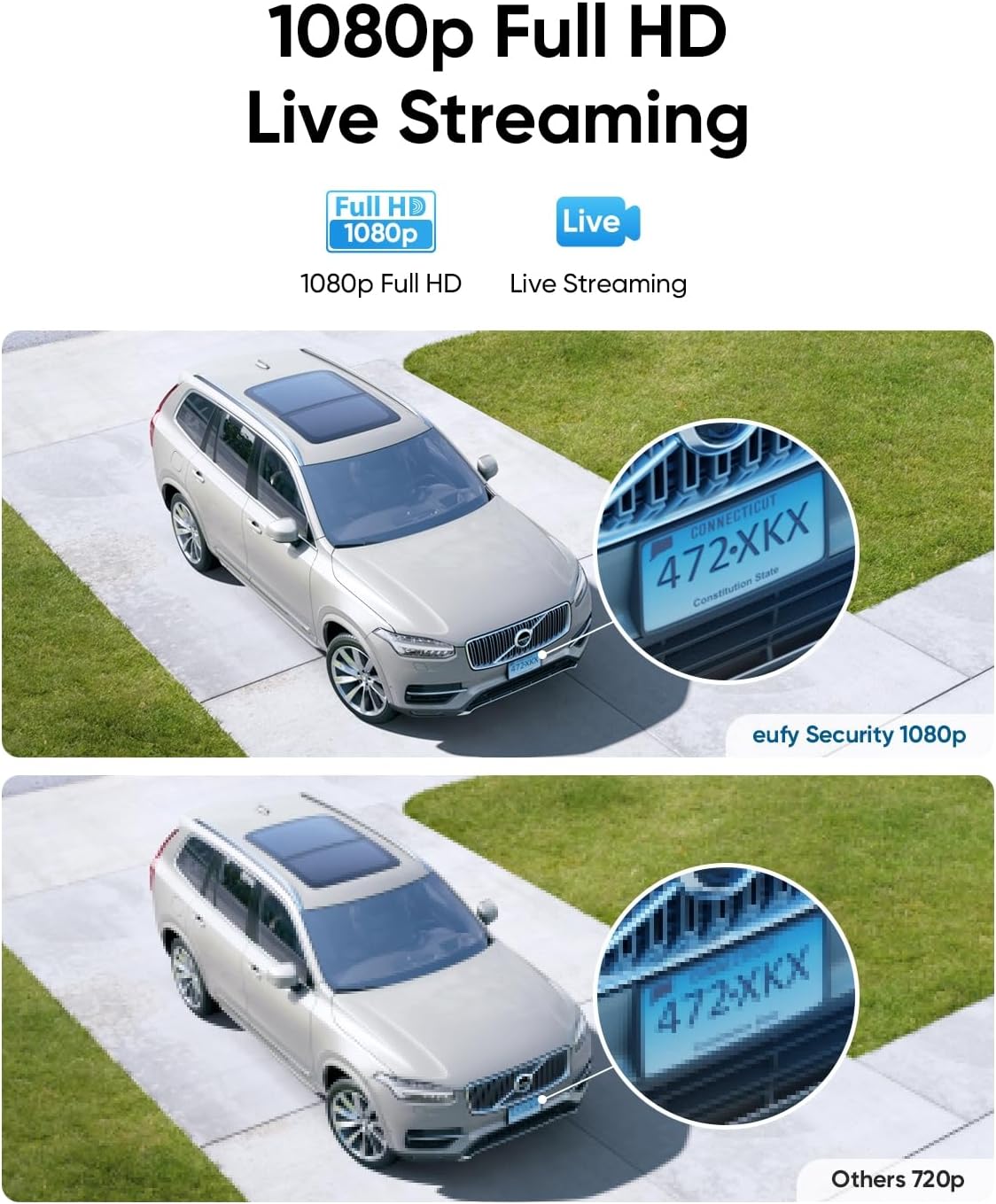
Image: A visual comparison demonstrating the clarity of 1080p Full HD live streaming from eufy Security, showing a clear license plate on a car, versus a less clear 720p image.

Image: The eufy HomeBase 2 unit, highlighting its internal 16GB storage capacity, which supports local recording without monthly fees.
4.2 Intelligent Human Detection
The eufyCam 2C utilizes advanced AI to distinguish humans from other objects like animals, reducing false alarms and ensuring you only receive relevant alerts.

Image: A demonstration of the human detection feature, showing the camera correctly identifying a child on a skateboard while ignoring a dog, thus minimizing false alarms.
4.3 Color Night Vision
Benefit from enhanced visibility in low-light conditions with the camera's color night vision capabilities. The integrated spotlight can be activated for full-color images at night.

Image: A comparison showing the difference between color night vision (with spotlight on) and standard infrared night vision (spotlight off), illustrating improved detail and color in low light.
4.4 Two-Way Audio and Siren
Communicate with visitors or deter intruders using the built-in two-way audio feature. The HomeBase 2 also features a 105 dB smart siren that can be activated manually or automatically upon detection.
4.5 Apple HomeKit Compatibility
The eufyCam 2C system is compatible with Apple HomeKit, allowing for integration into your smart home ecosystem and control via the Apple Home app.
4.6 Product Features Video
Video: This official product video demonstrates key features of the eufyCam 2C, including its 180-day battery life, intelligent motion detection, 1080p Full HD resolution, human detection, advanced night vision, local storage with 256-bit encryption (no monthly fees), Apple HomeKit compatibility, 105 dB smart siren, and two-way audio communication.
5. Maintenance
5.1 Solar Charging
The integrated solar panel provides continuous power to the eufyCam 2C, eliminating the need for manual recharging under optimal sunlight conditions. Ensure the solar panel remains clean and free from obstructions for efficient charging.
5.2 Cleaning
Periodically clean the camera lens and solar panel with a soft, damp cloth to remove dust and debris. Avoid using harsh chemicals or abrasive materials that could damage the surfaces.
5.3 Battery Life
The eufyCam 2C boasts an impressive 180-day battery life on a single charge without the solar panel, providing reliable surveillance even in periods of low sunlight.
6. Troubleshooting
- Camera Not Connecting: Ensure the HomeBase 2 is powered on and connected to the internet. Verify the camera is within range and attempt re-pairing via the eufy Security app.
- Poor Video Quality: Check your Wi-Fi signal strength at the camera's location. Obstructions or distance from the HomeBase 2 can affect video quality.
- False Alarms: Adjust the motion detection sensitivity and activity zones within the eufy Security app. Ensure human detection is enabled to filter out non-human movements.
- Solar Panel Not Charging: Confirm the solar panel is connected correctly and receives direct sunlight for several hours daily. Clean the panel surface if dirty.
For more detailed troubleshooting, refer to the help section within the eufy Security app or visit the official eufy Security support website.
7. Specifications
| Model Name | E8831 |
| Brand | eufy Security |
| Connectivity Technology | Wireless (Wi-Fi) |
| Special Feature | Night Vision (Color Night Vision) |
| Indoor/Outdoor Use | Outdoor |
| Compatible Devices | Smartphone, Tablet |
| Power Source | Battery Powered (with Solar Panel for continuous charging) |
| International Protection Rating | IP67 (Waterproof) |
| Video Capture Resolution | 1080p |
| View Angle | 135 Degrees |
| Battery Power | 27.79 Watt-hours |
| Dimensions | 8 x 5 x 6 centimeters |
| Weight | 1.4 pounds |

Image: The eufyCam 2C camera and its solar panel are shown outdoors during rainy weather, highlighting its IP67 weatherproof design and durability against environmental elements.
8. Warranty and Support
Your eufy Security eufyCam 2C system is manufactured by Anker. For warranty information, technical support, or service inquiries, please visit the official eufy Security website or contact their customer service directly. Keep your purchase receipt for warranty claims.
eufy Security is committed to protecting your privacy. All recorded footage is stored locally on the HomeBase 2 with 256-bit encryption, ensuring your data remains private and secure.


