
1. Setup and Assembly
This section provides instructions for assembling your AODK 55-inch computer desk. Please ensure all parts are present before beginning assembly.
1.1 Unpacking and Part Identification
Carefully unpack all components from the packaging. Refer to the included manual for a complete list of parts and hardware. Verify that all items are accounted for and undamaged.
1.2 Assembly Steps
Follow the step-by-step instructions provided in the illustrated manual. Each part is numbered for easy identification. An assembly video is also available on the product page for visual guidance.
Note: While assembly can be performed by one person, having a second person may simplify certain steps.

Image: Product dimensions and reversible design options for the desk.
1.3 Fabric Drawer Assembly
The desk includes fabric drawers. To assemble them, unfold each drawer and insert the bottom panel to create a rigid structure. Ensure the handles are securely attached.

Image: Step-by-step guide for assembling the fabric drawers.
2. Operation and Features
Your AODK computer desk is designed with multiple features to enhance your workspace.
2.1 Storage Solutions
The desk offers various storage options to keep your items organized:
- 3 Regular Drawers: For office supplies and personal items.
- 2 File Drawers: Designed to accommodate letter and A4 size hanging files.
- Printer Cabinet: A dedicated space for your printer.
- 2-Tier Under Bookshelf: Additional shelving for books or other items.
- Computer Tower Stand: Keeps your CPU off the floor.

Image: Overview of the desk's drawers and file cabinet for storage.

Image: Dedicated CPU stand for organizing your computer tower.
2.2 LED Strip Lighting
The desk features built-in LED strip lighting to provide customizable ambiance. The lighting offers multiple modes and color variations to suit your preferences. Control the lighting using the integrated switch or remote (if included).
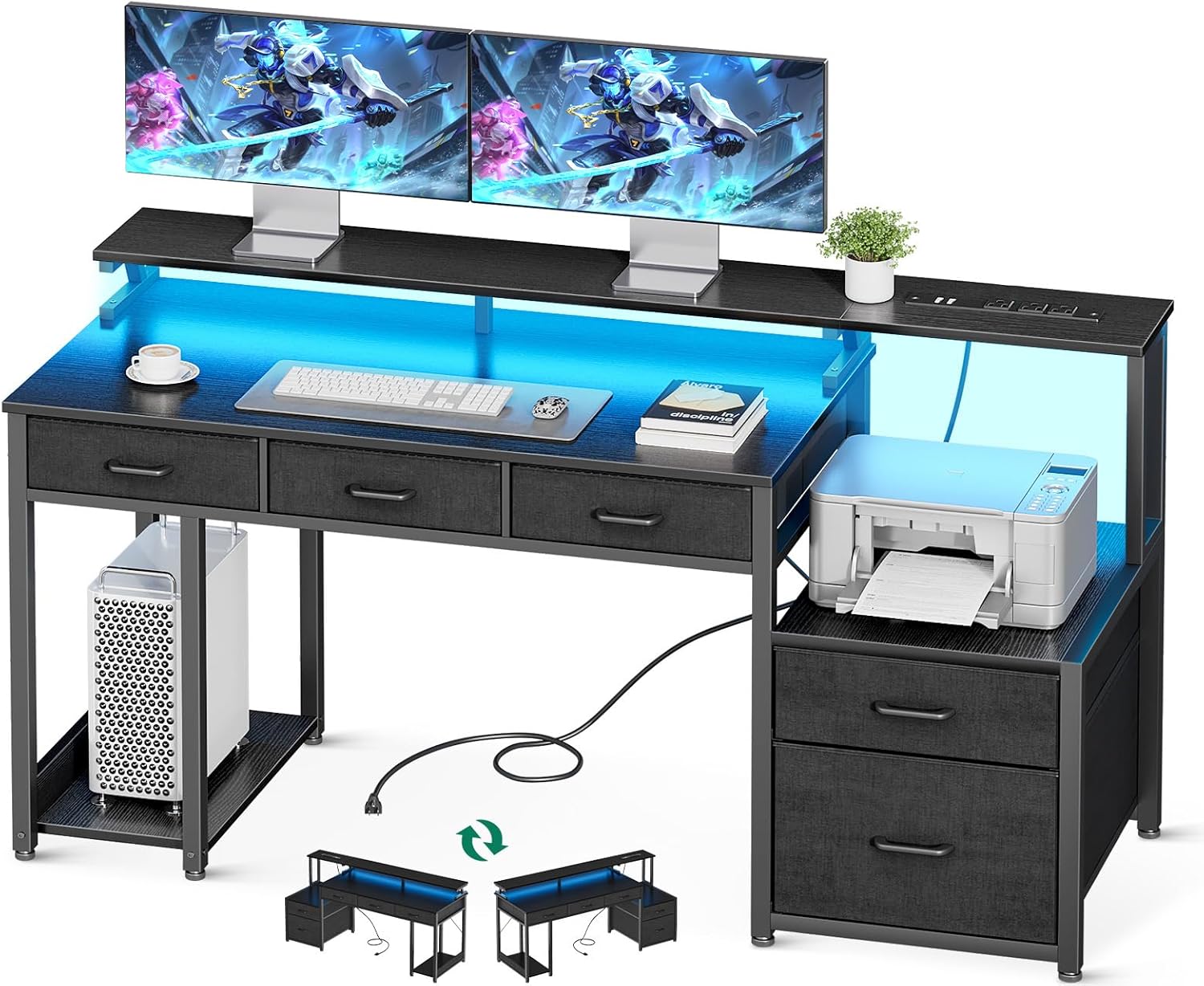
Image: The AODK computer desk with LED lighting activated.

Image: Details on the RGB LED lighting strips, showing available modes and colors.
2.3 Integrated Power Outlets and Monitor Stand
The desk includes a power outlet strip with 3 standard AC outlets and 2 USB ports for convenient charging of your devices. The elevated monitor stand helps maintain ergonomic posture and provides additional storage space underneath.

Image: Detail of the integrated power outlets and USB ports for charging.
3. Maintenance
Proper care and maintenance will ensure the longevity of your AODK computer desk.
3.1 Cleaning
- Wipe surfaces with a soft, damp cloth.
- Avoid using harsh chemicals or abrasive cleaners, as these can damage the finish.
- For spills, clean immediately to prevent staining.
3.2 General Care
- Periodically check all screws and fasteners to ensure they are tight. Retighten as necessary.
- Avoid placing extremely hot or cold items directly on the desk surface without protection.
- Do not overload drawers or shelves beyond their recommended weight capacity.
4. Troubleshooting
This section addresses common issues you might encounter with your desk.
4.1 Desk Wobbles
- Ensure all assembly screws are fully tightened.
- Check that the desk is placed on a level surface. Adjust floor levelers if present.
4.2 LED Lights Not Functioning
- Verify that the power cord for the LED strip is securely plugged into a working outlet.
- Check all connections between the LED strip and its power source/controller.
- Ensure the LED control switch or remote has power and is functioning correctly.
4.3 Power Outlets/USB Ports Not Working
- Confirm the desk's main power cord is securely plugged into a functional wall outlet.
- Test the wall outlet with another device to ensure it is supplying power.
- Avoid overloading the power strip with too many high-power devices.
4.4 Drawers Do Not Slide Smoothly
- Ensure the drawer slides are correctly installed and aligned.
- Check for any obstructions within the drawer tracks.
- Verify that the fabric drawers are fully assembled and rigid.
5. Specifications
| Feature | Detail |
|---|---|
| Brand | AODK |
| Model Number | B0CXDFJ9DT |
| Product Dimensions | 55"D x 18.89"W x 35.8"H |
| Color | Black |
| Material | Engineered Wood (Top Material), Metal (Frame) |
| Number of Drawers | 3 (plus 2 file drawers) |
| Special Features | File Drawer, LED Lights, Power Outlets (3 AC, 2 USB), Monitor Stand, CPU Stand |
| Power Cord Length | 6.5 feet |
| Assembly Required | Yes |
6. Warranty and Support
6.1 Limited Warranty
This AODK product comes with a limited warranty. Please refer to the warranty information provided with your purchase for specific terms and conditions.
6.2 Customer Support
If your AODK desk arrives damaged, has missing parts, or is scratched, please contact our professional customer support team. We are committed to assisting you with any issues within 24 hours.
For support, please contact the seller, AODK-US, through your purchase platform or refer to the contact information provided in your product packaging.


