
1. Introduction
This manual provides instructions for the installation, operation, and maintenance of your TP-Link Tapo TC41 2K Outdoor Pan/Tilt Security Wi-Fi Camera. Please read this manual carefully before using the device to ensure proper functionality and safety.

Image 1.1: TP-Link Tapo TC41 Outdoor Pan/Tilt Security Camera. This image displays the camera's sleek, weatherproof design, suitable for outdoor installation.
2. Package Contents
Verify that all items are present in your package. If any item is missing or damaged, contact your retailer.
- Tapo TC41 Outdoor Pan/Tilt Security Wi-Fi Camera
- Power Adapter
- Mounting Template
- Mounting Screws and Anchors
- Waterproof Seal
- Quick Start Guide
3. Setup Instructions
3.1. Download the Tapo App
The Tapo app is required for camera setup and management. Download the Tapo app from the App Store (iOS) or Google Play Store (Android).
3.2. Power On the Camera
Connect the camera to a power outlet using the provided power adapter. The status LED will blink red and green when it is ready for setup.
3.3. Add Camera to Tapo App
- Open the Tapo app and log in or create a TP-Link ID.
- Tap the + icon in the top right corner to add a new device.
- Select your camera model (TC41) and follow the in-app instructions to connect it to your Wi-Fi network.
3.4. Mounting the Camera
Choose a suitable outdoor location for mounting. Ensure the camera has a clear view and is within Wi-Fi range. Use the mounting template to mark screw positions and secure the camera with the provided screws and anchors. Apply the waterproof seal to protect connections.

Image 3.1: TP-Link Tapo TC41 IP65 Water & Dust Resistant. This image illustrates the camera mounted outdoors, highlighting its IP65 rating for water and dust resistance. Note: The camera cannot resist water when placed upside down.
4. Operating Instructions
4.1. Live View and Pan/Tilt Control
Access the live view of your camera through the Tapo app. Use the on-screen controls to pan (horizontal rotation) and tilt (vertical movement) the camera lens to adjust the viewing angle. The TC41 offers 360° horizontal and 130° vertical visual coverage.

Image 4.1: TP-Link Tapo TC41 360 Degree Visual Coverage. This image demonstrates the camera's ability to rotate horizontally by 360 degrees, providing comprehensive surveillance of an outdoor area.
4.2. Motion Detection and Tracking
The camera features smart motion tracking, allowing it to follow detected movement within its field of view. Configure motion detection sensitivity and activity zones in the Tapo app to receive relevant alerts.

Image 4.2: TP-Link Tapo TC41 Smart Motion Tracking. This image illustrates the camera's smart motion tracking feature, showing it following a person moving across a lawn, ensuring continuous monitoring of activity.
4.3. Night Vision Modes
The Tapo TC41 supports multiple night vision modes:
- Full-Colour Night Vision: Utilizes built-in spotlights to provide full-color images even in low-light conditions.
- Black-and-White Night Vision: Standard infrared night vision for clear black-and-white footage.
- Smart Night Vision Mode: Automatically switches between black-and-white and full-color based on detected motion.

Image 4.3: TP-Link Tapo TC41 Night Vision Modes. This image displays examples of the camera's night vision capabilities, including full-color, black-and-white, and smart night vision modes, demonstrating its performance in various low-light scenarios.
4.4. Local Storage
Insert a microSD card (up to 512 GB, not included) into the camera's slot for local video storage. The camera will record continuously or based on motion detection, overwriting older footage when the card is full.
5. Features Overview
The Tapo TC41 camera is designed with advanced features for comprehensive outdoor surveillance:
- 2K Resolution: Captures video at 2304 × 1296 pixels, providing enhanced detail compared to standard 1080p cameras.
- Full-Colour Night Vision: Integrated spotlights enable the camera to record in full color even in complete darkness.
- 360° Visual Coverage: Offers a wide viewing range with 360° horizontal and 130° vertical pan/tilt capabilities.
- Smart Motion Tracking: Automatically tracks subjects in motion, keeping them within the camera's view.
- Multiple Detection: Features smart AI for person detection, customizable activity zones, and general motion detection to minimize false alerts.
- IP65 Weatherproof: Designed to withstand outdoor conditions, offering protection against dust and water ingress.
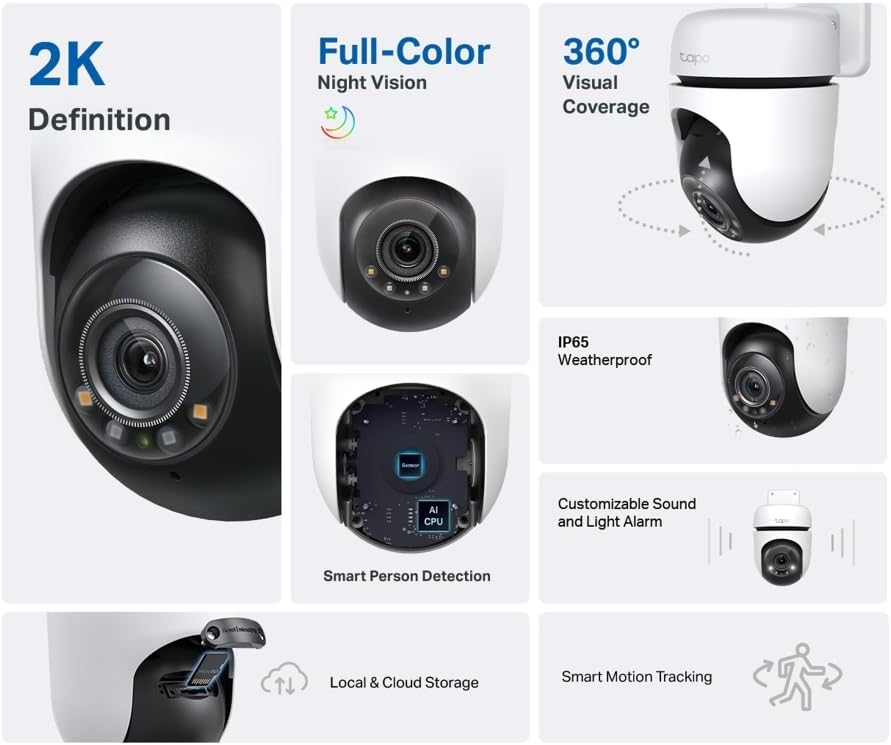
Image 5.1: TP-Link Tapo TC41 Feature Overview. This composite image highlights key features such as 2K definition, full-color night vision, 360-degree visual coverage, IP65 weatherproof rating, smart person detection, local and cloud storage options, and smart motion tracking.

Image 5.2: TP-Link Tapo TC41 2K Resolution Detail. This image compares 2K resolution (2304 × 1296 px) with 1080p, showing the enhanced clarity and detail captured by the TC41 camera, particularly visible in zoomed-in sections of a child's face.

Image 5.3: TP-Link Tapo TC41 Multiple Detection Features. This image illustrates the camera's advanced detection capabilities, including person detection, general motion detection, and customizable activity zones, with an example notification on a smartphone.
6. Maintenance
6.1. Cleaning the Camera
Periodically clean the camera lens and body with a soft, dry cloth. Do not use liquid cleaners or aerosols that may damage the device.
6.2. Firmware Updates
Ensure your camera's firmware is up to date for optimal performance and security. Check for updates through the Tapo app settings.
7. Troubleshooting
7.1. Camera Offline
- Check if the camera is powered on and the power adapter is securely connected.
- Verify that your Wi-Fi network is operational and the camera is within range.
- Restart the camera by unplugging and replugging the power adapter.
- If the issue persists, try resetting the camera to factory defaults (refer to the Quick Start Guide for specific steps) and re-add it to the Tapo app.
7.2. Poor Video Quality
- Ensure the camera lens is clean and free from obstructions.
- Check your Wi-Fi signal strength. A weak signal can affect video streaming quality.
- Adjust video resolution settings in the Tapo app if your network bandwidth is limited.
7.3. Motion Detection Not Working
- Verify that motion detection is enabled in the Tapo app.
- Adjust the sensitivity settings.
- Ensure activity zones are correctly configured to cover the desired areas.
8. Specifications
| Feature | Specification |
|---|---|
| Model Number | TC41 |
| Resolution | 2K (2304 × 1296 px) |
| Pan/Tilt Range | 360° Horizontal, 130° Vertical |
| Night Vision | Full-Colour, Black-and-White, Smart Mode |
| Weather Resistance | IP65 |
| Connectivity | Wi-Fi (2.4 GHz) |
| Local Storage | MicroSD card (up to 512 GB) |
| Power Source | Corded Electric |
| Compatible Devices | Laptop, Smartphone, Tablet |
| Product Dimensions | 16 x 21 x 14.5 cm |
| Product Weight | 500 g |
9. Warranty and Support
TP-Link provides a standard manufacturer's warranty for this product. For detailed warranty information, technical support, or service inquiries, please visit the official TP-Link website or contact their customer support directly. Keep your purchase receipt for warranty claims.
For additional support, visit: TP-Link Support


