
Introduction
This manual provides detailed instructions for the installation, operation, and maintenance of your SIXWIN Android Car Stereo, Model A7103A3018A4MI2. This unit is specifically designed for 2002-2006 Honda CRV vehicles, offering a 9-inch touch screen with Android 13 system, CarPlay, Android Auto, Bluetooth, GPS, WiFi, FM radio, Steering Wheel Control (SWC) compatibility, and a backup camera input.
Please read this manual thoroughly before installation and use to ensure proper function and to maximize your experience with the product.
Setup and Installation
The SIXWIN Android Car Stereo is designed for plug-and-play installation in compatible 2002-2006 Honda CRV models. Professional installation is recommended to ensure correct wiring and functionality.
Package Contents
Verify that all components are present in the package:
- SIXWIN Android Car Stereo Unit (9-inch display)
- Power Cord
- RCA Cable
- USB Adapter Cables (multiple)
- GPS Antenna
- AHD Rear Camera
- Microphone (MIC)
- Rear Camera Input Cable
- Installation Tools (if included)
- Screws
- Product Manual (this document)

Figure 1: Installation Size and Included Accessories
Installation Steps (General Overview)
- Preparation: Disconnect the vehicle's battery before starting any electrical work.
- Remove Old Unit: Carefully remove the existing car radio from the dashboard.
- Connect Wiring: Connect the provided power cord, RCA cables, USB cables, GPS antenna, and microphone to the corresponding ports on the new stereo and vehicle harness.
- Backup Camera Installation: Install the AHD rear camera at the rear of the vehicle and route its cable to the stereo unit. Connect the rear camera input cable.
- Test Connections: Before fully securing the unit, temporarily reconnect the battery and power on the stereo to ensure all connections are working correctly (audio, display, camera, etc.).
- Secure Unit: Mount the SIXWIN Android Car Stereo into the dashboard opening using the provided screws and installation tools.
- Final Assembly: Reassemble any removed dashboard panels.
- Steering Wheel Control (SWC) Learning: After installation, navigate to the settings menu on the stereo (often accessed by entering a code like "8888") to configure and learn your vehicle's steering wheel controls. This allows you to map functions like volume, track skip, and mode to your steering wheel buttons.
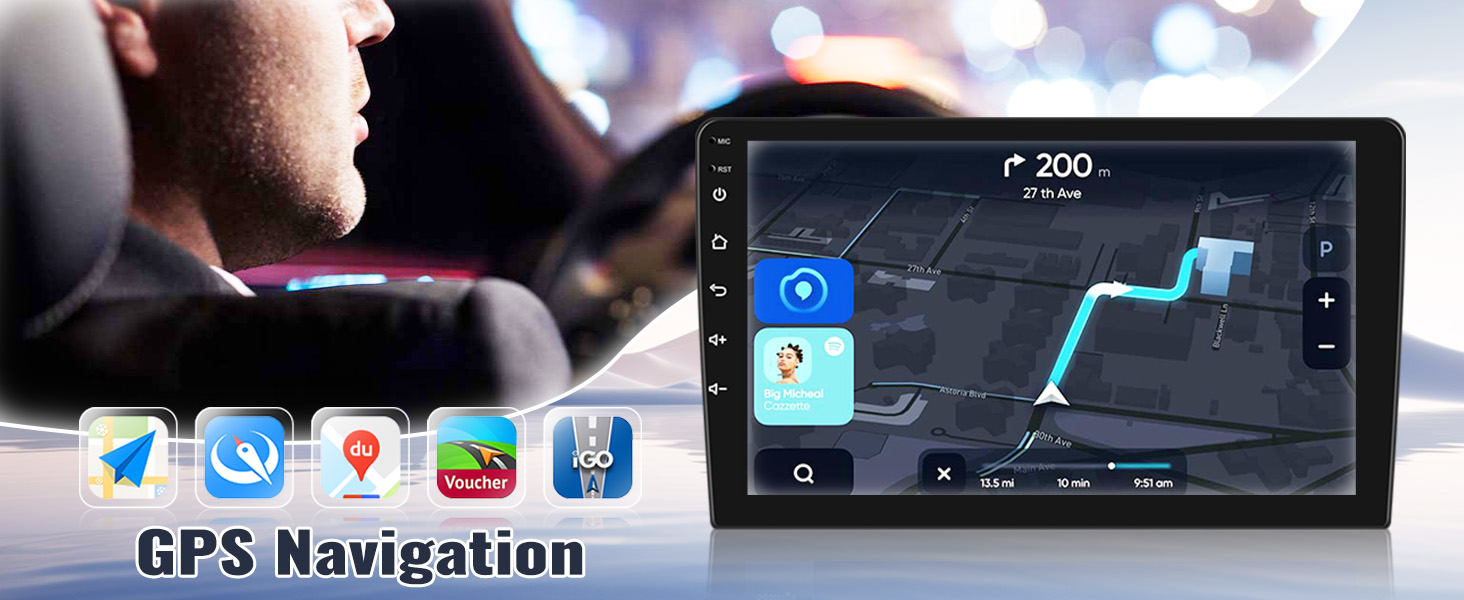
Figure 2: Installation Effect - Before and After

Figure 3: Steering Wheel Control Learning Interface
Operating Instructions
Your SIXWIN Android Car Stereo operates on an Android 13 system, providing a responsive and intuitive user experience on its 9-inch 1080P high-definition touch screen. The unit features 2GB RAM and 64GB ROM for smooth performance and ample storage.
Basic Navigation and Interface
- Touch Screen: Interact with the unit using touch gestures similar to a smartphone or tablet.
- Home Screen: Access frequently used applications and widgets.
- App Drawer: Swipe up or tap the app icon to view all installed applications.
- Settings: Access system settings, network configurations, display options, and more.
Figure 4: 1080P Touchscreen Interface
Wireless CarPlay and Android Auto
The stereo supports both wireless and wired Apple CarPlay and Android Auto, allowing seamless integration with your smartphone.
- Connection: Connect your phone via USB cable, Bluetooth, or WiFi.
- Functionality: Once connected, you can access navigation, phone contacts, messages, music, and other compatible apps directly from the stereo's screen.
- Voice Control: Use Siri or Google Assistant for hands-free operation.
- For Wireless CarPlay: Connect via Bluetooth, then open the "Zlink" app on the car stereo.
- For Wireless Android Auto: Download the Android Auto app on your phone, connect via Bluetooth, then open the "Zlink" app on the car stereo. (Note: Some Samsung phones may not be supported for wireless Android Auto).

Figure 5: CarPlay and Android Auto Interfaces
Mirror Link
Mirror Link allows you to display your smartphone's screen directly onto the car stereo. This feature supports both iOS (via WiFi) and Android (via WiFi/USB).

Figure 6: Mirror Link Functionality
GPS Navigation and WiFi
The unit includes built-in GPS navigation, supporting both online and offline maps. It comes pre-installed with the "Here We Go" app.
- Offline Maps: Download necessary offline maps through the "Here We Go" app to use navigation without an internet connection.
- WiFi Connectivity: Connect the stereo to a WiFi hotspot (e.g., from your phone) to access online navigation, download apps from the Play Store (YouTube, TikTok, Spotify), and browse the internet.

Figure 7: GPS Navigation and WiFi Interface

Figure 8: Detailed GPS Navigation View
Bluetooth Hands-free and Music
Connect your smartphone via Bluetooth for hands-free calling and audio streaming.
- Pairing: Enable Bluetooth on your phone and search for the stereo unit. Pair the devices.
- Hands-free Calls: Answer or make calls directly from the stereo screen using the built-in microphone. Access your phonebook.
- Bluetooth Music: Stream audio from your phone to the car stereo.
Figure 9: Bluetooth Interface for Calls and Music
FM Radio and HiFi Function
- FM Radio: Access 18 preset stations across a wide frequency range (FM 87.50-108.0 MHz). Scan for stations and save your favorites.
- HiFi Function: The unit provides high-fidelity audio output, enhancing your listening experience with clear sound quality.
Figure 10: FM Radio Interface
Figure 11: HiFi Function Equalizer
Backup Camera
The included AHD backup camera provides a high-definition view of the area behind your vehicle, assisting with safer parking and reversing.
- Automatic Display: The camera feed automatically displays on the screen when the vehicle is shifted into reverse.
- Features: The camera offers clear night vision, a 170° wide-angle view, and is waterproof.

Figure 12: Backup Camera View and Features
Split Screen Functionality
The split-screen feature allows you to run two applications simultaneously on the 9-inch display, such as navigation and music playback.
Figure 13: Split Screen Display
Maintenance
Proper maintenance ensures the longevity and optimal performance of your car stereo.
- Screen Cleaning: Use a soft, lint-free cloth to gently wipe the touch screen. For stubborn smudges, slightly dampen the cloth with water or a screen-safe cleaner. Avoid harsh chemicals or abrasive materials.
- Software Updates: Periodically check for available software updates through the system settings (if applicable) to ensure you have the latest features and bug fixes.
- Ventilation: Ensure the stereo's ventilation openings are not blocked to prevent overheating.
- Cable Connections: Occasionally check all cable connections to ensure they are secure.
Troubleshooting
Refer to this section for common issues and their solutions.
| Problem | Possible Cause | Solution |
|---|---|---|
| No Power / Unit Does Not Turn On | Loose power connection, blown fuse, vehicle battery issue. | Check power cables and connections. Inspect vehicle fuses. Ensure vehicle battery is charged. |
| No Sound | Volume too low, mute activated, incorrect audio source, loose speaker wires. | Increase volume. Check if mute is active. Select correct audio source. Verify speaker wire connections. |
| Bluetooth Audio Cuts Out / Poor Quality | Interference, phone too far, outdated phone software, weak Bluetooth signal. | Ensure phone is close to the unit. Disconnect and re-pair Bluetooth. Update phone's operating system. Avoid other Bluetooth devices nearby. |
| GPS Not Locating / Inaccurate | GPS antenna not properly connected or obstructed, outdated maps. | Ensure GPS antenna is securely connected and has a clear view of the sky. Update offline maps if using. |
| Backup Camera Not Displaying | Loose camera connection, incorrect wiring, camera malfunction. | Check camera cable connections. Ensure the camera is receiving power. Verify reverse trigger wire connection. |
| Touch Screen Unresponsive | Temporary software glitch, screen protector interference. | Restart the unit. Remove and reapply screen protector if present. If issue persists, contact support. |
Specifications
| Feature | Detail |
|---|---|
| Model Number | A7103A3018A4MI2 |
| Brand | SIXWIN |
| Compatible Vehicle | 2002-2006 Honda CRV |
| Operating System | Android 13 |
| Display Size | 9 Inches |
| Resolution | 1024 x 600 |
| RAM | 2GB |
| ROM (Internal Storage) | 64GB |
| Connectivity | Wireless (Bluetooth, WiFi), USB, AUX-in |
| Special Features | Touchscreen, Wireless CarPlay, Android Auto, Mirror Link, Built-in GPS Navigation (offline maps supported), FM Radio, HiFi Audio, Steering Wheel Control (SWC) compatibility, Backup Camera Input (AHD camera included) |
| Audio Output Mode | Stereo |
| Item Weight | 3.39 pounds |
| Product Dimensions | 1 x 1 x 1 inches (Note: These dimensions might be packaging or generic, refer to Figure 1 for actual unit dimensions) |
Warranty Information
The SIXWIN Android Car Stereo (Model A7103A3018A4MI2) comes with a 1-year warranty from the date of purchase. This warranty covers manufacturing defects and malfunctions under normal use.
Please retain your proof of purchase for warranty claims. The warranty does not cover damage caused by improper installation, misuse, accidents, unauthorized repairs, or normal wear and tear.
Customer Support
If you encounter any issues not covered in the troubleshooting section or require further assistance, please contact SIXWIN customer support. Refer to the product packaging or the seller's information for contact details.
When contacting support, please have your product model number (A7103A3018A4MI2) and proof of purchase readily available.
