
1. Introduction
This manual provides essential information for the installation, operation, and maintenance of your POWLAND 4.2 KVA 3.8 kW Hybrid Inverter. Please read this manual thoroughly before installation and operation to ensure proper and safe use of the device. Keep this manual for future reference.
The POWLAND Hybrid Inverter is a multi-functional inverter/charger, combining functions of an inverter, solar charger, and battery charger to offer uninterruptible power support in a portable size. Its comprehensive LCD display allows user-configurable and easy-accessible button operation such as battery charging current, AC/solar charger priority, and acceptable input voltage based on different applications.

Figure 1: Front view of the POWLAND 4.2 KVA 3.8 kW Hybrid Inverter.
2. Safety Instructions
Please adhere to all safety warnings and instructions provided in this manual. Improper operation may cause damage to the unit, personal injury, or even death.
- Qualified Personnel: Only qualified personnel should install or maintain this device.
- Electrical Shock Hazard: Do not open the inverter casing. There are no user-serviceable parts inside. High voltages are present even when the unit is turned off.
- Battery Safety: Work with batteries carefully. Wear eye protection and appropriate clothing. Do not short-circuit battery terminals.
- Ventilation: Ensure adequate ventilation around the inverter to prevent overheating.
- Flammable Materials: Do not install the inverter near flammable materials.
- Grounding: The inverter must be properly grounded.
3. Product Overview and Components
Familiarize yourself with the inverter's physical components and connection ports.

Figure 2: Labeled diagram of the POWLAND Hybrid Inverter's external components and connection ports.
- RS232 Communication Port: For connecting to a computer for monitoring and configuration.
- Power ON/OFF Switch: Controls the main power to the inverter.
- AC Input: Connection for grid power or generator input.
- AC Output: Connection for household appliances and loads.
- PV Input: Connection for solar panel array.
- Battery Input: Connection for 24V battery bank.
- Safety (Earth) Ground: Essential grounding point for safety.
4. Setup and Installation
Follow these steps for safe and correct installation of your hybrid inverter.
4.1 Installation Environment
- Install the inverter indoors, away from direct sunlight, heat sources, and moisture.
- Ensure the ambient temperature is between 0°C and 55°C.
- Maintain at least 20 cm clearance around the unit for proper airflow.
- Mount the inverter vertically on a sturdy wall.
4.2 Wiring Connections
All wiring must comply with local electrical codes. Use appropriate wire gauges for all connections.

Figure 3: Typical system connection diagram for the POWLAND Hybrid Inverter, showing solar panels, generator, utility grid, battery, and home appliances.
- Battery Connection: Connect the 24V battery bank to the Battery Input terminals (6). Ensure correct polarity (+ to + and - to -).
- AC Input Connection: Connect the utility grid or generator AC power to the AC Input terminals (3).
- AC Output Connection: Connect your AC loads (home appliances) to the AC Output terminals (4).
- PV Input Connection: Connect your solar panel array to the PV Input terminals (5). Ensure the PV voltage is within the specified range (55-430 VDC).
- Grounding: Connect the Safety (Earth) Ground terminal (7) to a reliable earth ground.
Warning: Ensure all connections are secure before powering on the unit. Incorrect wiring can cause severe damage or injury.
4.3 Initial Power-Up
- Ensure all wiring is correct and secure.
- Turn on the battery breaker.
- Turn on the AC input breaker (if connected).
- Turn on the PV input breaker (if connected).
- Switch the Power ON/OFF Switch (2) to the "ON" position.
- Observe the LCD display for initial startup sequence and status.
5. Operating the Inverter
5.1 LCD Display and Function Keys
The LCD display provides real-time operational data and allows for system configuration. The function keys enable navigation and selection.

Figure 4: Detailed view of the LCD display, LED indicators, and function keys.
| Function Key | Description |
|---|---|
| ESC | To exit setting mode |
| UP | To go to previous selection |
| DOWN | To go to next selection |
| ENTER | To confirm the selection in setting mode or enter setting mode |
5.2 LED Indicators
The LED indicators provide a quick visual status of the inverter's operation.
| LED Indicator | Status | Messages |
|---|---|---|
| AC / INV (Green) | Solid On | Output is powered by utility in Line mode. |
| Flashing | Output is powered by battery or PV in battery mode. | |
| CHG (Green) | Solid On | Battery is fully charged. |
| Flashing | Battery is charging. | |
| FAULT (Red) | Solid On | Fault occurs in the inverter. |
| Flashing | Warning condition occurs in the inverter. |
5.3 Pure Sine Wave Output
The inverter provides a pure sine wave output, ensuring compatibility with sensitive electronics and appliances, similar to grid power.
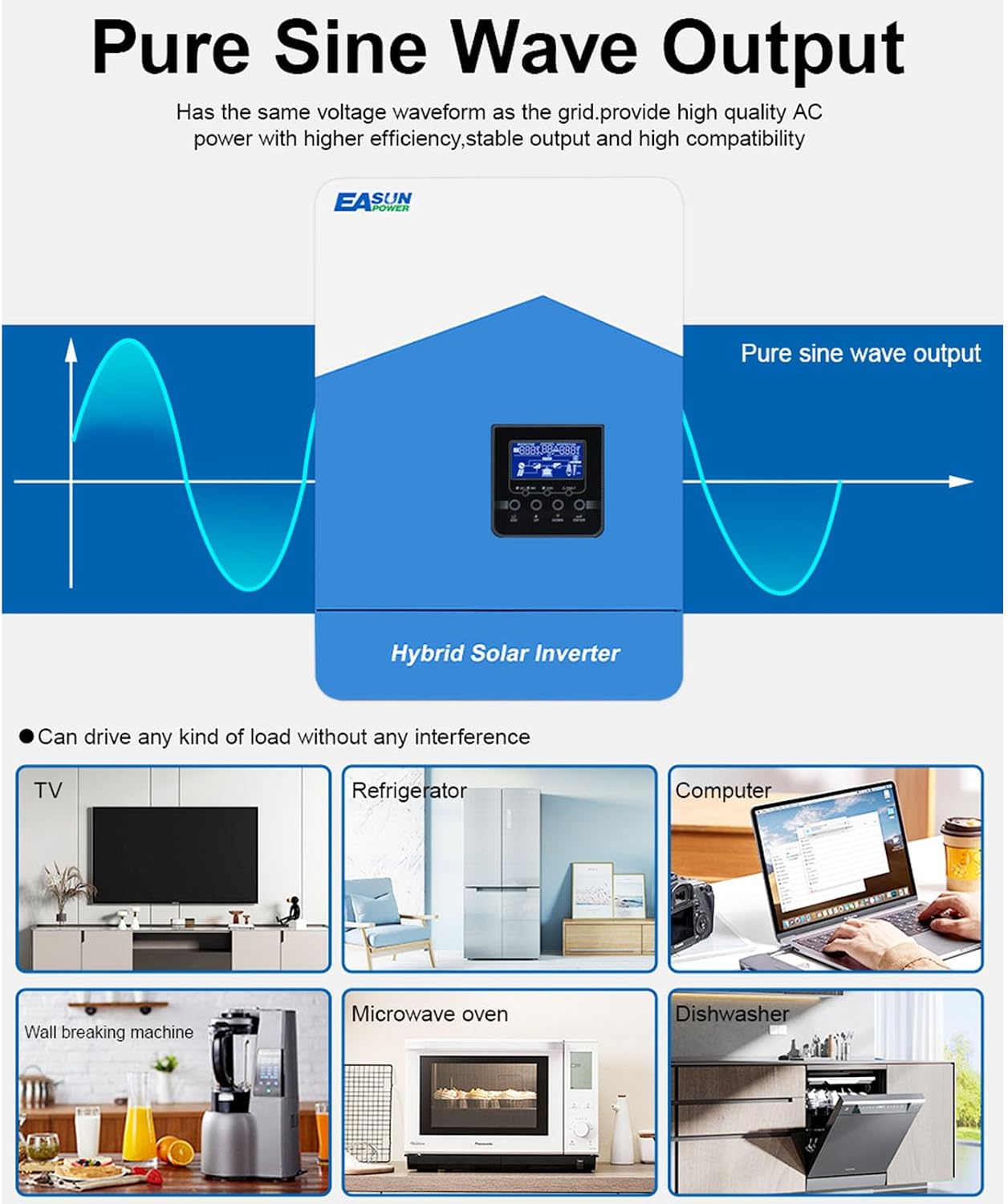
Figure 5: Illustration of pure sine wave output and examples of compatible household appliances.
5.4 WiFi Module and App Monitoring
The inverter includes a WiFi module for remote monitoring and control via a dedicated mobile application (SMARTESS APP) available for iOS and Android devices.

Figure 6: The WiFi module connected to the inverter, enabling monitoring via the SMARTESS mobile application.
To set up the WiFi module:
- Connect the WiFi module to the RS232 communication port (1) on the inverter.
- Download the "SMARTESS" app from your device's app store.
- Follow the in-app instructions to connect the module to your local WiFi network and register your inverter.
- Once connected, you can monitor system status, energy flow, and adjust certain parameters remotely.
Note: The QR code on the WiFi module (QE621051734258) may be used for app pairing or registration.
6. Maintenance
Regular maintenance ensures optimal performance and longevity of your inverter.
- Cleaning: Periodically clean the exterior of the inverter with a dry cloth. Ensure ventilation openings are free from dust and debris. Do not use liquid cleaners.
- Connection Checks: Annually inspect all wiring connections for tightness and signs of corrosion.
- Battery Inspection: Regularly check battery terminals for corrosion and ensure proper ventilation for flooded lead-acid batteries. Follow battery manufacturer's maintenance guidelines.
- Environmental Check: Ensure the installation environment remains within specified temperature and humidity ranges.
7. Troubleshooting
This section provides solutions for common issues. For problems not listed here, contact technical support.
| Problem | Possible Cause | Solution |
|---|---|---|
| Inverter does not power on. | Battery not connected or low voltage; Power switch off; Loose connections. | Check battery connections and voltage; Ensure power switch is ON; Verify all wiring. |
| FAULT LED is solid red. | Internal fault; Overload; Short circuit. | Disconnect loads; Turn off and restart inverter; If fault persists, contact support. |
| CHG LED is not flashing when charging. | No AC input; No PV input; Battery fully charged; Charging disabled in settings. | Check AC/PV input sources; Verify battery charge level; Check inverter settings. |
| WiFi module not connecting to app. | Incorrect WiFi password; Module not properly connected; App registration issue. | Verify WiFi credentials; Reconnect module; Re-attempt app registration. |
8. Specifications
Key technical specifications for the POWLAND 4.2 KVA 3.8 kW Hybrid Inverter.
| Feature | Value |
|---|---|
| Model Number | ISolar-SMH-II-4.2K-WiFi |
| Rated Power | 3.8 kW (4.2 KVA) |
| Battery Voltage | 24 V |
| AC Output Voltage | 230 V |
| PV Input Voltage Range | 55-430 VDC |
| Max Solar Charge Current | 110 A |
| Max PV Array Power | 6000 W |
| Product Dimensions | 42.3L x 29W x 10H centimeters |
| Item Weight | 6.8 Kilograms |
| Recommended Uses | Home |
| Manufacturer | EASUN POWER |
9. Warranty and Support
For warranty information, please refer to the documentation provided with your purchase or contact your retailer. For technical support, please contact POWLAND customer service or visit their official website. Ensure you have your model number (ISolar-SMH-II-4.2K-WiFi) and purchase details available when seeking support.


