
1. Introduction
Thank you for choosing the virtavo Indoor WiFi Security Camera. This manual provides essential information for setting up, operating, and maintaining your camera to ensure optimal performance and home security. Please read this manual thoroughly before using the product and keep it for future reference.
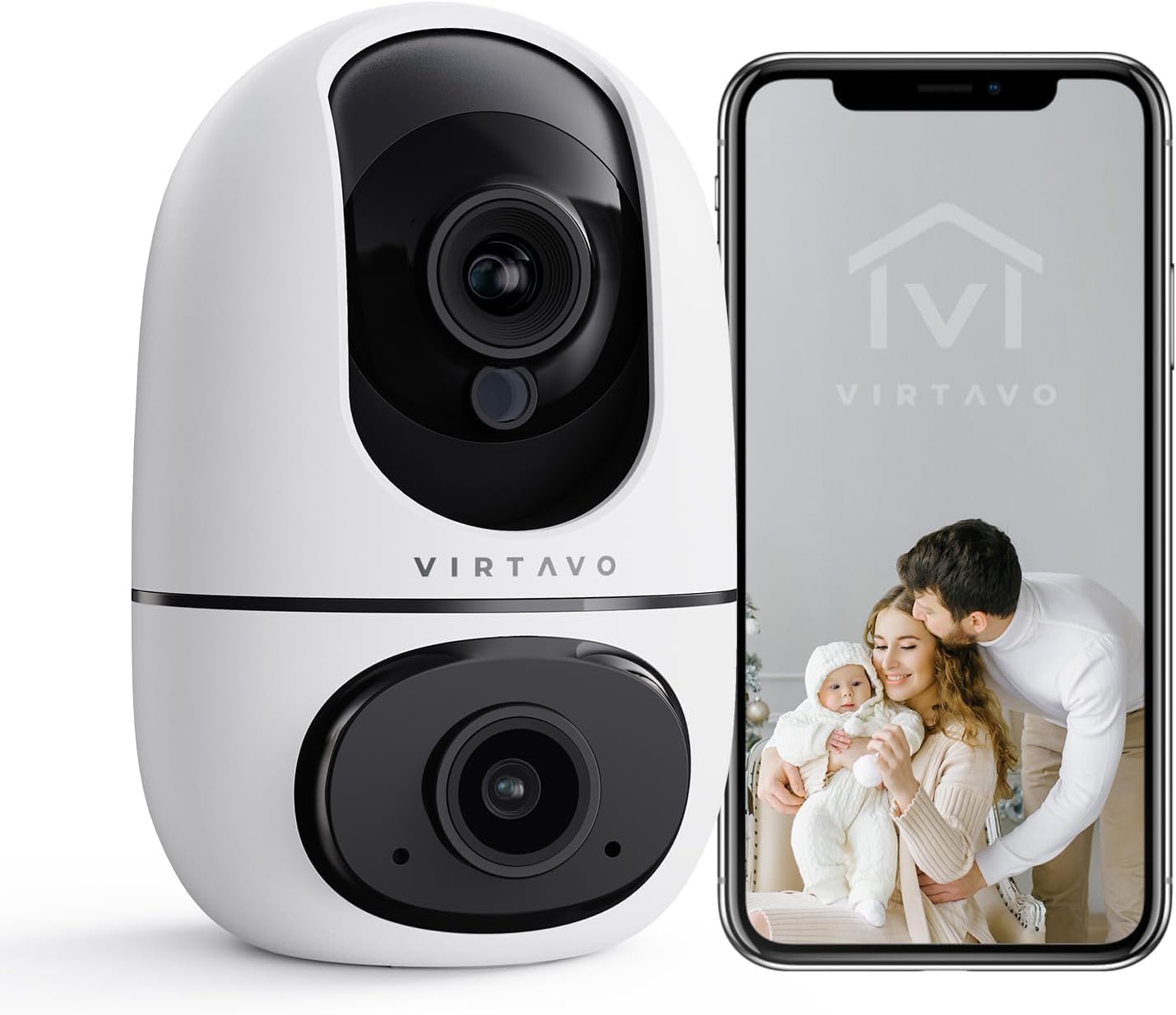
The virtavo Indoor WiFi Security Camera, shown alongside a smartphone displaying its live view, is designed for comprehensive indoor surveillance, offering peace of mind for your home, baby, or pets.
2. Package Contents
Please check the package contents upon unboxing. If any items are missing or damaged, contact customer support.
- virtavo Indoor WiFi Security Camera (Model XD1-V124)
- Power Adapter
- USB Power Cable
- Mounting Accessories (Screws, Wall Plugs)
- User Manual (This document)
3. Product Overview
The virtavo Indoor WiFi Security Camera features a dual-lens design, providing enhanced monitoring capabilities. It supports 1080p resolution, pan and tilt functionality for 360-degree coverage, two-way audio, and advanced detection features.

This image highlights the key features of the virtavo camera, including its dual-lens design, 2.4GHz WiFi connectivity, 1080p resolution, extensive pan and tilt range, two-way audio, AI detection, motion tracking, night vision, and video storage capabilities.
Key Features:
- Dual-Lens Design: For comprehensive monitoring.
- 1080p Full HD Resolution: Provides clear and detailed video.
- 360° Pan & Tilt: Offers a wide viewing angle for complete room coverage.
- Two-Way Audio: Communicate with family or pets remotely.
- AI Detection & Motion Tracking: Intelligently identifies and follows movement.
- Night Vision: Clear visibility even in low light or complete darkness.
- 2.4GHz WiFi Connectivity: Stable wireless connection.
- Local & Cloud Storage: Options for video recording.
4. Setup
4.1 Powering On
- Connect the USB power cable to the camera's power port.
- Plug the power adapter into a standard electrical outlet.
- The camera will power on and initiate its self-check sequence. Wait for the indicator light to flash, indicating it's ready for connection.
4.2 App Installation and Account Creation
- Download the official virtavo app from your smartphone's app store (iOS App Store or Google Play Store).
- Open the app and follow the on-screen instructions to create a new account or log in if you already have one.
4.3 Connecting the Camera to WiFi
- In the virtavo app, tap the "+" icon to add a new device.
- Select "Security Camera" or the specific model if prompted.
- Follow the in-app instructions to connect the camera to your 2.4GHz WiFi network. This typically involves scanning a QR code generated by the app with the camera's lens or entering your WiFi password.
- Once connected, the camera's indicator light will turn solid, and you will hear a confirmation sound.
4.4 Mounting the Camera (Optional)
The camera can be placed on a flat surface (tabletop mounting) or mounted to a wall or ceiling using the provided accessories.
- Tabletop Placement: Simply place the camera on a stable, flat surface within range of your WiFi network and a power outlet.
- Wall/Ceiling Mounting:
- Choose a suitable location, ensuring a clear view and access to power.
- Use the mounting template (if provided) or mark the screw holes on the desired surface.
- Drill pilot holes and insert wall plugs if mounting on drywall or masonry.
- Secure the mounting bracket (if applicable) with screws.
- Attach the camera to the mounting bracket, ensuring it is securely locked in place.
5. Operating the Camera
5.1 Live View and Pan/Tilt Control
Open the virtavo app and select your camera to access the live view. Use the on-screen controls to pan (horizontal) and tilt (vertical) the camera lens to adjust the viewing angle.

The virtavo camera supports dual-view monitoring, allowing you to see multiple camera feeds or different perspectives from the dual-lens on a single screen for an enhanced split-screen experience.
5.2 Two-Way Audio
Tap the microphone icon in the live view to speak through the camera's speaker. Tap the speaker icon to listen to audio from the camera's surroundings.
5.3 Motion Detection and Alerts
Enable motion detection in the app settings to receive instant alerts on your smartphone when movement is detected. You can adjust sensitivity levels and set specific activity zones to reduce false alarms.

This feature allows users to define specific activity zones within the camera's view, ensuring that alerts are only triggered by motion in designated areas, reducing unnecessary notifications.
5.4 Night Vision
The camera automatically switches to night vision mode in low-light conditions. It features powerful starlight color night vision for clear images even in complete darkness.

The image demonstrates the superior clarity of the virtavo camera's Starlight Color Night Vision, providing detailed and visible footage even in very low light or complete darkness, compared to a traditional camera.
5.5 Digital Zoom
Pinch to zoom on the live view to digitally magnify the image up to 8 times, allowing for closer inspection of details.

This visual illustrates the 8X digital zoom capability of the camera, allowing users to zoom in on specific areas of interest within the live feed for clearer and more detailed viewing.
5.6 Multi-User Sharing
Share access to your camera's live feed and recordings with family members or trusted individuals through the app. Each user can have their own account and access permissions.

The multi-user sharing feature enables you to securely share your camera's feed with family members, allowing everyone to monitor the home together for enhanced safety and convenience.
5.7 Preset Positions
Save specific camera angles as preset positions for quick navigation. This allows you to instantly move the camera to a predefined view with a single tap.

This image illustrates the "My Collections" feature, which allows users to save and quickly recall specific camera positions (presets) within the app, making it easy to monitor different areas of a room.
6. Maintenance
- Cleaning: Gently wipe the camera lens and body with a soft, dry cloth. Do not use harsh chemicals or abrasive cleaners.
- Firmware Updates: Regularly check the virtavo app for available firmware updates. Keeping your camera's firmware up-to-date ensures optimal performance, security, and access to new features.
- Network Stability: Ensure your WiFi network is stable and strong where the camera is located to prevent connectivity issues.
7. Troubleshooting
| Problem | Possible Cause | Solution |
|---|---|---|
| Camera offline/Cannot connect to WiFi | Weak WiFi signal, incorrect WiFi password, camera too far from router, 5GHz WiFi network. | Ensure camera is within 2.4GHz WiFi range. Verify WiFi password. Restart camera and router. Re-add camera in the app. |
| No motion detection alerts | Motion detection disabled, sensitivity too low, activity zones not set correctly, app notifications off. | Enable motion detection in app. Adjust sensitivity. Configure activity zones. Check phone notification settings for the app. |
| Poor video quality | Insufficient bandwidth, dirty lens, low light conditions. | Ensure stable internet connection. Clean the camera lens. Verify night vision is active in low light. |
| Two-way audio not working | Microphone/speaker muted in app, app permissions not granted. | Check audio settings in the app. Grant microphone permissions to the app in your phone settings. |
8. Specifications
| Feature | Detail |
|---|---|
| Model Number | XD1-V124 |
| Video Resolution | 1080p Full HD |
| Connectivity | 2.4GHz Wi-Fi |
| Pan/Tilt Range | 350° Horizontal, 70° Vertical (approx.) |
| Audio | Two-Way Audio |
| Night Vision | Infrared, Starlight Color Night Vision |
| Special Features | AI Detection, Motion Tracking, Digital Zoom (8X), Multi-User Sharing, Preset Positions, Activity Zones |
| Power Source | Electric Cable (10 Watts) |
| Dimensions (L x W x H) | 14.3 x 6.6 x 11.91 cm (approx.) |
| Weight | 158.76 grams (approx.) |
| Material | Plastic |
| Indoor/Outdoor Use | Indoor |
| Compatible Devices | Smartphone, Tablet (Android) |
9. Warranty and Support
9.1 Warranty Information
The virtavo Indoor WiFi Security Camera comes with a standard manufacturer's warranty. Please refer to the product packaging or the official virtavo website for specific warranty terms and conditions. Keep your purchase receipt as proof of purchase for warranty claims.
9.2 Customer Support
For technical assistance, troubleshooting, or warranty inquiries, please contact virtavo customer support through the following channels:
- Email: Refer to the virtavo official website for support email address.
- Website: Visit the official virtavo website for FAQs, support articles, and contact forms.
- In-App Support: Some issues can be resolved directly through the support section within the virtavo mobile application.
Please have your model number (XD1-V124) and purchase details ready when contacting support.


