
1. Introduction
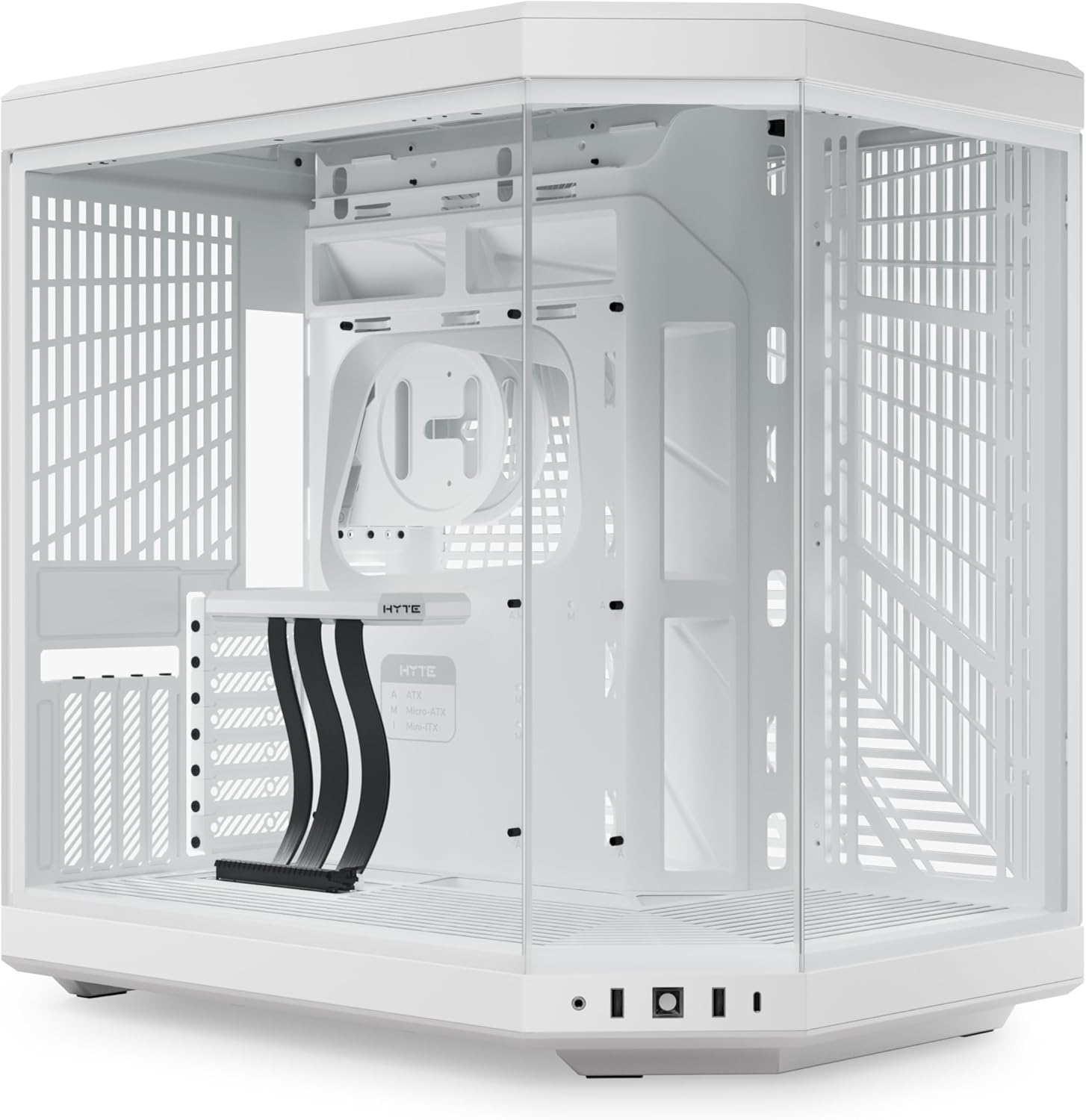
The HYTE Y70 is an advanced dual-chamber ATX mid-tower computer case designed for high-performance gaming systems. It features a panoramic tempered glass display, extensive cooling capabilities, and a pre-installed PCIe 4.0 riser cable for vertical GPU mounting. This manual provides essential information for the proper assembly, operation, and maintenance of your HYTE Y70 case.
2. Safety Information
Please read and understand all safety precautions before installing components into the HYTE Y70 case. Failure to follow these guidelines may result in personal injury or damage to your equipment.
- Electrical Safety: Always disconnect the power supply from the wall outlet before installing or removing any components. Ensure proper grounding.
- Static Discharge: Wear an anti-static wrist strap or frequently touch a grounded metal object to prevent electrostatic discharge (ESD), which can damage sensitive electronic components.
- Handling Components: Handle all components, especially the tempered glass panels, with care. Tempered glass, while durable, can shatter if subjected to sharp impacts or excessive force.
- Ventilation: Ensure adequate airflow around the case to prevent overheating. Do not block ventilation openings.
- Weight: The case itself weighs approximately 24.3 pounds (11 kg). With components installed, it will be heavier. Lift with care, using proper lifting techniques.
3. Package Contents
Verify that all items are present in your HYTE Y70 package:
- HYTE Y70 Mid-Tower ATX Computer Gaming Case (Snow White)
- PCIe 4.0 x16 Riser Cable with color-matched canopy
- Accessory box containing screws, standoffs, cable ties, and other small parts.
- User Manual (this document)
4. Product Overview
The HYTE Y70 case is engineered for both aesthetic appeal and high performance, featuring a dual-chamber design and panoramic tempered glass panels.
Key Features:
- Panoramic Tempered Glass: A three-piece panoramic glass design provides an unobstructed view of your internal components.
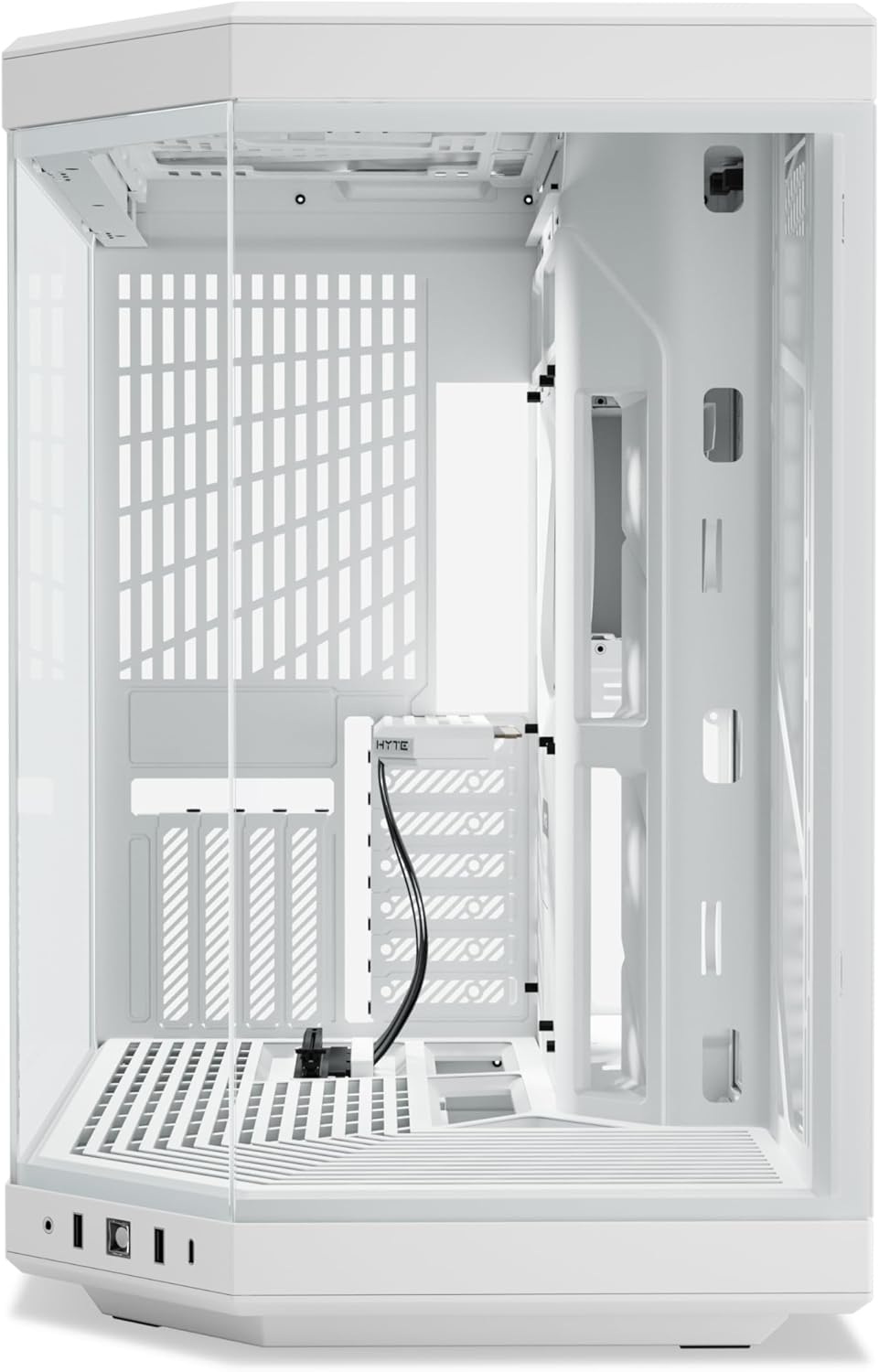
- Dual Chamber Layout: Separates the main components from the power supply and cable management area for a cleaner build and improved airflow.
- Vertical GPU Mounting: Supports massive 4-slot vertical graphics cards with an included PCIe 4.0 x16 riser cable.
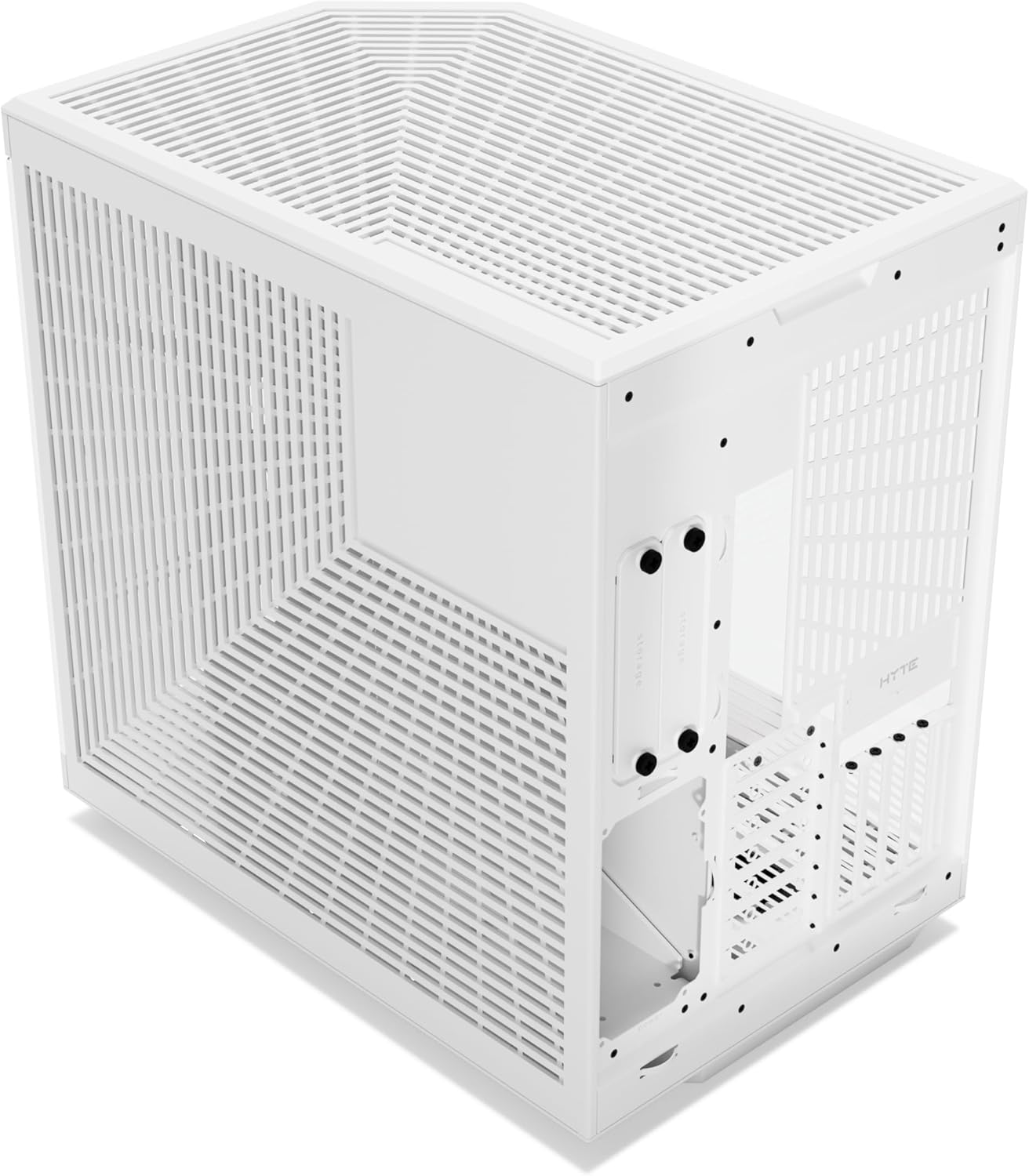
- Extensive Cooling Capacity: Accommodates up to a 360mm radiator on the side (up to 125mm thick) and top (up to 68mm thick). Features cold floor cooling for the GPU, supporting up to three 120mm or two 140mm fans (up to 32mm thick). Total capacity for up to 10 fans.
- Optimized Cable Management: Includes an L-shaped molded rubber grommet, dedicated routing channels, tie-down points, and reusable Velcro straps in the rear chamber.
- Tool-less Access: Top and side panels are easily removable without tools for convenient installation and maintenance.
- Floating Storage Sleds: Drive bays eject from the rear for intuitive drive maintenance.
Visual Components:



5. Setup and Installation
Follow these steps to install your computer components into the HYTE Y70 case.
- Prepare the Case: Carefully remove the tempered glass panels and the rear side panel by gently pulling them away from the chassis. The top panel can also be removed for easier access.
- Install Power Supply (PSU): Mount your power supply unit in the dedicated compartment in the rear chamber of the case. Secure it with screws provided in the accessory box.
- Install Motherboard: Align your ATX, Micro-ATX, or Mini-ITX motherboard with the standoffs in the main chamber. Secure it with the appropriate screws.
- Install Storage Drives: Utilize the floating storage sleds in the rear chamber for 2.5-inch SSDs or 3.5-inch HDDs. Eject the sleds, mount your drives, and reinsert them.
- Install Cooling Solutions:
- Fans: Install case fans in the designated locations (side, top, bottom, rear). The case supports up to three 120mm or two 140mm fans at the bottom, and various configurations on the side and top.
- Radiators: If using liquid cooling, mount radiators up to 360mm on the side or top brackets. Ensure proper clearance for tubes and fittings.
- Install Graphics Card (GPU): The HYTE Y70 supports vertical GPU mounting. Connect your graphics card to the included PCIe 4.0 x16 riser cable and secure it in the vertical slot. Ensure the card is properly seated and secured.
- Connect Front I/O Cables: Connect the front panel USB 2.0, USB 3.0, audio, and power/reset switch cables to the corresponding headers on your motherboard.
- Cable Management: Route all power and data cables through the designated channels and tie-down points in the rear chamber. Use the provided Velcro straps to bundle cables neatly.
- Reassemble Panels: Once all components are installed and cables are managed, carefully reattach the side and top panels.
6. Operating the Case
The HYTE Y70 case functions as an enclosure for your computer components, facilitating airflow and protecting hardware. Once your system is fully assembled and powered on, ensure proper ventilation and monitor component temperatures.
- Power On: Press the power button located on the front I/O panel to start your system.
- Airflow Optimization: For optimal cooling performance, ensure that intake fans draw cool air into the case and exhaust fans expel hot air. The dual-chamber design and extensive fan mounting options allow for highly efficient airflow configurations.
- Aesthetic Display: The panoramic glass panels are designed to showcase your internal components. Consider lighting and component placement for visual appeal.
7. Maintenance
Regular maintenance helps ensure optimal performance and longevity of your HYTE Y70 case and its components.
- Dust Filters: The case features removable dust filters to prevent dust buildup inside. Regularly remove and clean these filters by rinsing them with water or using a soft brush. Ensure they are completely dry before reinstallation.
- Exterior Cleaning: Wipe the exterior surfaces, including the tempered glass panels, with a soft, lint-free cloth. For stubborn smudges on glass, use a glass cleaner applied to the cloth, not directly to the glass. Avoid abrasive cleaners.
- Interior Dusting: Periodically, with the system powered off and unplugged, use compressed air to remove dust from internal components and hard-to-reach areas.
8. Troubleshooting
This section addresses common issues you might encounter during setup or operation.
- System Not Powering On:
- Ensure the power supply is properly connected to the wall outlet and the motherboard.
- Verify that the front panel power switch cable is correctly connected to the motherboard's front panel header.
- No Display Output:
- Check that the graphics card is fully seated in the PCIe slot and the PCIe riser cable is securely connected at both ends.
- Ensure your monitor cable is connected to the graphics card, not the motherboard's integrated graphics port (unless you are using integrated graphics).
- Poor Airflow/High Temperatures:
- Verify that all fans are spinning and oriented correctly (intake vs. exhaust).
- Clean any clogged dust filters.
- Ensure no cables or components are obstructing airflow paths.
- Loose Panels:
- Ensure panels are properly aligned with their mounting points and pushed firmly into place until they click or are securely seated.
For further assistance, please refer to the HYTE support website or contact their customer service.
9. Specifications
| Feature | Specification |
|---|---|
| Model Name | CS-HYTE-Y70-WW |
| Case Type | Mid Tower |
| Motherboard Compatibility | ATX |
| Material | Metal, Tempered Glass |
| Color | Snow White |
| Dimensions (LxWxH) | 18.5 x 12.5 x 18.5 inches (470 x 318 x 470 mm) |
| Item Weight | 24.3 pounds (11 kg) |
| Cooling Method | Air, Water |
| Power Supply Mounting Type | Bottom Mount |
| USB 2.0 Ports | 2 |
| USB 3.0 Ports | 2 |
| PCIe Riser Cable | PCIe 4.0 x16 (Included) |
10. Warranty and Support
For detailed warranty information regarding your HYTE Y70 case, please refer to the documentation included with your purchase or visit the official HYTE website. Warranty terms and conditions may vary by region and retailer.
For technical support, troubleshooting assistance, or to inquire about replacement parts, please contact HYTE customer support directly. You can typically find support contact information on the official HYTE website:


