
1. Introduction
This manual provides detailed instructions for the setup, operation, and maintenance of your POLONO P31S Portable Bluetooth Thermal Label Printer. Please read this manual thoroughly before using the device to ensure proper function and longevity.
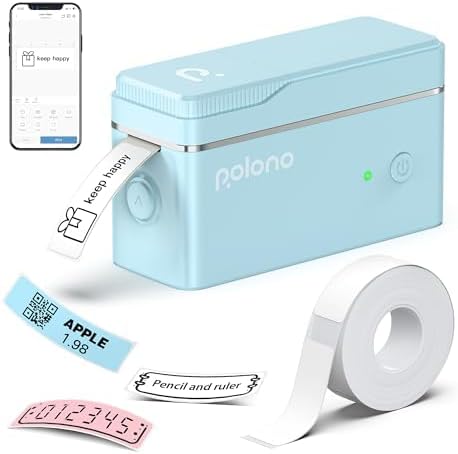
Image 1.1: POLONO P31S Label Maker Machine and included label roll.
2. Package Contents
Verify that all items listed below are included in your package:
- 1 x POLONO P31S Label Maker
- 1 x Label Maker Tape (starter roll)
- 1 x USB Cable (for charging)
- 1 x User Manual (this document)
- 1 x Cue Card
3. Product Overview
The POLONO P31S is a compact and portable thermal label printer designed for various labeling needs in home, office, and school environments. It features high-speed printing at 30mm/s and a resolution of 203dpi, producing clear labels without the need for ink or toner. The device connects via Bluetooth to your smartphone (iOS 13+ or Android) and is controlled through the 'Labelnize' app.

Image 3.1: Overview of POLONO P31S features including text, barcode, QR code, material, picture, time, frame, scanning, graffiti, document scan, and voice recognition capabilities.
Its small size (approximately 4 x 1.5 x 2.3 inches) and built-in rechargeable battery make it easy to carry and use anywhere.

Image 3.2: The compact size of the POLONO P31S label maker, measuring 4 inches long, 1.5 inches wide, and 2.3 inches high, demonstrating its portability in a bag.
4. Setup
4.1. Charging the Device
Before initial use, ensure the POLONO P31S is fully charged using the provided USB cable. Connect the USB cable to the printer's Type-C charging port and a suitable power source.
4.2. Installing the Label Tape
- Click the unlock button on the side of the printer to open the paper cover.
- Install the label tape into the paper bin, ensuring the printing side faces upwards.
- Leave approximately 0.2 inches (5mm) of label paper extending outside the machine and close the cover.
- Press and hold the power button to turn on the printer. Then, click the power button again to calibrate the label paper.

Image 4.1: Four-step guide for loading label tape into the POLONO P31S printer, showing opening the cover, inserting the roll, extending the label, and closing the cover.
4.3. Downloading the 'Labelnize' App
The POLONO P31S operates exclusively with the 'Labelnize' mobile application. Download the app from your device's app store:
Alternatively, you can scan the QR code provided in the product packaging or within the app's instructions to download.

Image 4.2: Visual guide for connecting the POLONO P31S via Bluetooth using the Labelnize app, showing app download options and connection prompts.
4.4. Connecting via Bluetooth
- Ensure your POLONO P31S printer is turned on.
- Open the 'Labelnize' app on your smartphone.
- The app will prompt you to enable Bluetooth. Grant the necessary permissions.
- Within the app, search for available devices and select 'P31S' to connect.
5. Operating Instructions
5.1. Creating and Printing Labels
The 'Labelnize' app offers a wide range of customization options for your labels.
- After connecting the printer, open the 'Labelnize' app.
- Tap the '+' icon to create a new label or select from existing templates.
- Utilize the app's features to add text, numbers, graphics, symbols, logos, barcodes, and QR codes. The app includes over 30 system templates, 90+ fonts, and 450+ tab icons.
- Adjust label size and paper type within the app settings if necessary.
- Once your label design is complete, tap 'Print'. You can specify the number of copies.

Image 5.1: An 8-step visual guide demonstrating how to use the Labelnize app to connect, select templates, customize, and print labels.

Image 5.2: The Labelnize app interface showcasing various customization options such as borders, fonts, multiple languages, and a wide selection of icons.
5.2. Cutting Labels
The POLONO P31S is equipped with a built-in cutting blade. After printing, press the cutting button on the printer to neatly cut the label. Do not pull the label out directly, as this may damage the printer or result in uneven cuts.

Image 5.3: Illustration of the POLONO P31S's built-in cutting knife, showing how to press the button for a clean label cut.
6. Maintenance
6.1. Using Genuine Label Tape
For optimal printing quality and to prevent damage to your printer, it is recommended to use genuine POLONO thermal label paper. The label tape includes a green non-adhesive sticker on the back; do not tear or damage this sticker, as it is crucial for the printing mechanism.

Image 6.1: Information on using genuine POLONO P31S label maker tape, highlighting the chip technology and the importance of not damaging the green sticker.
6.2. Cleaning the Printer
Periodically clean the print head and the interior of the label compartment with a soft, lint-free cloth. Ensure the printer is turned off and disconnected from any power source before cleaning. Do not use harsh chemicals or abrasive materials.
7. Troubleshooting
- Printer not connecting via Bluetooth: Ensure the printer is charged and turned on. Restart the 'Labelnize' app and your phone's Bluetooth. Make sure no other devices are actively connected to the printer.
- Poor print quality or faded text: Verify that genuine POLONO thermal label paper is being used. Check that the label tape is installed correctly and the green non-adhesive sticker is intact. The print head may need cleaning.
- Labels not feeding correctly: Ensure the label tape is properly seated in the paper bin and that approximately 0.2 inches of paper extends from the output slot. Recalibrate the label paper by pressing the power button after turning on the printer.
- Cannot print continuous label tapes: The POLONO P31S is designed for pre-cut labels and does not support continuous label tapes.
- Printer not turning on: Charge the printer for at least 30 minutes. If the issue persists, contact customer support.
8. Specifications
| Feature | Specification |
|---|---|
| Model Name | P31S |
| Printing Technology | Thermal |
| Connectivity Technology | Bluetooth |
| Maximum Print Resolution | 203 dpi |
| Print Media | Labels |
| Compatible Devices | Smartphones (iOS 13 or above, Android) |
| Control Method | App ('Labelnize') |
| Product Dimensions | 4 x 1.5 x 2.3 inches |
| Item Weight | 8.4 ounces |
| Supported Label Sizes | 15x40mm, 12x40mm, 14x40mm, 14x75mm (Max 15x40mm listed as max media size) |
| Special Features | Portable, Clear Printing, Easy to Use, Rechargeable, Wireless, Inkless, Built-in Cutter |

Image 8.1: Examples of different label sizes (12x40mm, 15x40mm, 14x40mm, 14x50mm, 14x75mm) and their potential uses, such as barcodes and text labels.
9. Warranty and Support
For warranty information, technical support, or service inquiries, please refer to the official POLONO website or contact their customer service directly. Details can typically be found on the product packaging or the manufacturer's website.


