
1. Introduction
Welcome to the user manual for your Tuanzi Soyes S10 MAXo 4G Mini Rugged Smartphone. This device is designed for durability and performance, featuring IP68 waterproofing, dust resistance, and shock protection. It operates on Android 11 and includes a Push-to-Talk (PPT) walkie-talkie function, making it suitable for various environments and uses. Please read this manual carefully to ensure proper use and maintenance of your device.

Image: The Tuanzi Soyes S10 MAXo smartphone demonstrating its waterproof capabilities.
2. Product Overview
2.1 Key Features
- Rugged Design: IP68 waterproof, anti-dust, anti-shock for enhanced durability.
- Compact Size: Dimensions of 108mm*53mm*17.5mm, making it highly portable.
- Operating System: Android 11 for a modern and efficient user experience.
- Processor: Octa-core processor for smooth performance.
- Memory: Available in 6GB+128GB or 8GB+256GB configurations.
- Display: 3.5-inch HD screen.
- Battery: 2400mAh Lithium-Ion battery.
- Connectivity: 4G network support, NFC, Bluetooth, WiFi, Hotspot sharing.
- Security: Face Recognition.
- Special Functions: PPT Walkie Talkie (public network intercom), Flashlight, OTG function.
2.2 Device Components
Familiarize yourself with the physical components of your S10 MAXo smartphone.
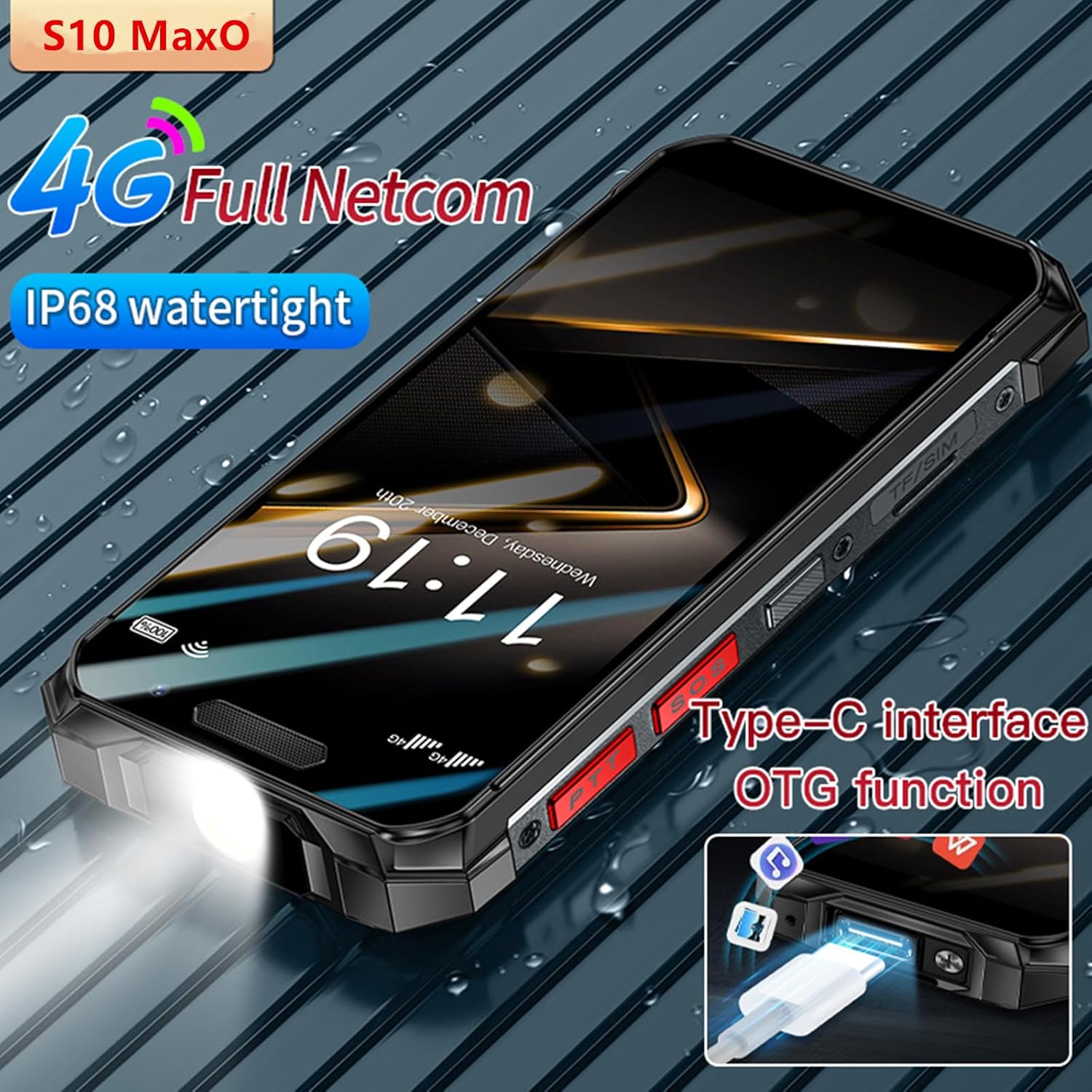
Image: The Type-C charging port and its OTG (On-The-Go) data transfer capability.

Image: The dedicated Push-to-Talk (PTT) buttons located on the side of the device.

Image: The rear camera setup of the S10 MAXo smartphone.
3. Setup
3.1 Inserting SIM Card and SD Card
- Locate the SIM/SD card tray on the side of the phone.
- Use the provided SIM ejector tool to open the tray.
- Carefully place your Nano-SIM card(s) and/or microSD card into the designated slots. Ensure correct orientation.
- Gently push the tray back into the phone until it is flush with the device body.
3.2 Initial Power On and Basic Setup
- Press and hold the Power button until the screen lights up.
- Follow the on-screen prompts to select your language, connect to a Wi-Fi network, and set up your Google account.
- You may be prompted to transfer data from an old device or set up Face Recognition.
4. Operating Instructions
4.1 Basic Phone Functions
- Making Calls: Open the Phone app, dial the number, and tap the call icon.
- Sending Messages: Open the Messages app, start a new conversation, enter the recipient and your message.
- Using the Touchscreen: Tap to select, swipe to navigate, pinch to zoom.
4.2 Face Recognition
To set up Face Recognition for unlocking your device:
- Go to Settings > Security & privacy > Face unlock.
- Follow the on-screen instructions to register your face.
- Ensure you are in a well-lit area and hold the phone at eye level during registration.

Image: Demonstrating the face recognition feature for secure unlocking.
4.3 Flashlight Function
The S10 MAXo features a dedicated flashlight. To activate it, press the designated flashlight button on the side of the device, or access it via the quick settings panel.

Image: The integrated flashlight on the S10 MAXo.
4.4 NFC (Near Field Communication)
NFC allows for quick, short-range wireless communication. To enable NFC:
- Go to Settings > Connected devices > Connection preferences > NFC.
- Toggle NFC to 'On'.
- You can now use NFC for contactless payments, pairing with accessories, or sharing content by tapping your phone to another NFC-enabled device.

Image: Using the NFC function for quick interactions.
5. Walkie Talkie Function (PPT Intercom)
The S10 MAXo supports a public network intercom function, allowing for Push-to-Talk (PPT) communication. This feature enables 'one-to-one', 'one-to-many', and 'many-to-many' communication modes.
5.1 Activating PPT Intercom
- Ensure your device has an active 4G network connection.
- Locate the dedicated PPT buttons on the side of your phone.
- Access the pre-installed intercom application (if applicable) or download a compatible public network intercom app from the Google Play Store.
- Follow the app's instructions to set up your intercom channel or group.
- Press and hold the PPT button to transmit your voice, and release to listen.
This function supports voice, photo, video, and data transmission over the public network.
6. Maintenance
To ensure the longevity and optimal performance of your Tuanzi Soyes S10 MAXo, follow these maintenance guidelines:
- Cleaning: Use a soft, damp cloth to clean the device. Avoid harsh chemicals or abrasive materials.
- Water Resistance: While IP68 rated, ensure all port covers are securely closed before exposing the phone to water or dust. Avoid prolonged submersion or high-pressure water jets.
- Temperature: Do not expose the phone to extreme temperatures (very hot or very cold) as this can affect battery life and internal components.
- Charging: Use only the provided charger and cable or certified compatible accessories to prevent damage to the battery.
7. Troubleshooting
If you encounter issues with your device, try the following solutions:
- Device Not Turning On: Ensure the battery is charged. Connect the charger and wait a few minutes before attempting to power on again.
- Poor Network Signal: Check if your SIM card is properly inserted. Move to an area with better network coverage.
- Apps Crashing/Freezing: Close the problematic app and reopen it. If the issue persists, restart the phone. Consider clearing the app's cache or reinstalling it.
- Battery Draining Quickly: Reduce screen brightness, close unused apps, disable unnecessary features like GPS or Bluetooth when not in use.
- Touchscreen Unresponsive: Restart the device. If the issue continues, contact customer support.
8. Specifications
| Feature | Specification |
|---|---|
| Brand | Tuanzi |
| Model | S10 MAXo |
| Operating System | Android 11 |
| Display Size | 3.5 inches |
| Display Resolution | 640 x 480 (Max 640 x 360) |
| Processor | Octa Core |
| Memory (RAM+ROM) | 6GB+128GB / 8GB+256GB |
| Battery Capacity | 2400 mAh Lithium-Ion |
| Waterproof Rating | IP68 |
| Biometric Security | Face Recognition |
| Camera Features | Front Camera, Video Capture Resolution 1080p |
| Connectivity | 4G, NFC, Bluetooth, WiFi, Hotspot |
| Special Functions | PPT Walkie Talkie, Flashlight, OTG |
9. Warranty and Support
For any problems or concerns regarding your Tuanzi Soyes S10 MAXo smartphone, please contact the seller directly via the messaging system on the platform where you purchased the device. The seller aims to reply with a solution within 12 hours.
Please retain your proof of purchase for any warranty claims.