
EverNary B12W
EverNary B12W WiFi Mailbox Alert Add-on Gateway Instruction Manual
Model: B12W
1. Introduction
This manual provides essential instructions for the setup, operation, and maintenance of your EverNary B12W Add-on Gateway. This device functions as a receiver for the WiFi Mailbox Alert system, designed to provide real-time notifications when mail is delivered. Please read this manual thoroughly before use to ensure proper functionality and safety.
Important Note: This Add-on Gateway cannot operate independently. It requires connection to a compatible WiFi Mailbox Sensor or other EverNary transmitters (e.g., SOS call button, motion sensor, door sensor).
2. Package Contents
- Plug-in Gateway (B12W) x 1
- Instruction Manual x 1
3. Product Overview
The EverNary B12W Add-on Gateway is a compact, plug-in receiver designed to integrate with your existing EverNary smart home alert system. It connects to your home's 2.4GHz Wi-Fi network to send notifications to your smartphone via a dedicated application.
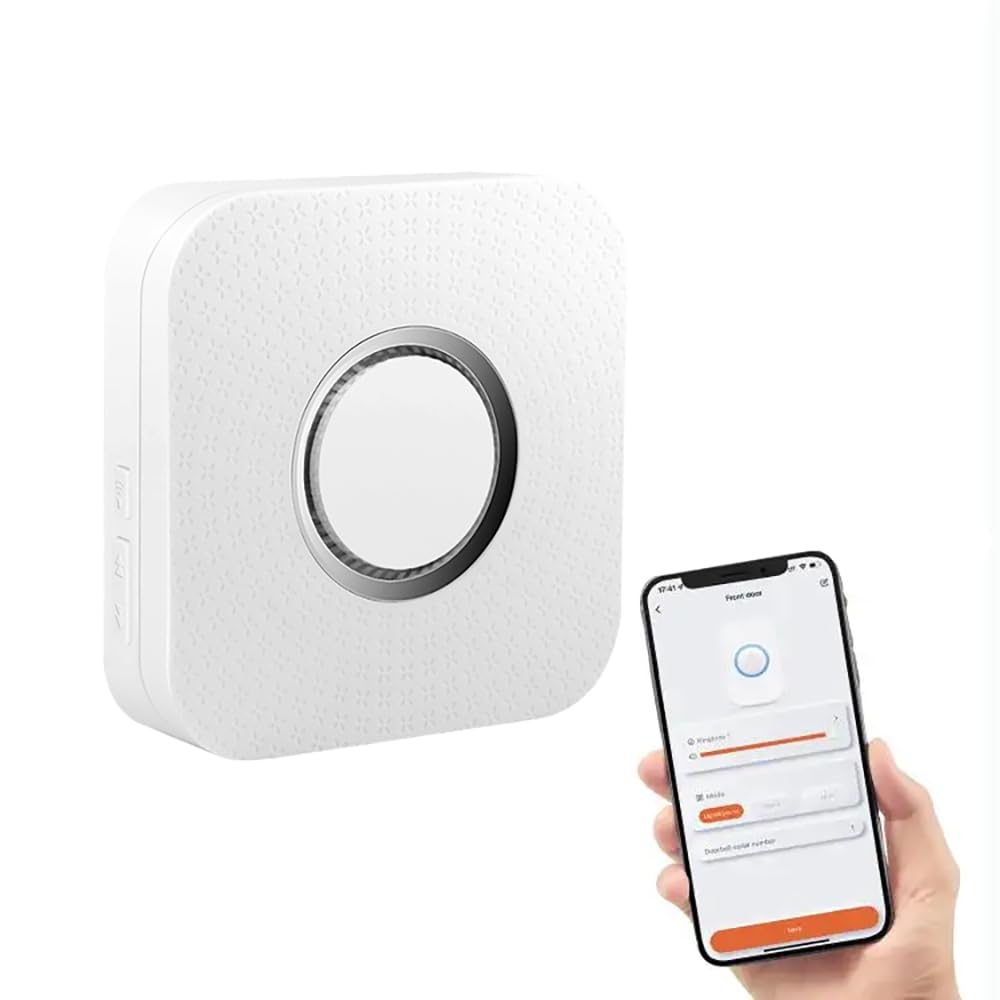
Figure 1: EverNary B12W Add-on Gateway. This image displays the white, rectangular gateway unit with a standard US two-prong plug on the back. The front features a speaker grille at the bottom and a small hole at the top, likely for an indicator light or reset button. The side shows two buttons, one with a Wi-Fi icon and another with up/down arrows, possibly for volume or pairing.
Key Features:
- Real-time notifications to your smartphone via app.
- Expandable system: Connects up to 20 transmitters (e.g., mailbox sensors, SOS buttons, motion sensors, door sensors).
- LED light flashing and sound alerts.
- Supports 2.4GHz Wi-Fi networks only.
4. Setup Instructions
4.1 Network Requirements
- Ensure your home Wi-Fi network is 2.4GHz. This device does not support 5GHz networks.
- A stable Wi-Fi signal is crucial for optimal performance. Position the gateway within good range of your router.
4.2 Initial Setup
- Download the App: Search for the "EverNary" or specified companion app in your smartphone's app store (iOS or Android) and install it.
- Power On: Plug the EverNary B12W Gateway into a standard electrical outlet. The device will power on, and an indicator light (if present) may flash.
- Add Device in App: Open the installed app, create an account or log in, and follow the in-app instructions to add a new device. Select the "Add-on Gateway" or similar option.
- Connect to Wi-Fi: The app will guide you through connecting the gateway to your 2.4GHz home Wi-Fi network. You may need to enter your Wi-Fi password.
- Pair Transmitters: Once the gateway is connected to Wi-Fi, follow the app's instructions to pair your EverNary mailbox sensor or other compatible transmitters (e.g., B08DKVGCY3, B07ZKGLR4Q).
- Test System: After pairing, test the system by triggering your mailbox sensor or other paired devices to ensure notifications are received on your smartphone.
5. Operating Instructions
5.1 Receiving Notifications
When a paired transmitter (e.g., mailbox sensor) is triggered, the EverNary B12W Gateway will receive the signal. It will then:
- Emit an audible sound.
- Flash an LED light (if applicable).
- Send a push notification to your smartphone via the EverNary app.
5.2 App Functions
The EverNary smartphone app allows you to:
- View notification history.
- Manage paired transmitters.
- Adjust gateway settings (e.g., notification sounds, LED behavior).
- Add additional gateways or transmitters to your system.
6. Maintenance
- Cleaning: Wipe the gateway with a soft, dry cloth. Do not use liquid cleaners or abrasive materials.
- Firmware Updates: Periodically check the EverNary app for available firmware updates for your gateway. Keeping the firmware updated ensures optimal performance and security.
- Network Stability: Ensure your home Wi-Fi network remains stable. Frequent disconnections can affect the gateway's performance.
7. Troubleshooting
| Problem | Possible Cause | Solution |
|---|---|---|
| No notifications received. |
|
|
| Gateway not connecting to Wi-Fi. |
|
|
| Gateway LED not lighting up. |
|
|
If you experience any problems with the product that cannot be resolved using the above steps, please contact EverNary customer support.
8. Specifications
| Model Number | B12W |
| Brand | EverNary |
| Part Number | B12W |
| Color | White |
| Item Weight | 4.96 ounces (approx. 140 grams) |
| Compatible Devices | Smartphone (iOS/Android) |
| Control Method | App |
| Wi-Fi Support | 2.4GHz only (Does NOT support 5GHz) |
9. Warranty and Support
9.1 Warranty Information
Specific warranty details are typically provided with your purchase documentation or on the manufacturer's official website. Please refer to these resources for information regarding warranty duration and terms.
9.2 Customer Support
For technical assistance, troubleshooting beyond this manual, or warranty claims, please contact EverNary customer support. You can usually find contact information on the EverNary website or through the purchase platform (e.g., Amazon seller page).
Online Support: Visit the EverNary Store on Amazon
Ask a question about this manual
Ask about setup, troubleshooting, compatibility, parts, safety, or missing instructions. Manuals+ will review the question and use this page’s manual context to help answer it.