
Womier M68 HE
Womier M68 HE Rapid Trigger Magnetic Switch 60% Gaming Keyboard User Manual
Brand: Womier
Model: M68 HE
1. Overview
The Womier M68 HE is a 60% compact gaming keyboard featuring rapid trigger magnetic switches. Designed for high-performance gaming, it offers hyper-fast response times, customizable actuation, and vibrant RGB lighting. Its durable construction includes a metal PCB plate and PBT topographic keycaps, providing a stable and responsive typing experience.

Figure 1: Womier M68 HE keyboard on a desk setup.

Figure 2: Close-up of the Womier M68 HE keyboard with RGB lighting.
2. Setup
2.1. Package Contents
Verify that all items are present in the package:
- Womier M68 HE Keyboard
- USB-A to USB-C Braided Cable
- Switch Puller and Keycap Puller
- 2x Spare Outemu Magnetic Switches
- Instruction Manual

Figure 3: Womier M68 HE Package Contents.
2.2. Connecting the Keyboard
- Locate the USB-C port on the back of the keyboard.
- Connect the provided USB-A to USB-C cable to the keyboard and your computer.
- Ensure the operating system switch (Win/Mac) on the back of the keyboard is set to your desired system.
- The keyboard is plug-and-play; no additional drivers are typically required for basic functionality.
2.3. Software Installation
For advanced customization, including rapid trigger settings, key remapping, and RGB effects, download the official Womier M68 HE software from the manufacturer's website. Follow the on-screen instructions for installation.
3. Operating Instructions
3.1. Basic Key Functions (FN Combinations)
The Womier M68 HE utilizes FN key combinations for various functions due to its compact 60% layout. Refer to the diagram below for common combinations:

Figure 4: FN Key Combinations for Womier M68 HE.
- FN + WIN: Turn on/off WIN function.
- FN + Up Arrow: Backlight brightness +
- FN + Down Arrow: Backlight brightness -
- FN + Backspace: Switch between 15 backlight modes.
- FN + Left Arrow: Backlight speed -
- FN + Right Arrow: Backlight speed +
- FN + Spacebar: Restore factory settings.
- FN + Ctrl: Switch backlight colors.
3.2. RGB Lighting Control
The keyboard features 16.8 million RGB lighting colors with 15 pre-set lighting effects. Adjust brightness and speed using the knob or FN+key combinations. You can also select single color effects or turn off the backlight entirely.
3.3. Rapid Trigger and Adjustable Actuation
The Womier M68 HE's magnetic switches offer a rapid trigger feature and adjustable actuation distance from 0.3mm to 4mm. This allows for precise control, activating or deactivating keys based on travel distance rather than a fixed point. Each key can be personalized in 0.1mm increments via the software.
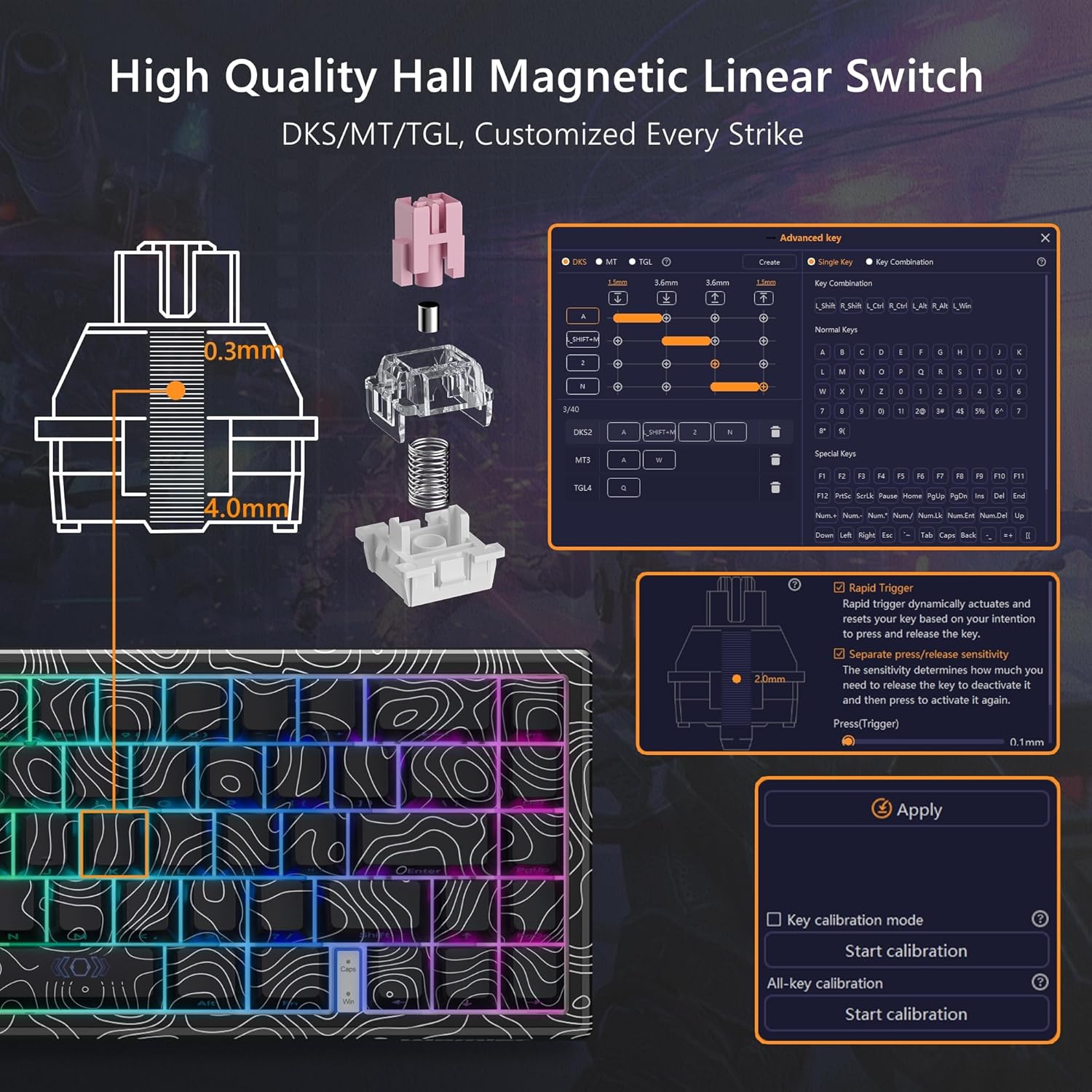
Figure 5: Hall Magnetic Linear Switch Actuation Diagram.

Figure 6: Adjustable Actuation Distance for Magnetic Switches.
Video 1: Demonstration of the Womier M68 HE Rapid Trigger Gaming Keyboard features.
3.4. Customization Software
The dedicated software allows for comprehensive management of the keyboard. You can customize macros, key bindings, set DKS, MT, TGL features, and adjust lighting modes, brightness, and effects.

Figure 7: Womier M68 HE Customization Software Interface.
Video 2: Overview of the M68 HE 60% Gaming Keyboard's rapid trigger and mechanical features.
4. Maintenance
4.1. Cleaning
To maintain optimal performance and appearance, regularly clean your keyboard. Use a soft brush or compressed air to remove dust and debris from between the keycaps. For stubborn dirt, gently wipe the keycaps and keyboard surface with a slightly damp, lint-free cloth. Avoid using harsh chemicals or abrasive materials.
4.2. Keycap and Switch Replacement
The Womier M68 HE uses Outemu magnetic switches. These switches are hot-swappable, allowing for easy replacement or customization. Use the provided switch puller to carefully remove switches. Note that only Outemu magnetic switches are compatible with this keyboard.

Figure 8: Internal Structure of the Womier M68 HE Keyboard.
5. Troubleshooting
5.1. Keyboard Not Responding
- Ensure the USB-C cable is securely connected to both the keyboard and your computer.
- Try connecting the keyboard to a different USB port on your computer.
- Verify the Win/Mac switch on the back of the keyboard is set correctly for your operating system.
- Restart your computer.
5.2. RGB Lighting Issues
- Check FN key combinations for brightness and mode adjustments (refer to Section 3.1).
- Ensure the lighting is not turned off via the software.
- If using customization software, ensure the settings are applied correctly.
5.3. Accidental Keystrokes / Rapid Trigger Sensitivity
- Adjust the actuation distance for individual keys using the customization software (refer to Section 3.3). A higher actuation point (e.g., 3mm-4mm) requires a deeper press, reducing accidental triggers.
- Perform key calibration through the software to ensure accurate switch recognition.
5.4. Software Not Detecting Keyboard
- Ensure the keyboard is properly connected via USB.
- Reinstall the customization software.
- Check for any available software updates.
6. Specifications
| Feature | Detail |
|---|---|
| Brand | Womier |
| Model | M68 HE |
| Connectivity Technology | USB-C (Wired) |
| Switch Type | Hall Effect Magnetic Switches (Outemu) |
| Actuation Distance | Adjustable from 0.3mm to 4mm |
| Polling Rate | Up to 8000 Hz |
| Keyboard Layout | 60% Compact (67 keys) |
| Keycaps | PBT Topographic, Side-Printed |
| Backlighting | 16.8 Million RGB (15 pre-set effects) |
| Compatible Devices | PC (Mac/Windows) |
| Material | Metal, Polybutylene Terephthalate |
7. Warranty and Support
7.1. Warranty Information
The Womier M68 HE keyboard comes with a 1-year warranty from the date of purchase. This warranty covers manufacturing defects and malfunctions under normal use. Please retain your proof of purchase for warranty claims.
7.2. Customer Support
For technical assistance, warranty claims, or any other inquiries, please contact Womier customer support through their official website or the contact information provided in your product packaging.
Related documentsM68 HE


Ask a question about this manual
Ask about setup, troubleshooting, compatibility, parts, safety, or missing instructions. Manuals+ will review the question and use this page’s manual context to help answer it.