
1. Product Overview
The PDP Gaming REMATCH GLOW Enhanced Wired Gaming Controller is an officially licensed gamepad designed for Xbox Series X|S, Xbox One, and Windows PC. It features a unique glow-in-the-dark design, mappable back buttons, advanced audio controls, and customizable settings via the PDP Control Hub app.

Figure 1: Front view of the PDP Gaming REMATCH GLOW Controller, showcasing its unique Android Dreams design and Xbox button layout.
2. Setup
2.1 Connecting the Controller
- Locate the 8-foot USB-C cable included with your controller.
- Insert the USB-C end of the cable into the port on the top of the controller.
- Connect the standard USB-A end of the cable to an available USB port on your Xbox console (Xbox Series X|S, Xbox One) or Windows PC.
- The controller will automatically power on and connect to your device. The Xbox button on the controller will illuminate to indicate a successful connection.

Figure 2: The controller connected via its detachable 8-foot USB-C cable, ready for use.
3. Operating Instructions
3.1 Mappable Back Buttons
The controller features two programmable back buttons for quick access to frequently used functions without removing your thumbs from the thumbsticks. These buttons can be re-mapped using the PDP Control Hub app.
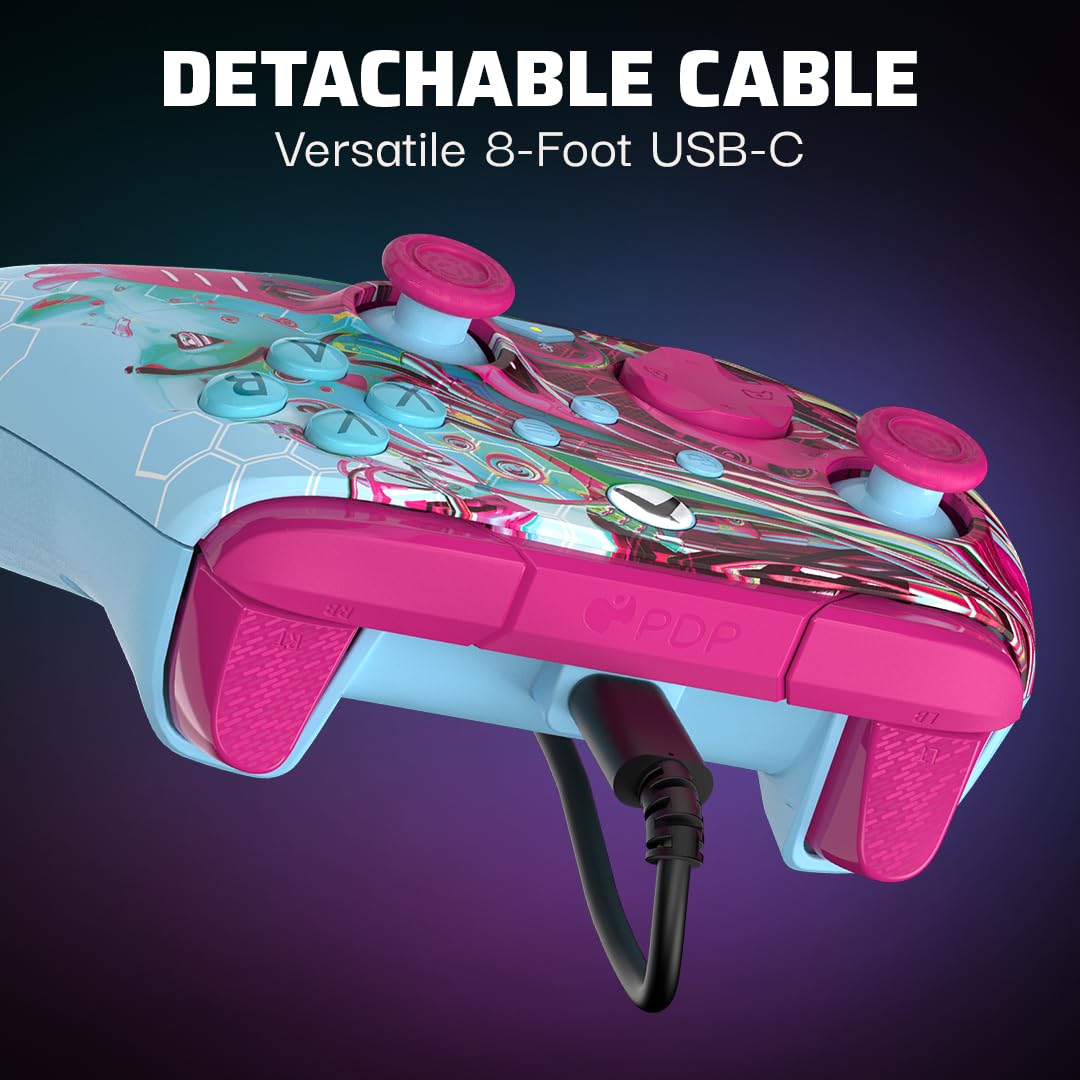
Figure 3: The two programmable back buttons located on the underside of the controller, designed for enhanced gameplay.
3.2 Audio Controls
The controller includes built-in audio controls for convenient volume adjustment and mic muting. Connect your 3.5mm headset to the audio jack located on the bottom of the controller.
- Volume Control: Hold the Function button (located below the right thumbstick) and press Up/Down on the D-pad to adjust overall volume.
- Game/Chat Balance: Hold the Function button and press Left/Right on the D-pad to adjust the balance between game audio and chat audio.
- Mic Mute: Press the Function button once to mute/unmute your microphone. The LED indicator on the controller will change color to show mic status.

Figure 4: The D-Pad and Function button, which allow for quick adjustments to audio settings directly from the controller.
3.3 PDP Control Hub App
For advanced customization, download the free PDP Control Hub app on your Xbox console or Windows PC. The app allows you to:
- Re-map buttons.
- Reconfigure triggers.
- Adjust dead zones.
- Update controller firmware.
- And more.

Figure 5: The PDP Control Hub app interface, providing comprehensive customization options for your controller.
4. Glow-in-the-Dark Feature
The Android Dreams controller features a unique glow-in-the-dark design. To activate the glow effect, expose the controller to a light source (such as sunlight or a bright lamp) for a period of time. The longer the exposure, the brighter and longer the glow will last in dark environments.

Figure 6: The controller demonstrating its glow-in-the-dark capability, revealing intricate patterns in low light conditions.
Video 1: Official product video showcasing the glow-in-the-dark feature of the PDP Gaming REMATCH GLOW Controller.
5. Maintenance
- Keep the controller clean by wiping it with a soft, dry cloth.
- Avoid exposing the controller to extreme temperatures, humidity, or direct sunlight for prolonged periods.
- Do not attempt to disassemble the controller, as this will void the warranty.
- Store the controller in a safe place when not in use to prevent damage.
6. Troubleshooting
| Problem | Possible Cause | Solution |
|---|---|---|
| Controller not responding. | Loose USB connection. | Ensure the USB-C cable is securely connected to both the controller and the console/PC. Try a different USB port. |
| Audio issues (no sound/mic not working). | Headset not properly connected or audio settings incorrect. | Check headset connection to the 3.5mm jack. Verify audio settings using the D-pad controls or the PDP Control Hub app. Ensure mic is not muted. |
| Buttons not responding as expected. | Incorrect button mapping or firmware issue. | Use the PDP Control Hub app to check and reset button mappings. Update controller firmware if available. |
| Glow-in-the-dark effect is weak. | Insufficient light exposure. | Expose the controller to a strong light source (e.g., sunlight, bright lamp) for a longer duration to charge the glow material. |
7. Specifications
- Model Number: 049-023-ADDM
- Compatibility: Xbox Series X|S, Xbox One, Windows 10/11 PC
- Connectivity: Wired (8-foot detachable USB-C cable)
- Audio: 3.5mm audio jack with D-pad audio controls (volume, game/chat balance, mic mute)
- Programmable Features: Two mappable back buttons, customizable triggers, adjustable dead zones via PDP Control Hub app
- Special Features: Glow-in-the-dark design, dual rumble motors
- Weight: 12.3 ounces
- Manufacturer: PDP
- Country of Origin: China
8. Warranty and Support
For warranty information and technical support, please visit the official PDP website or contact their customer service. Keep your proof of purchase for warranty claims.


